FBS Open Account
Writen By

Online Trading Platform Researcher and Guide Writer
Researches broker platforms and trading account Systems.
FBS is a globally trusted forex and CFD broker, offering access to a wide range of financial markets with user-friendly platforms, competitive spreads, and strong regulatory backing.
Whether you’re new to trading or an experienced investor, getting started begins with opening an account and signing in to access the trading dashboard. This guide walks you through the complete process to help you set up and log in to your FBS account with ease and security.
How to Open an Account on FBS
How to Open an Account
The process of opening an account at FBS is simple.- Visit the website fbs.com or click here
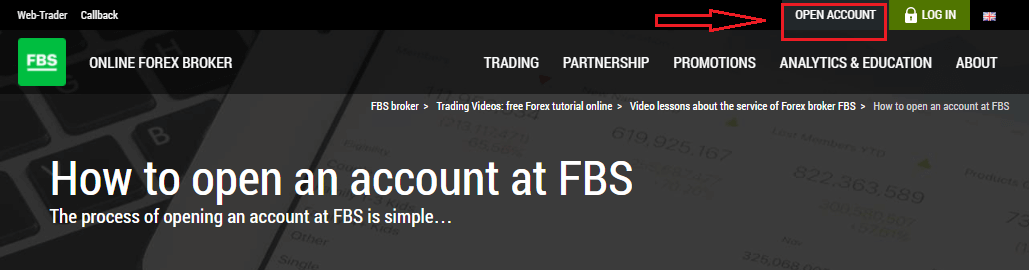
- Click the "Open an account" button in the top right corner of the website. You’ll need to go through the registration procedure and get a personal area.
- You can register via a social network or enter the data required for account registration manually.
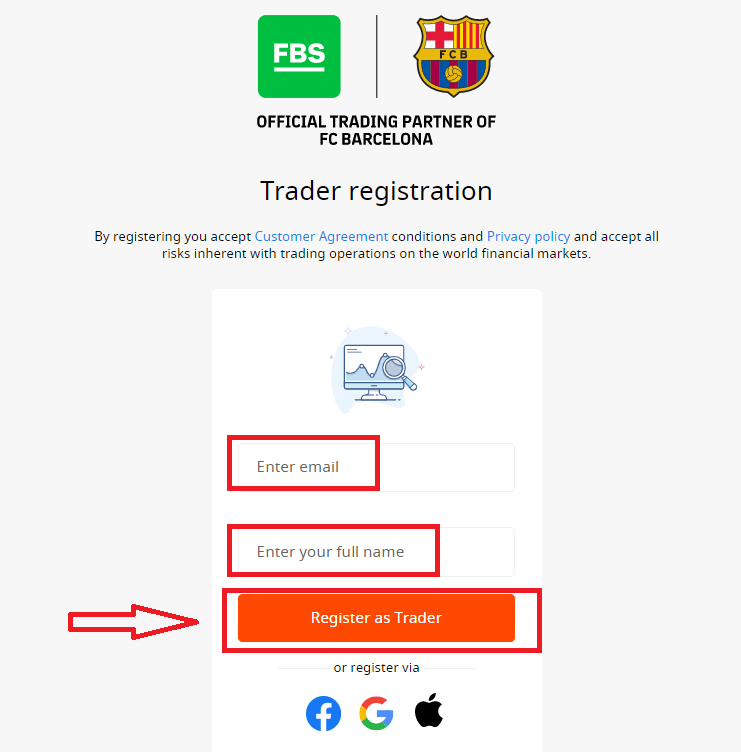
Enter your valid email and full name. Make sure to check that the data is correct; it will be needed for verification and a smooth withdrawal process. Then click on the “Register as Trader” button.
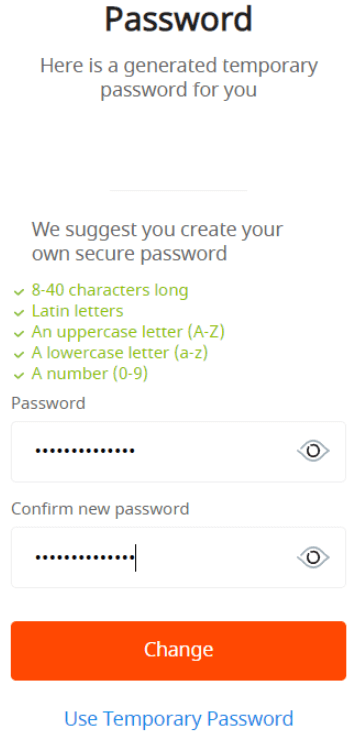
You will be shown a generated temporary password. You can continue using it, but we recommend you to create your password.
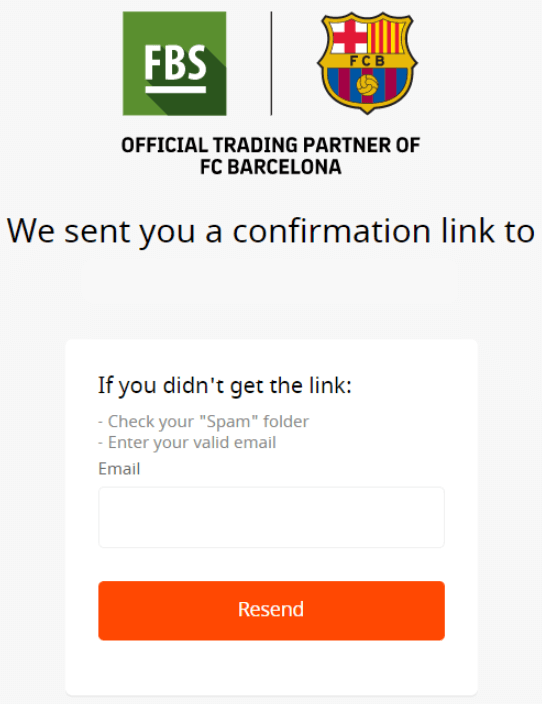
An email confirmation link will be sent to your email address. Make sure to open the link in the same browser your open Personal Area is.
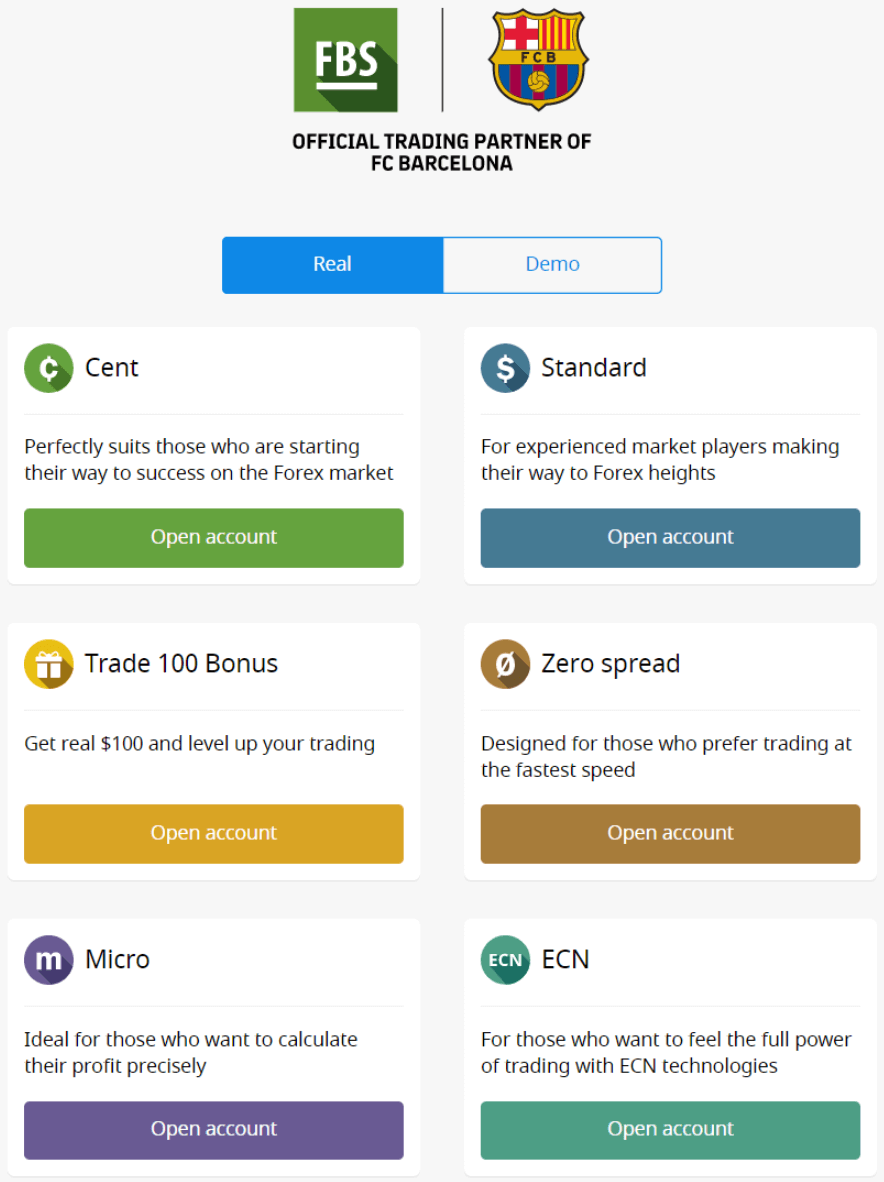
As soon as your email address is confirmed, you will be able to open your first trading account. You can open a Real account or a Demo account.
Let’s go through the second option. Firstly, you will need to choose an account type. FBS offers a variety of account types.
- If you are a newbie, choose a cent or micro account to trade with smaller amounts of money as you get to know the market.
- If you already have Forex trading experience, you might want to choose a standard, zero spread, or unlimited account.
In order to find out more about the account types, check the Trading section of FBS.
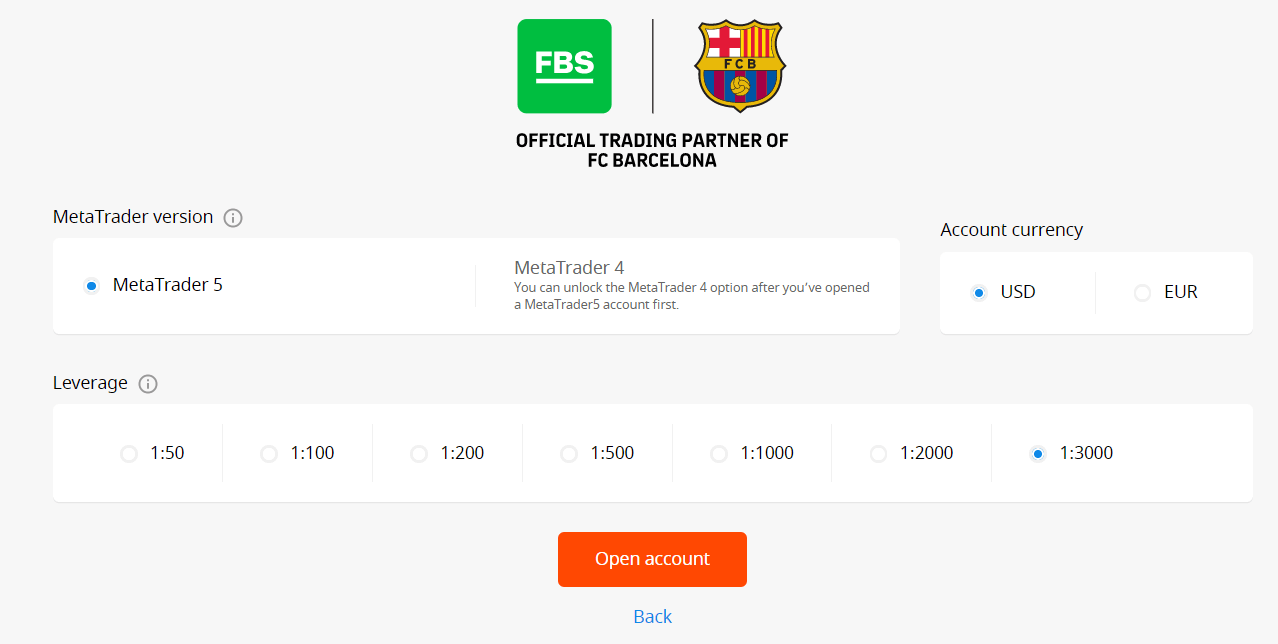
Depending on the account type, it may be available for you to choose the MetaTrader version, account currency, and leverage.
Congratulations! Your registration is finished!
You will see your account information. Make sure to save it and keep it in a safe place. Note that you will need to enter your account number (MetaTrader login), trading password (MetaTrader password), and MetaTrader server to MetaTrader4 or MetaTrader5 to start trading.
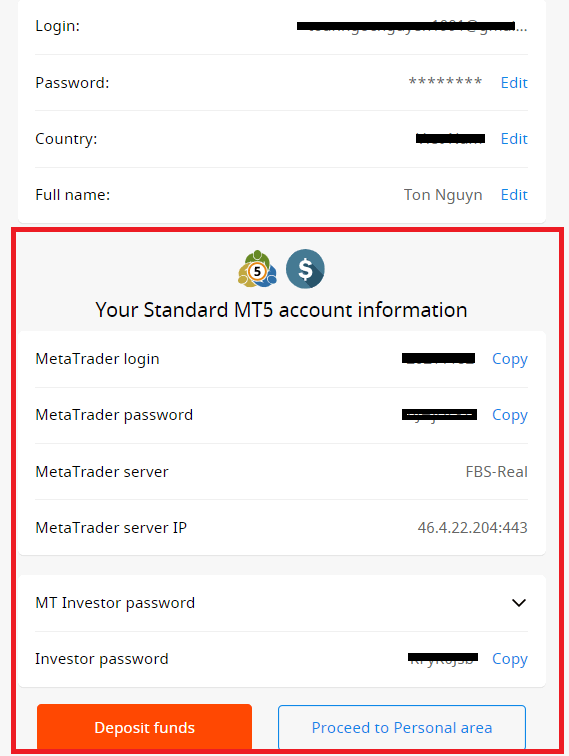
Don’t forget that to be able to withdraw money from your account, you need to verify your profile first.
How to Open with a Facebook Account
Also, you have an option to open your account through the web by Facebook, and you can do that in just a few simple steps:1. Click on the Facebook button on the registration page
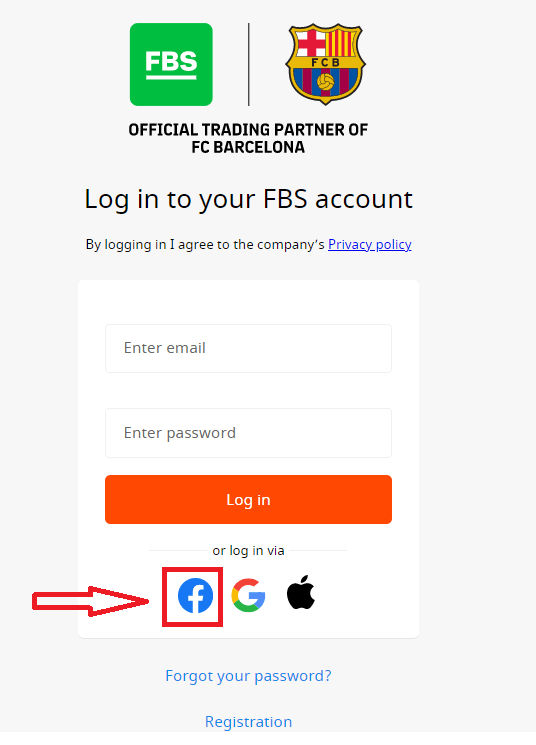
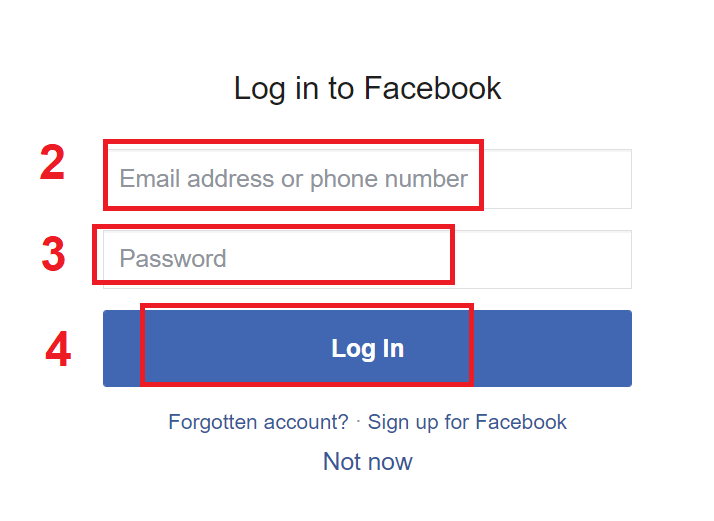
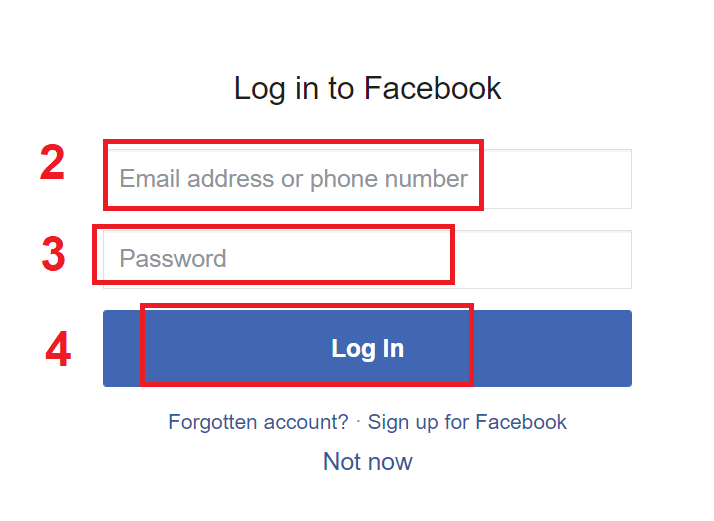
2. The Facebook login window will be opened, where you will need to enter your email address that you used to register on Facebook
3. Enter the password from your Facebook account
4. Click on “Log In.”
Once you’ve clicked on the “Log in” button, FBS is requesting access to: Your name and profile picture and email address. Click Continue...
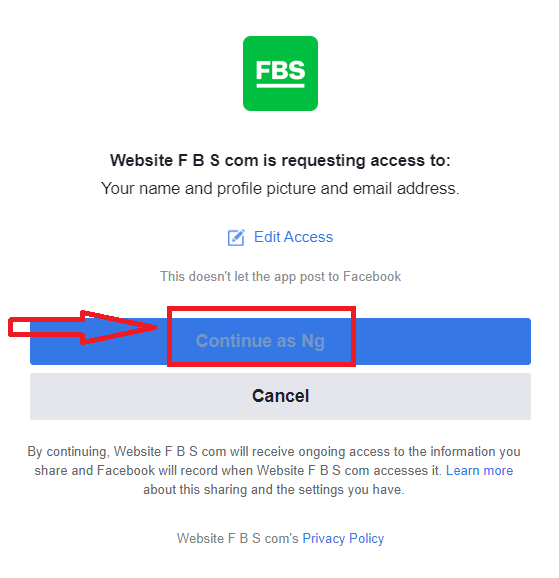
After that, you will be automatically redirected to the FBS platform.
How to Open with a Google+ Account
1. To sign up with a Google+ account, click on the corresponding button in the registration form.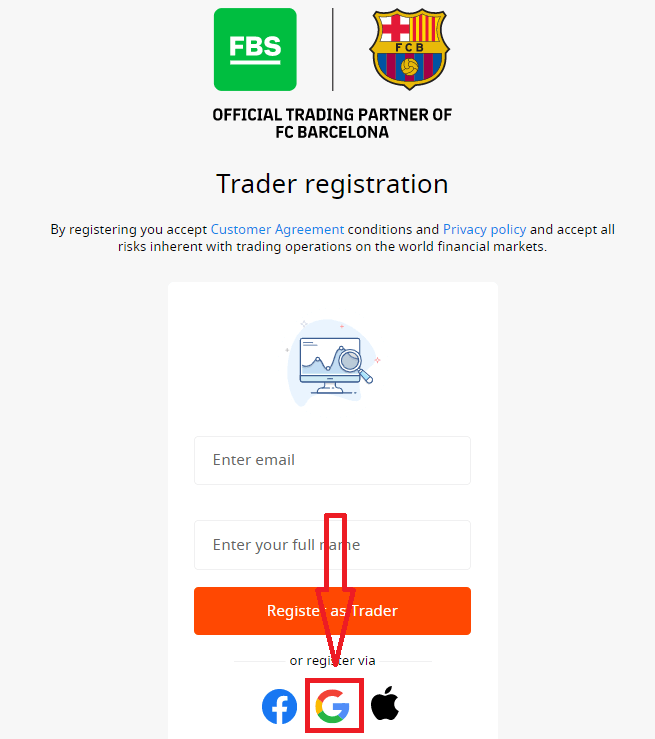
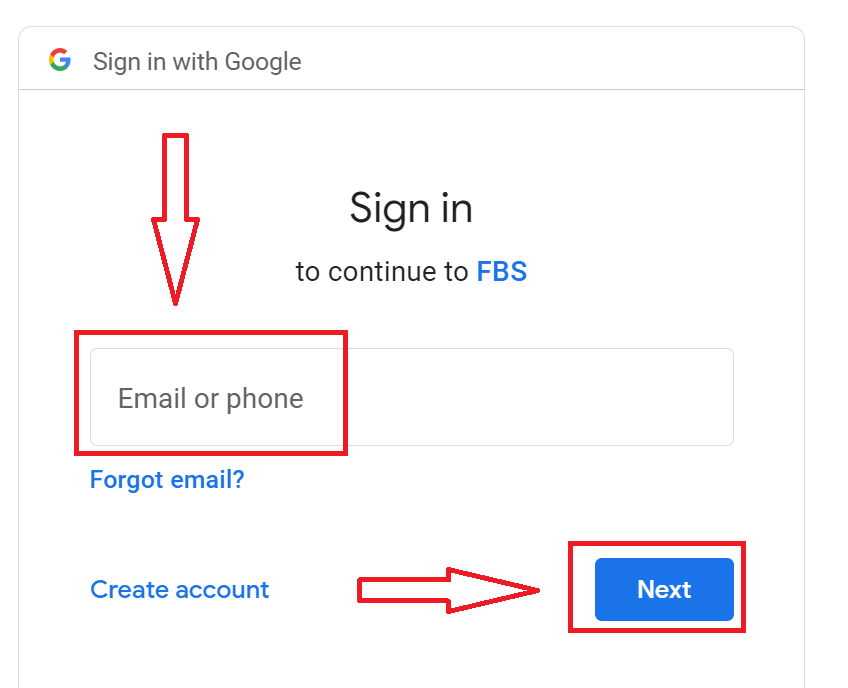
2. In the new window that opens, enter your phone number or email and click “Next”.
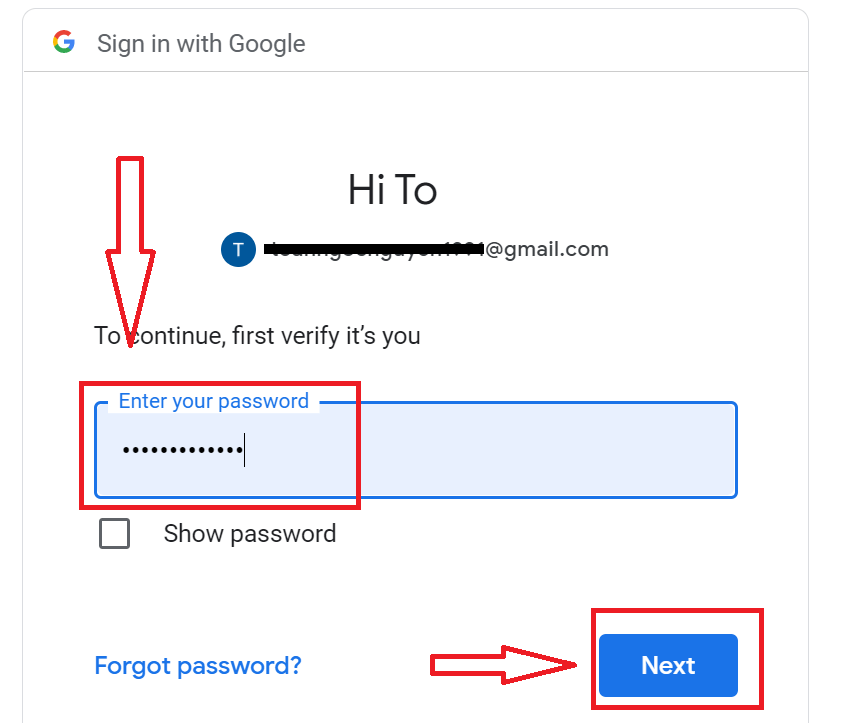
3. Then enter the password for your Google account and click “Next”.
After that, follow the instructions sent from the service to your email address.
How to Open with Apple ID
1. To sign up with an Apple ID, click on the corresponding button in the registration form.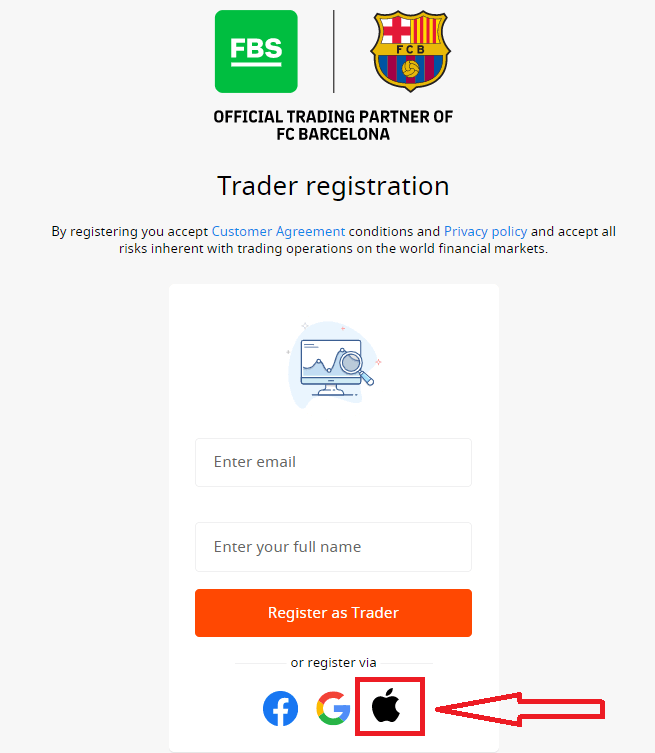
2. In the new window that opens, enter your Apple ID and click “Next”.
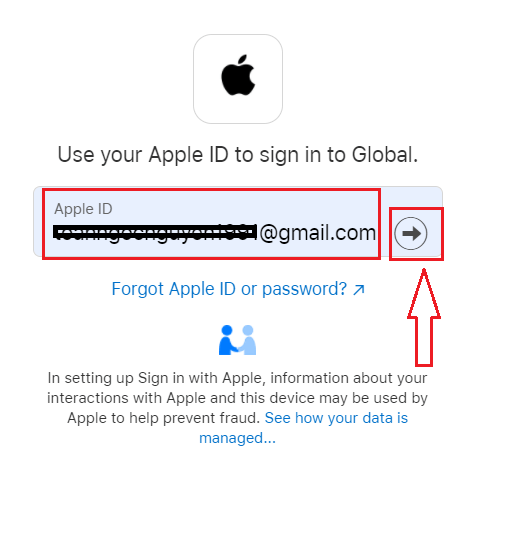
3. Then enter the password for your Apple ID and click “Next”.
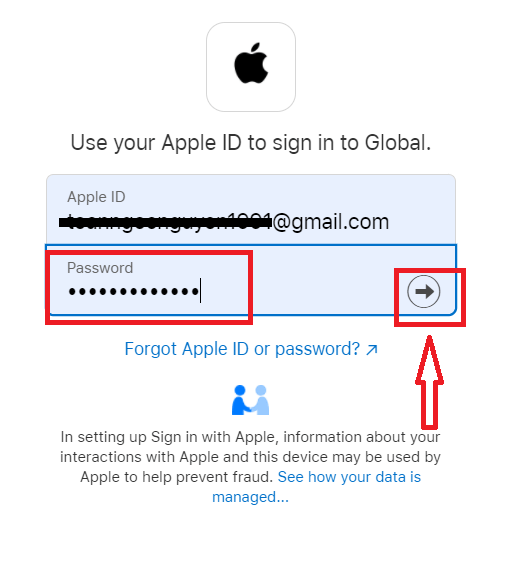
After that, follow the instructions sent from the service to your Apple ID.
FBS Android App
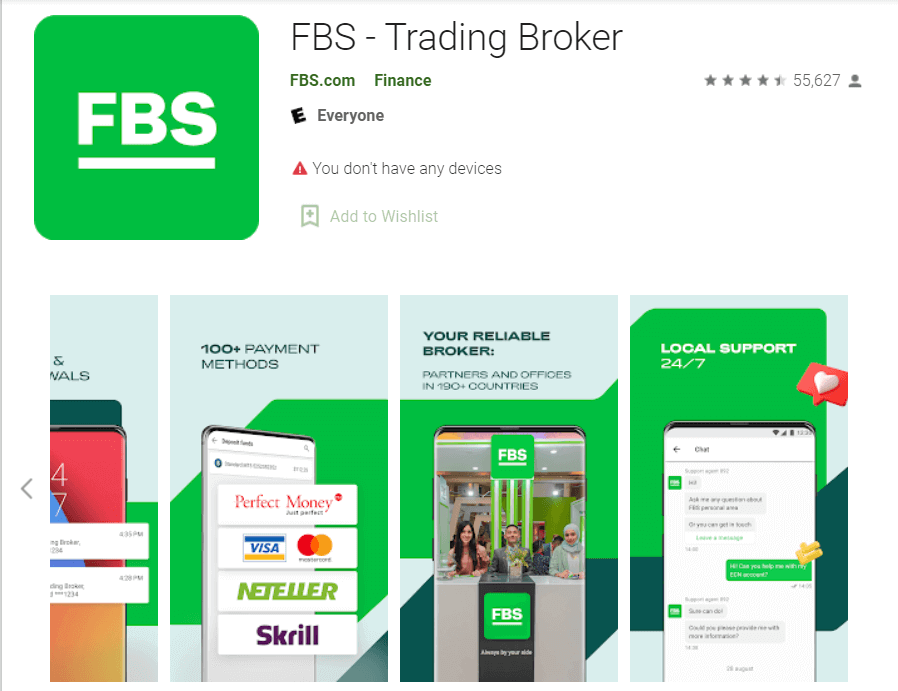
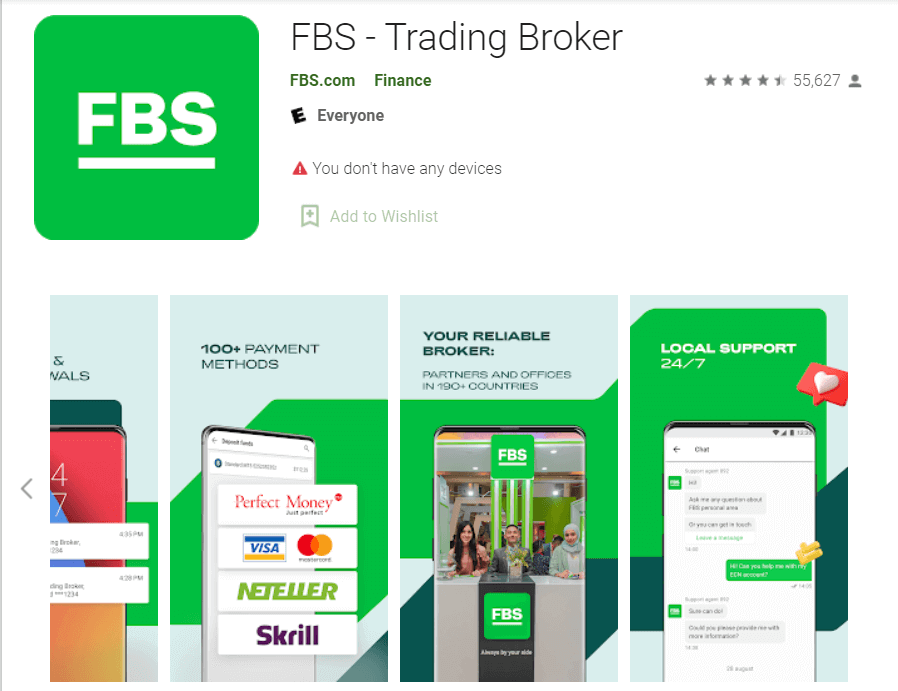
If you have an Android mobile device, you will need to download the official FBS mobile app from Google Play or here. Simply search for the “FBS – Trading Broker” app and download it on your device.
The mobile version of the trading platform is exactly the same as the web version it. Consequently, there won’t be any problems with trading and transferring funds. Moreover, the FBS trading app for Android is considered to be the best app for online trading. Thus, it has a high rating in the store.
FBS iOS App
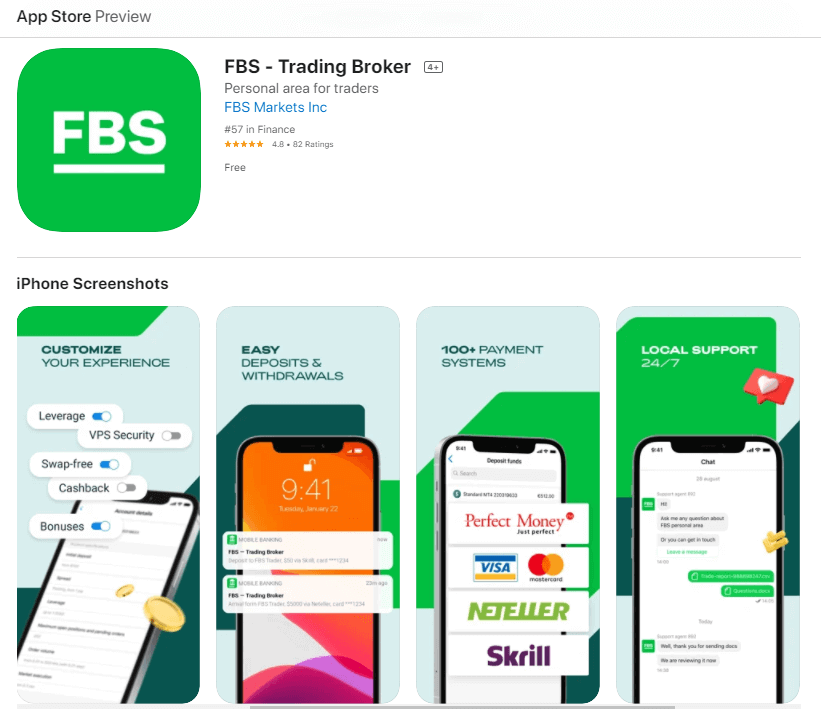
If you have an iOS mobile device, you will need to download the official FBS mobile app from the App Store or here. Simply search for the “FBS – Trading Broker” app and download it on your iPhone or iPad.
The mobile version of the trading platform is exactly the same as web version of it. Consequently, there won’t be any problems with trading and transferring funds. Moreover, FBS trading app for IOS is considered to be the best app for online trading. Thus, it has a high rating in the store.
FAQ of Open Account
I want to try a Demo Account in the FBS Personal Area (web)
You don’t have to spend your own money on Forex right away. We offer practice demo accounts, which will let you test the Forex market with virtual money using real market data.Using a Demo account is an excellent way to learn how to trade. You will be able to practice by pressing the buttons and grasp everything much faster without being afraid of losing your own funds.
The process of opening an account at FBS is simple.
1. Open your Personal Area.
2. Find the "Demo accounts" section and click on the plus sign.
2. Find the "Demo accounts" section and click on the plus sign.

3. On the opened page, please choose the account type.
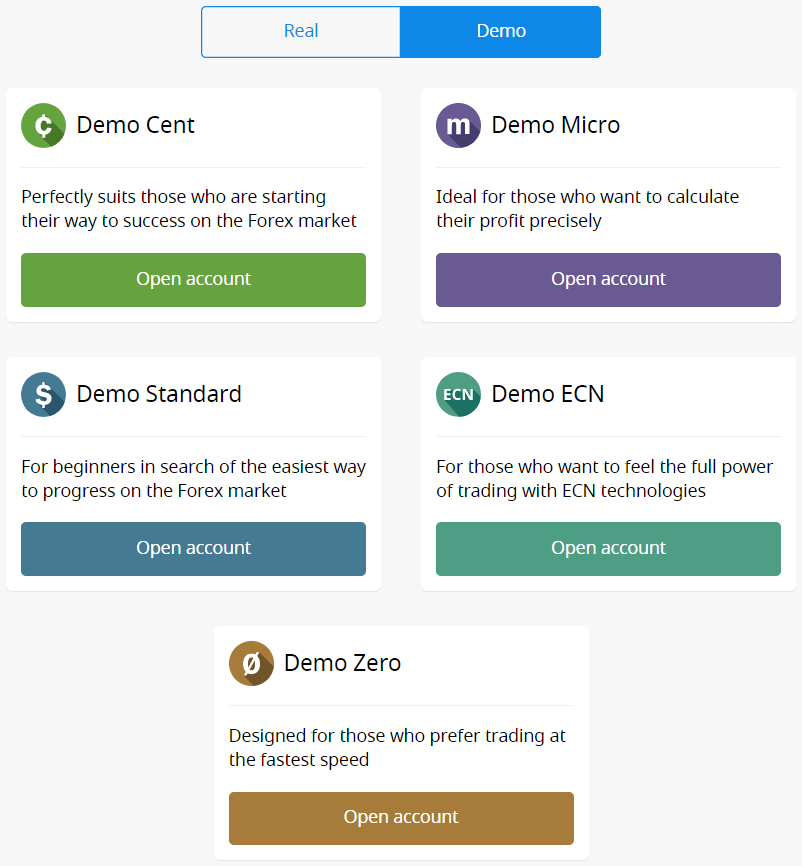
4. Click on the "Open account" button.
5. Depending on the account type, you may choose the MetaTrader version, account currency, leverage, and initial balance.
6. Click on the "Open account" button.
5. Depending on the account type, you may choose the MetaTrader version, account currency, leverage, and initial balance.
6. Click on the "Open account" button.
How many Accounts can I open?
You can open up to 10 trading accounts of each type within one Personal area if 2 conditions are met:
- Your Personal Area is verified.
- The total deposit to all your accounts is $100 or more.
Please, take into account that each client can register only one Personal Area.
Which Account to choose?
We offer 5 types of accounts, which you can see on our site: Standard, Cent, Micro, Zero spread, and ECN account.Standard account has a floating spread but no commission. With a Standard account, you can trade using the highest leverage (1:3000).
Cent account also has floating spread and no commission, but bear in mind that on the Cent account, you trade with cents! So, for example, if you deposit $10 into the Cent account, you will see it as 1000 in the trading platform, which means that you will trade with 1000 cents. The maximum leverage for the Cent account is 1:1000.
Cent account is the perfect choice for beginners; with this account type, you will be able to start real trading with small investments. Also, this account suits well for scalping.
ECN account has the lowest spreads, offers the fastest order execution, and has a fixed commission of $6 per 1 lot traded. The maximum leverage for the ECN account is 1:500. This account type is the perfect option for experienced traders, and it works best for a scalping trading strategy.
A micro account has a fixed spread and no commission. It also has the highest leverage of 1:3000.
A
A zero spread account has no spread but a commission. It starts from $20 per 1 lot and differs depending on the trading instrument. The maximum leverage for the Zero Spread account is also 1:3000.
But, please, kindly consider that according to the Customer Agreement (p.3.3.8), for instruments with fixed spread or fixed commission, the Company reserves the right to increase the spread in case the spread on the basic contract exceeds the size of the fixed spread.
We wish you successful trading!
How can I change my Account leverage?
Please, kindly be informed that you can change your leverage in your Personal Area account settings page.This is how you can do it:
1. Open the account settings by clicking on the needed account in the Dashboard.
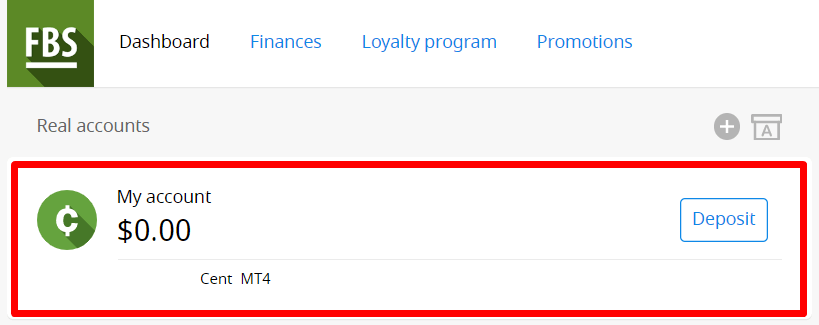
Find "Leverage" in the "Account settings" section and click on the current leverage link.

Set the necessary leverage and press the "Confirm" button.
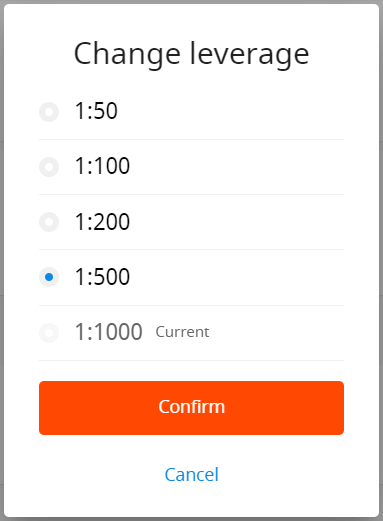
Please, note, that leverage change is possible only once in 24 hours and in case you do not have any open orders.
We want to remind you that we have specific regulations on leverage in correlation to the sum of equity. The Company is entitled to apply leverage changes to already opened positions as well as to reopened positions according to these limitations.
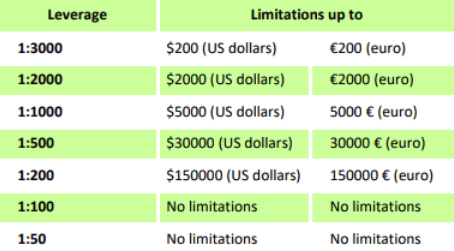
I can not find my Account
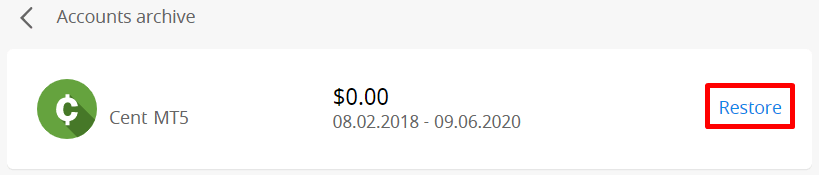
It seems like your account has been archived.Please, kindly be informed that Real accounts are automatically archived after 90 days of inactivity.
To restore your account:
1. Please, go to the Dashboard in your Personal Area.
2. Click on the icon of the box with A letter.

Choose the needed account number and click the "Restore" button.
We want to remind you that demo accounts for the MetaTrader4 platform are valid for a period (depending on the account type), and after that, they are automatically deleted.
Validity period:
| Demo Standard | 40 |
| Demo Cent | 40 |
| Demo Ecn | 45 |
| Demo Zero spread | 45 |
| Demo Micro | 45 |
| Demo account opened directly from the MT4 platform |
25 |
In this case, we may recommend that you to open a new demo account.
Demo accounts for the MetaTrader5 platform can be archived/deleted in a period set at the discretion of the company.
I want to change my Account type in the FBS Personal Area (web)
Unfortunately, it is impossible to change the type of account.But you can open a new account of the desired type within the existing Personal Area.
After that, you will be able to transfer funds from the existing account to the newly opened one via Internal Transfer in the Personal Area.
What is the FBS Personal Area (web)?
FBS Personal Area is a personal profile in which the client can manage their own trading accounts and interact with FBS.The FBS Personal Area aims to provide the client with all the data necessary to manage the account, collected in one place. With the FBS Personal Area, you can deposit and withdraw funds to/from your MetaTrader accounts, manage your trading accounts, change the profile settings, and download the needed trading platform with just a couple of clicks!
In the FBS Personal Area, you can create an account of any type you wish (Standard, Micro, Cent, Zero Spread, ECN), adjust the leverage, and proceed with financial operations.
In case you have any questions, FBS Personal Area offers convenient ways of contacting our customer support, which can be found at the bottom of the page:
How to Sign In to FBS
How do you Sign In to the FBS account?
- Go to the mobile FBS App or Website.
- Click on “Login”.
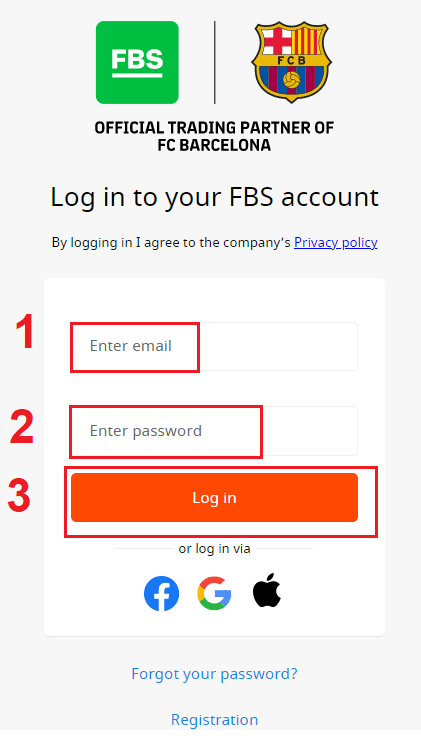
- Enter your email and password.
- Click on the “Log In” orange button.
- Click on “Facebook,” “Gmail,” or "Apple" for login through social network.
- If you forgot your password, click on “Forgot your password”.
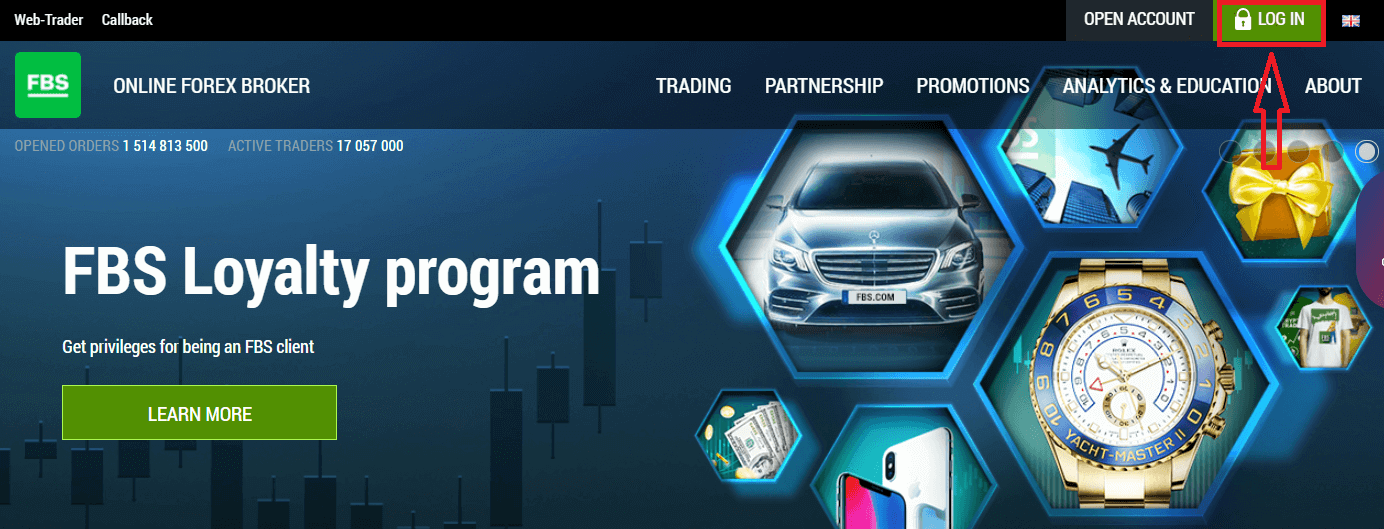
To log in to FBS, you need to go to the trading platform application or website. To enter your personal account (log in), you must click on the «LOG IN». On the main page of the site and enter the login (e-mail) and password that you specified during registration.
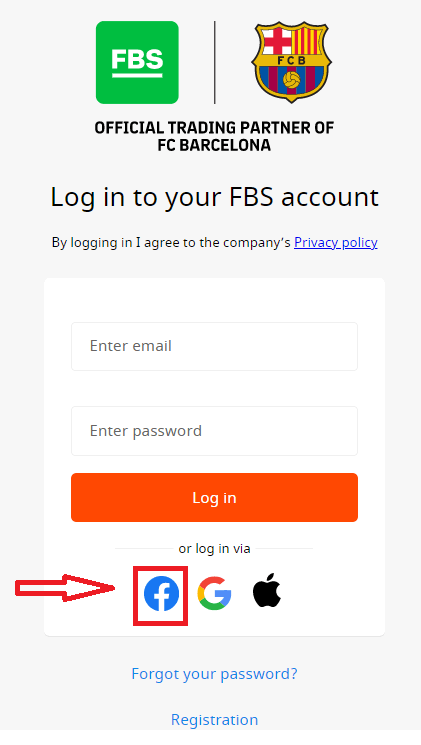
How do you Sign In to FBS using Facebook?
You can also log in to the website using your personal Facebook account by clicking on the Facebook logo. The Facebook social account can be used on web and mobile apps.1. Click on the Facebook button
2. The Facebook login window will be opened, where you will need to enter your email address that you used to register in Facebook
3. Enter the password from your Facebook account
4. Click on “Log In.”
Once you’ve clicked on the “Log in” button, FBS is requesting access to: Your name and profile picture, and email address. Click Continue...
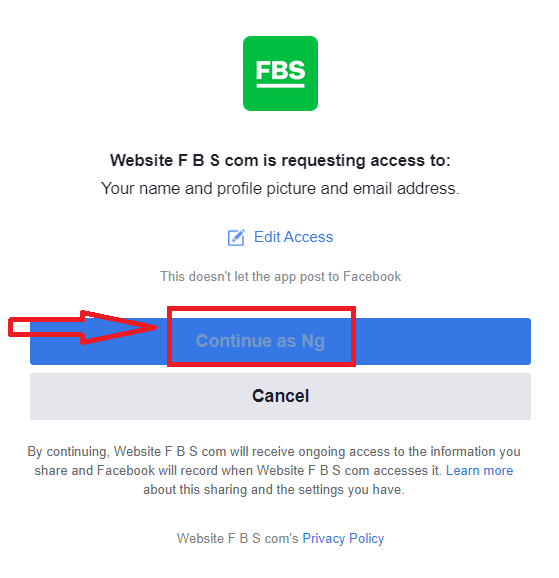
After that, you will be automatically redirected to the FBS platform.
How do you Sign In to FBS using Gmail?
1. For authorization through your Gmail account, you need to click on the Google logo.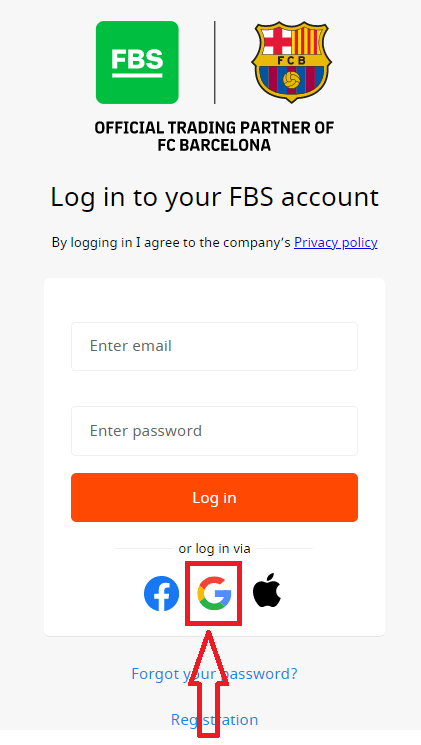
2. In the new window that opens, enter your phone number or email and click “Next”.
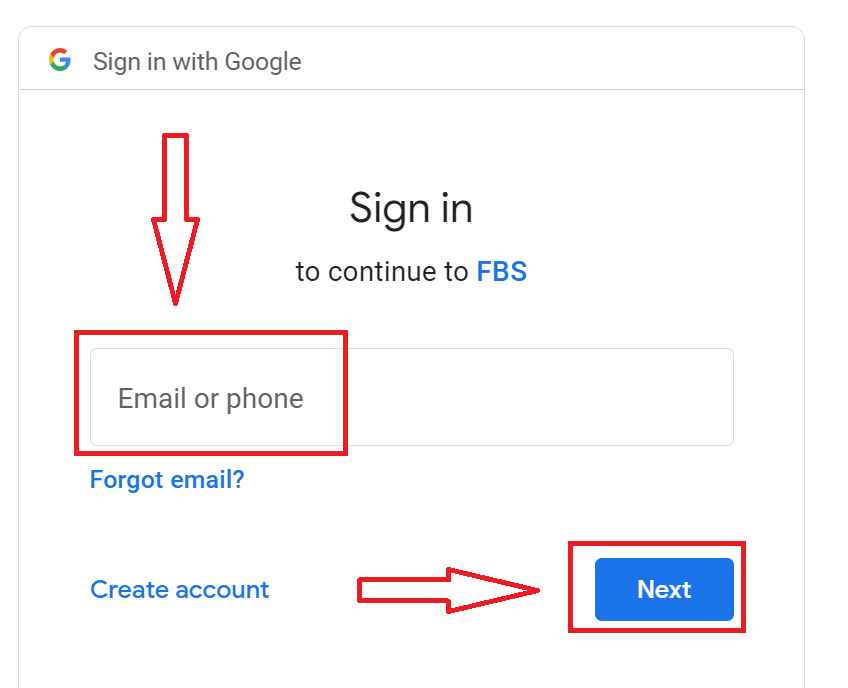
3. Then enter the password for your Google account and click “Next”.
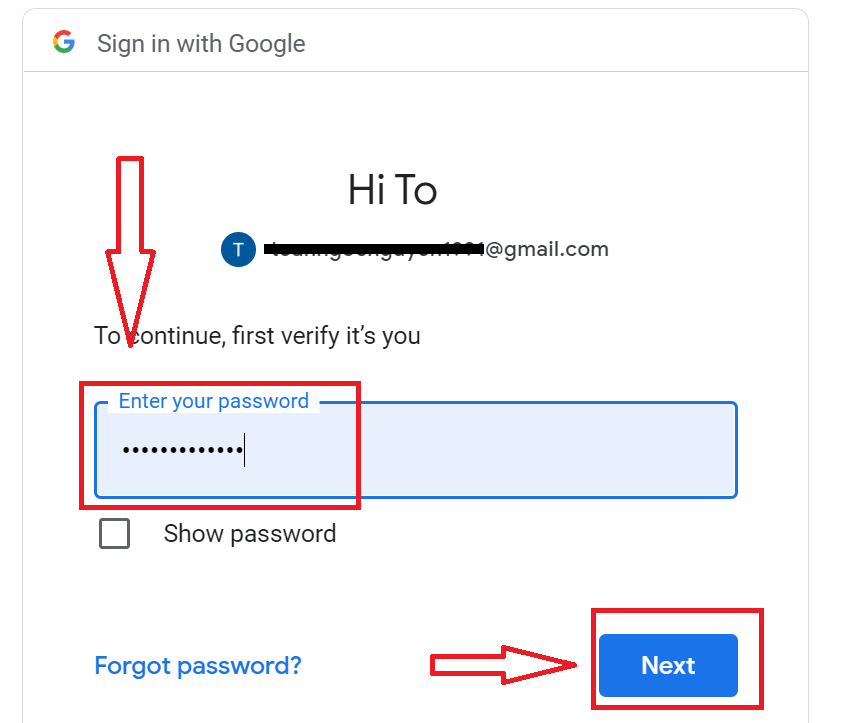
After that, follow the instructions sent from the service to your email address. You will be taken to your personal FBS account.
How do you Sign In to FBS using an Apple ID?
1. For authorization through your Apple ID account, you need to click on the Apple logo.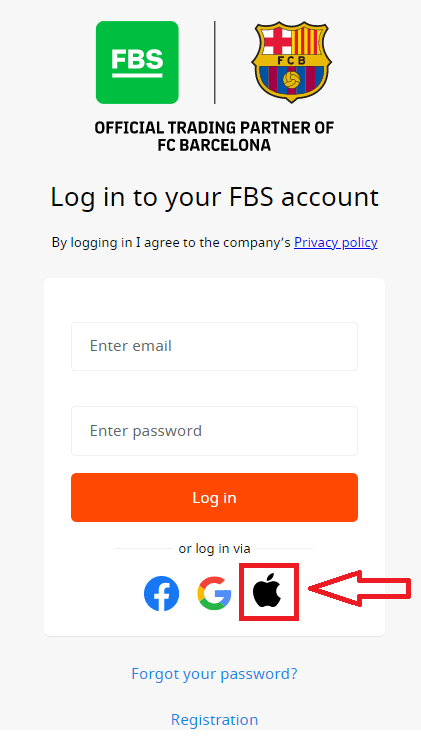
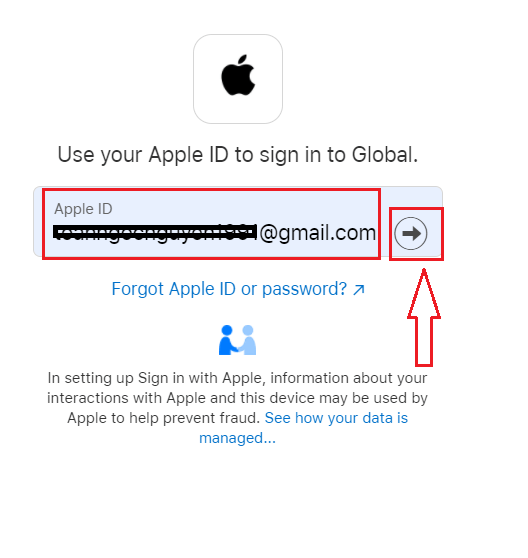
2. In the new window that opens, enter your Apple ID and click “Next”.
3. Then enter the password for your Apple ID and click “Next”.
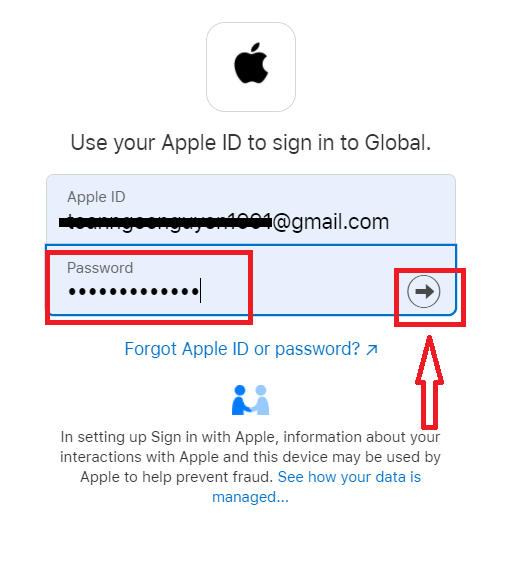
After that, follow the instructions sent from the service to your Apple ID. You will be taken to your personal FBS account.
I forgot my Personal Area password from FBS
To restore your Personal Area password, please kindly follow the link.There, please, enter the e-mail address your Personal Area is registered with and click the "Confirm" button:
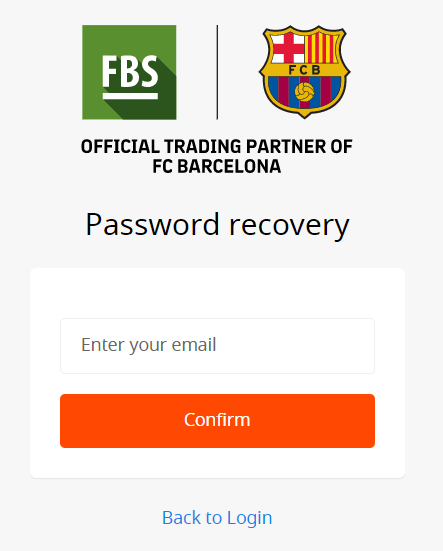
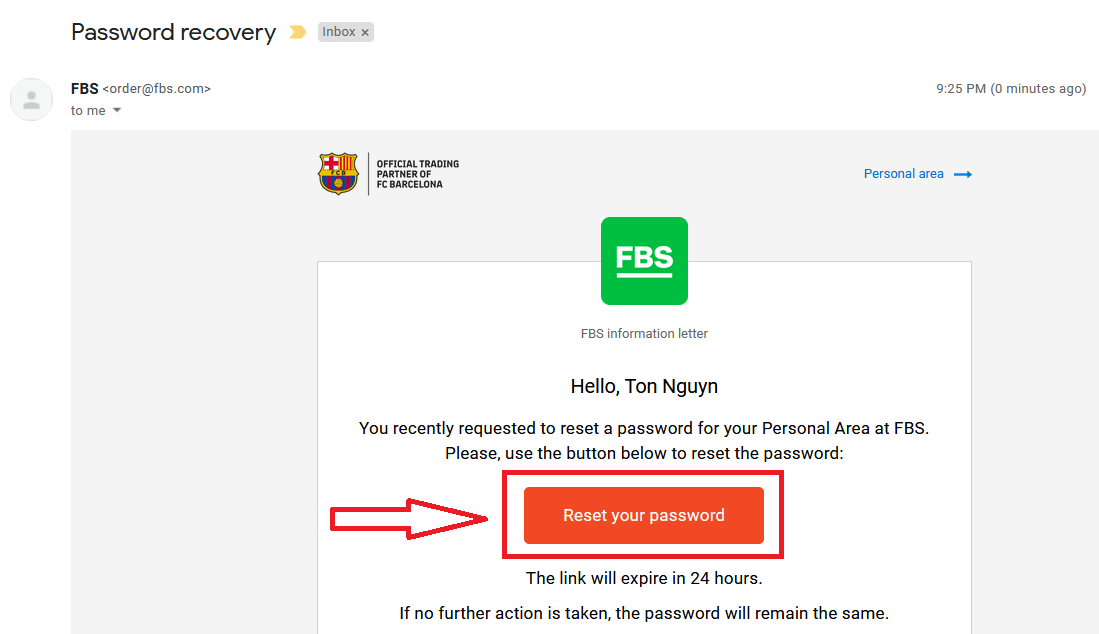
After that, you will receive the email with a password recovery link. Please, kindly click on that link.
You will be forwarded to the page where you can enter your new Personal Area password and then confirm it.
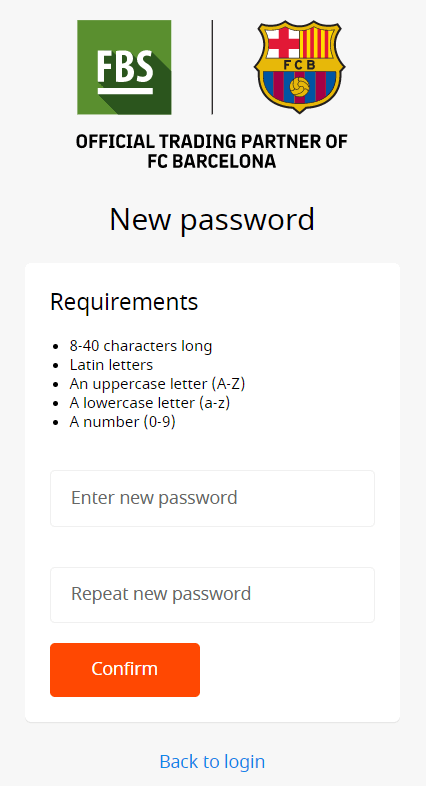
Click the "Confirm" button. Your Personal Area password has been changed! Now you can log in to your Personal Area.
How do you Sign In to the FBS Android app?
Authorization on the Android mobile platform is carried out similarly to authorization on the FBS website. The application can be downloaded through the Google Play Store on your device, or click here. In the search window, just enter FBS and click «Install».After installation and launching, you may log in to the FBS Android mobile app by using your email, Facebook, Gmail,l or Apple ID.
How do you Sign In to the FBS iOS app?
You have to visit the App Store (iTunes) and in the search use the key FBS to find this app, or click here. Also, you need to install the FBS app from the App Store. After installation and launching, you may log in to the FBS iOS mobile app by using your email, Facebook, Gmail, or Apple ID.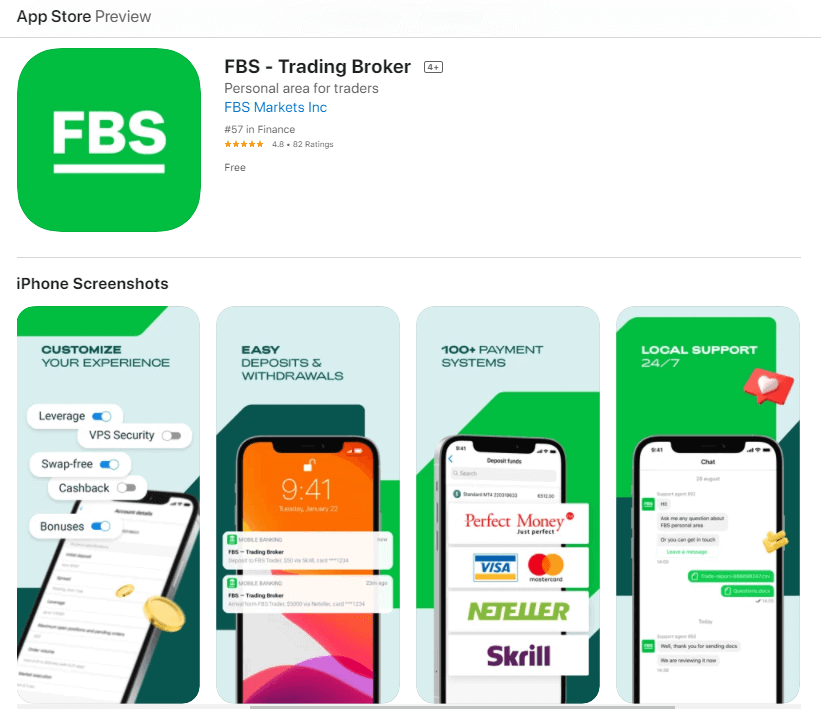
Conclusion: Start Trading with Confidence on FBS
Opening an account and signing in to FBS is a secure and straightforward process, designed to provide users with fast access to global financial markets.By following the registration and login steps carefully—and enabling key security features like identity verification and two-factor authentication—you’ll be well-positioned to trade confidently on a trusted international platform. Whether you’re just starting out or scaling your strategy, FBS offers the tools and support to help you succeed.