FBS Account

This article focuses on practical steps a beginner needs to trade on FBS: selecting the right platform (MT4, MT5, or FBS Trader), choosing order types, placing and modifying trades, reading basic charts and indicators, and applying simple risk rules. It also highlights demo practice, common execution issues, and verification or account limits that can affect live trading, so you can move from simulated trades to real positions with clearer expectations and safer habits.

How to Register Account on FBS
How to Register an Account
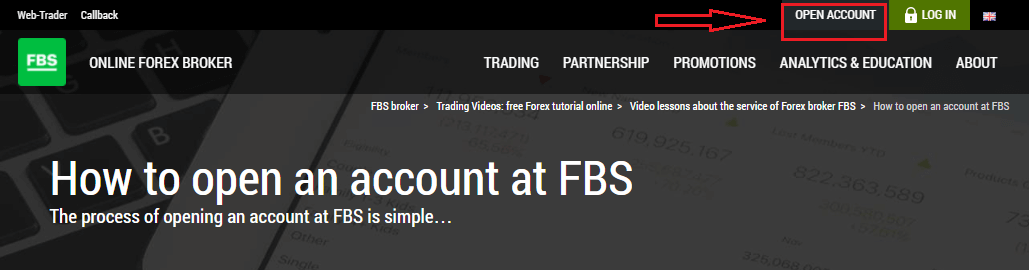
The process of opening an account at FBS is simple.- Visit the website fbs.com or click here
- Click the "Open an account" button in the top right corner of the website. You’ll need to go through the registration procedure and get a personal area.
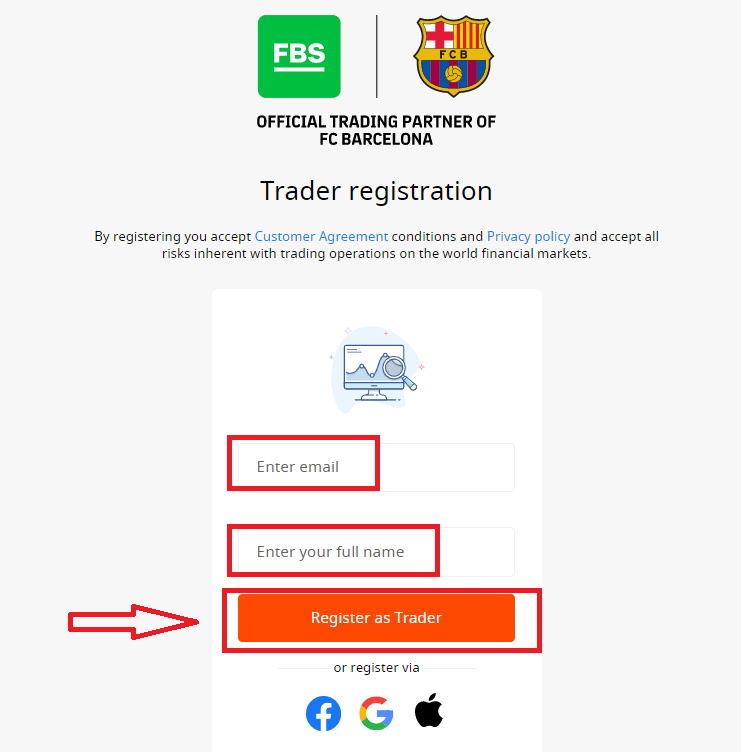
- You can register via a social network or enter the data required for account registration manually.
Enter your valid email and full name. Make sure to check that the data is correct; it will be needed for verification and a smooth withdrawal process. Then click on the “Register as Trader” button.
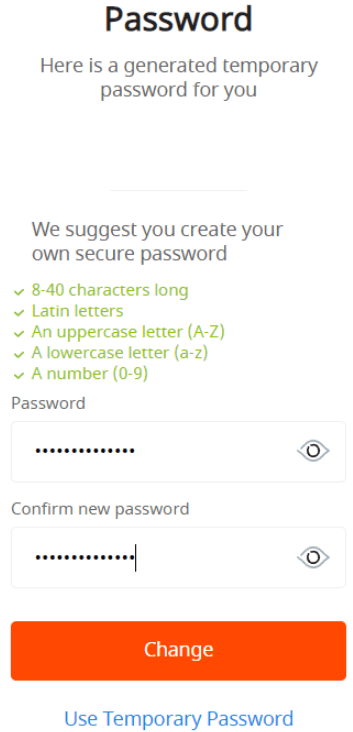
You will be shown a generated temporary password. You can continue using it, but we recommend you to create your password.
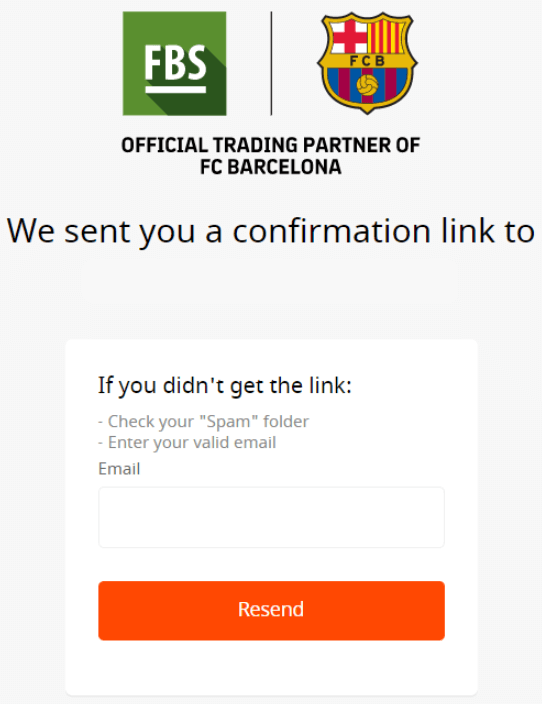
An email confirmation link will be sent to your email address. Make sure to open the link in the same browser your open Personal Area is.
As soon as your email address is confirmed, you will be able to open your first trading account. You can open a Real account or a Demo account.
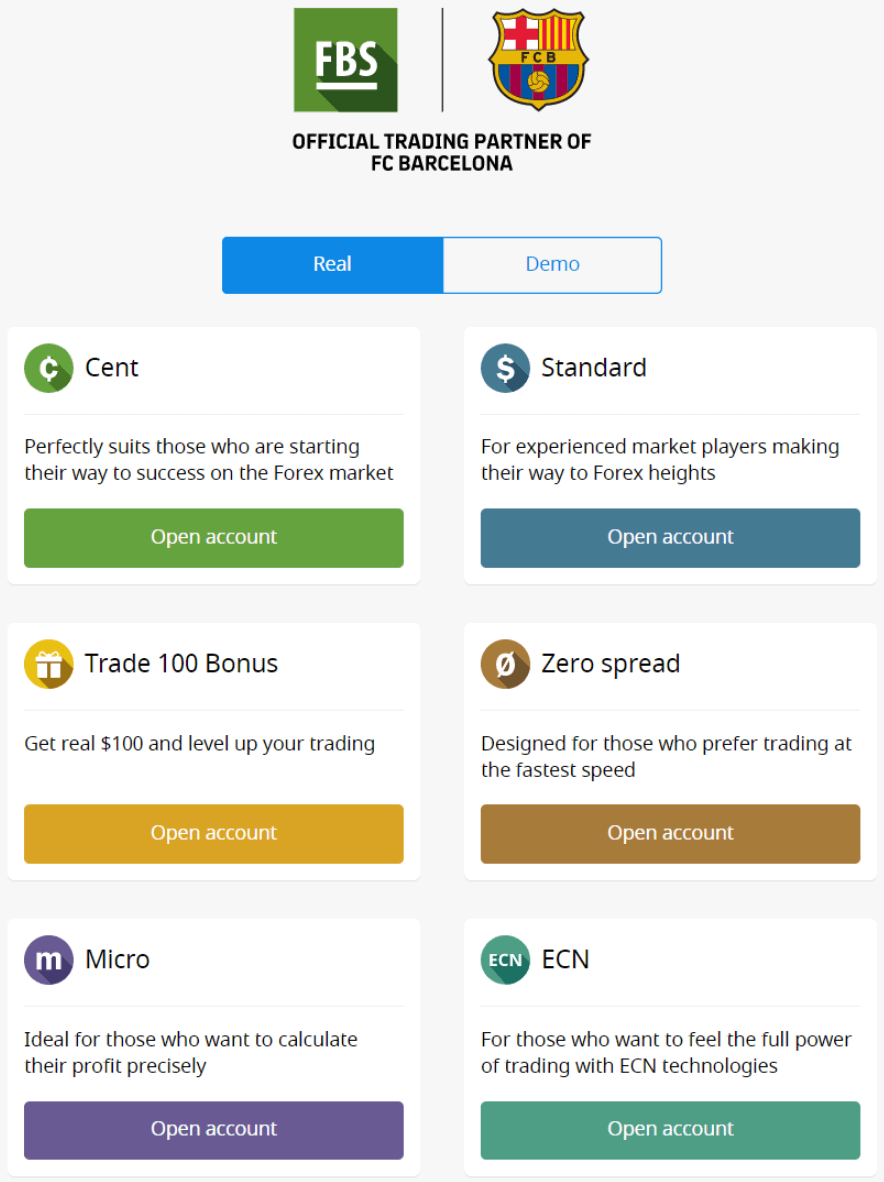
Let’s go through the second option. Firstly, you will need to choose an account type. FBS offers a variety of account types.
- If you are a newbie, choose a cent or micro account to trade with smaller amounts of money as you get to know the market.
- If you already have Forex trading experience, you might want to choose a standard, zero spread, or unlimited account.
In order to find out more about the account types, check the Trading section of FBS.
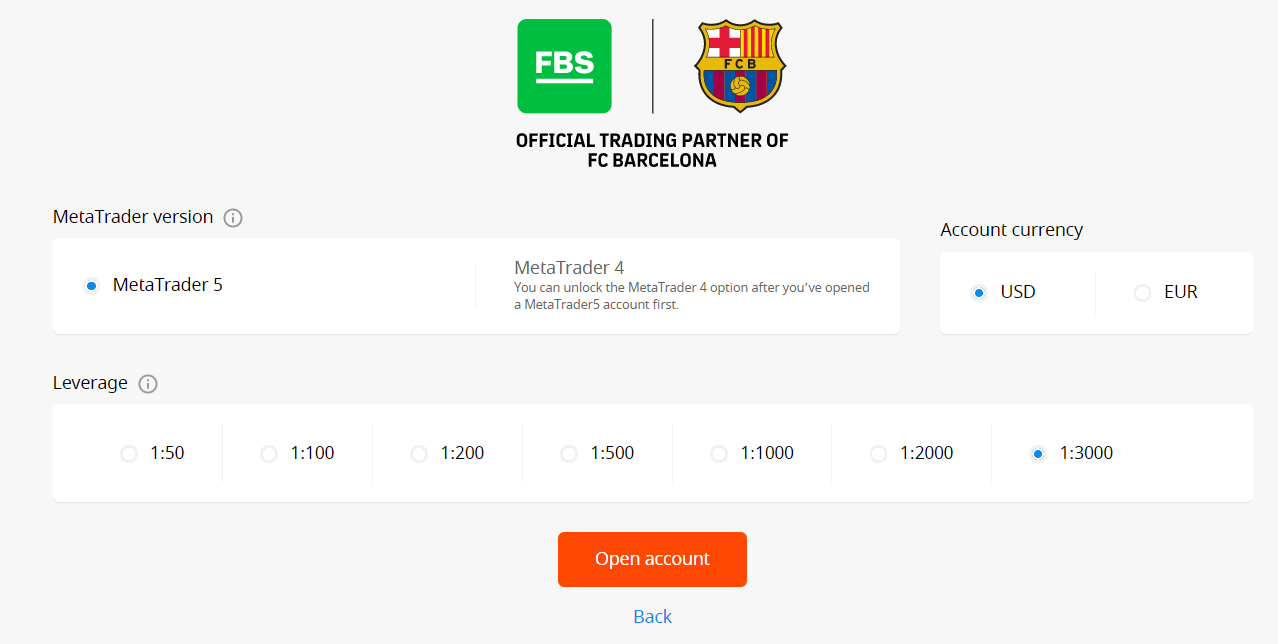
Depending on the account type, it may be available for you to choose the MetaTrader version, account currency, and leverage.
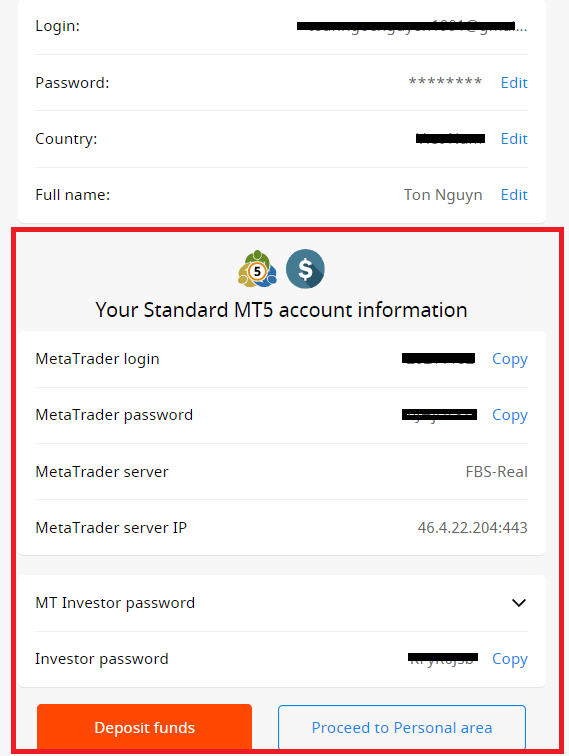
Congratulations! Your registration is finished!
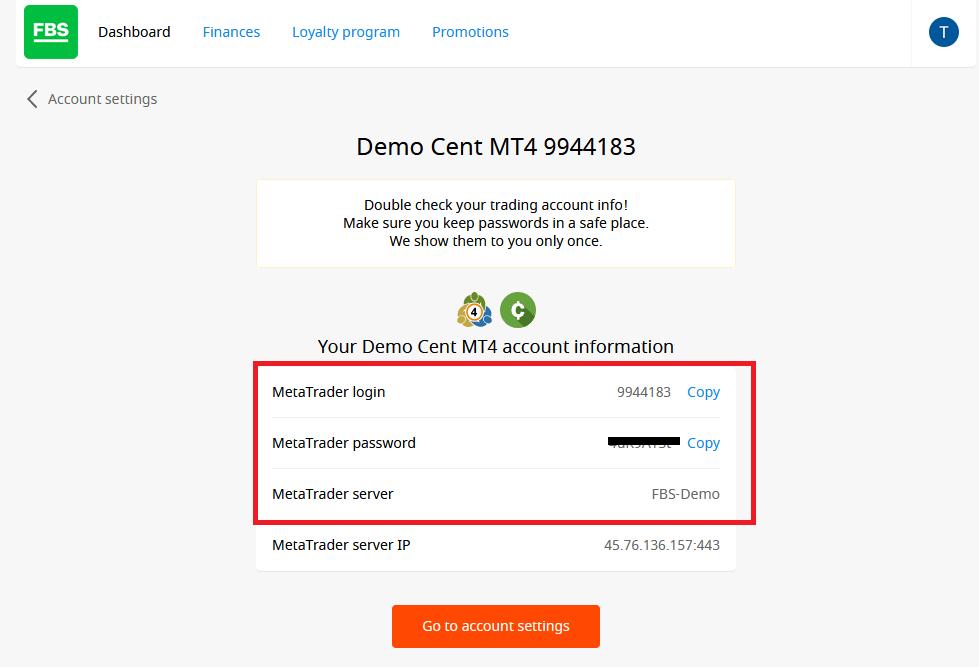
You will see your account information. Make sure to save it and keep it in a safe place. Note that you will need to enter your account number (MetaTrader login), trading password (MetaTrader password), and MetaTrader server to MetaTrader4 or MetaTrader5 to start trading.
Don’t forget that to be able to withdraw money from your account, you need to verify your profile first.
How to Register with a Facebook Account
Also, you have an option to open your account through the web by Facebook, and you can do that in just a few simple steps:1. Click on the Facebook button on the registration page
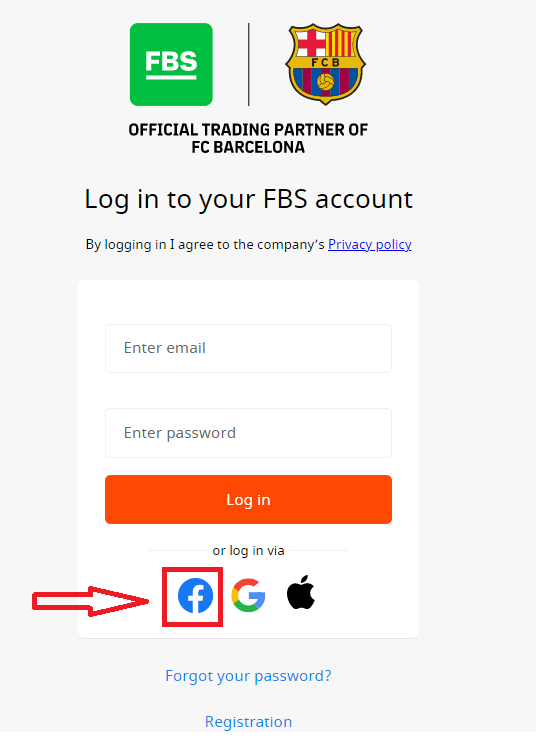
2. The Facebook login window will be opened, where you will need to enter your email address that you used to register on Facebook
3. Enter the password from your Facebook account
4. Click on “Log In.”
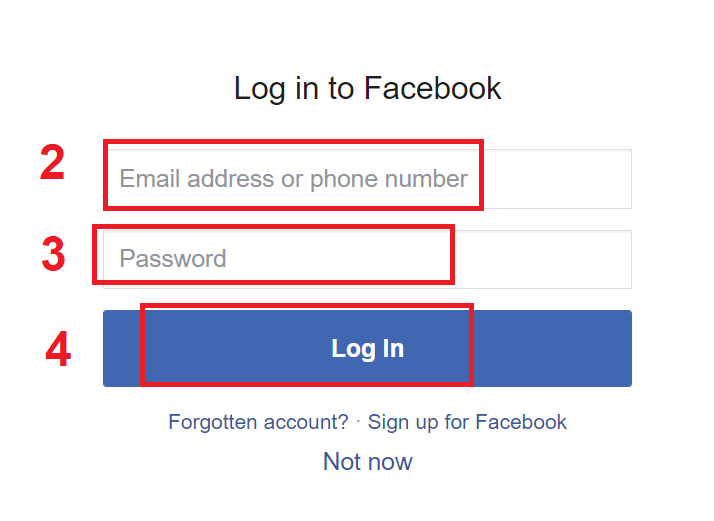
Once you’ve clicked on the “Log in” button, FBS is requesting access to: Your name and profile picture and email address. Click Continue...
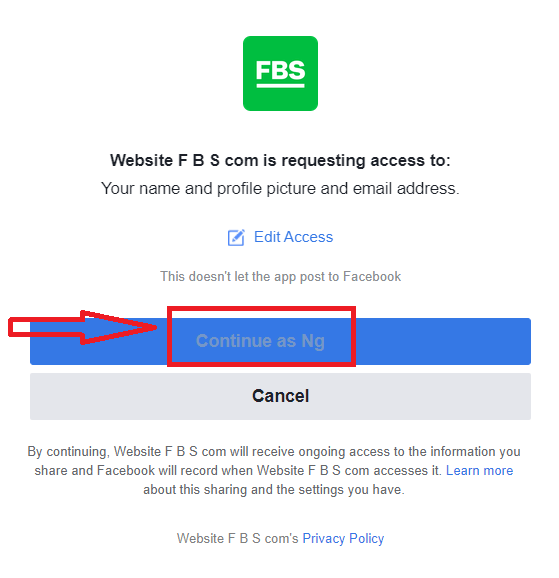
After that, you will be automatically redirected to the FBS platform.
How to Register with a Google+ Account
1. To sign up with a Google+ account, click on the corresponding button in the registration form.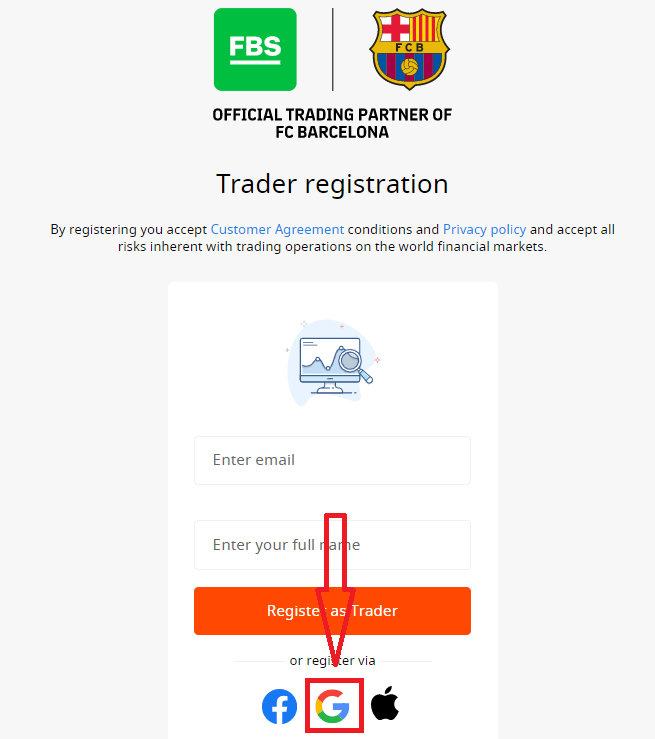
2. In the new window that opens, enter your phone number or email and click “Next”.
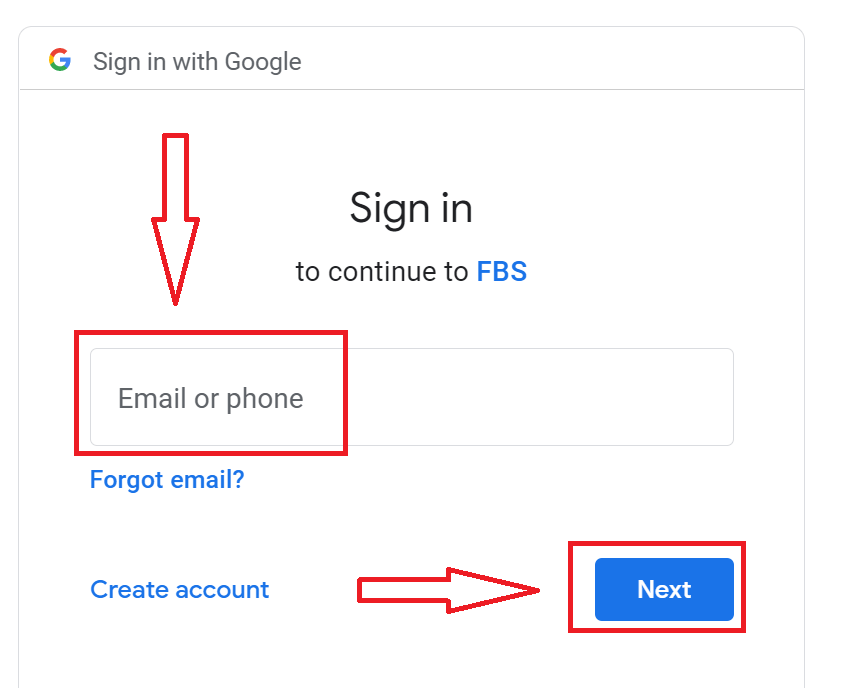
3. Then enter the password for your Google account and click “Next”.
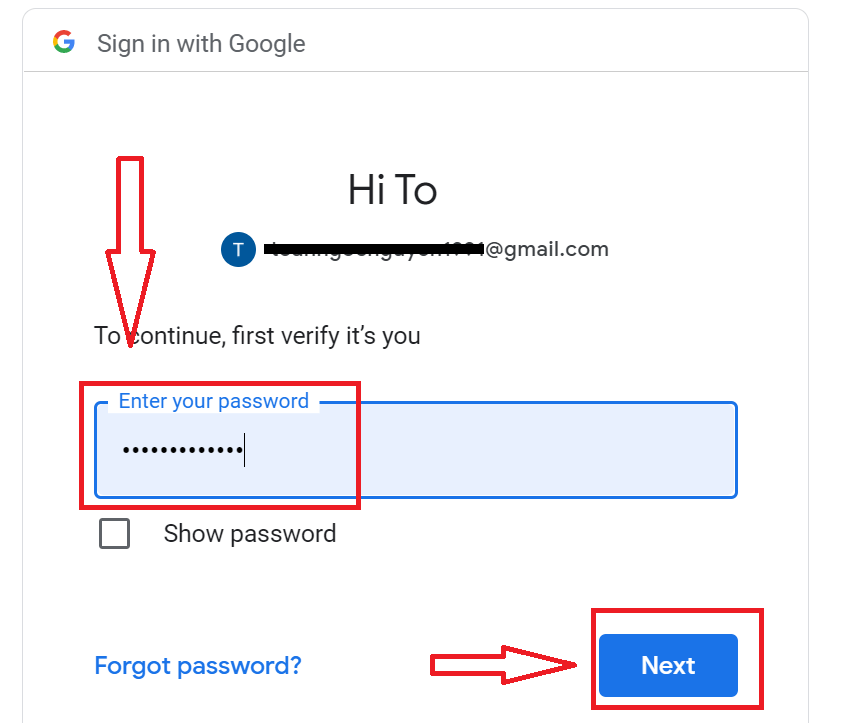
After that, follow the instructions sent from the service to your email address.
How to Register with Apple ID
1. To sign up with an Apple ID, click on the corresponding button in the registration form.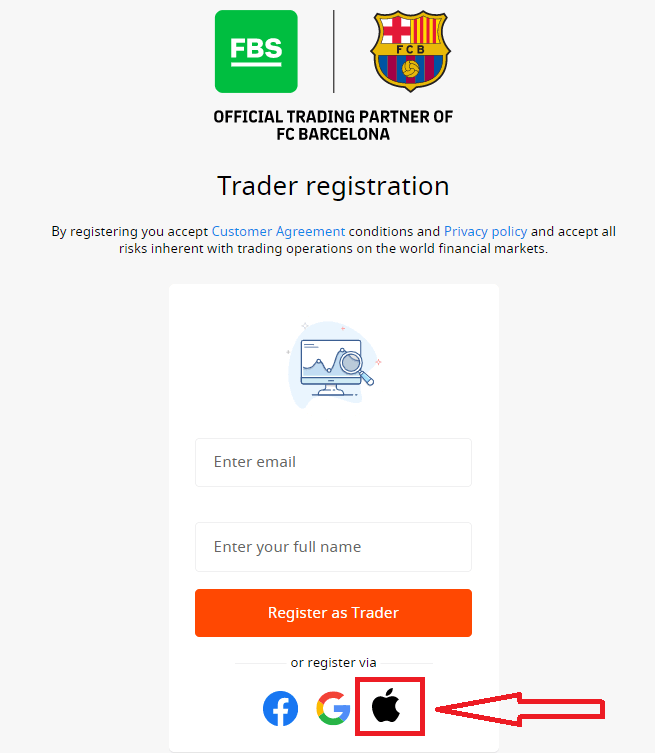
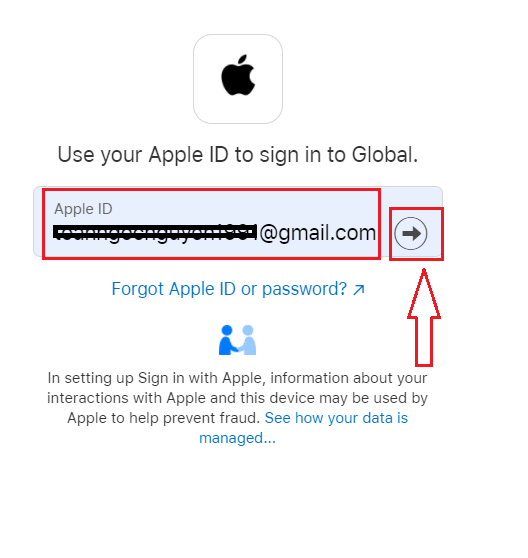
2. In the new window that opens, enter your Apple ID and click “Next”.
3. Then enter the password for your Apple ID and click “Next”.
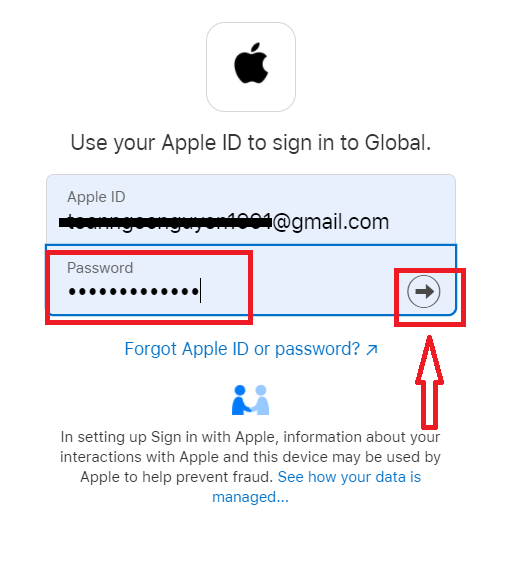
After that, follow the instructions sent from the service to your Apple ID.
FBS Android App
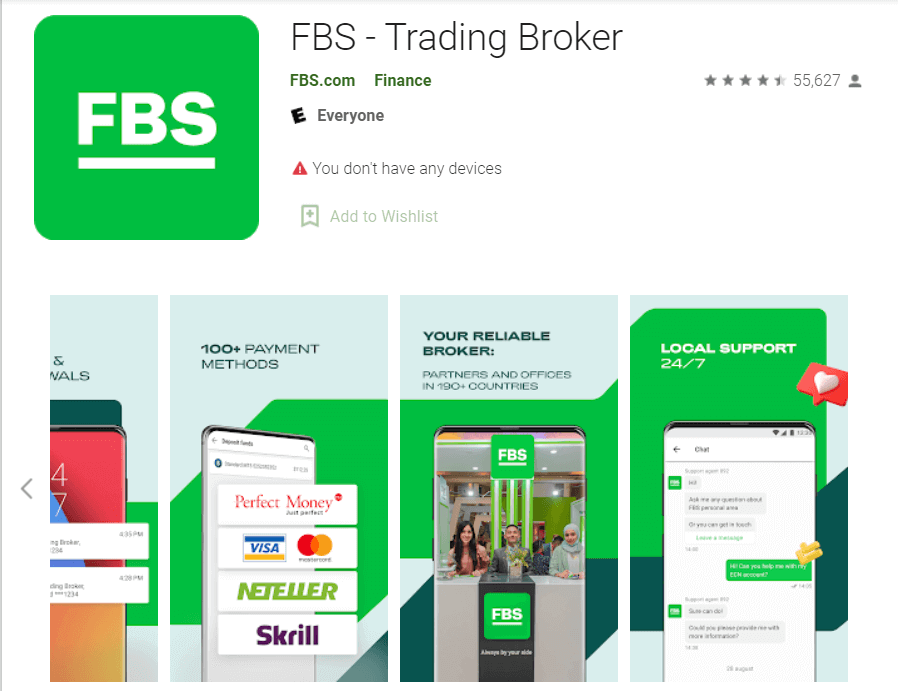
If you have an Android mobile device, you will need to download the official FBS mobile app from Google Play or here. Simply search for the “FBS – Trading Broker” app and download it on your device.
The mobile version of the trading platform is exactly the same as the web version it. Consequently, there won’t be any problems with trading and transferring funds. Moreover, the FBS trading app for Android is considered to be the best app for online trading. Thus, it has a high rating in the store.
FBS iOS App
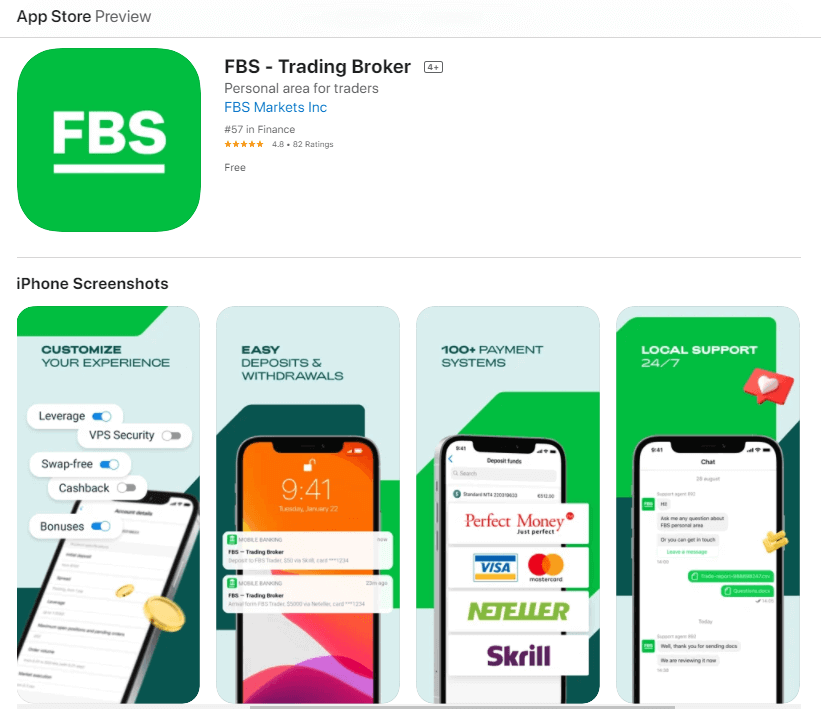
If you have an iOS mobile device, you will need to download the official FBS mobile app from the App Store or here. Simply search for the “FBS – Trading Broker” app and download it on your iPhone or iPad.
The mobile version of the trading platform is exactly the same as web version of it. Consequently, there won’t be any problems with trading and transferring funds. Moreover, FBS trading app for IOS is considered to be the best app for online trading. Thus, it has a high rating in the store.
How to Verify Account on FBS
How to Verify Profile at FBS
Verification is necessary for work safety, prevention of unauthorized access to the personal data and funds stored on your FBS account, and smooth withdrawal.
How can I Verify my phone number?
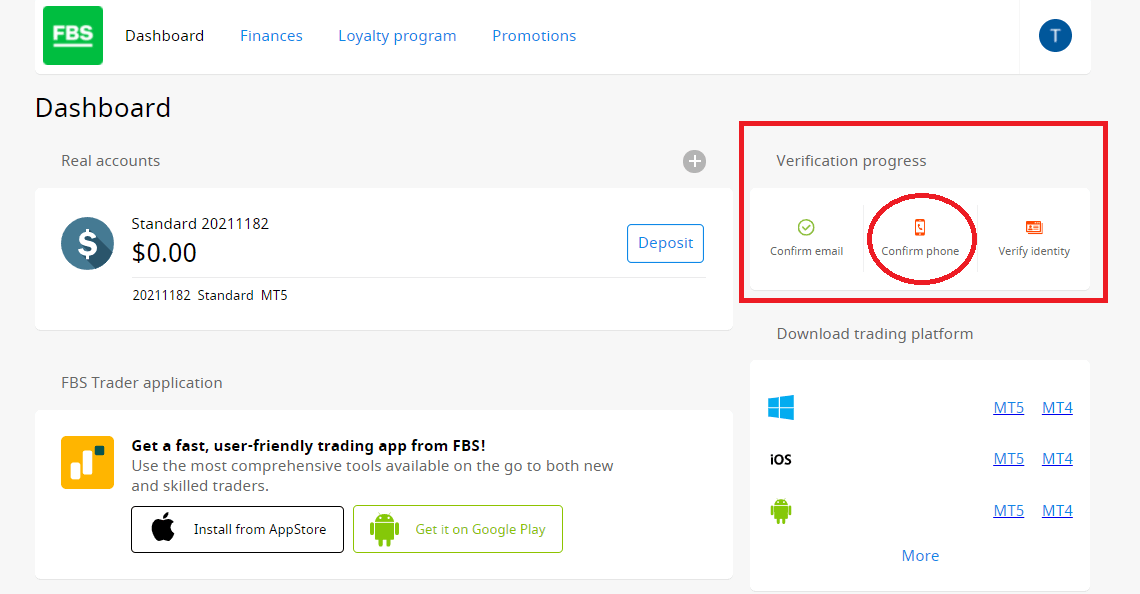
Please, take into account that the phone verification process is optional, so you might stay on e-mail confirmation and skip verification of your phone number.However, if you’d like to attach the number to your Personal Area, log in to your Personal Area and click on the "Confirm phone" button in the "Verification progress" widget.
Enter your phone number and click on the "Send SMS code" button.
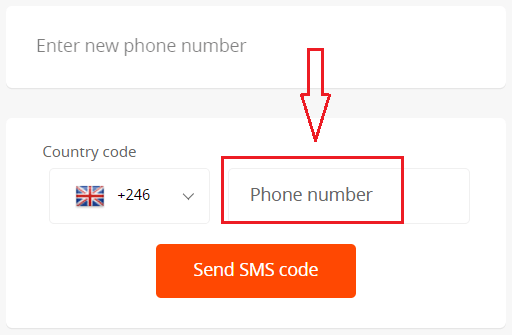
After that, you will receive an SMS code that you should insert in the provided field.
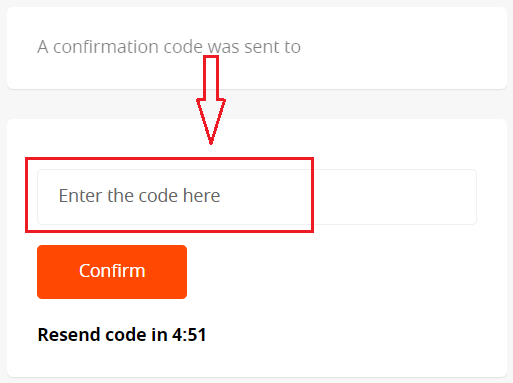
In case you are facing difficulties with phone verification, first of all, please check the correctness of the phone number you entered.
Here are some tips to take into account:
- You do not need to enter "0" at the beginning of your phone number;
- You do not need to enter the country code manually. The system will be automatically set once you choose the correct country in the drop-down menu (shown with the flags in front of the phone number field);
- You need to wait for at least 5 minutes for the code to arrive.
If you are sure that you have done everything correctly but still don’t receive the SMS code, we would suggest trying another phone number. The issue can be on your provider side. For that matter, enter a different phone number in the field and request the confirmation code.
Also, you can request the code via voice confirmation.
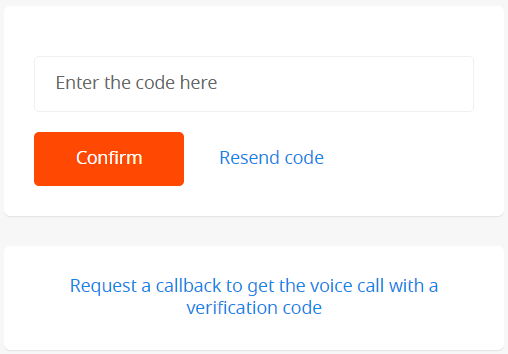
To do that, you need to wait for 5 minutes from the code request, then click on the "Request a callback to get the voice call with a verification code" button. The page would look like this:
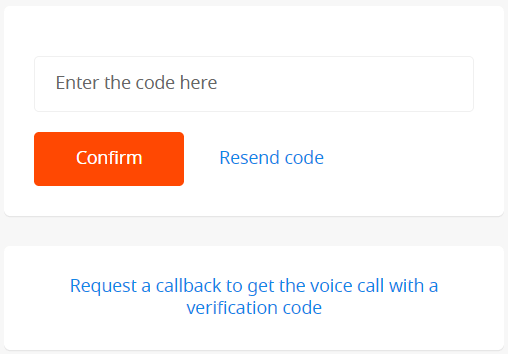
Kindly take into consideration that you can request a voice code only if your profile is verified.
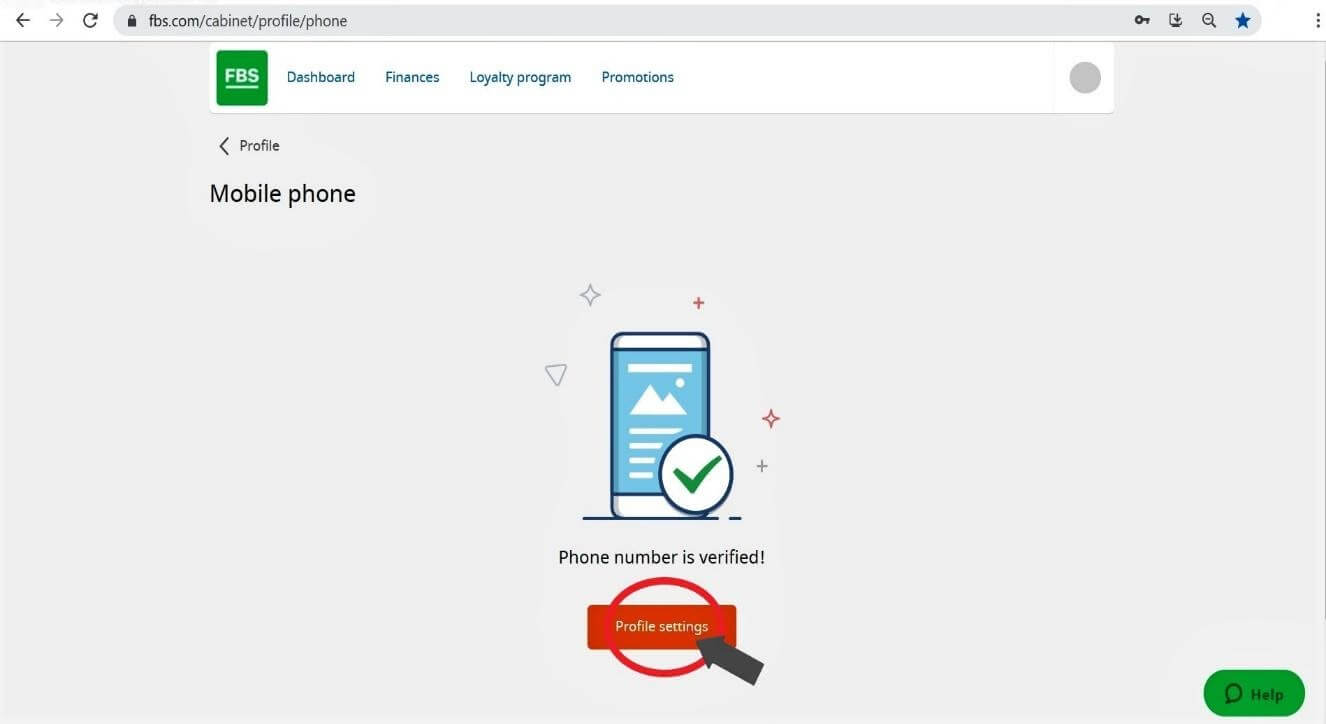
Your phone number is now verified.
How can I Verify my Personal Area?
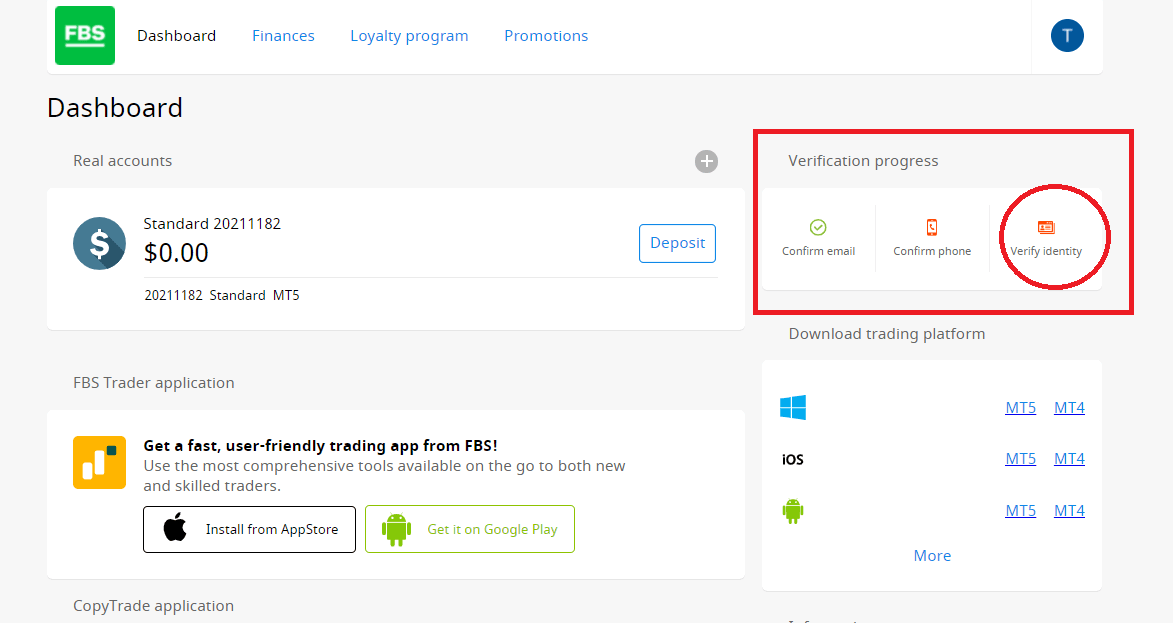
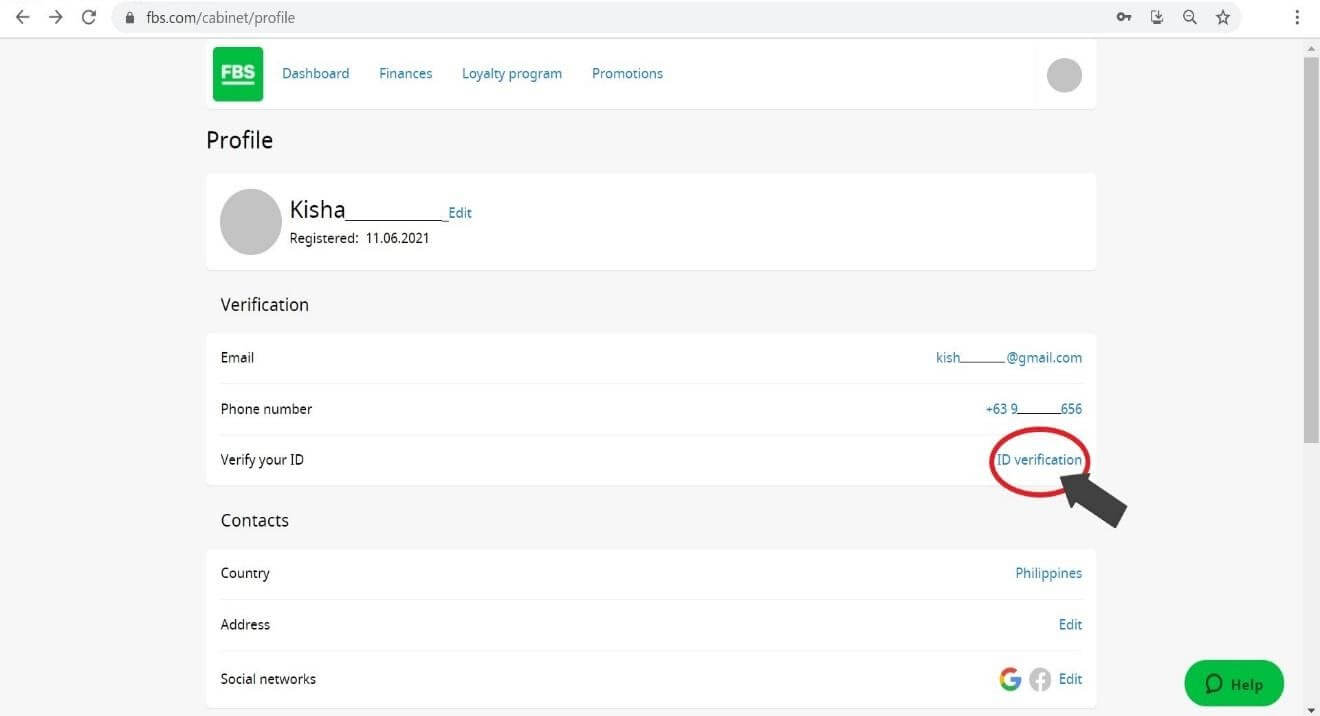
Or click the “ID verification” link. ID Verification is for the proof of your identity.
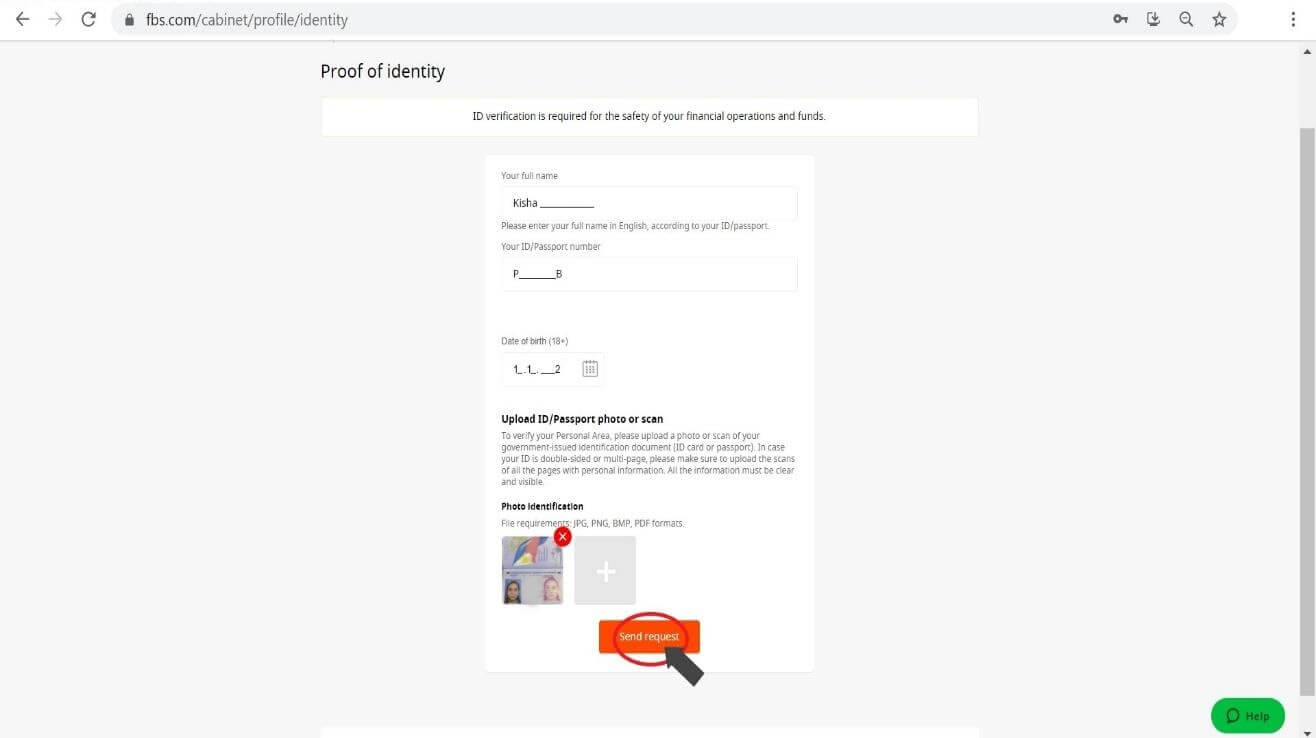
Fill in the necessary fields. Please, enter the correct data, exactly matching your official documents.
Upload color copies of your passport or government-issued ID with your photo and address proof in JPEG, PNG, BMP, or PDF format of a total size not exceeding 5 Mb.
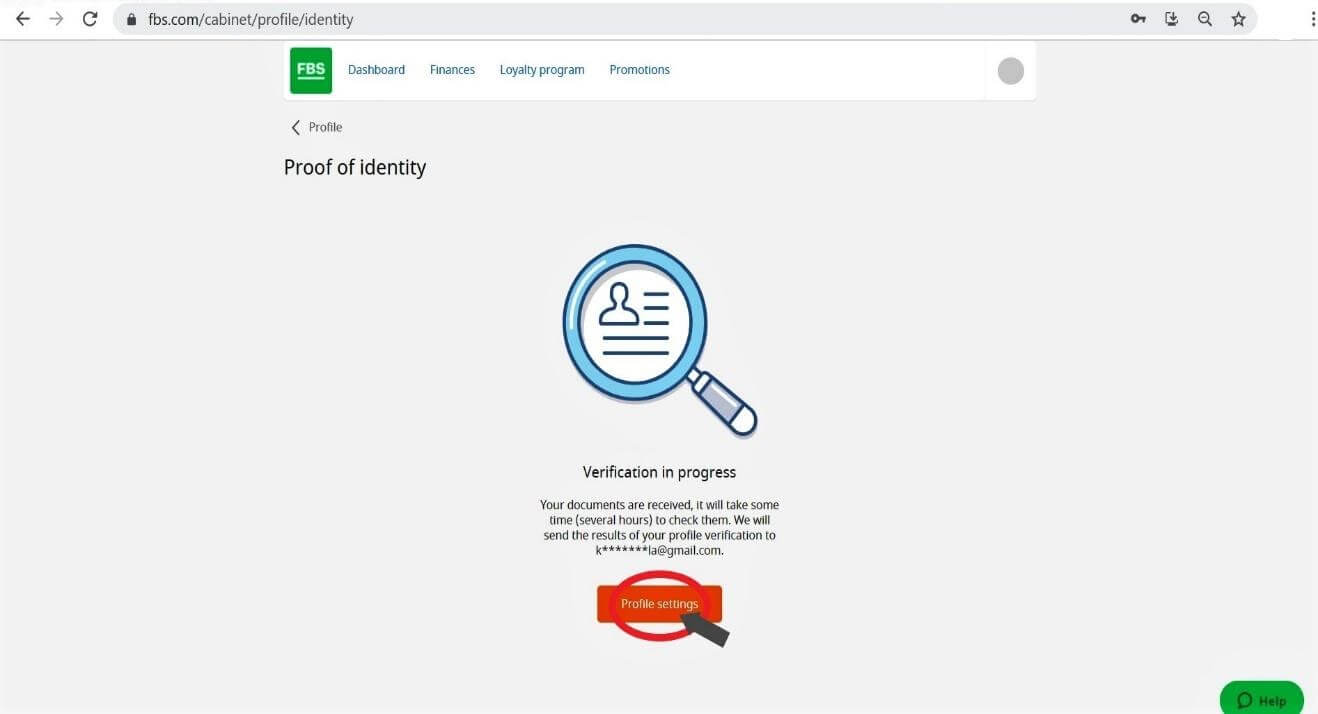
Verification is now in progress. Next, Click “Profile Settings”.
The verification of your ID is now in Pending status. Please wait for several hours for FBS to review your application. As soon as your request is accepted or rejected, the status of your request will change.
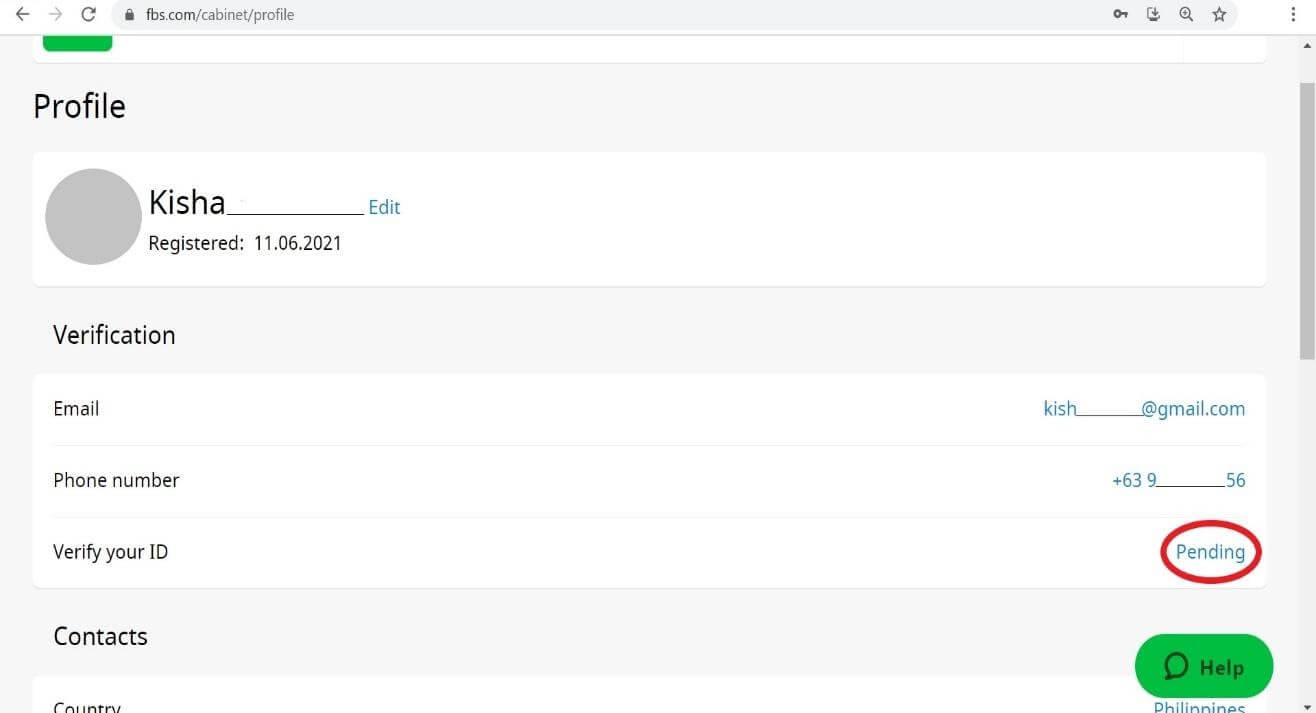
Please, kindly wait for the email notification in your email inbox once verification is done. We appreciate your patience and kind understanding.
How to Deposit Money on FBS
How can I Deposit
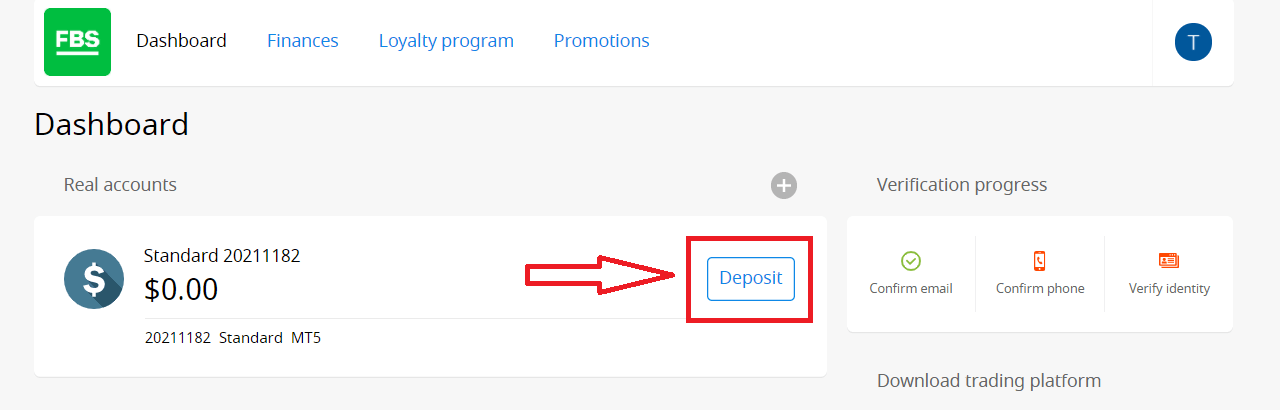
You can deposit money into your account in your Personal Area.1. Click on "Finances" in the menu at the top of the page.

or
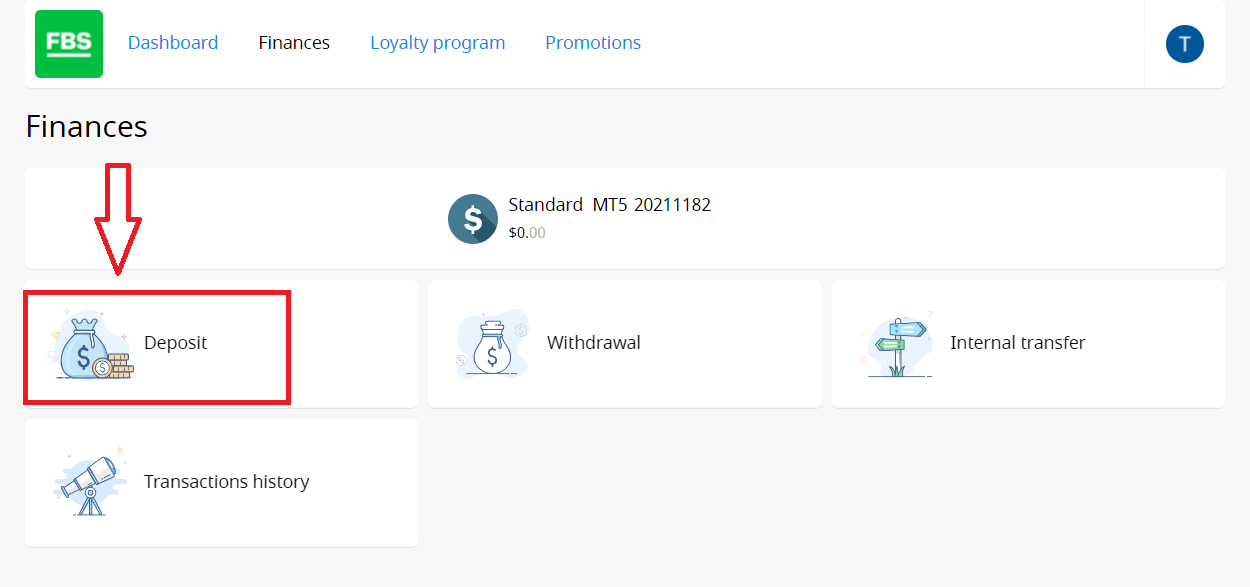
2. Choose "Deposit".
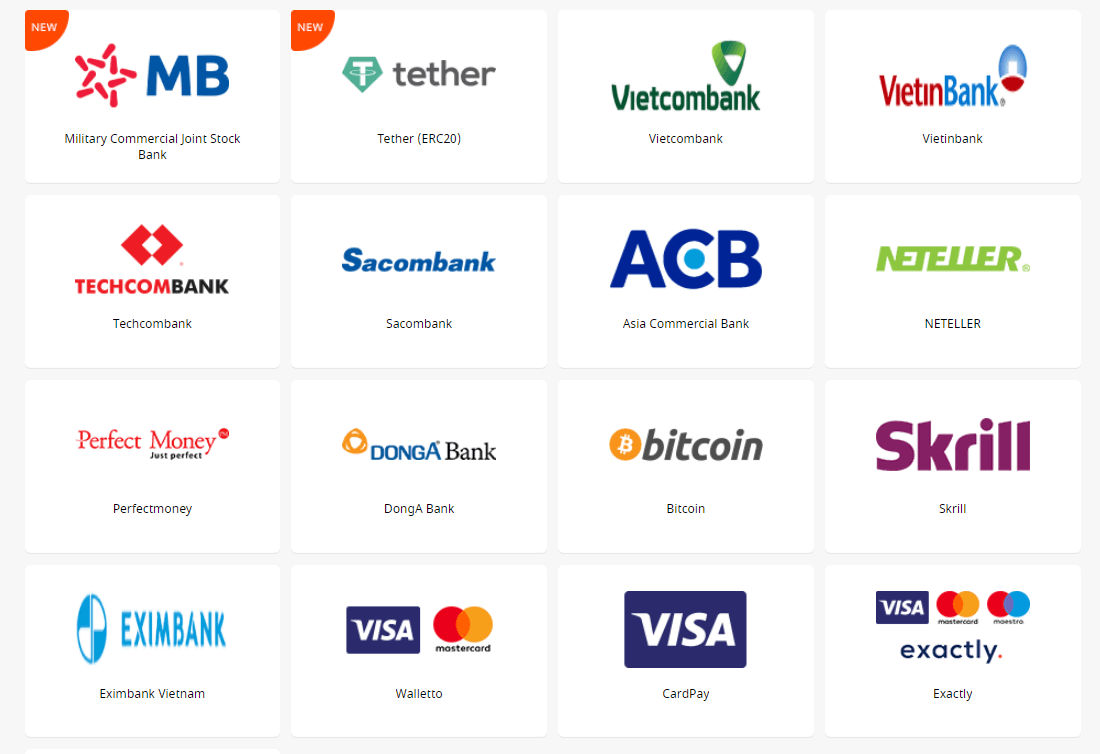
3. Choose a suitable payment system and click on it.
4. Specify the trading account you want to deposit to.
5. Specify the information about your e-wallet or payment system account if needed.
6. Type the amount of money you want to deposit.
7. Choose the currency.
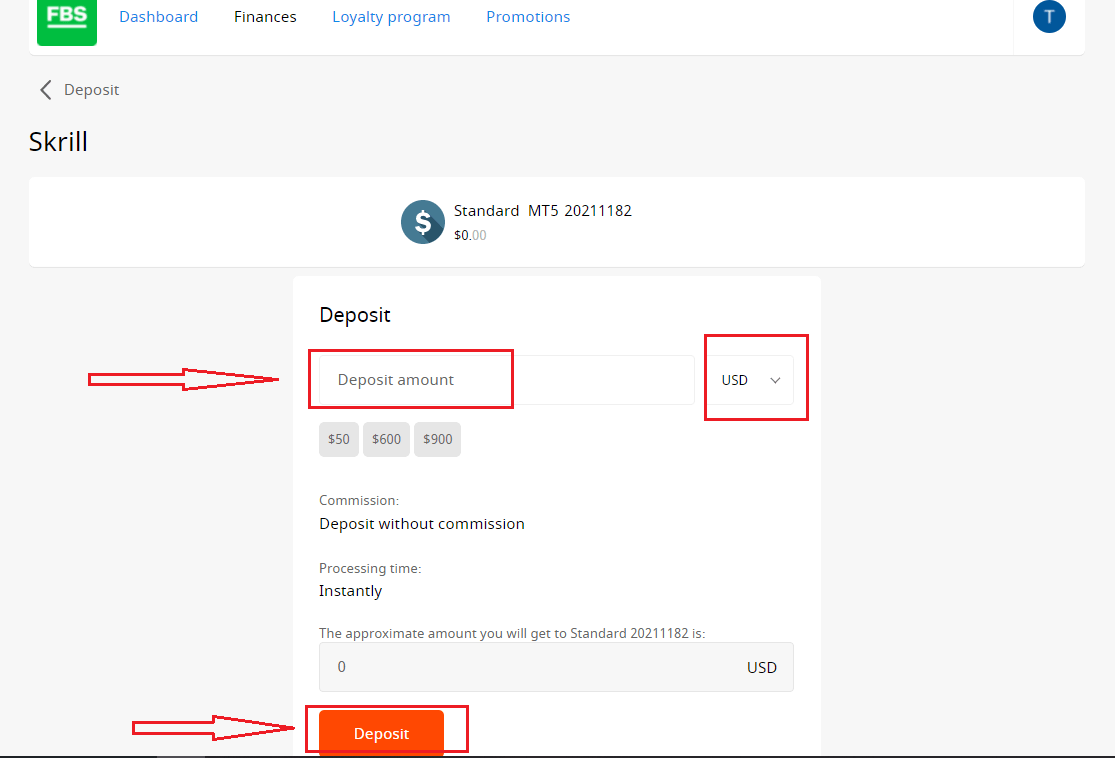
8. Click on the “Deposit” button.
Withdrawals and internal transfers are done in the same fashion.
You will be able to monitor the status of your financial requests in the Transaction History.
Important information! Please, take into consideration that according to the Customer Agreement, a client can withdraw funds from his/her account only to those payment systems that have been used for the deposit.
Please, kindly be informed that in order to deposit to FBS applications such as FBS Trader or FBS CopyTrade, you need to make a deposit request right in the needed application. Transfer of funds between your MetaTrader accounts and FBS CopyTrade / FBS Trader accounts is not possible.
How to Trade Forex in the FBS Trader App
How can I trade with FBS Trader?
All you need to start trading is to go to the “Trading” page and choose the currency pair you want to trade with.
Check the contract specifications by clicking on the "i" sign. In the opened window you will be able to see two types of charts and the information about this currency pair.
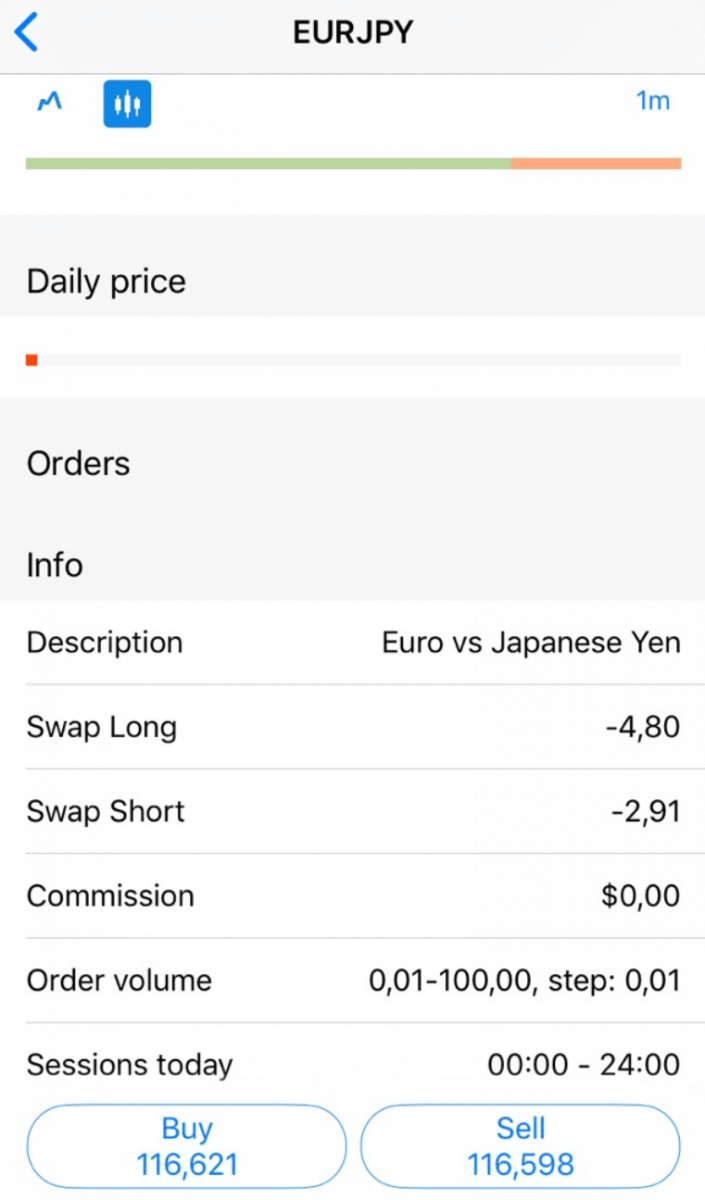
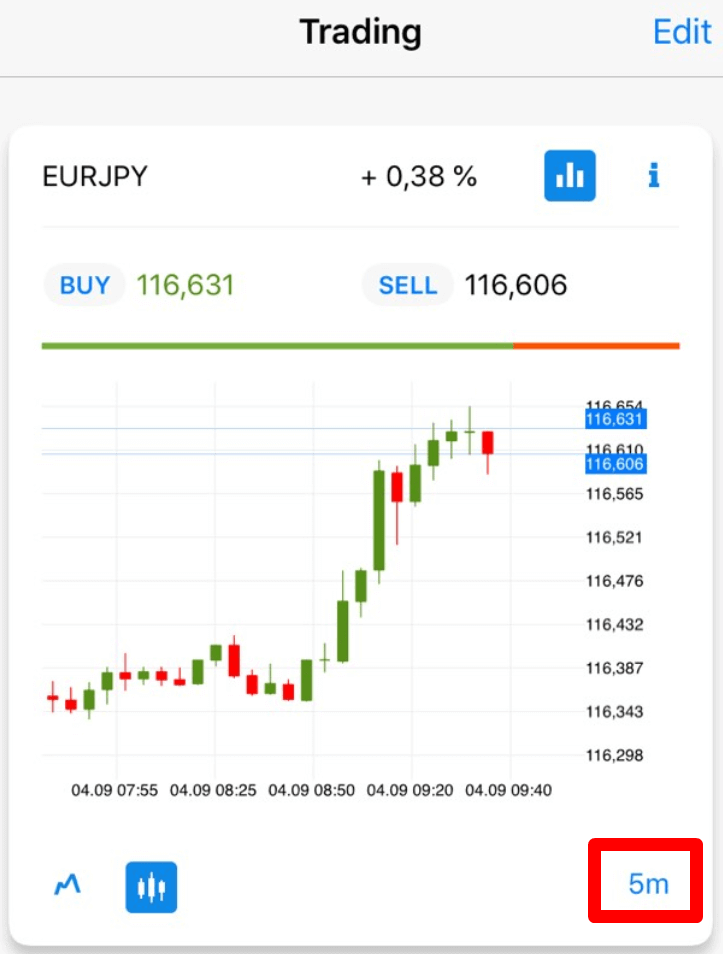
To check the candle chart of this currency pair, click on the chart sign.
You can choose the timeframe of the candle chart from 1 minute to 1 month to analyze the trend.
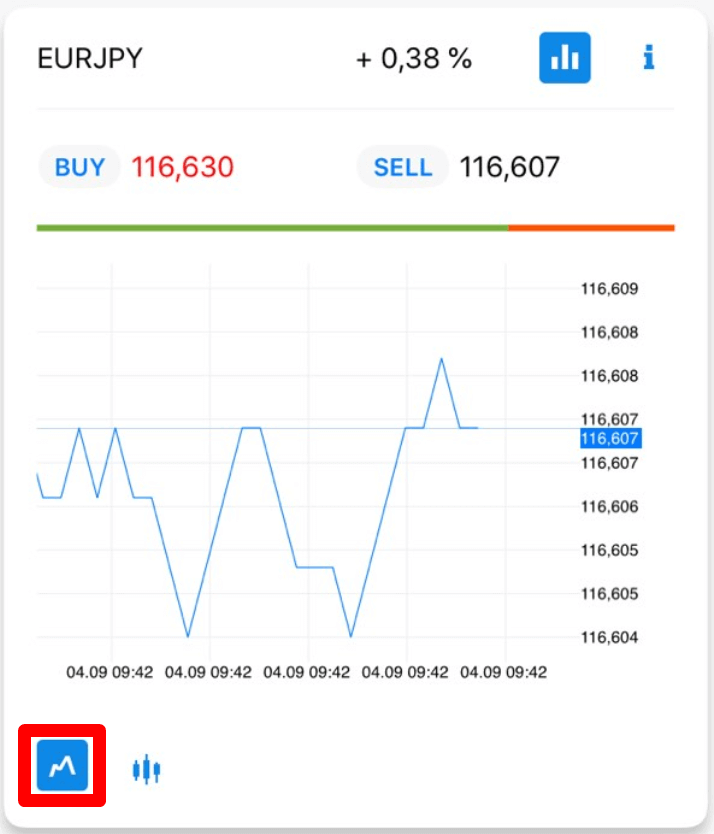
By clicking on the sign below, you will be able to see the tick chart.
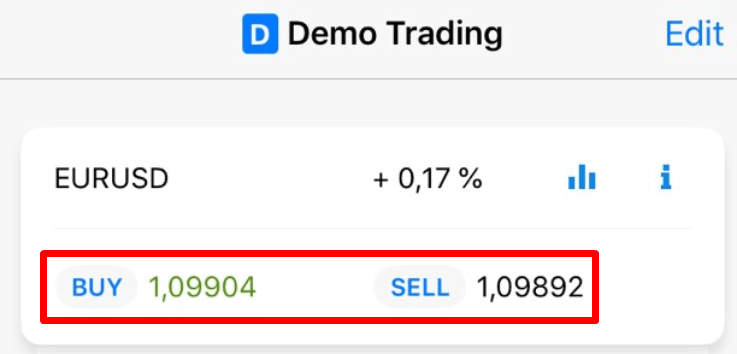
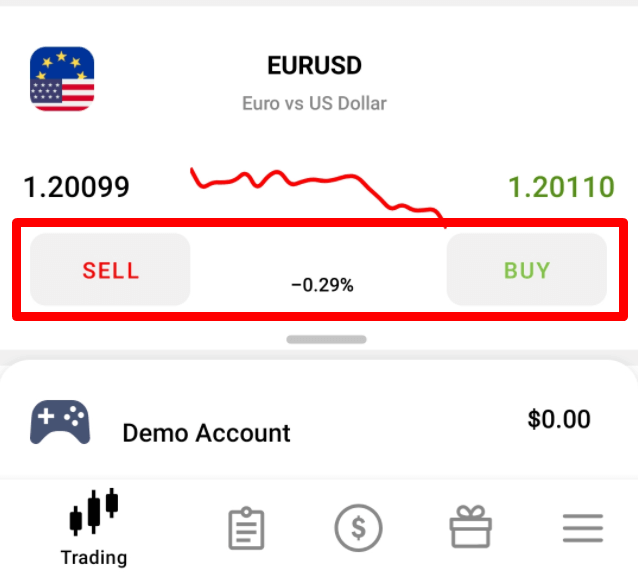
To open an order, click on the “Buy” or “Sell” button.
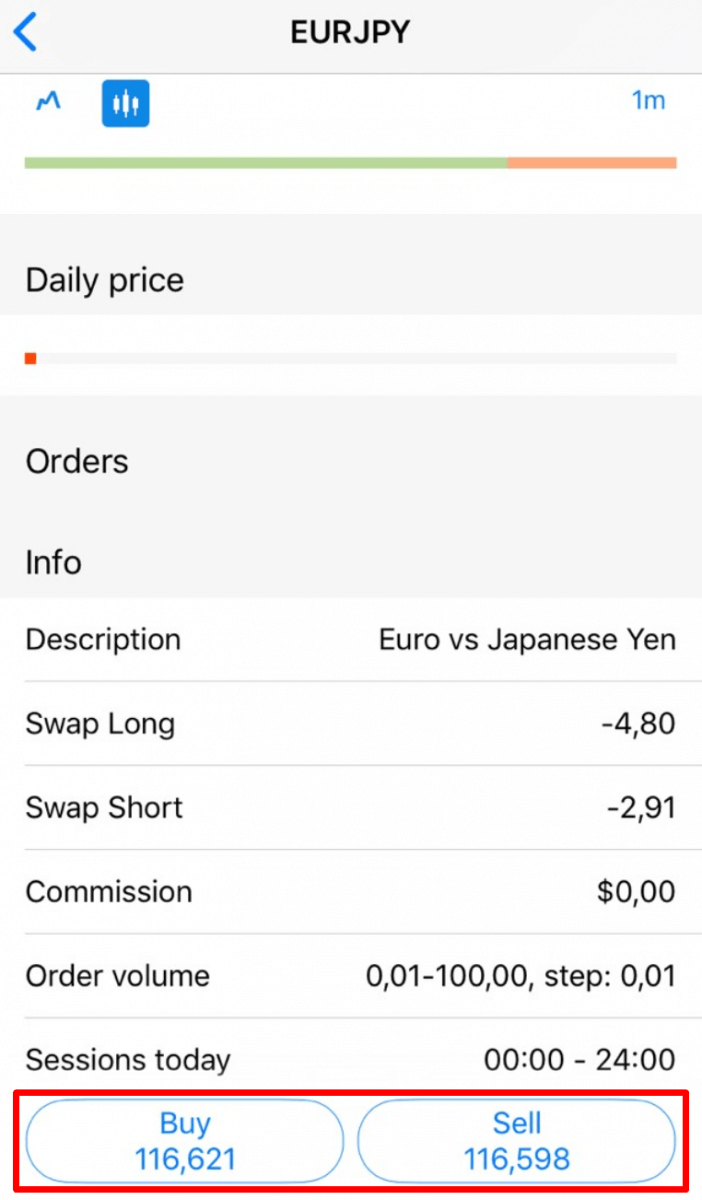
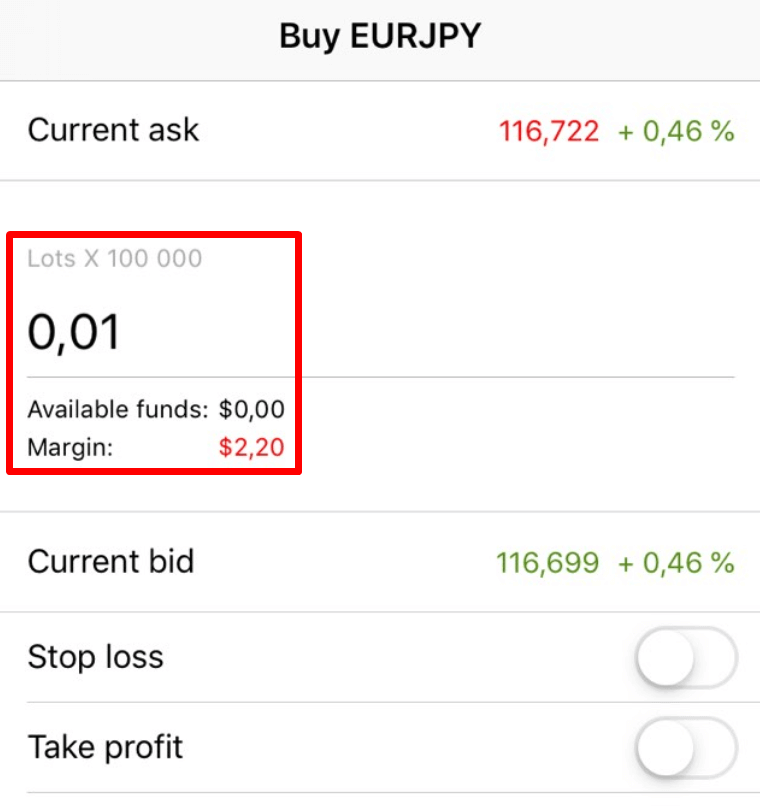
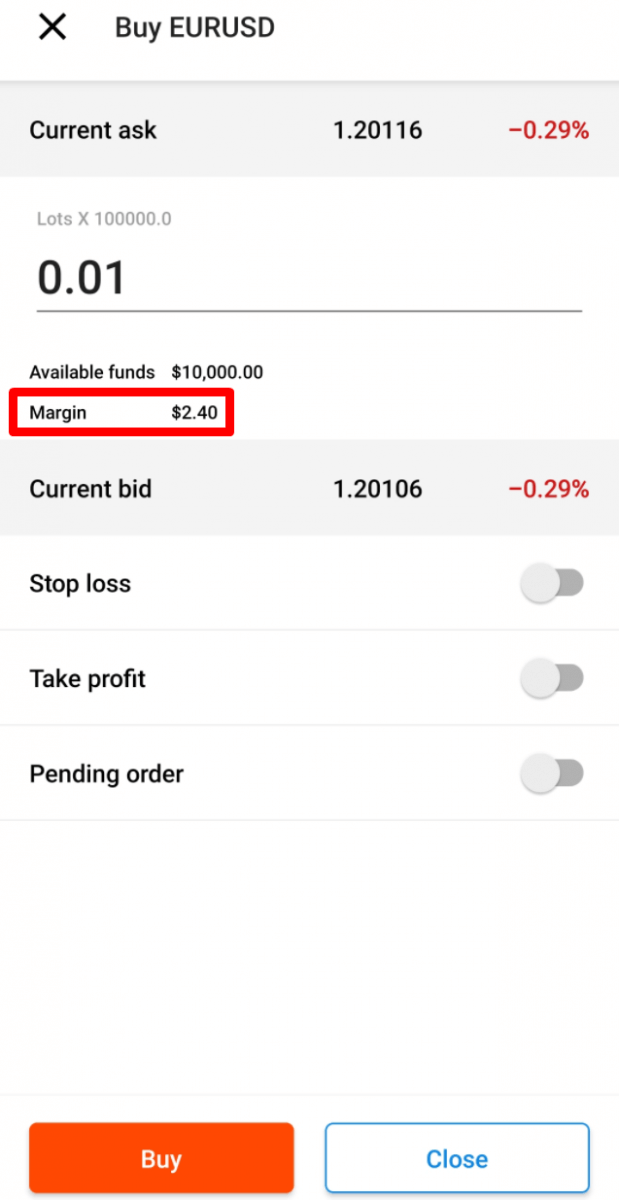
In the opened window, please, specify the volume of your order (i.e. how many lots you are going to trade). Below the lots field, you will be able to see the available funds and the amount of margin you need for opening the order with such volume.
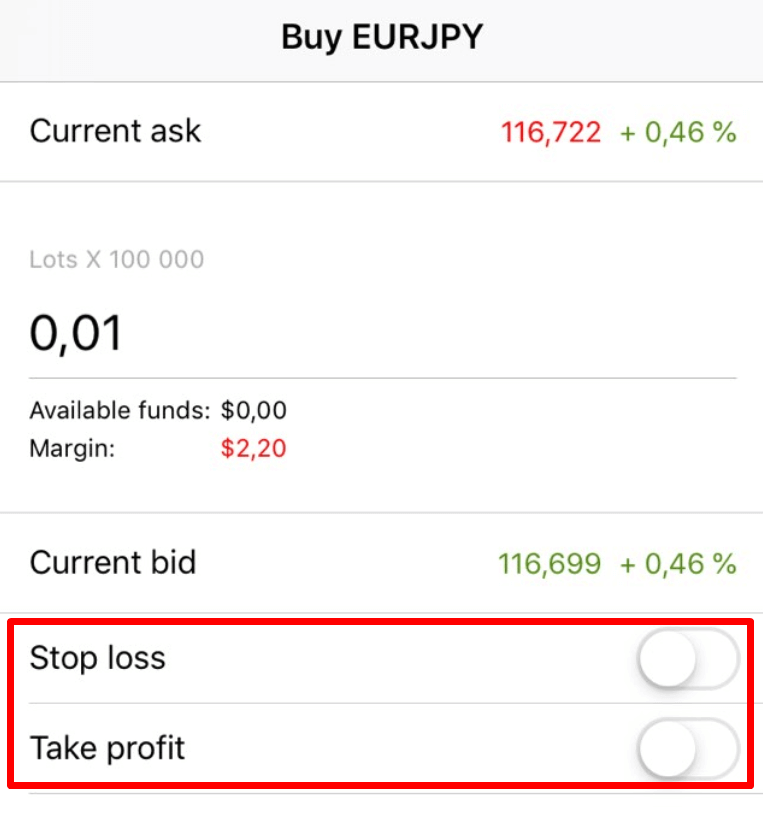
You can also set Stop Loss and Take Profit levels for your order.
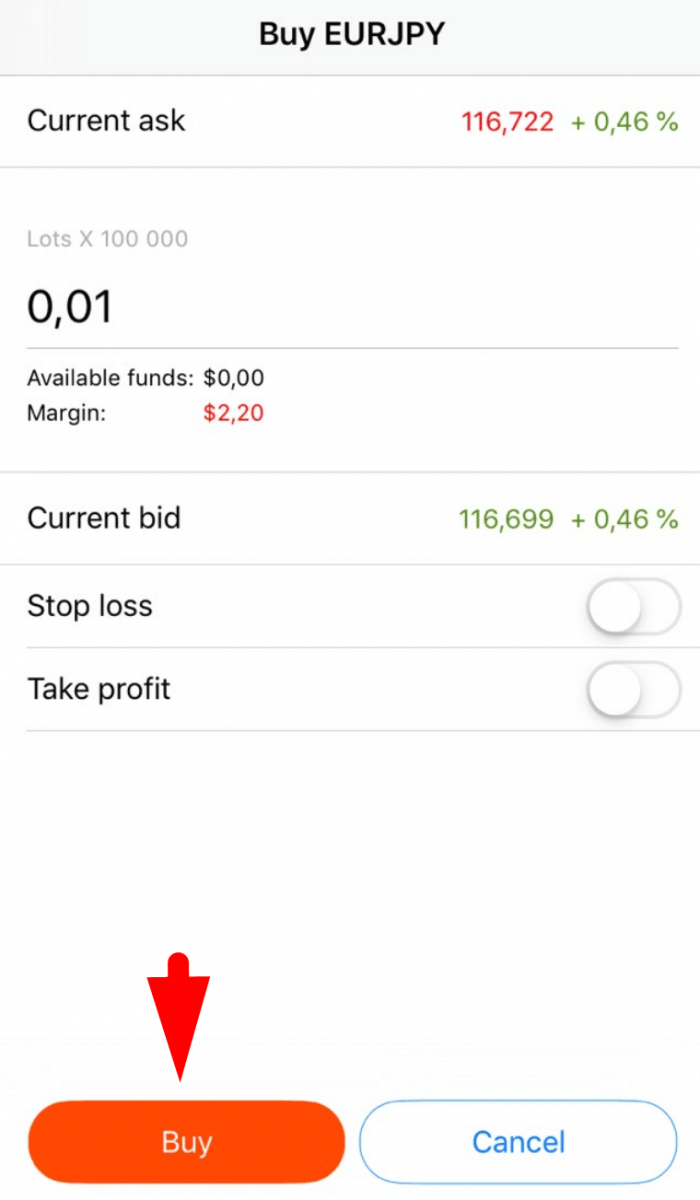
As soon as you adjust your order conditions, click on the red “Sell” or “Buy” button (depending on your order type). The order will be opened immediately.
Now on the “Trading” page, you can see the current order status and profit.
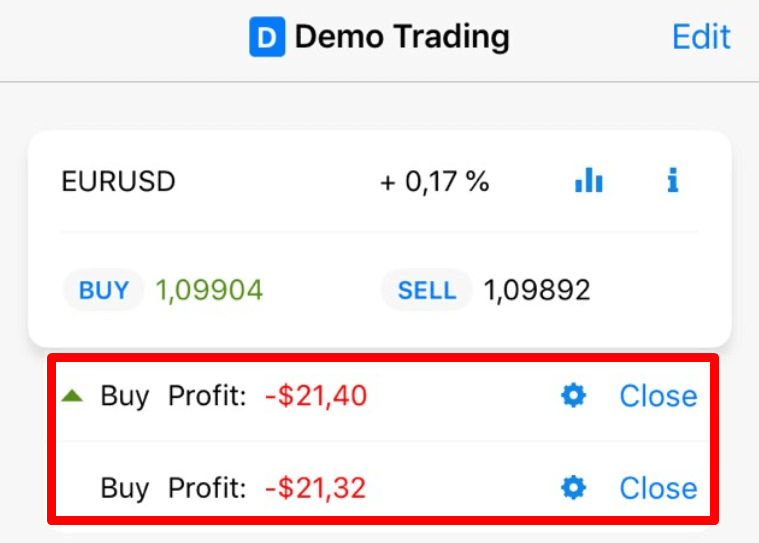
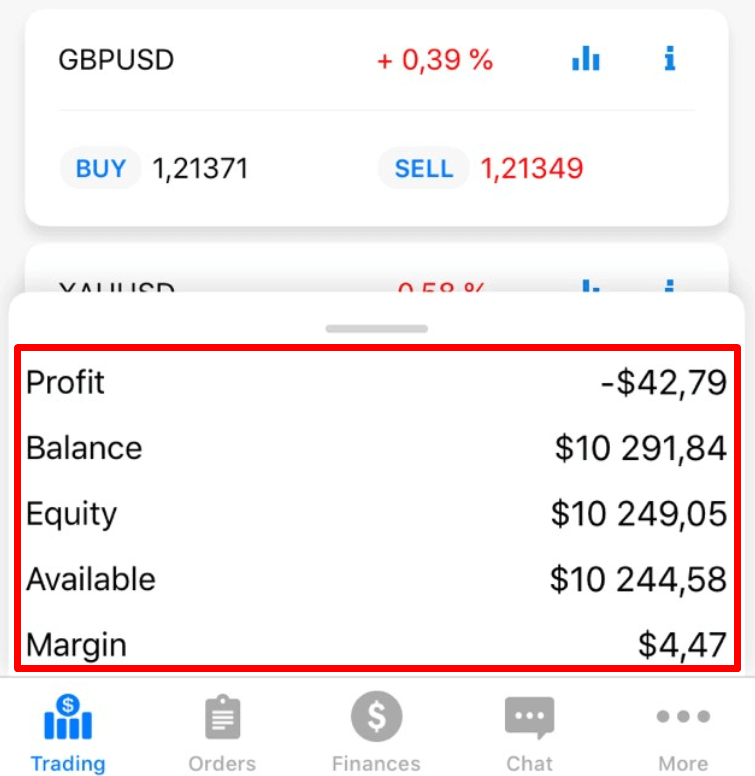
By sliding up the “Profit” tab you can see your current Profit, your Balance, Equity, Margin that you have already used, and Available margin.
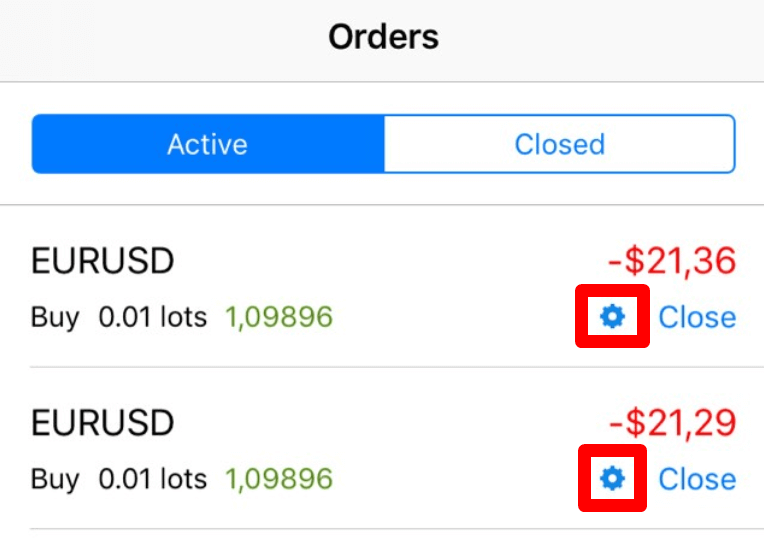
You can modify an order either on the “Trading” page or on the “Orders” page simply by clicking on the gear-wheel icon.
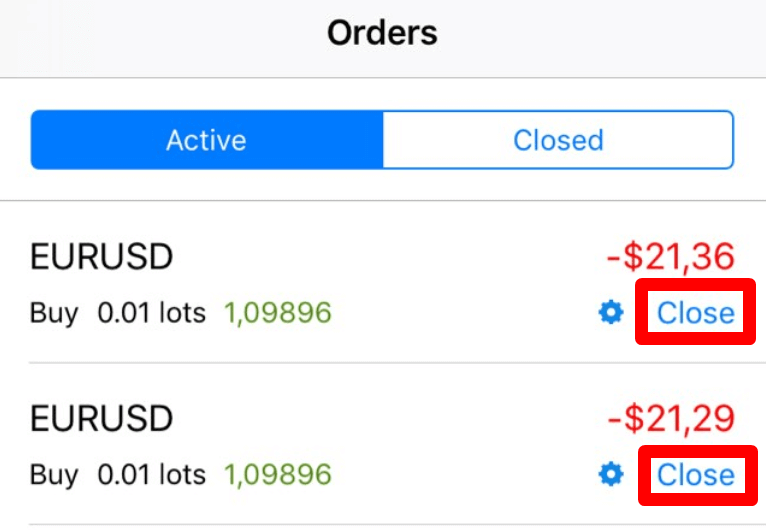
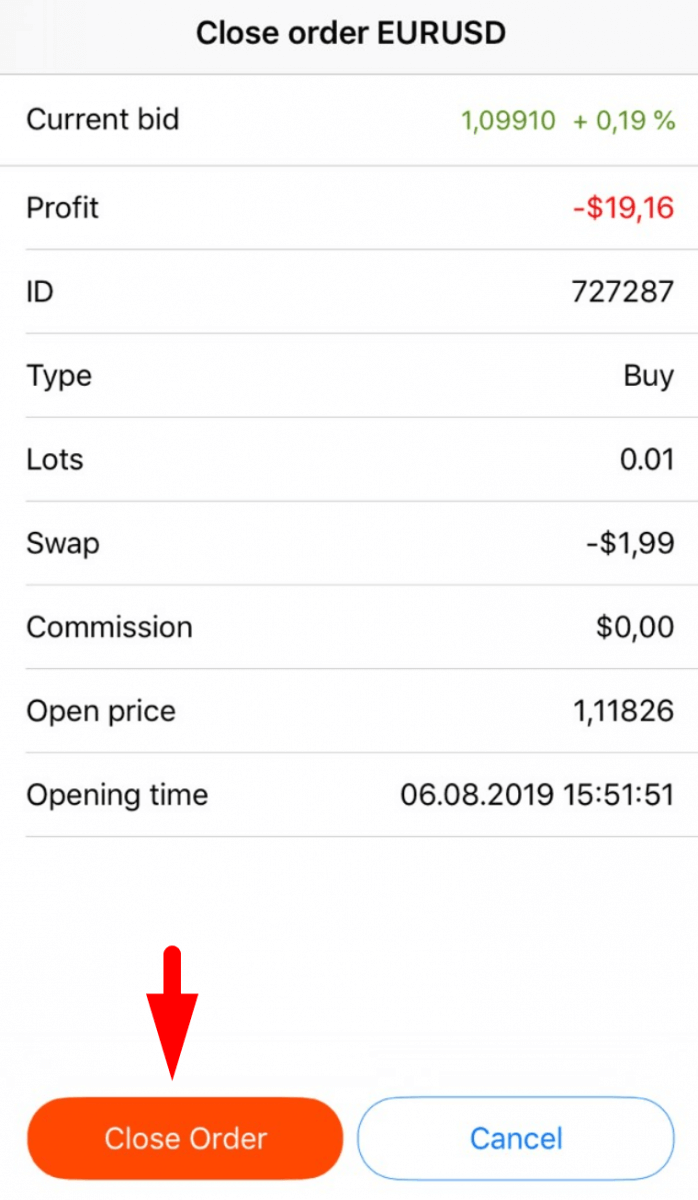
You can close an order either on the “Trading” page or on the “Orders” page by clicking on the “Close” button: in the opened window you will be able to see all the information regarding this order and to close it by clicking on the “Close order” button.
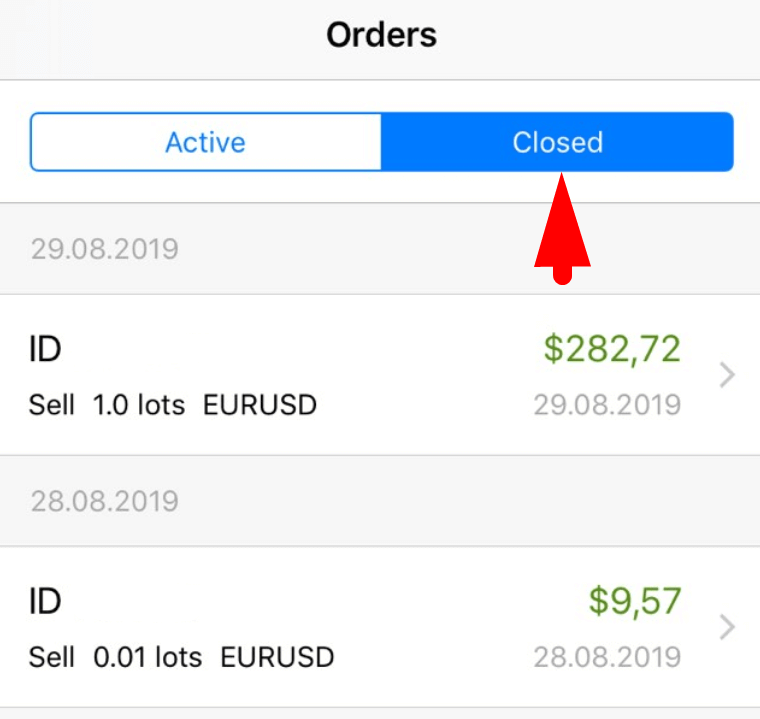
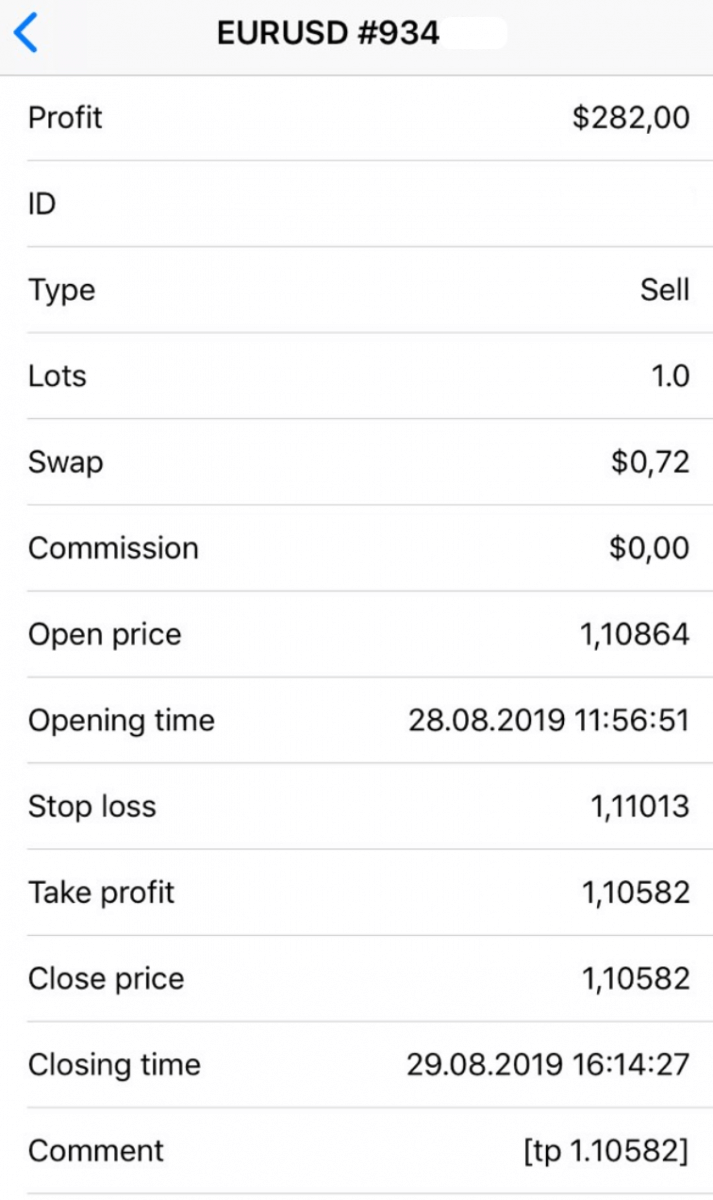
In case you need the information about the closed orders, go to the “Orders” page again and choose the “Closed” folder - by clicking on the required order you will be able to see all the information about it.
How to Trade Forex in FBS MT4/MT5
How to place a new Order in FBS MT4
1. Once you open the application, youll see a login form, which you need to complete using your login and password. Choose the Real server to log into your real account and the Demo server for your demo account.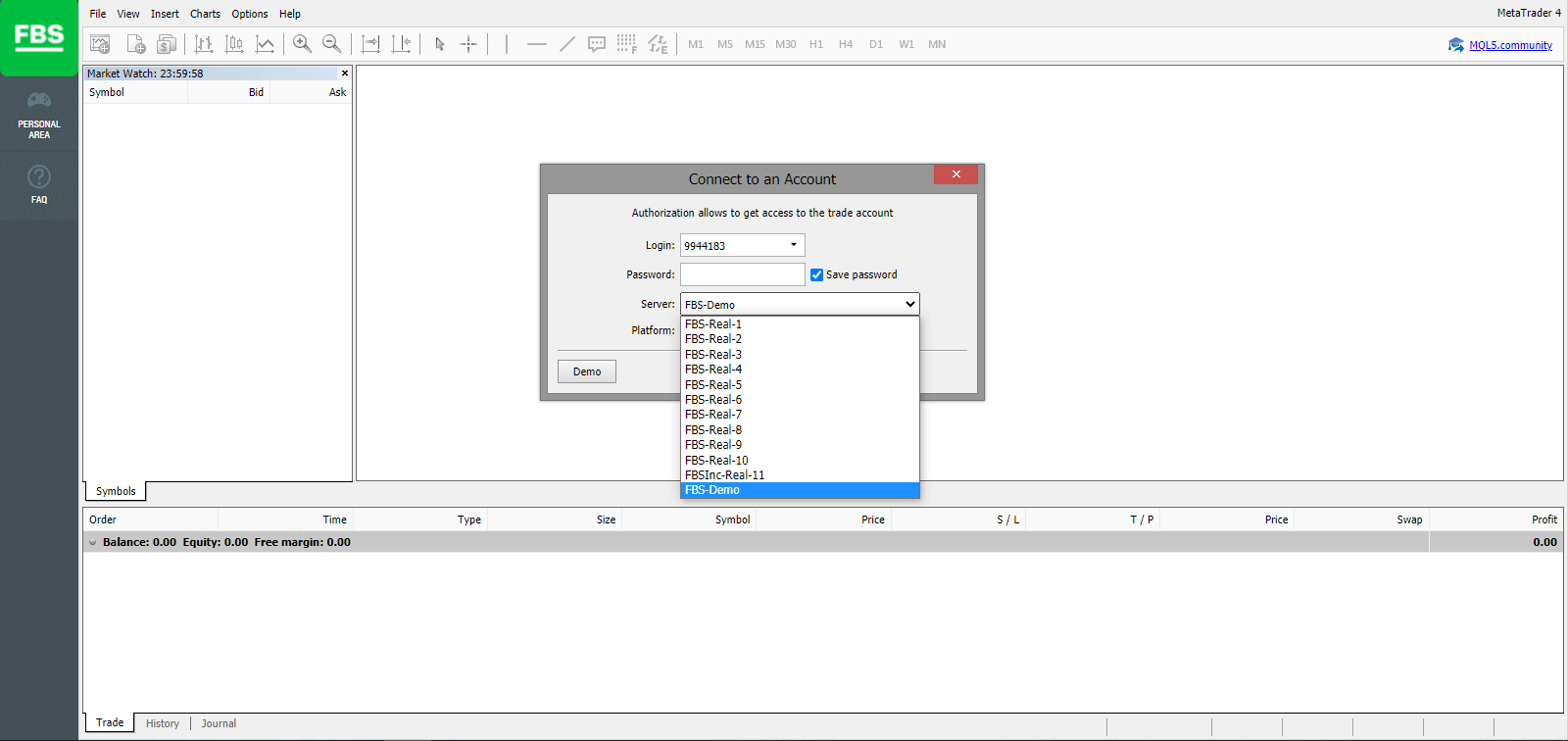
2. Please note that every time you open a new account, well send you an email (or go to Account Settings in Personnal Area) containing that accounts login (account number) and password.
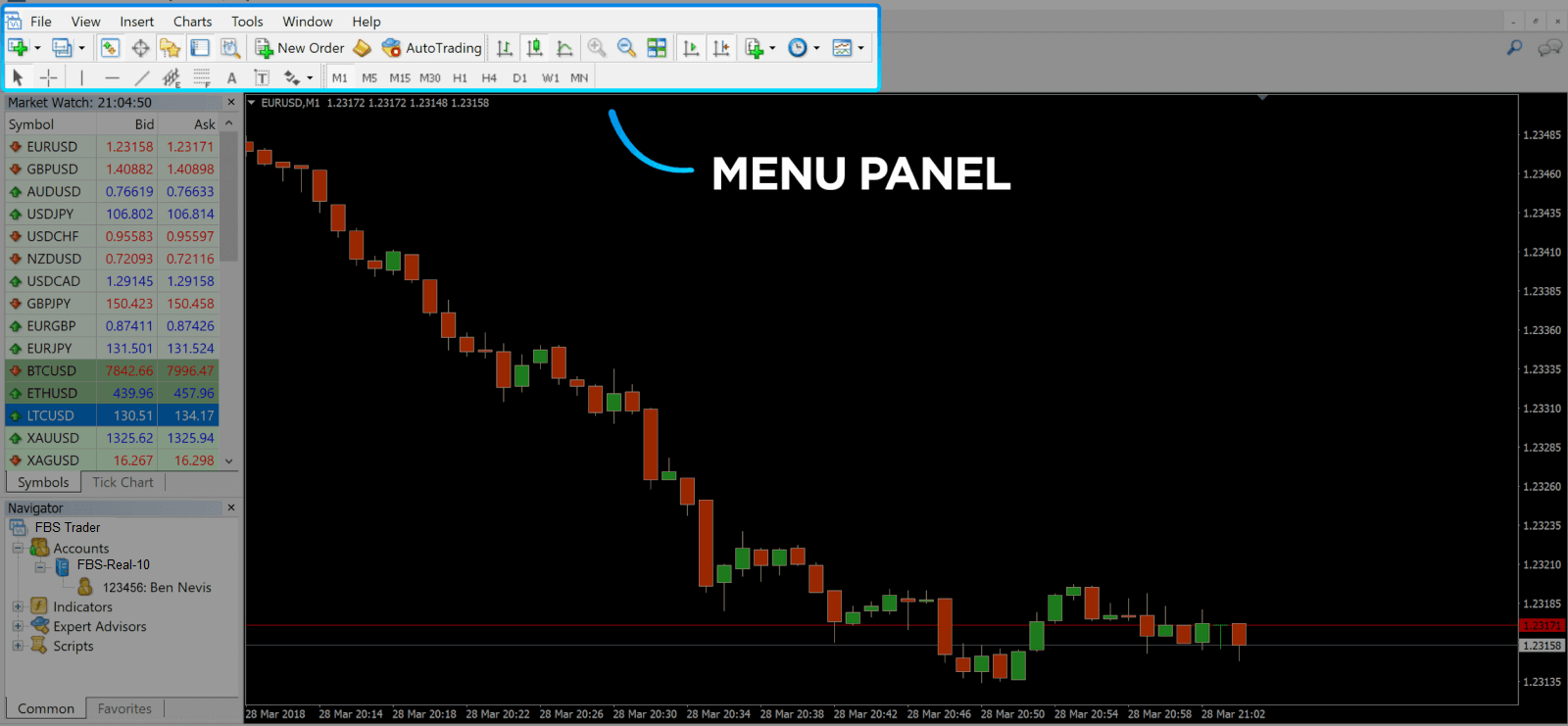
After logging in, you’ll be redirected to the MetaTrader platform. You’ll see a big chart representing a particular currency pair.
3. At the top of the screen, you’ll find a menu and a toolbar. Use the toolbar to create an order, change time frames and access indicators.
MetaTrader 4 Menu Panel
4. Market Watch can be found on the left side, which lists different currency pairs with their bid and ask prices.
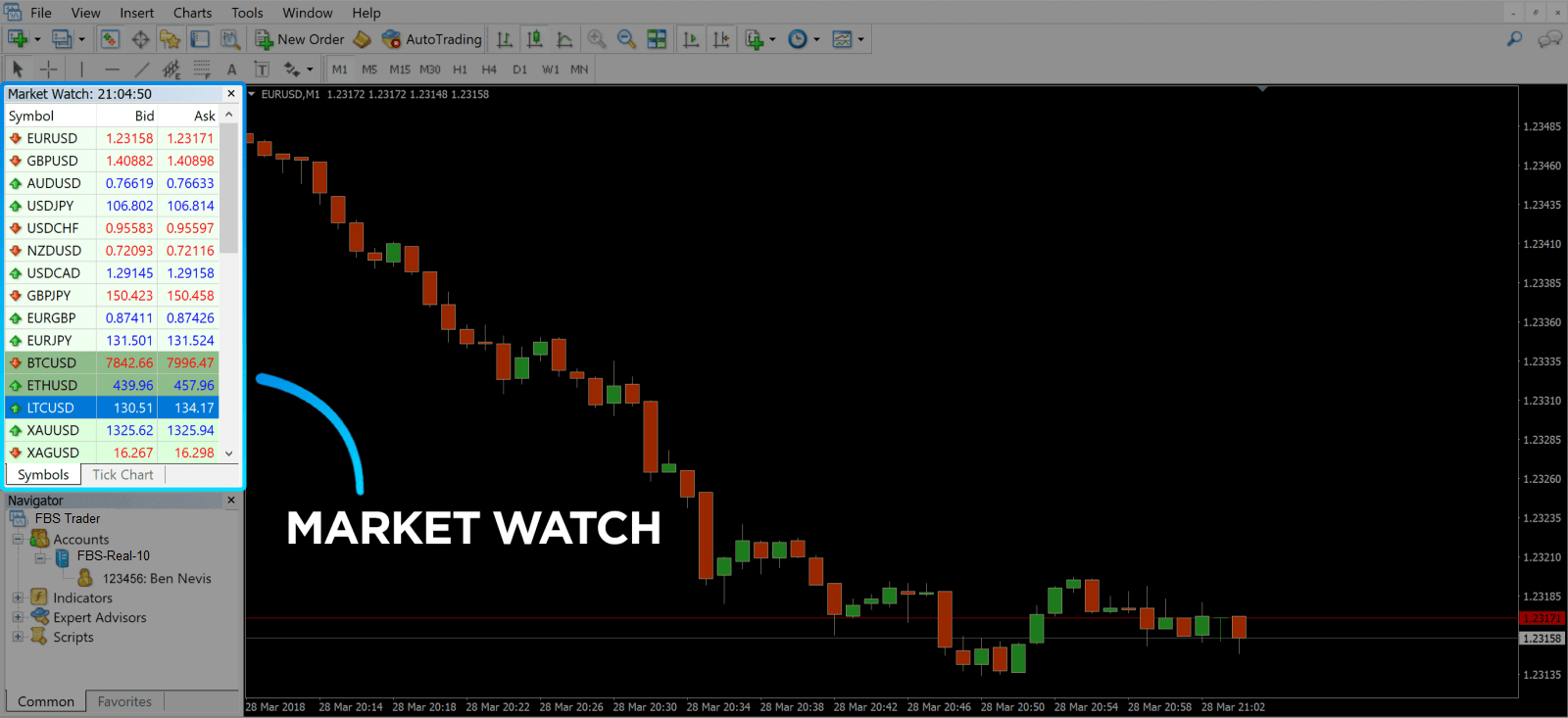
5. The ask price is used to buy a currency, and the bid is for selling. Below the ask price, youll see the Navigator, where you can manage your accounts and add indicators, expert advisors, and scripts.
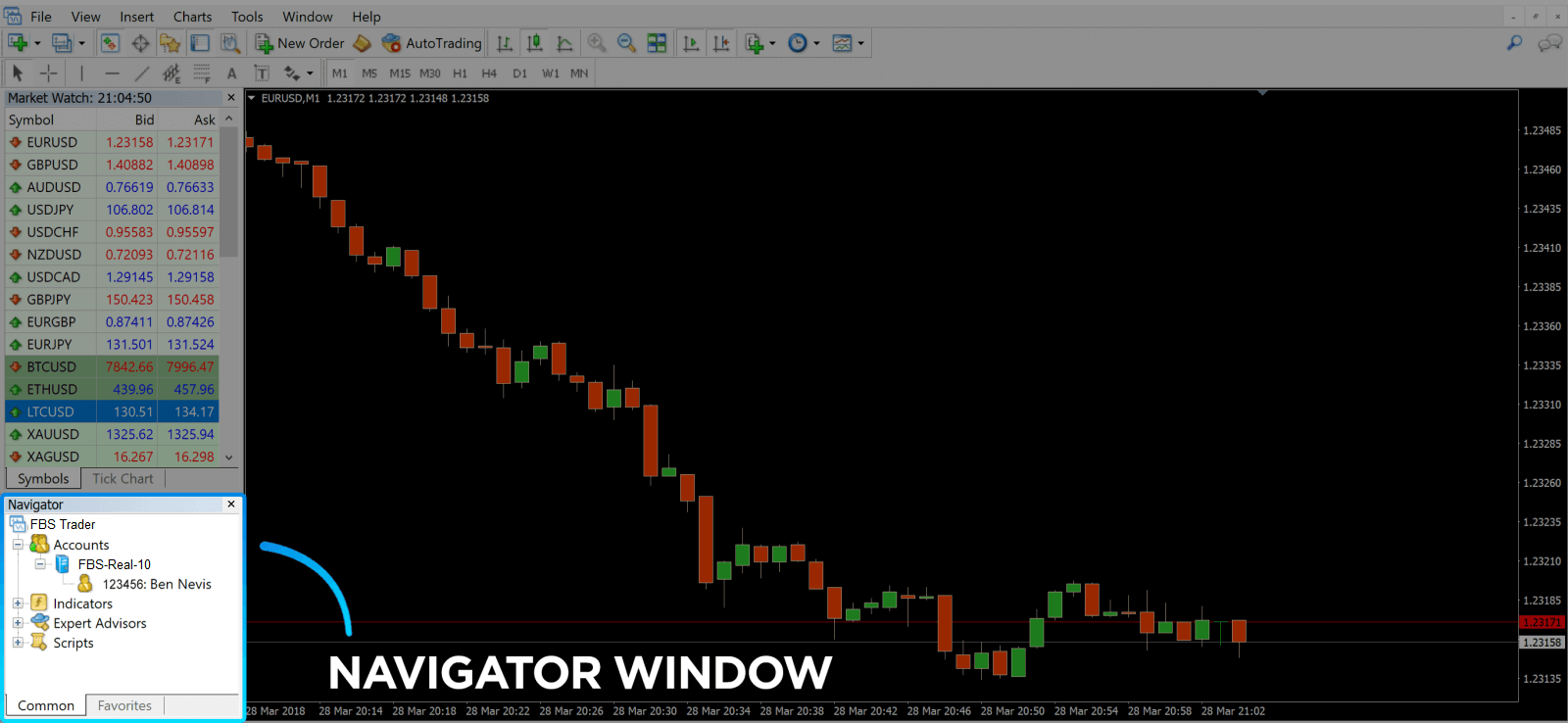
MetaTrader Navigator
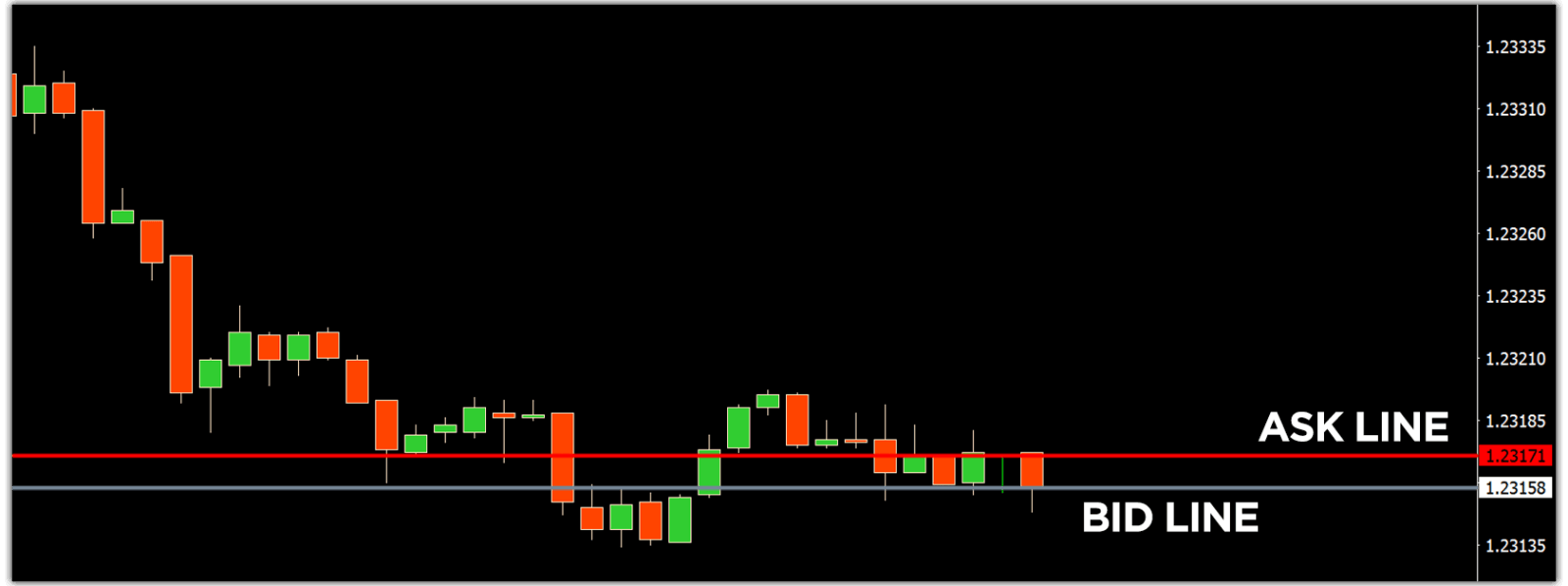
MetaTrader 4 Navigator for ask and bid lines
6. At the bottom of the screen can be found the Terminal, which has several tabs to help you keep track of the most recent activities, including Trade, Account History, Alerts, Mailbox, Experts, Journal, and so forth. For instance, you can see your opened orders in the Trade tab, including the symbol, trade entry price, stop loss levels, take profit levels, closing price, and profit or loss. The Account History tab collects data from activities that have happened, including closed orders.
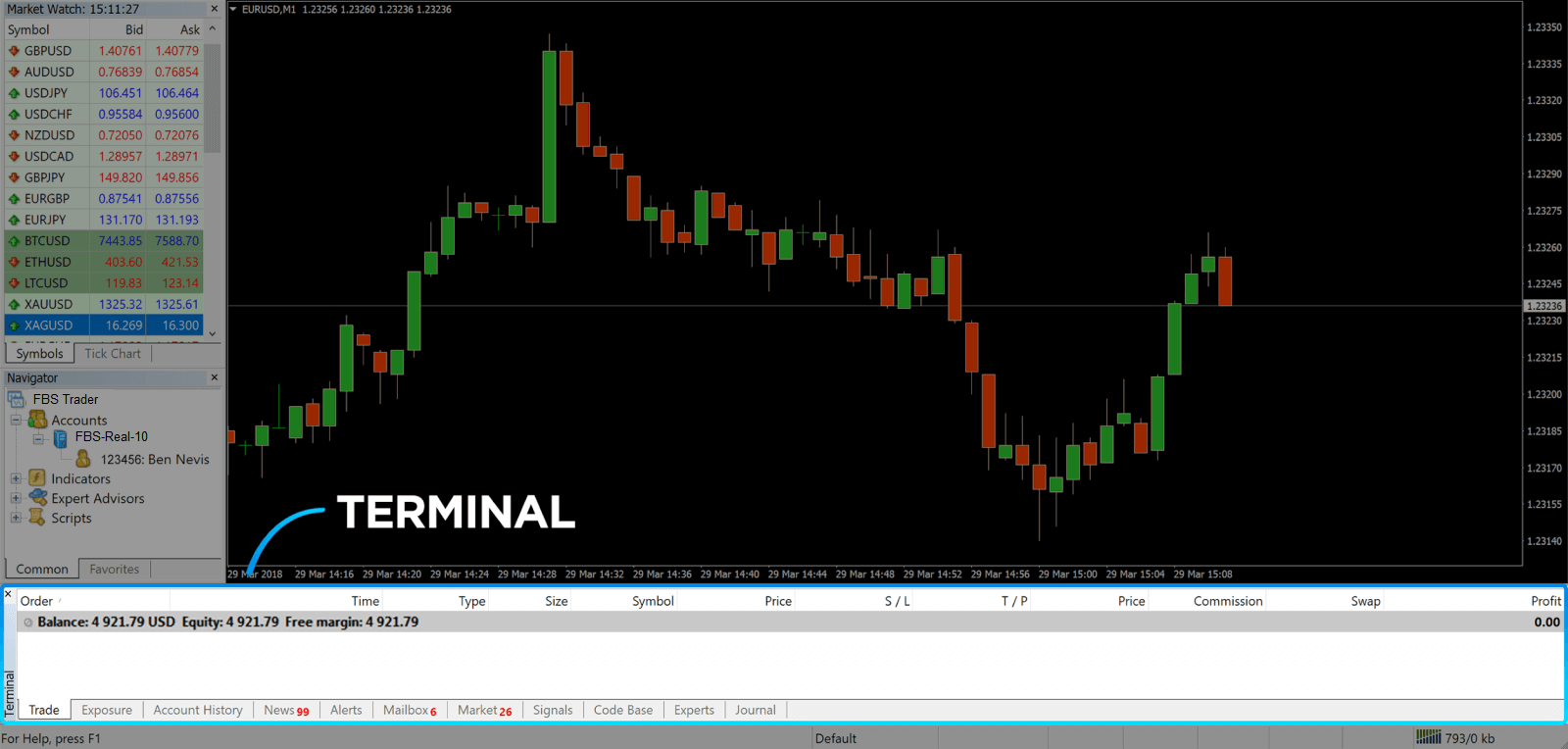
7. The chart window indicates the current state of the market and the ask and bid lines. To open an order, you need to press the New Order button in the toolbar or press the Market Watch pair and select New Order.
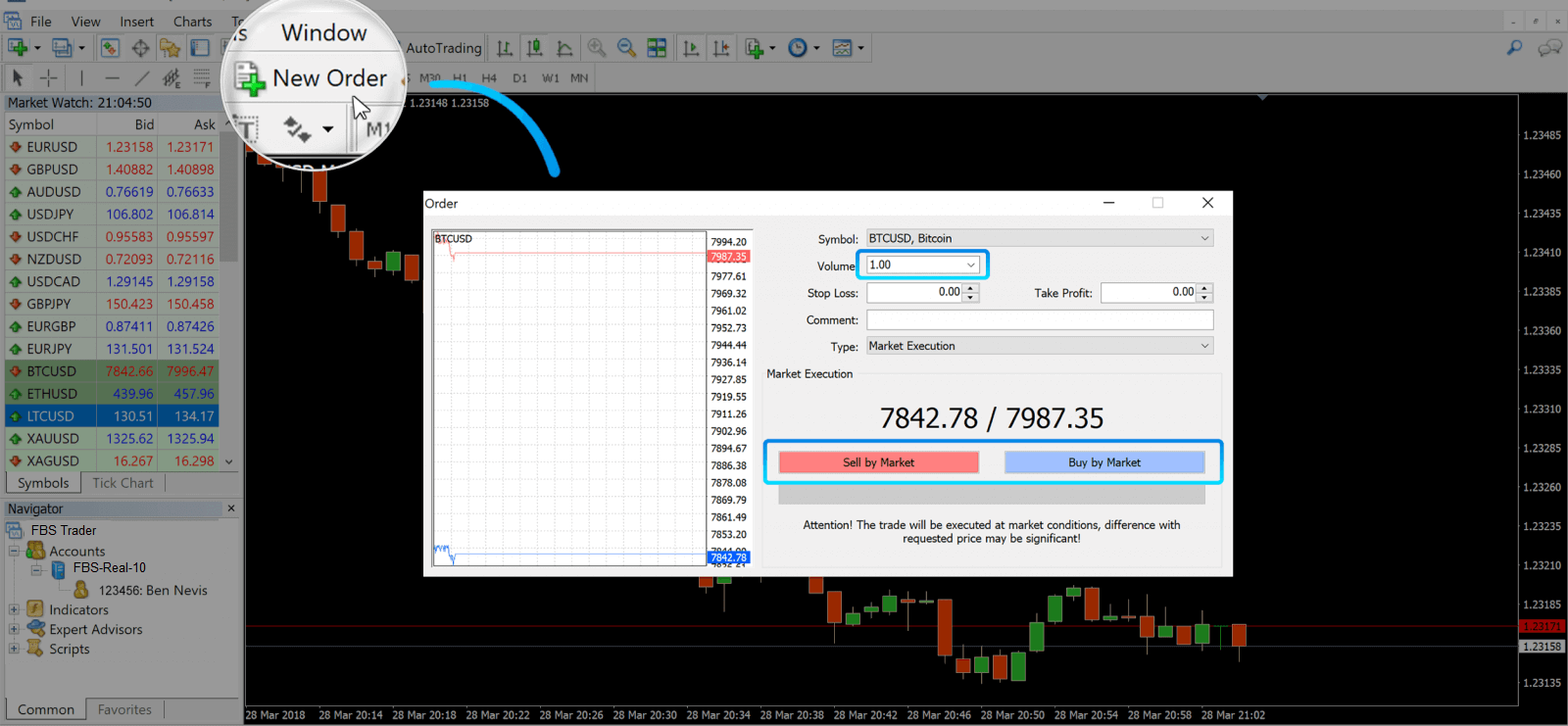
In the window that opens, you’ll see:
- Symbol, automatically set to the trading asset presented on the chart. To choose another asset, you need to select one from the drop-down list. Learn more about Forex trading sessions.
- Volume, which represents the lot size. 1.0 is equal to 1 lot or 100,000 units—profit Calculator from FBS.
- You can set Stop Loss and Take Profit at once or modify the trade later.
- The type of order can be either Market Execution (a market order) or Pending Order, where the trader can specify the desired entry price.
- To open a trade you need to click on either the Sell by Market or Buy by Market buttons.
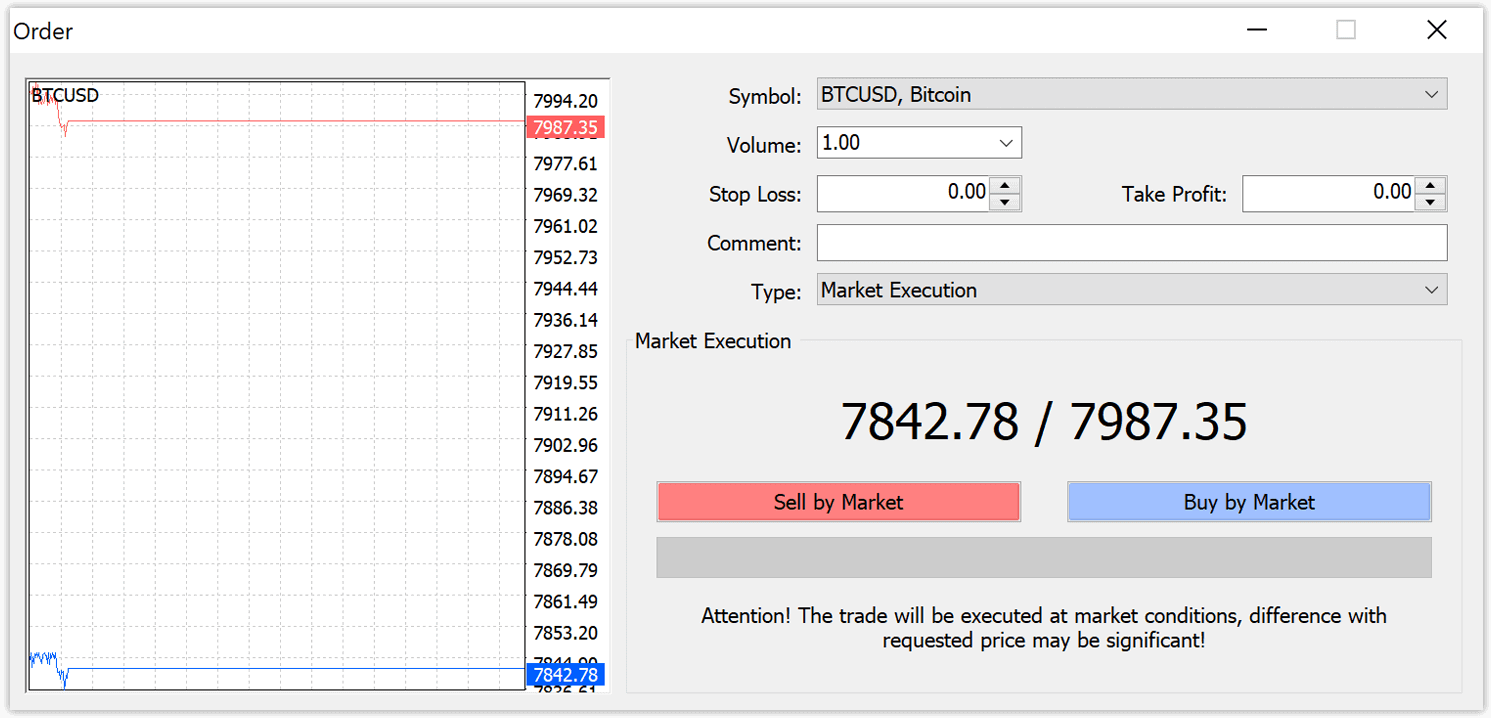
- Buy orders open by the ask price (red line) and close by the bid price (blue line). Traders buy for less and want to sell for more. Sell orders open by the bid price and close by the ask price. You sell for more and want to buy for less. You can view the opened order in the Terminal window by pressing on the Trade tab. To close the order, you need to press the order and select Close Order. You can view your closed orders under the Account History tab.
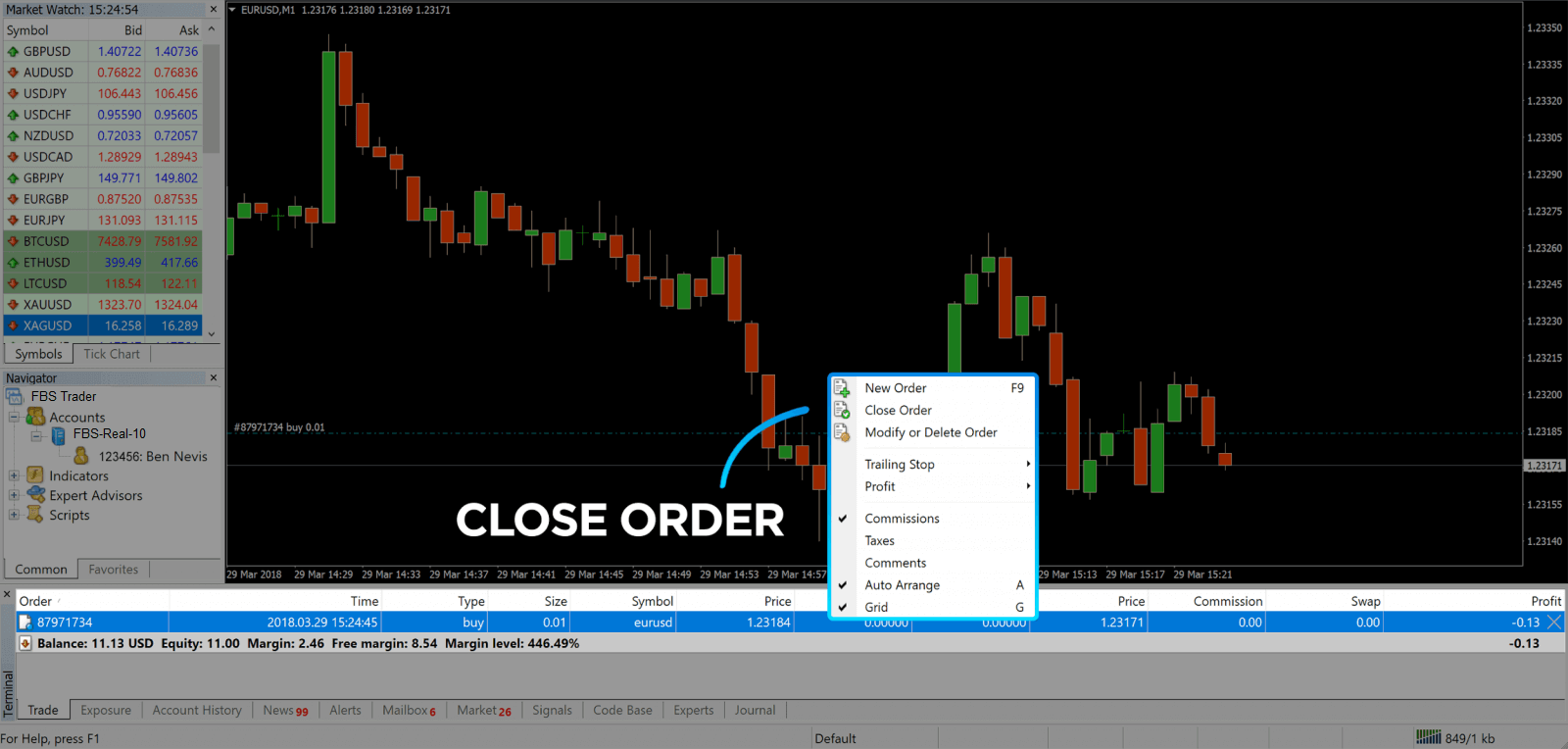
This way, you can open a trade on MetaTrader 4. Once you know each buttons purpose, itll be easy for you to trade on the platform. MetaTrader 4 offers you plenty of technical analysis tools that help you trade like an expert on the Forex market.
How to place a Pending Order
How Many Pending Orders in FBS MT4
Unlike instant execution orders, where a trade is placed at the current market price, pending orders allow you to set orders that are opened once the price reaches a relevant level, chosen by you. There are four types of pending orders available , but we can group them to just two main types:- Orders expecting to break a certain market level
- Orders are expected to bounce back from a certain market level
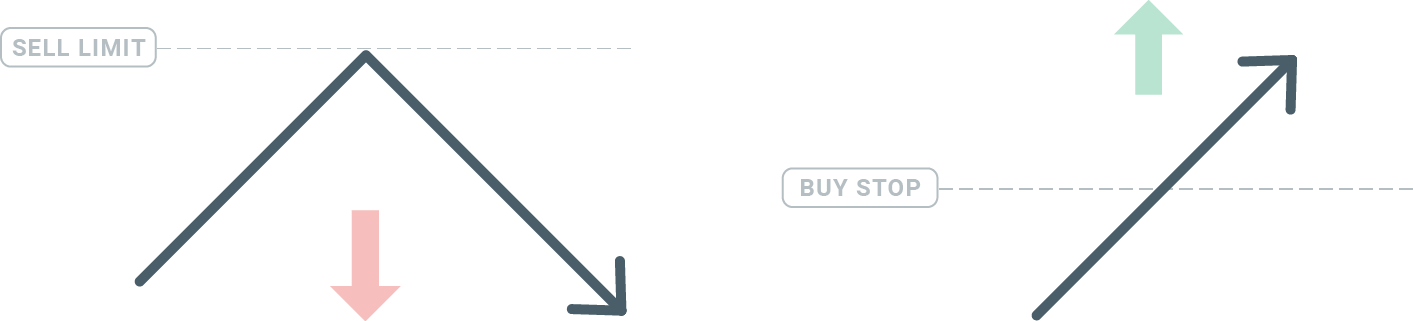
Buy Stop
The Buy Stop order allows you to set a buy order above the current market price. This means that if the current market price is $20 and your Buy Stop is $22, a buy or long position will be opened once the market reaches that price.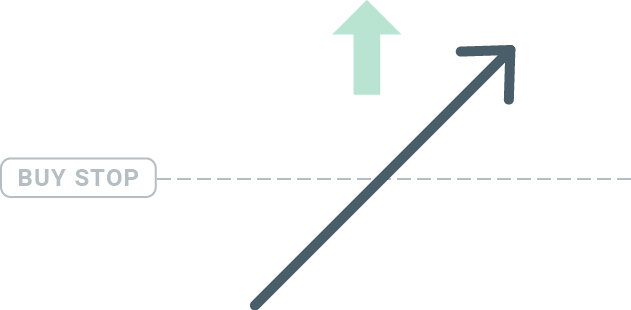
Sell Stop
The Sell Stop order allows you to set a sell order below the current market price. So if the current market price is $20 and your Sell Stop price is $18, a sell or ‘short’ position will be opened once the market reaches that price.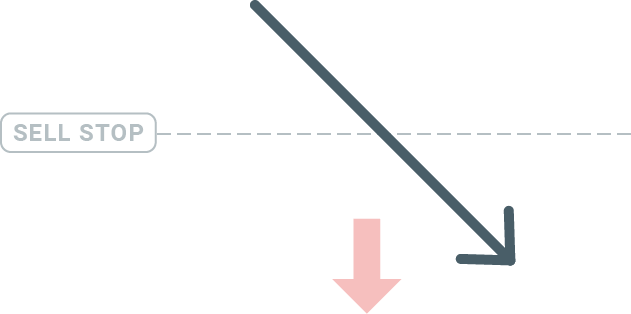
Buy Limit
The opposite of a buy stop, the Buy Limit order allows you to set a buy order below the current market price. This means that if the current market price is $20 and your Buy Limit price is $18, then once the market reaches the price level of $18, a buy position will be opened.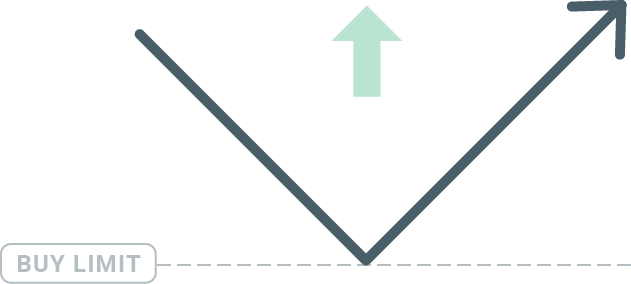
Sell Limit
Finally, the Sell Limit order allows you to set a sell order above the current market price. So if the current market price is $20 and the set Sell Limit price is $22, then once the market reaches the price level of $22, a sell position will be opened on this market.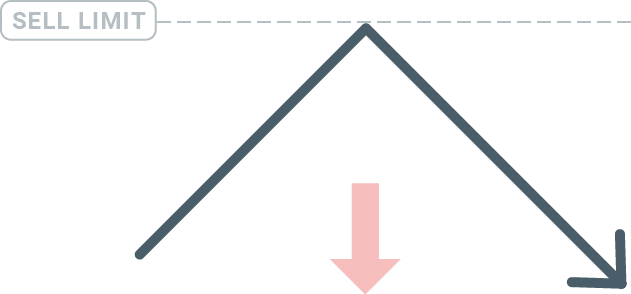
Opening Pending Orders
You can open a new pending order simply by double-clicking on the name of the market on the Market Watch module. Once you do so, the new order window will open and you will be able to change the order type to Pending order.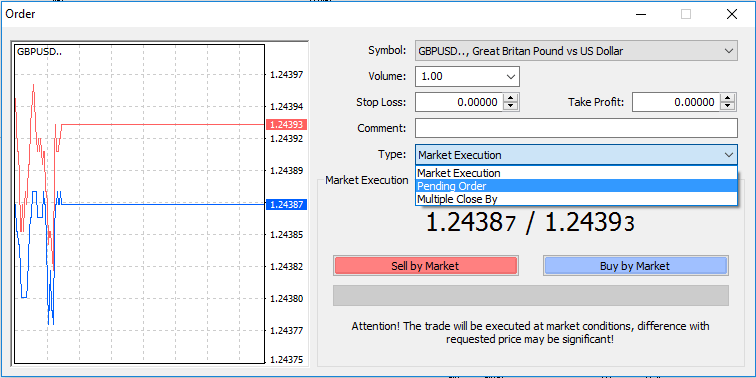
Next, select the market level at which the pending order will be activated. You should also choose the size of the position based on the volume.
If necessary, you can set an expiration date (‘Expiry’). Once all these parameters are set, select a desirable order type depending on whether you would like to go long or short and stop or limit and select the ‘Place’ button.
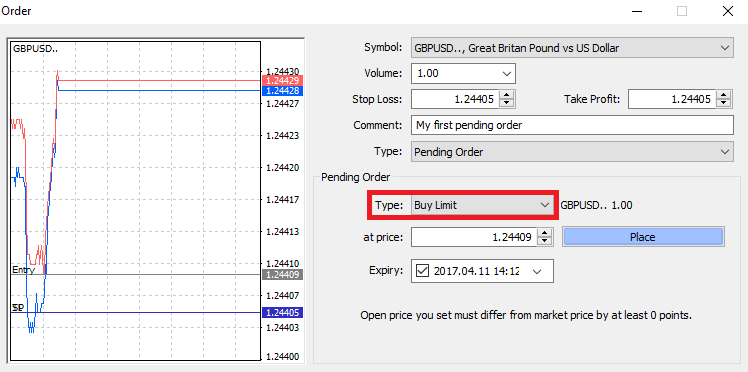
As you can see, pending orders are very powerful features of MT4. They are most useful when youre not able to constantly watch the market for your entry point, or if the price of an instrument changes quickly, and you don’t want to miss the opportunity.
How to close Orders in FBS MT4
To close an open position, click the ‘x’ in the Trade tab in the Terminal window.
Or right-click the line order on the chart and select ‘close’.
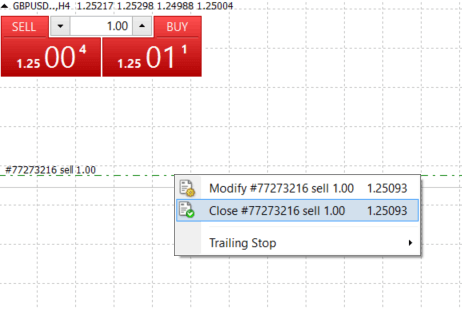
If you’d like to close only a part of position, click the right-click on the open order and select ‘Modify’. Then, in the Type field, select instant execution and choose what part of the position you want to close.
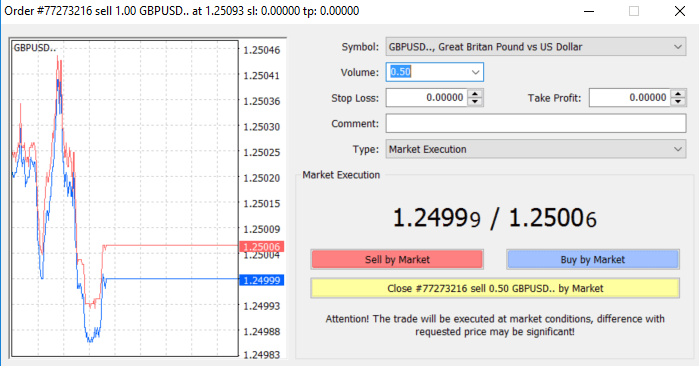
As you can see, opening and closing your trades on MT4 is very intuitive, and it literally takes just one click.
Using Stop Loss, Take Profit, and Trailing Stop in FBS MT4
One of the keys to achieving success in financial markets over the long term is prudent risk management. That’s why stop losses and take profits should be an integral part of your trading.So let’s have a look at how to use them on our MT4 platform to ensure you know how to limit your risk and maximise your trading potential.
Setting Stop Loss and Take Profit
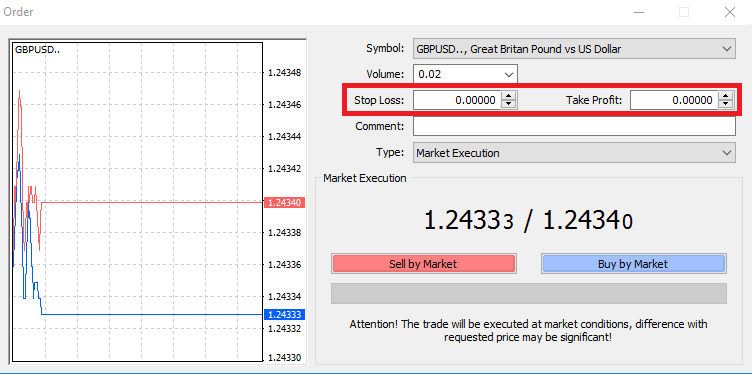
To do this, simply enter your particular price level in the Stop Loss or Take Profit fields. Remember that Stop Loss will be executed automatically when the market moves against your position (hence the name: stop losses), and Take Profit levels will be executed automatically when the price reaches your specified profit target. This means that you’re able to set your Stop Loss level below the current market price and Take Profit level above the current market price.
It’s important to remember that a Stop Loss (SL) or a Take Profit (TP) is always connected to an open position or a pending order. You can adjust both once your trade has been opened and you’re monitoring the market. It’s a protective order for your market position, but of course, it’s not necessary to open a new position. You can always add them later, but we highly recommend always protecting your positions*.
Adding Stop Loss and Take Profit Levels
The easiest way to add SL/TP levels to your already opened position is by using a trade line on the chart. To do so, simply drag and drop the trade line up or down to a specific level.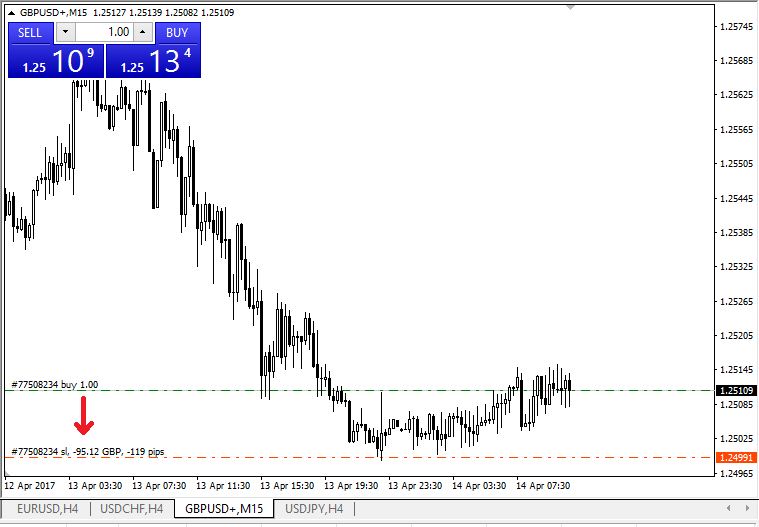
Once you’ve entered SL/TP levels, the SL/TP lines will appear on the chart. This way you can also modify SL/TP levels simply and quickly.
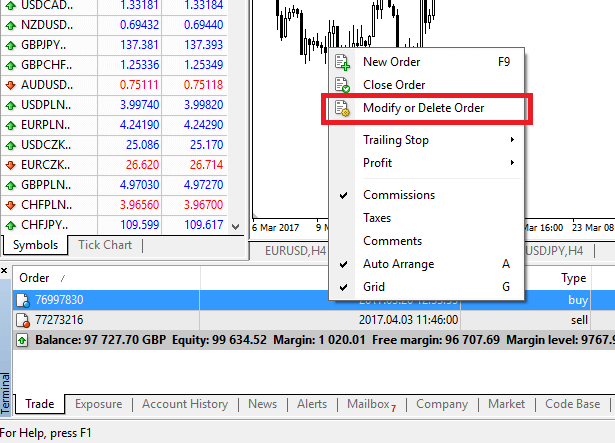
You can also do this from the bottom ‘Terminal’ module as well. To add or modify SL/TP levels, simply right-click on your open position or pending order, and choose ‘Modify or delete order’.
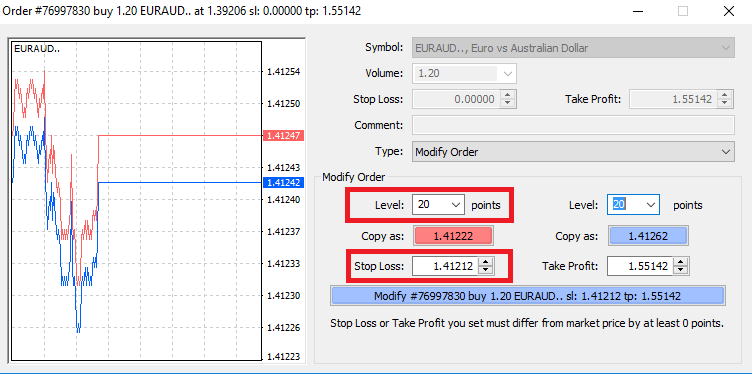
The order modification window will appear, and now you’re able to enter/modify SL/TP by the exact market level, or by defining the points range from the current market price.
Trailing Stop
Stop Losses are intended for reducing losses when the market moves against your position, but they can help you lock in your profits as well.
While that may sound a bit counterintuitive at first, it’s actually very easy to understand and master.
Let’s say you’ve opened a long position and the market moves in the right direction, making your trade a profitable one at present. Your original Stop Loss, which was placed at a level below your open price, can now be moved to your open price (so you can break even) or above the open price (so you are guaranteed a profit).
To make this process automatic, you can use a Trailing Stop. This can be a really useful tool for your risk management, particularly when price changes are rapid or when you’re unable to constantly monitor the market.
As soon as the position turns profitable, your Trailing Stop will follow the price automatically, maintaining the previously established distance.
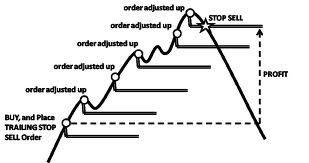
Following the example above, please bear in mind, however, that your trade needs to be running a profit large enough for the Trailing Stop to move above your open price, before your profit can be guaranteed.
Trailing Stops (TS) are attached to your open positions, but it’s important to remember that if you have a trailing stop on MT4, you need to have the platform open for it to be successfully executed.
To set a Trailing Stop, right-click the open position in the ‘Terminal’ window and specify your desired pip value of distance between the TP level and the current price in the Trailing Stop menu.
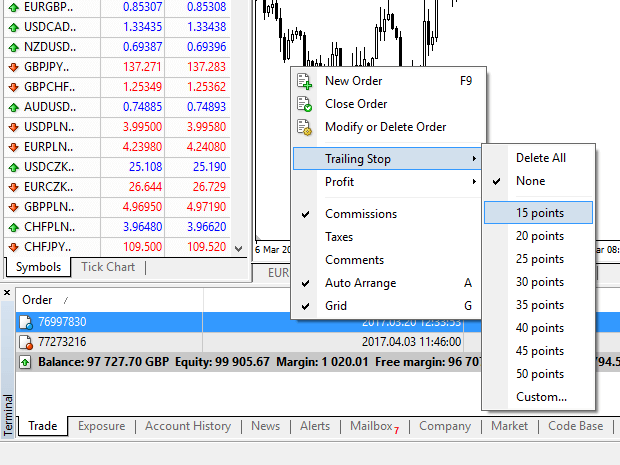
Your Trailing Stop is now active. This means that if prices change to the profitable market side, TS will ensure the stop loss level follows the price automatically.
Your Trailing Stop can easily be disabled by setting ‘None’ in the Trailing Stop menu. If you want to quickly deactivate it in all open positions, just select ‘Delete All’.
As you can see, MT4 provides you with plenty of ways to protect your positions in just a few moments.
*Whilst Stop Loss orders are one of the best ways to ensure your risk is managed and potential losses are kept to acceptable levels, they don’t provide 100% security.
Stop losses are free to use and they protect your account against adverse market moves, but please be aware that they cannot guarantee your position every time. If the market becomes suddenly volatile and gaps beyond your stop level (jumps from one price to the next without trading at the levels in between), it’s possible your position could be closed at a worse level than requested. This is known as price slippage.
Guaranteed stop losses, which have no risk of slippage and ensure the position is closed out at the Stop Loss level you requested, even if the market moves against you, are available for free with a basic account.
Frequently Asked Questions (FAQ) in FBS
Registration
I want to try a Demo Account in the FBS Personal Area (web)
You don’t have to spend your own money on Forex right away. We offer practice demo accounts, which will let you test the Forex market with virtual money using real market data.Using a Demo account is an excellent way to learn how to trade. You will be able to practice by pressing the buttons and grasp everything much faster without being afraid of losing your own funds.
The process of opening an account at FBS is simple.
2. Find the "Demo accounts" section and click on the plus sign.

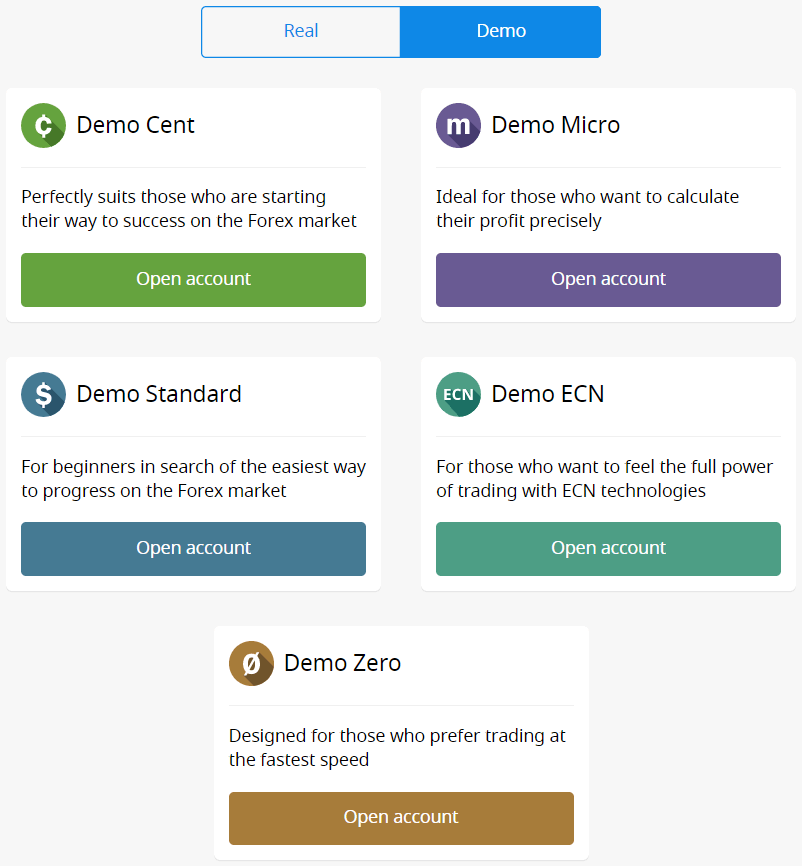
5. Depending on the account type, you may choose the MetaTrader version, account currency, leverage, and initial balance.
6. Click on the "Open account" button.
How many Accounts can I open?
You can open up to 10 trading accounts of each type within one Personal area if 2 conditions are met:
- Your Personal Area is verified.
- The total deposit to all your accounts is $100 or more.
Please, take into account that each client can register only one Personal Area.
Which Account to choose?
We offer 5 types of accounts, which you can see on our site: Standard, Cent, Micro, Zero spread, and ECN account.Standard account has a floating spread but no commission. With a Standard account, you can trade using the highest leverage (1:3000).
Cent account also has floating spread and no commission, but bear in mind that on the Cent account, you trade with cents! So, for example, if you deposit $10 into the Cent account, you will see it as 1000 in the trading platform, which means that you will trade with 1000 cents. The maximum leverage for the Cent account is 1:1000.
Cent account is the perfect choice for beginners; with this account type, you will be able to start real trading with small investments. Also, this account suits well for scalping.
ECN account has the lowest spreads, offers the fastest order execution, and has a fixed commission of $6 per 1 lot traded. The maximum leverage for the ECN account is 1:500. This account type is the perfect option for experienced traders, and it works best for a scalping trading strategy.
A micro account has a fixed spread and no commission. It also has the highest leverage of 1:3000.
A
Zero Spread account has no spread but has a commission. It starts from $20 per 1 lot and differs depending on the trading instrument. The maximum leverage for the Zero Spread account is also 1:3000.
But, please, kindly consider that according to the Customer Agreement (p.3.3.8), for instruments with fixed spread or fixed commission, the Company reserves the right to increase the spread in case the spread on the basic contract exceeds the size of the fixed spread.
We wish you successful trading!
How can I change my Account leverage?
Please, kindly be informed that you can change your leverage in your Personal Area account settings page.This is how you can do it:
1. Open the account settings by clicking on the needed account in the Dashboard.
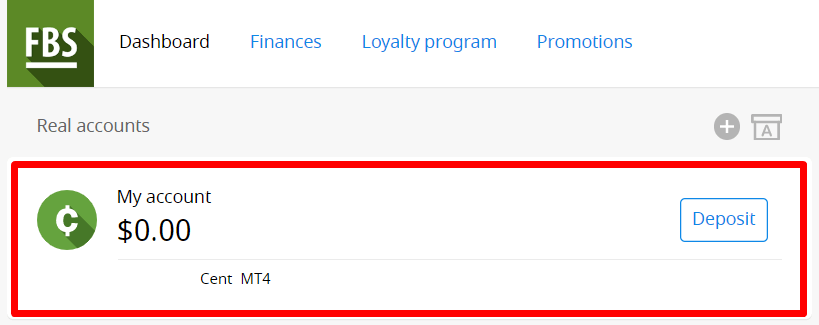
Find "Leverage" in the "Account settings" section and click on the current leverage link.

Set the necessary leverage and press the "Confirm" button.
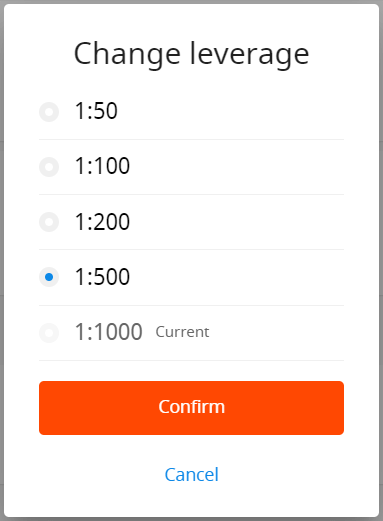
Please, note, that leverage change is possible only once in 24 hours and in case you do not have any open orders.
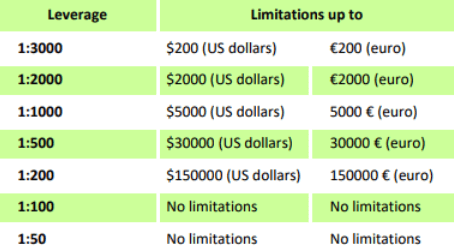
We want to remind you that we have specific regulations on leverage in correlation to the sum of equity. The Company is entitled to apply leverage changes to already opened positions as well as to reopened positions according to these limitations.
I can not find my Account
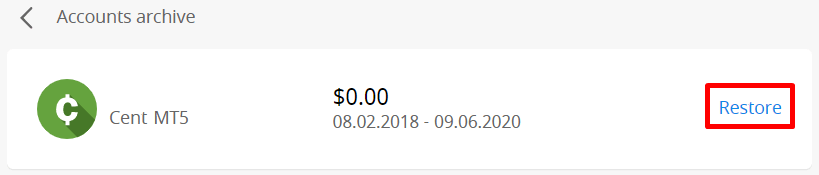
It seems like your account has been archived.Please, kindly be informed that Real accounts are automatically archived after 90 days of inactivity.
To restore your account:
1. Please, go to the Dashboard in your Personal Area.
2. Click on the icon of the box with A letter.

Choose the needed account number and click the "Restore" button.
We want to remind you that demo accounts for the MetaTrader4 platform are valid for a period (depending on the account type), and after that, they are automatically deleted.
Validity period:
| Demo Standard | 40 |
| Demo Cent | 40 |
| Demo Ecn | 45 |
| Demo Zero spread | 45 |
| Demo Micro | 45 |
| Demo account opened directly from the MT4 platform |
25 |
In this case, we may recommend that you to open a new demo account.
Demo accounts for the MetaTrader5 platform can be archived/deleted in a period set at the discretion of the company.
I want to change my Account type in the FBS Personal Area (web)
Unfortunately, it is impossible to change the type of account.But you can open a new account of the desired type within the existing Personal Area.
After that, you will be able to transfer funds from the existing account to the newly opened one via Internal Transfer in the Personal Area.
What is the FBS Personal Area (web)?
FBS Personal Area is a personal profile in which the client can manage their own trading accounts and interact with FBS.The FBS Personal Area aims to provide the client with all the data necessary to manage the account, collected in one place. With the FBS Personal Area, you can deposit and withdraw funds to/from your MetaTrader accounts, manage your trading accounts, change the profile settings, and download the needed trading platform with just a couple of clicks!
In the FBS Personal Area, you can create an account of any type you wish (Standard, Micro, Cent, Zero Spread, ECN), adjust the leverage, and proceed with financial operations.
In case you have any questions, FBS Personal Area offers convenient ways of contacting our customer support, which can be found at the bottom of the page:
Deposit
How long does it take to process a Deposit/Withdrawal request?
Deposits via electronic payment systems are processed instantly. Deposit requests via other payment systems are processed within 1-2 hours by the FBS Financial department.The The
FBS Financial department works 24/7. The maximum time of processing a deposit/withdrawal request via an electronic payment system is 48 hours from the moment of its creation. Bank wire transfers take up to 5-7 business days to process.
Can I make a Deposit in my national currency?
Yes, you can. In this case, the deposit amount will be converted into USD/EUR according to the current official exchange rate on the day of the deposit execution.
How can I Deposit funds into my account?
- Open the Deposit within the Finances section in your Personal area.
- Choose the preferred deposit method, select offline or online payment, and click the Deposit button.
- Select the account you wish to deposit funds into and enter the deposit amount.
- Confirm your deposit details on the next page.
What payment methods can I use to add funds to my account?
FBS offers different funding methods, including numerous electronic payment systems, credit and debit cards, bank wire transfers, and exchangers. There are no deposit fees or commissions charged by FBS for any deposits into the trading accounts.
What is the minimum Deposit amount in the FBS Personal Area (web)?
Please, take into consideration the following deposit recommendations for different account types, respectively:
- For the "Cent" account, the minimum deposit is 1 USD.
- For "Micro" account - 5 USD;
- For "Standard" account - 100 USD;
- For "Zero Spread" account – 500 USD;
- For "ECN" account - 1000 USD.
Please, kindly be informed that these are recommendations. The minimum deposit amount, in general, is $1. Please consider that the minimum deposit for some electronic payment systems like Neteller, Skrill, or Perfect Money is $10. Also, as for the bitcoin payment method, the minimum recommended deposit is $5. We would like to remind you that the deposits for smaller amounts are processed manually and may take longer.
To know how much it is needed to open an order in your account, you can use the Traders Calculator on our website.
How do I Deposit funds into my MetaTrader account?
MetaTrader and FBS accounts synchronize, so you do not need any additional steps to transfer funds from FBS directly to MetaTrader. Just log into MetaTrader, following the next steps:
- Download MetaTrader 4 or MetaTrader 5.
- Enter your MetaTrader login and password that you have received during registration at FBS. If you didn’t save your data, get a new login and password in your Personal area.
- Install and open MetaTrader and fill in the pop-up window with login details.
- Done! You are logged into MetaTrader with your FBS account, and you can start trading using the funds you have deposited.
How can I make a Deposit and withdraw funds?
You can fund your account in your Personal area, via the “Financial operations” section, choosing any of the available payment systems. Withdrawal from a trading account can be executed in your Personal area via the same payment system that was used for depositing. In case the account was funded via various methods, withdrawal is executed via the same methods in the ratio according to the deposited sums. Verification
Why can’t I Verify my second Personal Area (web)?
Please kindly note that you can only have one verified Personal Area in FBS.If you don’t have access to your old account, you can contact our customer support and provide us with confirmation that you can no longer use the old account. We will unverify the old Personal Area and verify the new one right after.
What if I deposited into two Personal Areas?
A client cannot make a withdrawal from an unverified Personal Area for security reasons.
In case you have funds in two Personal Areas, it’s necessary to clarify which of them you would prefer to use for further trading and financial transactions. To do so, please contact our customer support via email or in the live chat and specify which account you would prefer to use:
As soon as you withdraw all funds from that account, it will be unverified.
2. If you’d like to use not non-verified Personal Area, first, you will need to withdraw funds from the verified one. After that, you can request unverification of it and verify your other Personal Area, respectively
When will my Personal Area (web) be Verified?
Please, kindly be informed that you can check the status of your verification request on the Verification page in your Personal Area. As soon as your request is accepted or rejected, the status of your request will change.Please, kindly wait for the e-mail notification in your email inbox once verification is done. We appreciate your patience and kind understanding.
How can I Verify my e-mail address in the FBS Personal Area (web)?
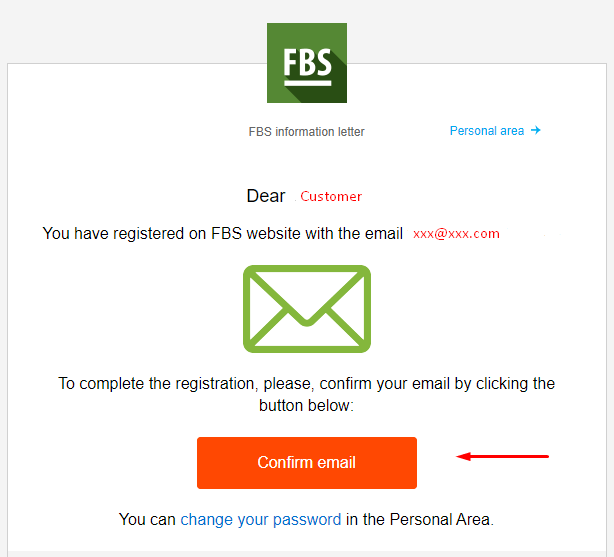
Please, kindly be informed that upon account registration, you will receive a registration email.Please, kindly click on the "Confirm email" button in the letter to confirm your e-mail address and complete the registration.
I didn’t get my e-mail confirmation link (web FBS Personal Area)
In case you see the notification that the confirmation link has been sent to your e-mail, but you didn’t get any, please:
- Check the correctness of your e-mail - make sure there are no typos.
- Check the SPAM folder in your mailbox - the letter could get in there.
- Check your mailbox memory - if it is full, new letters will not be able to reach you.
- Wait for 30 minutes - the letter can come a bit later.
- Try to request another confirmation link in 30 minutes.
I cannot confirm my email
First, you need to log in to your Personal Area, and then kindly try to open the e-mail link from your e-mail again. Please, kindly be reminded that your Personal Area and e-mail both should be opened in one browser.If you requested a confirmation link several times, we recommend that you to wait for some time (about 1 hour), then ask for the link once again and use the link that will be sent to you after your last request.
If the issue persists, please kindly make sure you have cleared your cache and cookies beforehand. Or you may try using a different browser.
I didn’t get the SMS code in the FBS Personal Area (web)
If you’d like to attach the number to your Personal Area and face some difficulties with getting your SMS code, you can also request the code via voice confirmation.To do that, you need to wait for 5 minutes from the code request, then click on the "Request a callback to get the voice call with a verification code" button. The page would look like this:
I want to Verify my Personal Area as a legal entity
A Personal Area can be verified as a legal entity. To do that, a client needs to upload the following documents:
- CEO’s passport or national ID;
- A document proving the CEO’s authority, certified by the seal of the company.
- Company Articles of Association (AoA);
The Articles of Association can be sent by email to [email protected].
Personal Area has to be named after the name of the company.
The country stated in the profile settings of the Personal Area should be defined by the country of the company registration.
It is only possible to deposit and withdraw via corporate accounts. Depositing and withdrawing via the personal accounts of the CEO is not possible.
FBS Trader
What are the leverage limits for FBS Trader?
When you trade on margin, you use leverage: you can open positions on more significant sums than you have in your account.
For example, if you trade 1 standard lot ($ 100,000) while having only $ 1,000, you
are using 1:100 leverage.
The maximum leverage in FBS Trader is 1:1000.
We would like to remind you that we have specific regulations on leverage in correlation to the sum of equity. The company is entitled to apply leverage change to already opened positions, as well as to reopened positions, according to these limitations:
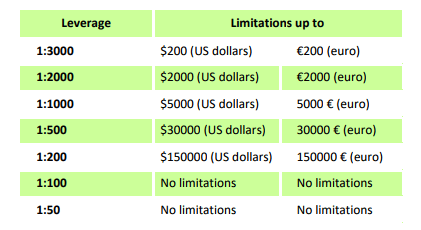
Please, check the maximum leverage for the following instruments:
| Indices and Energies | XBRUSD | 1:33 |
| XNGUSD | ||
| XTIUSD | ||
| AU200 | ||
| DE30 | ||
| ES35 | ||
| EU50 | ||
| FR40 | ||
| HK50 | ||
| JP225 | ||
| UK100 | ||
| US100 | ||
| US30 | ||
| US500 | ||
| VIX | ||
| KLI | ||
| IBV | ||
| NKD | 1:10 | |
| STOCKS | 1:100 | |
| METALS | XAUUSD, XAGUSD | 1:333 |
| PALLADIUM, PLATINUM | 1:100 | |
| CRYPTO (FBS Trader) | 1:5 | |
Also, kindly note that the leverage can be changed only once a day.
How much do I need to start trading in FBS Trader?
To know how much it is needed to open an order in your account:
1. On the Trading page, choose the currency pair you would like to trade and click on "Buy" or "Sell" depending on your trading intentions;
2. On the opened page, type the lot volume you want to open an order with;
3. In the "Margin" section, you will see the needed margin for this order volume.
I want to try a Demo account in FBS Trader app
You don’t have to spend your own money on Forex right away. We offer practice demo accounts, which will let you test the Forex market with virtual money using real market data.
Using a Demo account is an excellent way to learn how to trade. You will be able to practice by pressing the buttons and grasp everything much faster without being afraid of losing your own funds.
The process of opening an account at FBS Trader is simple.
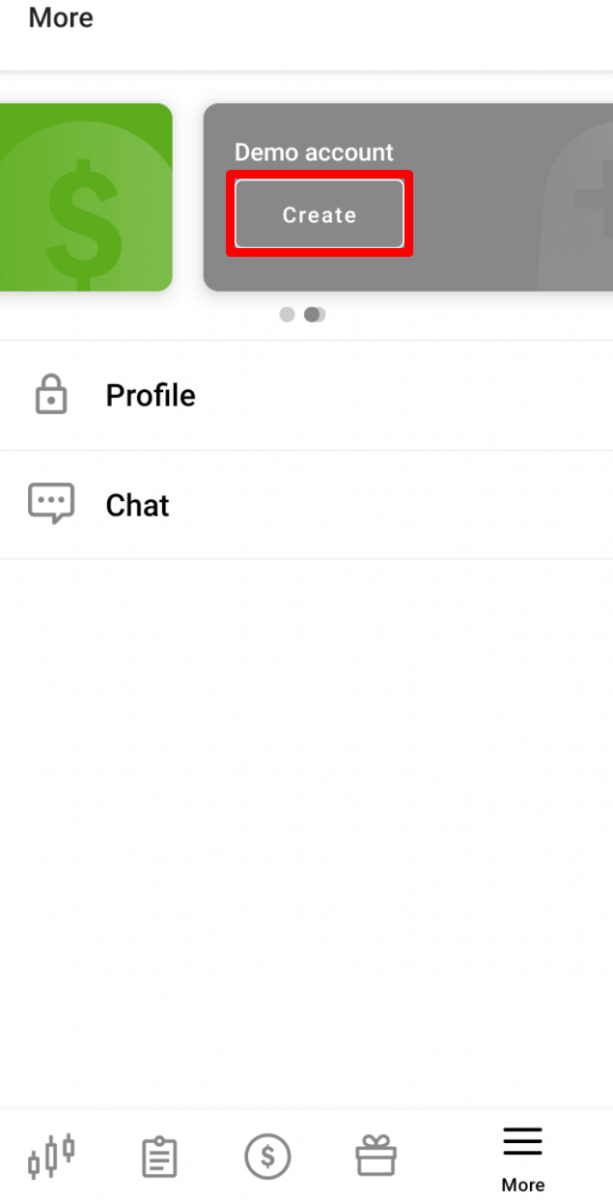
- Go to the More page.
- Swipe left the "Real account" tab.
- Click on "Create" in the "Demo account" tab.
I want a Swap-free account
Changing account status to Swap-free is available in the account settings only for the citizens of the countries where one of the official (and dominating) religions is Islam.
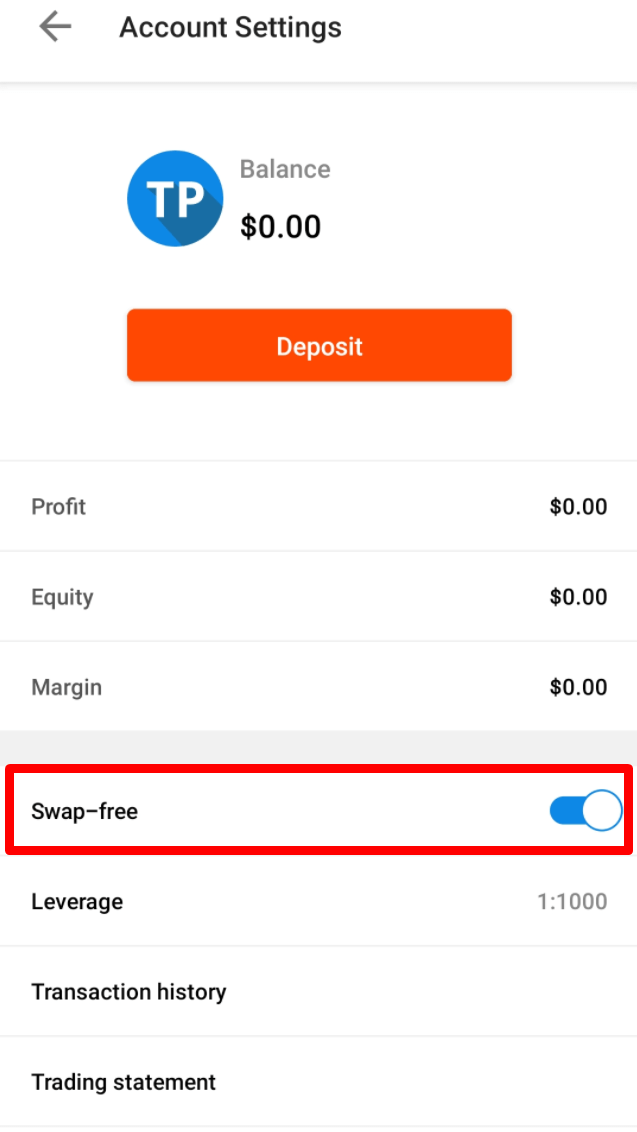
How you can switch to Swap-free for your account:
1. Open the account settings by clicking on the "Settings" button on the More page.
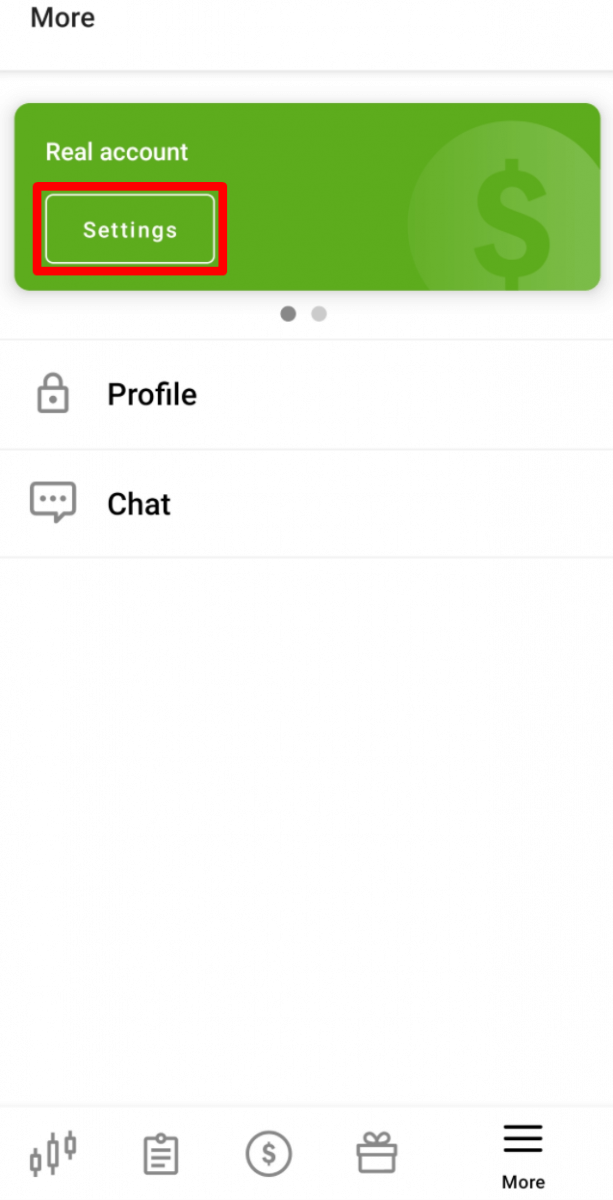
2. Find "Swap-free" and click on the button to activate the option.
 The
The
Swap Free option is not available for trading on "Forex Exotic", Indices instruments, Energies, and Cryptocurrencies.
Please, kindly be reminded that according to the Customer Agreement:
For the long-term strategies (the deal which is open for more than 2 days), FBS may charge a fixed fee for the total number of days during which the order was opened, the fee is fixed and determined as the value of 1 point of the transaction in US dollars, multiplied by the size of the currency pair swap point of the order. This fee is not an interest and depends on whether the order is open to buy or sell.
By opening a Swap-free account with FBS, the client agrees that the company may debit the fee from his/her trading account at any time.
What is spread?
There are 2 types of currency prices at Forex - Bid and Ask. The price we pay to buy the pair is called Ask. The price, at which we sell the pair, is called Bid.
Spread is the difference between these two prices. In other words, it is a commission you pay to your broker for every transaction.
SPREAD = ASK – BID
The floating type of spreads is used in FBS Trader:
- Floating spread – the difference between ASK and BID prices fluctuates in correlation with the market conditions.
- Floating spreads usually increase during important economic news and bank holidays when the amount of liquidity in the market declines. When the Market is calm they can be lower than the fixed ones.
Can I use a FBS Trader account in MetaTrader?
When registering in the FBS Trader application, a trading account is automatically opened for you.You can use it right in the FBS Trader application.
We would like to remind you that FBS Trader is an independent trading platform provided by FBS.
Please, take into consideration that you cannot trade in the MetaTrader platform with your FBS Trader account.
If you want to trade in the MetaTrader platform, you can open a MetaTrader4 or MetaTrader5 account in your Personal Area (web or mobile application).
How can I change account leverage in the FBS Trader application?
Please, kindly take into consideration that the maximum available leverage for the FBS Trader account is 1:1000.To change your account leverage:
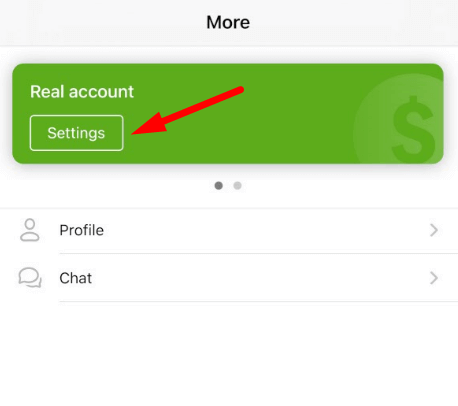
1. Go to the “More” page;

2. Click on “Settings”;
3. Click on “Leverage”;
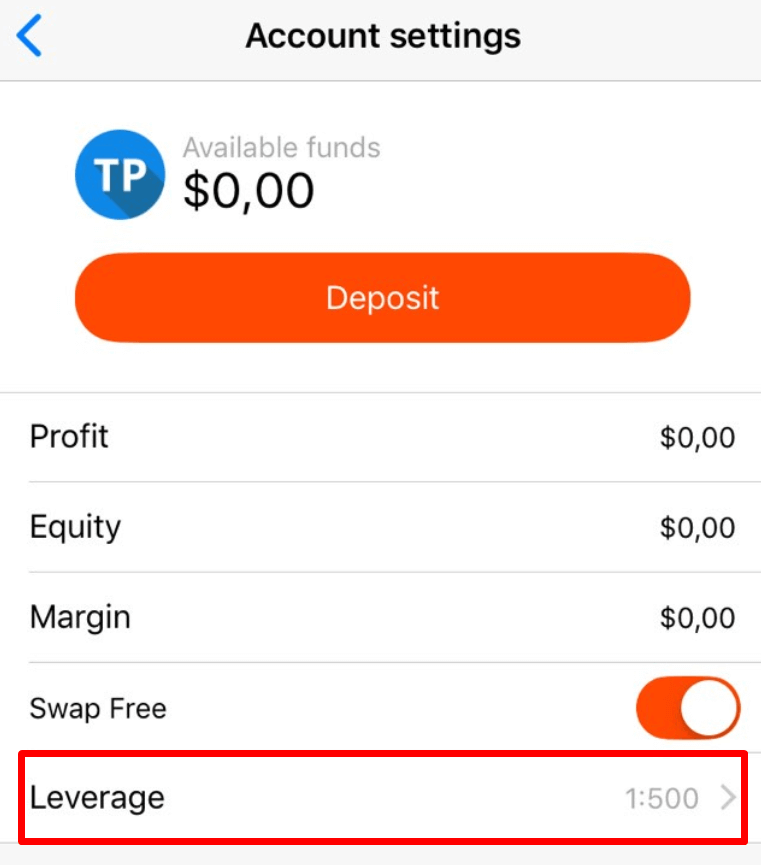
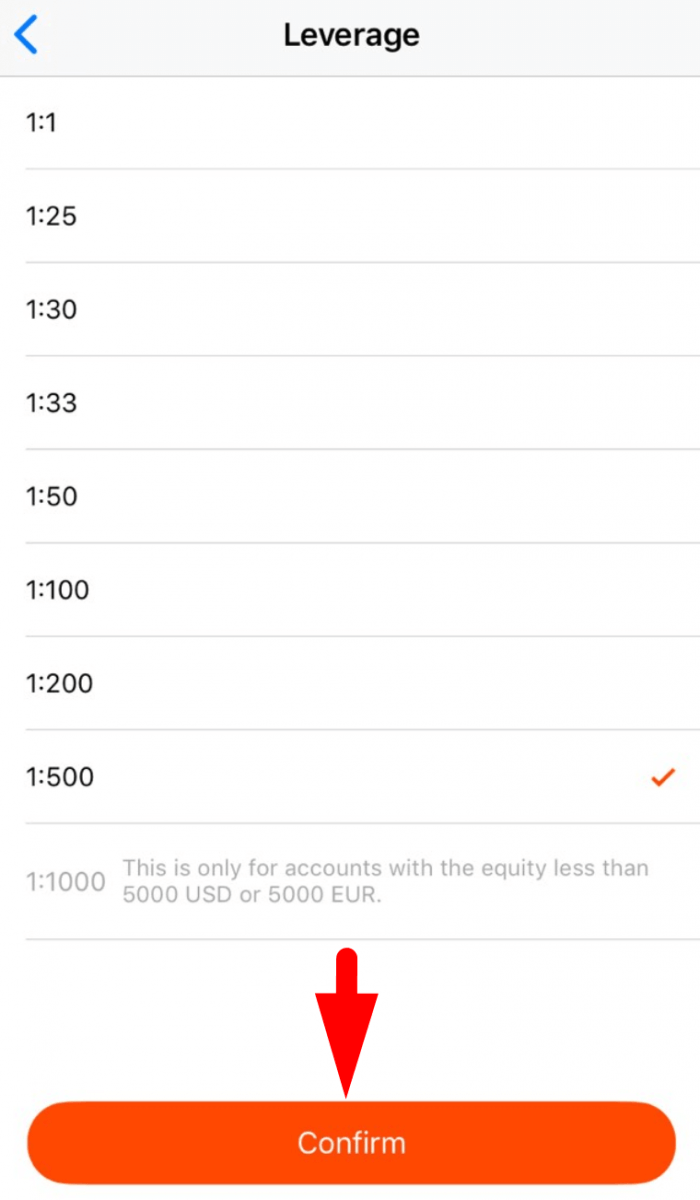
4. Choose the preferred leverage.
5. Click on the “Confirm” button.
We want to remind you that we have specific regulations on leverage in correlation to the sum of equity. The Company is entitled to apply leverage change to already opened positions as well as to reopened positions according to these limitations:
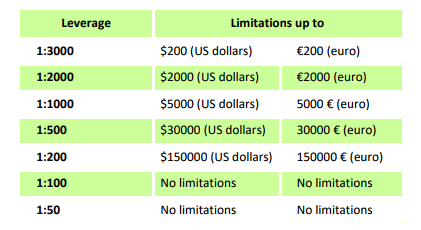
Please, check the maximum leverage for the following instruments:
| Indices and Energies | XBRUSD | 1:33 |
| XNGUSD | ||
| XTIUSD | ||
| AU200 | ||
| DE30 | ||
| ES35 | ||
| EU50 | ||
| FR40 | ||
| HK50 | ||
| JP225 | ||
| UK100 | ||
| US100 | ||
| US30 | ||
| US500 | ||
| VIX | ||
| KLI | ||
| IBV | ||
| NKD | 1:10 | |
| STOCKS | 1:100 | |
| METALS | XAUUSD, XAGUSD | 1:333 |
| PALLADIUM, PLATINUM | 1:100 | |
| CRYPTO (FBS Trader) | 1:5 | |
Also, kindly note that the leverage can be changed only once a day
Which trading strategy can I use with FBS Trader?
You can use such trading strategies as hedging, scalping or news trading freely.Though please, kindly take into consideration that you cannot use Expert Advisors - thus, the application is not overloaded and works fast and efficiently.
MetaTrader
How to log in to my trading account?
How to set up the connection in case you have a "NO CONNECTION" error in MetaTrader:1. Click on "File" (top left corner in MetaTrader).
.
2 Select "Login to Trade Account".
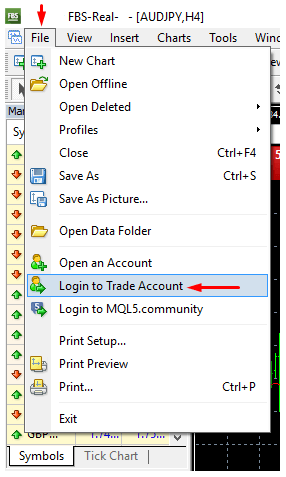
3 Enter the account number into the "Login" section.
4 Enter a trading password (to be able to trade) or investor password (only for observation of activity; placing orders option will be switched off) to the "Password" section.
5 Select the proper server name from the list suggested at the "Server" section.
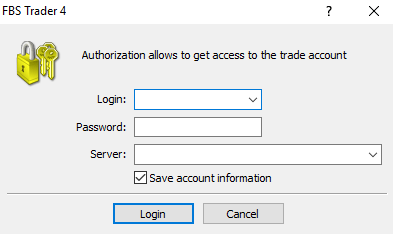
Please, kindly be informed that the number of the Server was given to you at the opening of the account. If you do not remember the number of your Server, you can check it while recovering your trading password.
Also, you can insert the Server address manually instead of choosing it.
How to log in to the MetaTrader4 mobile application? (Android)
We highly recommend that you to download the MetaTrader4 application for your device right from our site. It will help you to log in with FBS easily.To log in to your MT4 account from a mobile application, please follow the steps below:
1. On the first page (“Accounts”) click on the “+” sign:
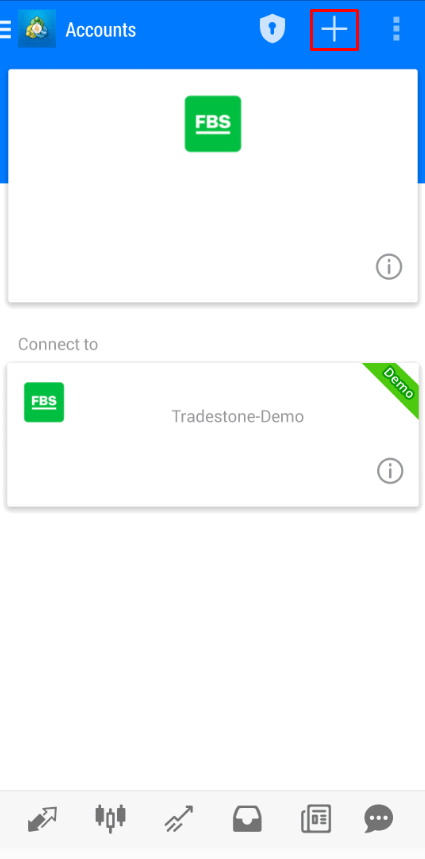
2 In the opened window, click on the “Login to an existing account” button.
3 If you have downloaded the platform from our website, you will automatically see “FBS Inc” in the brokers list. However, you need to specify your account server:
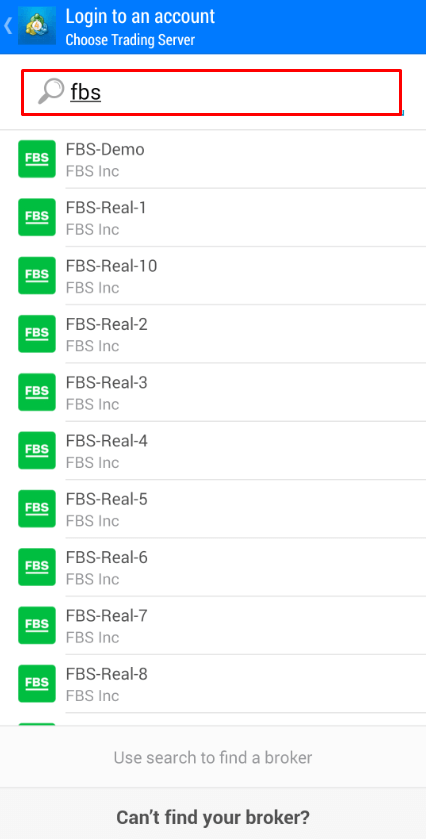
Login credentials, including the account server, were provided to you during the account opening. If you dont remember the server number, you can find it in the account settings by clicking on your trading account number in the web Personal Area or FBS Personal Area application:
4 Now, enter the account details. In the “Login” area, type your account number, and in the “Password” area, type the password generated for you during the account registration:
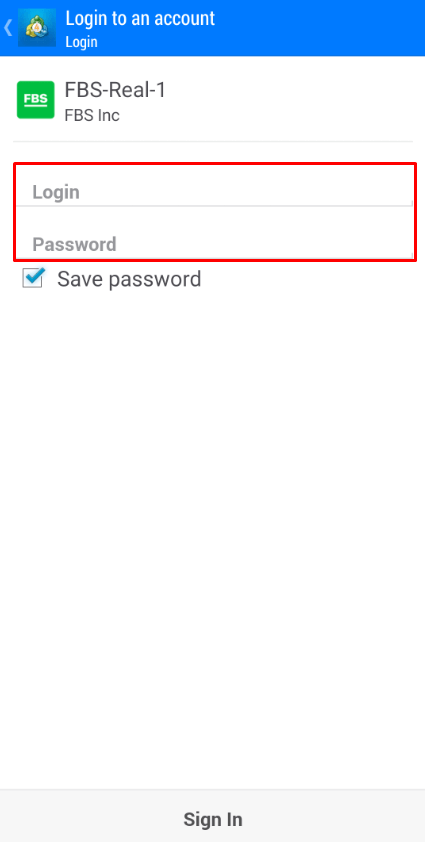
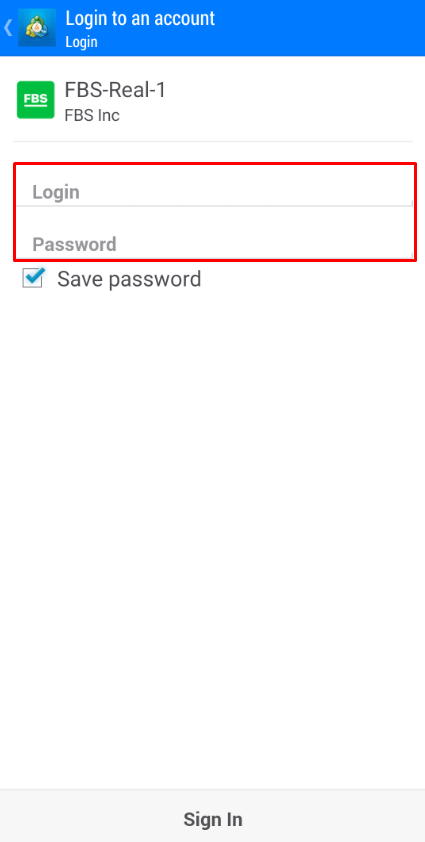
5. Click on “Login”.
If you have any difficulties logging in, please generate a new trading password in your Personal Area and try to log in with the new one.
How to log in to the MetaTrader5 mobile application? (Android)
We highly recommend you to download the MetaTrader5 application for your device right from our site. It will help you to log in with FBS easily.To log in to your MT5 account from a mobile application, please follow these steps:
1 On the first page (“Accounts”) click on the “+” sign.
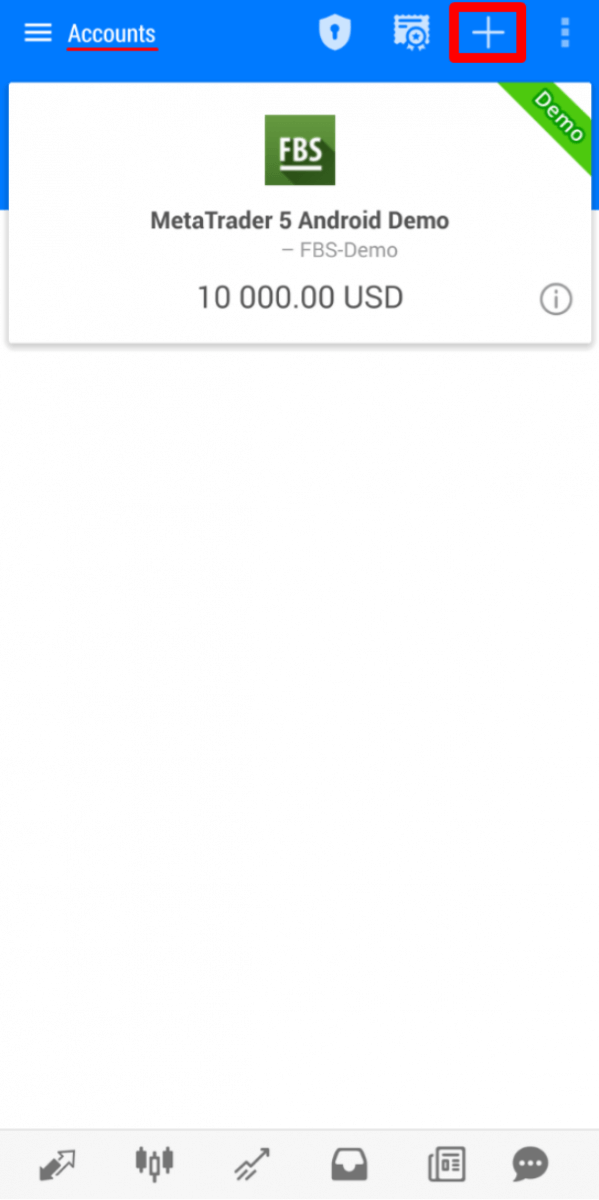
2 If you have downloaded the platform from our website, you will automatically see “FBS Inc” in the brokers list. Click on it.
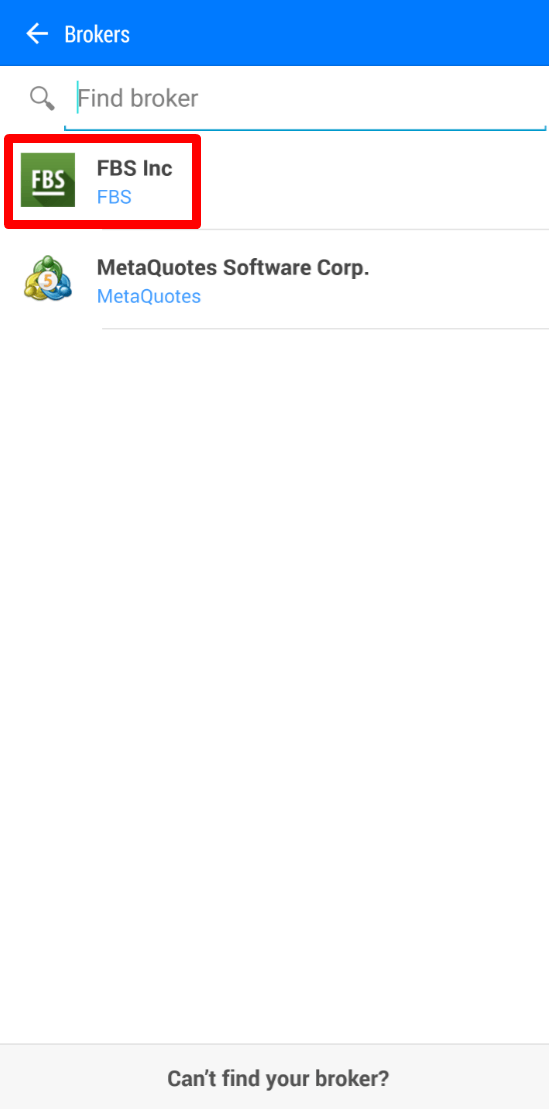
3 In the “Login to an existing account” field choose the Server you need (Real or Demo), in the “Login” area, please, type your account number and in the “Password” area type the password generated for you during the account registration.
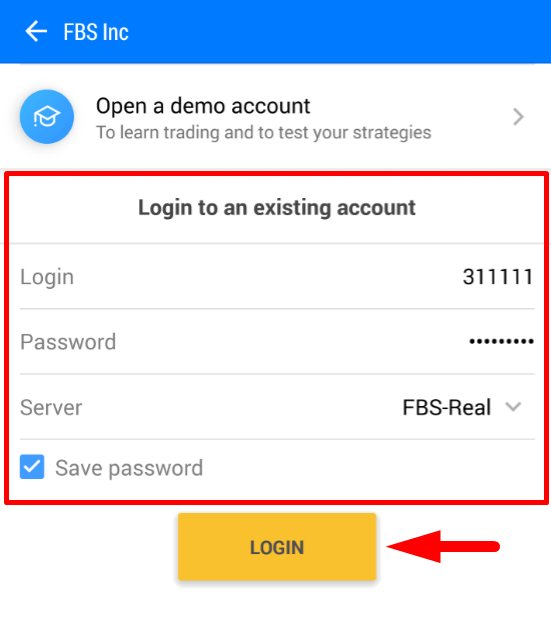
4. Click on “Login”.
In case you have difficulties with logging in, please generate a new trading password in your Personal Area and try to log in with the new one.
How to log in to the MetaTrader5 mobile application? (iOS)
We highly recommend that you to download the MetaTrader5 application for your device right from our site. It will help you to log in with FBS easily.To log in to your MT5 account from the mobile application, please follow these steps:
1. Click on “Settings” in the right lower part of the screen.

2 At the top of the screen, please click on “New account”.
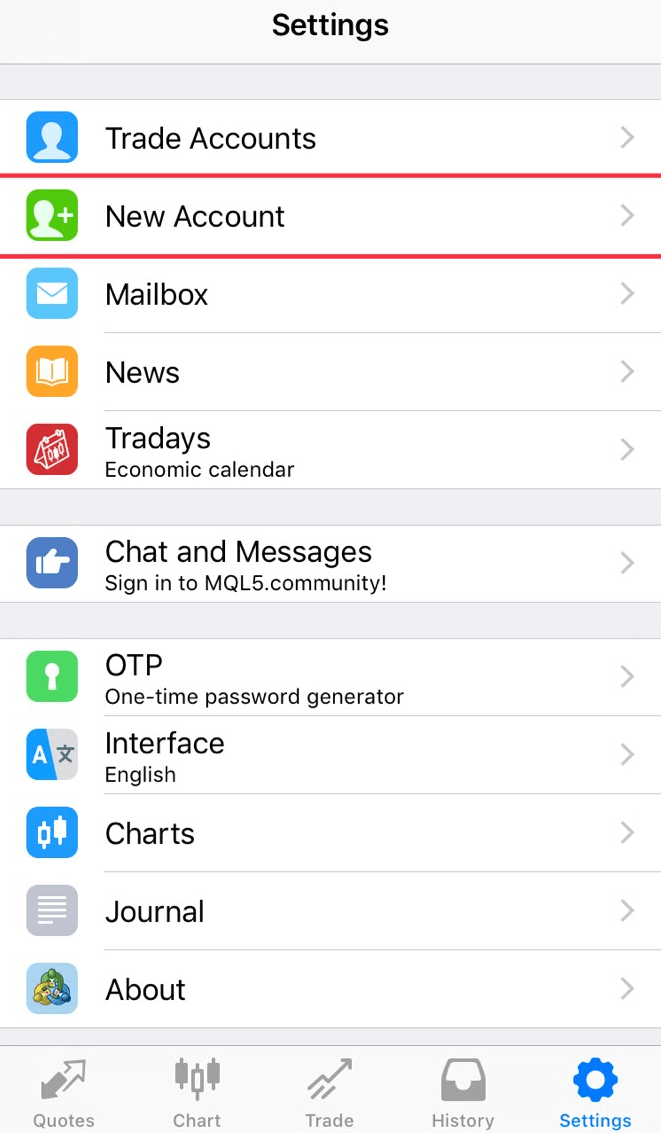
3 If you have downloaded the platform from our website, you will automatically see “FBS Inc” in the brokers list. Click on it.
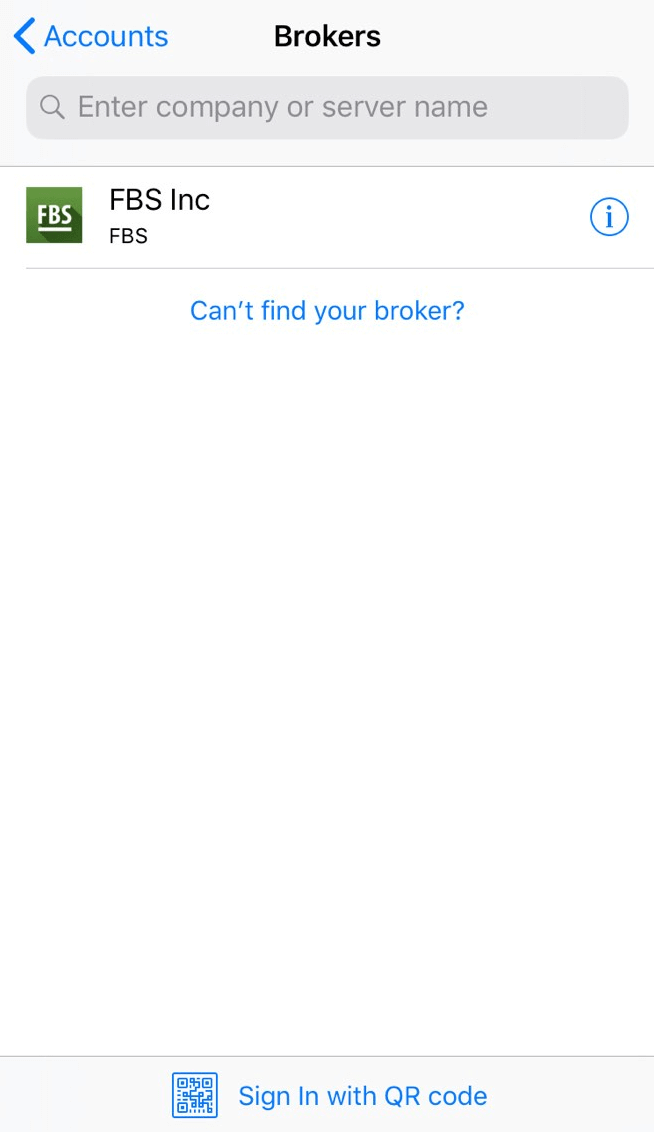
4 In the “Use existing account” field choose the Server you need (Real or Demo), in the “Login” area, please, type your account number and in the “Password” area type the password generated for you during the account registration.
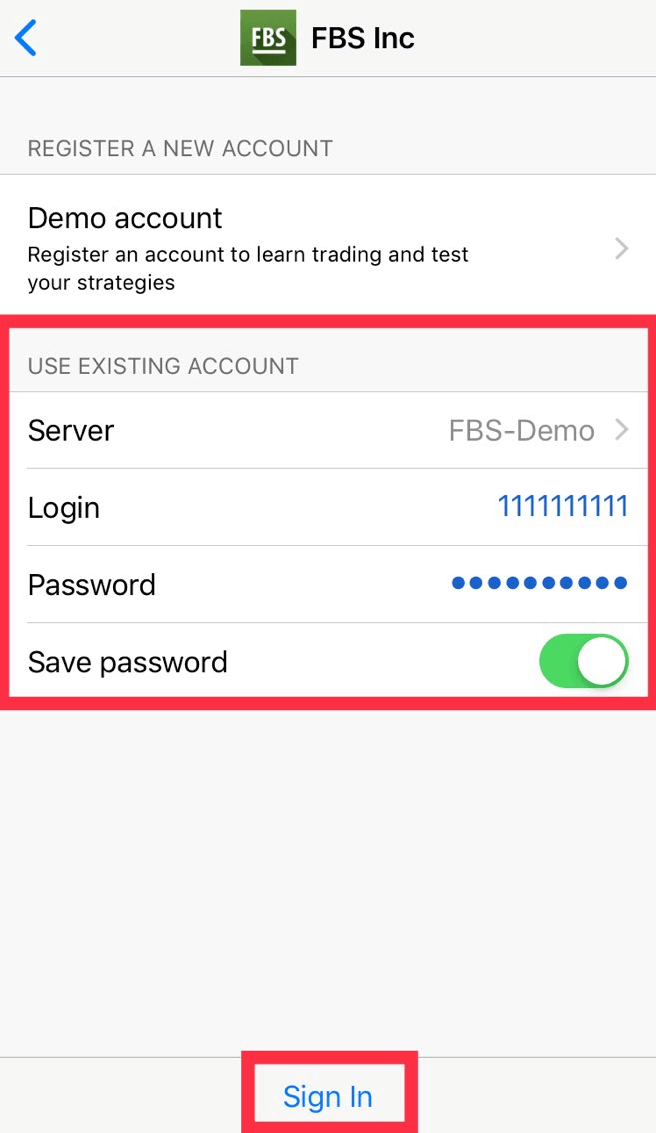
5. Click on “Sign In”.
In case you have difficulties with logging in, please generate a new trading password in your Personal Area and try to log in with the new one.
What is the difference between MT4 and MT5?
Though many may think that MetaTrader5 is just an upgraded version of MetaTrader4, these two platforms are different and each better serves particular purposes.Let’s compare these two platforms:
|
MetaTrader4 |
MetaTrader5 |
|
|
Language |
MQL4 |
MQL5 |
|
Expert Advisor |
✓ |
✓ |
|
Types of pending orders |
4 |
6 |
|
Timeframes |
9 |
21 |
|
Built-in indicators |
30 |
38 |
|
Built-in economic calendar |
✗ |
✓ |
|
Custom symbols for analysis |
✗ |
✓ |
|
Details and Trading window in Market Watch |
✗ |
✓ |
|
Ticks data export |
✗ |
✓ |
|
Multi-thread |
✗ |
✓ |
|
64-bit architecture for EAs |
✗ |
✓ |
MetaTrader4 trading platform has a simple and easily understandable trading interface and is mostly used for Forex trading.
MetaTrader5 trading platform has a slightly different interface and offers the possibility to trade stocks and futures.
In comparison with MT4, it has a deeper tick and chart history. With this platform, a trader can use Python for Market analysis and even log in to the Personal Area and perform financial operations (deposit, withdrawal, internal transfer) without leaving the platform. More than that, there’s no need to remember the server number on MT5: it has only two servers - Real and Demo.
Which MetaTrader is better? You can decide it for yourself.
If you are only at the beginning of your way as a trader, we would recommend you start with the MetaTrader4 trading platform due to its simplicity.
But if you are an experienced trader who, for example, needs more features for analysis, the MetaTrader5 suits you the most.
Wishing you successful trading!
I want to see the Ask price on the chart
By default, you can see only the Bid price on the charts. However, if you want the Ask price to be displayed as well, you can enable it in a couple of clicks by following the instructions below:
- Desktop;
- Mobile (iOS);
- Mobile (Android).
Desktop:
First, please, log in to your MetaTrader.
Then choose the menu "Charts".
In the drop-down menu, please, click on "Properties".
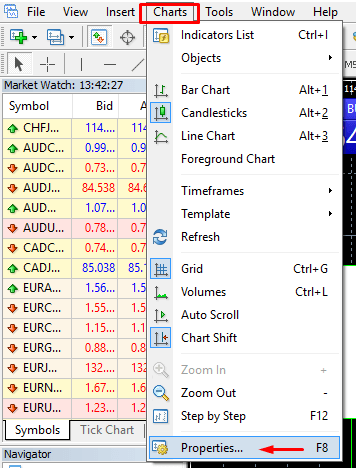
Or you can simply press the F8 key on your keyboard.
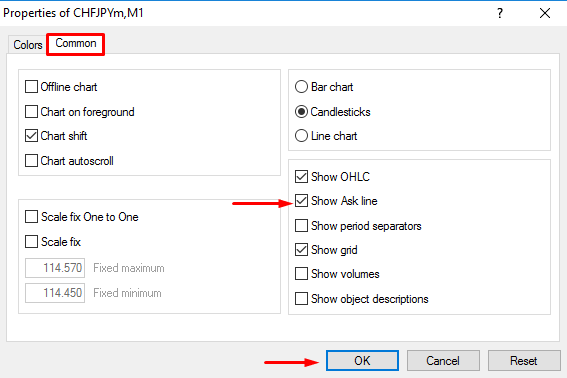
In the opened window choose the “Common” tab and put a check for the “Show Ask line” option. Then click "OK".
Mobile (iOS):
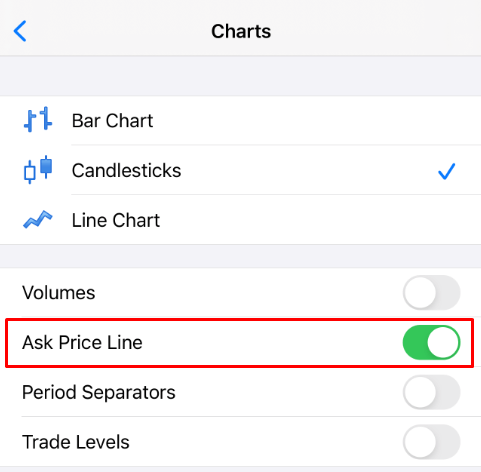
To enable the ask line on iOS MT4 and MT5, you must first successfully log in. After that, please:
1. Go to the Settings of the MetaTrader platform;
2. Click on the Charts tab:
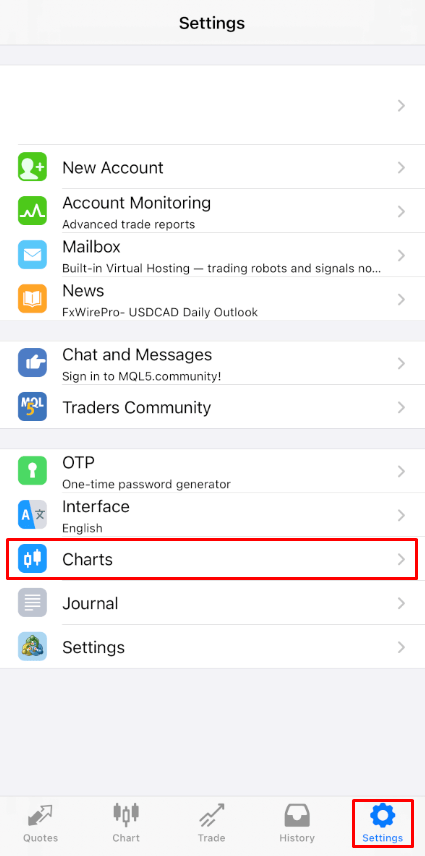
Click on the button next to the Ask Price Line to turn it on. To turn it off again, click on the same button:
Mobile (Android):
As for the Android MT4 and MT5 apps, please follow the steps below:
- Click on the Chart tab.
- Now, you need to click anywhere on the chart to open the contextual menu.
- Find the Settings icon and click on it.
- Select the Ask price line checkbox to enable it.
Can I use an Expert Advisor?
FBS offers the most favourable trading conditions to use almost all trading strategies without any restrictions.You can use automated trading with the help of expert advisors (EAs), scalping (pipsing), hedging, etc.
Though, please, kindly note that according to the Customer Agreement:
3.2.13. The Company doesn’t allow the usage of arbitrage strategies on connected markets (e.g., currency futures and spot currencies). In case the Client uses arbitrage in either a clear or a hidden way, the Company reserves the right to cancel such orders.
Kindly consider that, though trading with EAs is allowed, FBS does not provide any Expert Advisors. The results of trading with any Expert Advisor is your responsibility.
We wish you successful trading!
Conclusion: Start Strong with Smart Trading on FBS
Trading at FBS is accessible and beginner-friendly, thanks to its intuitive tools, educational support, and wide range of account options. By taking the time to understand the basics and practicing in a risk-free environment, you can build a solid trading foundation.With the right mindset and proper risk management, beginners can navigate the markets confidently and begin their trading journey on the right foot with FBS.