How to Trade Forex in FBS Trader App — Orders, Execution & Risk

How much do I need to start trading in FBS Trader
To know how much it is needed to open an order in your account:
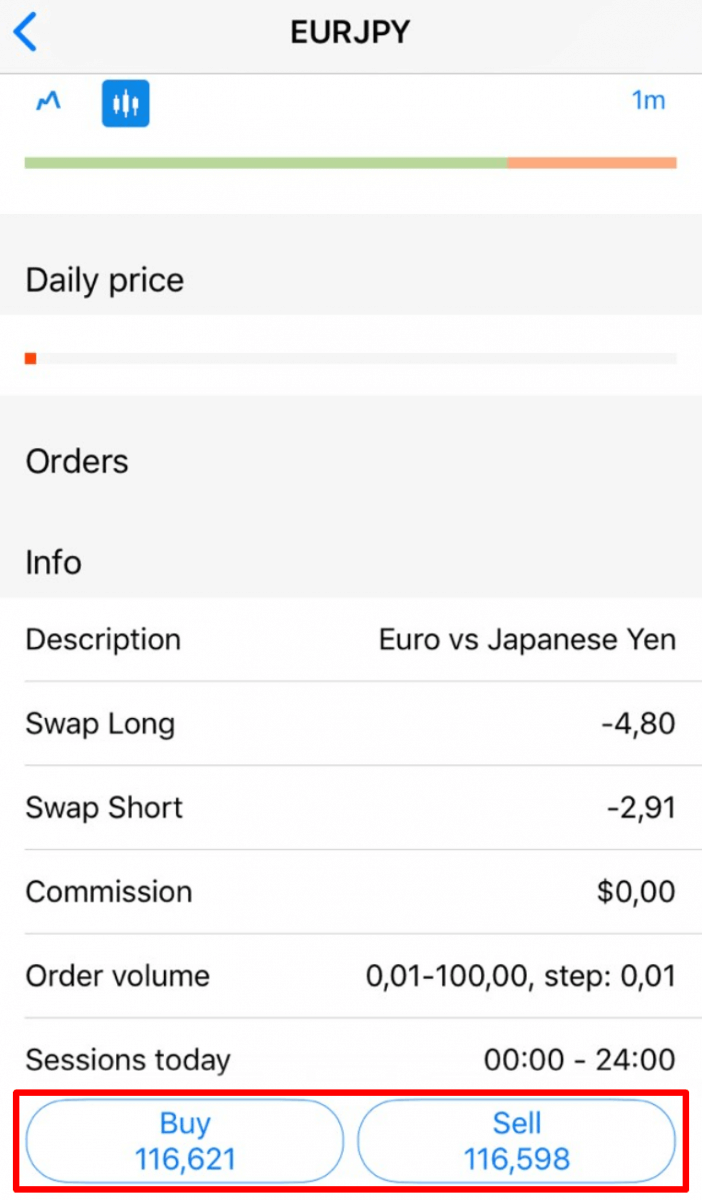
1. On the Trading page, choose the currency pair you would like to trade and click on "Buy" or "Sell" depending on your trading intentions;
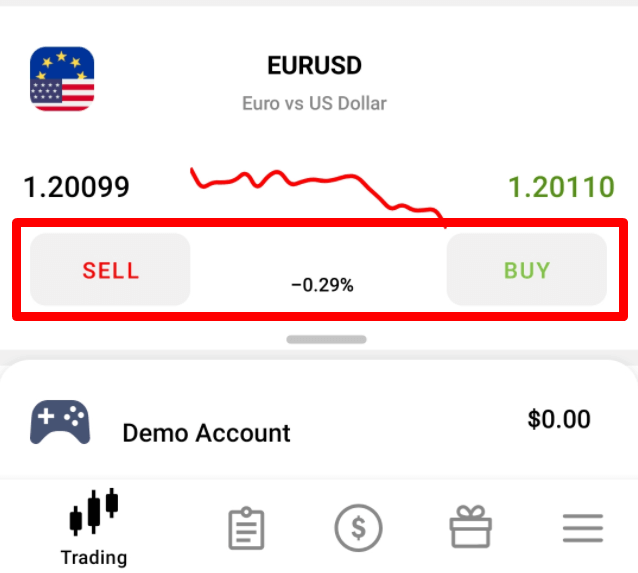
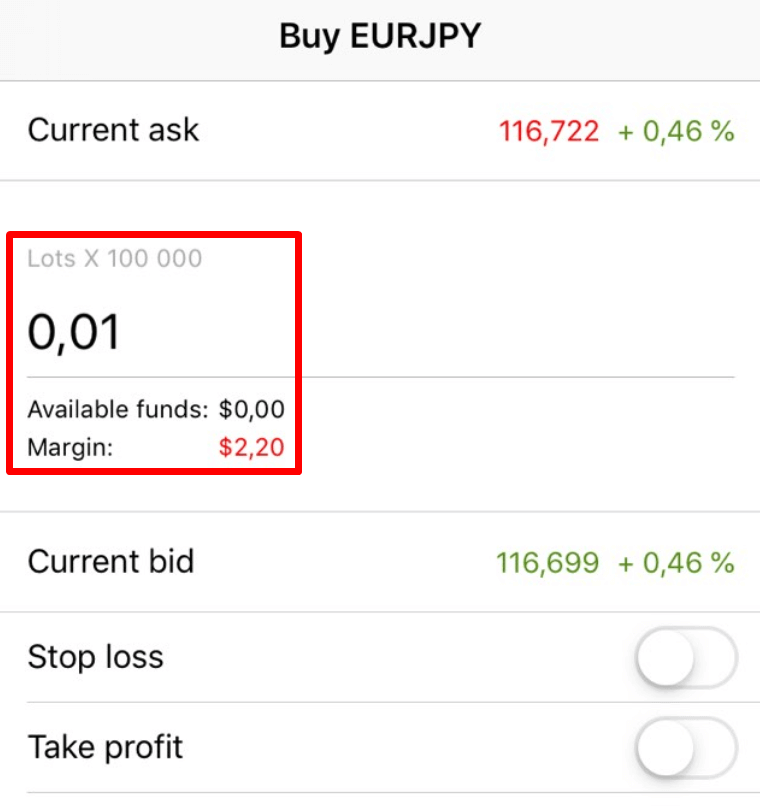
2. On the opened page, type the lot volume you want to open an order with;
3. In the "Margin" section, you will see the needed margin for this order volume.
How can I trade with FBS Trader
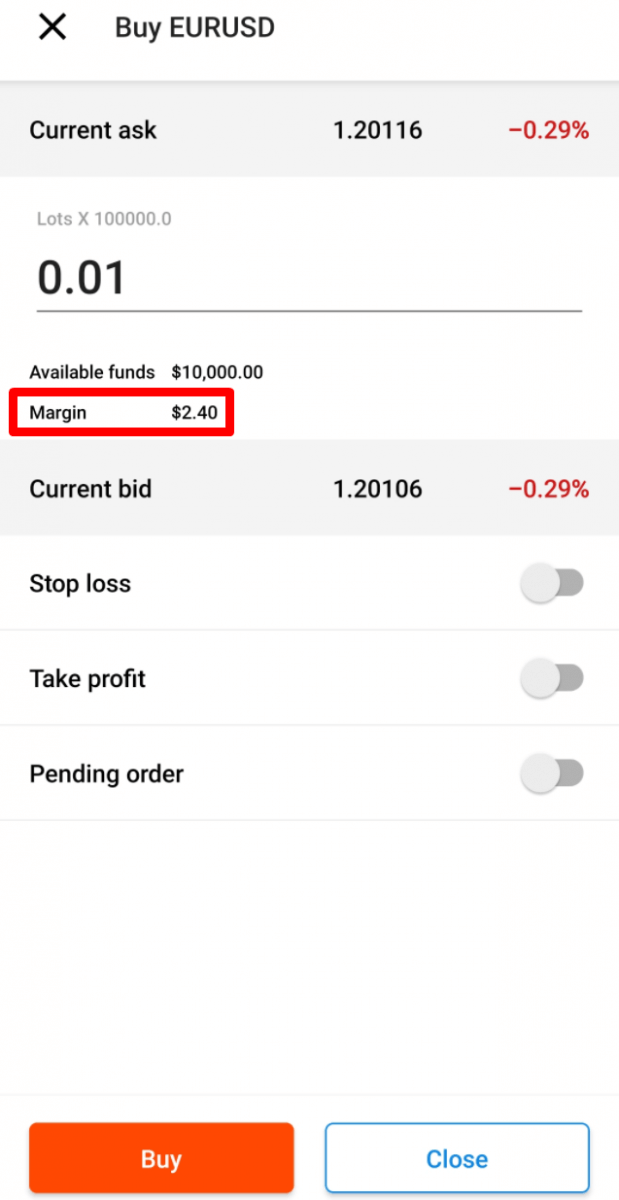
All you need to start trading is to go to the “Trading” page and choose the currency pair you want to trade with.

Check the contract specifications by clicking on the "i" sign. In the opened window you will be able to see two types of charts and the information about this currency pair.
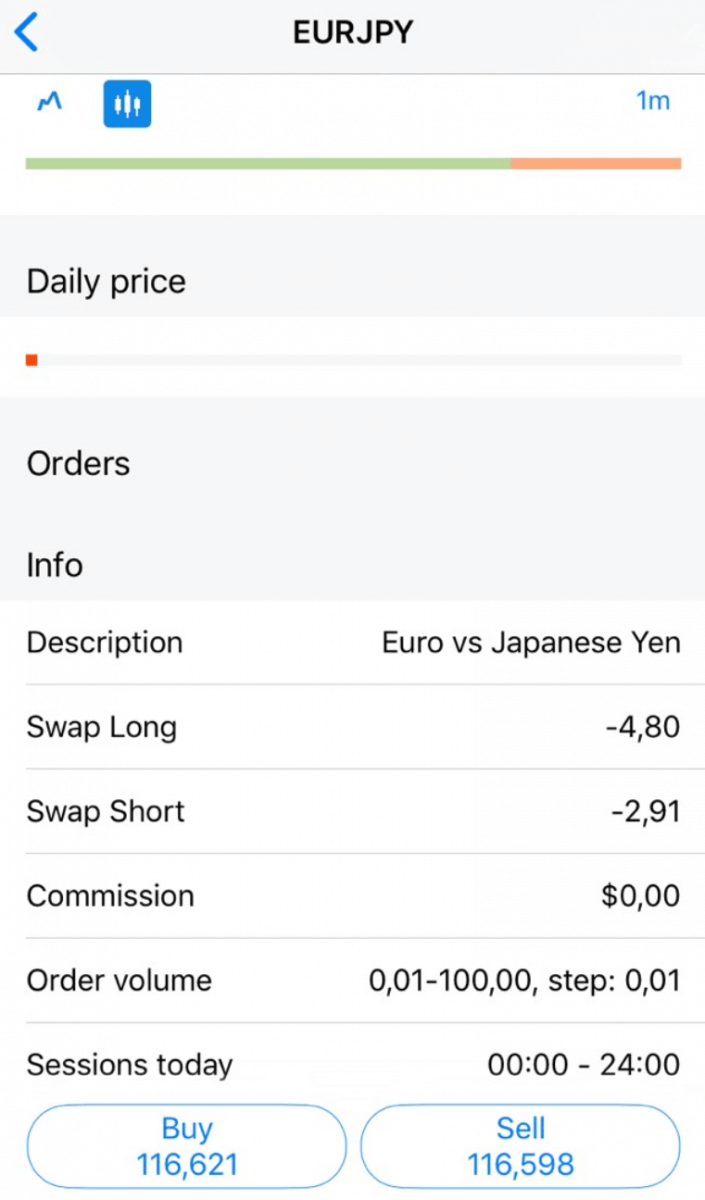
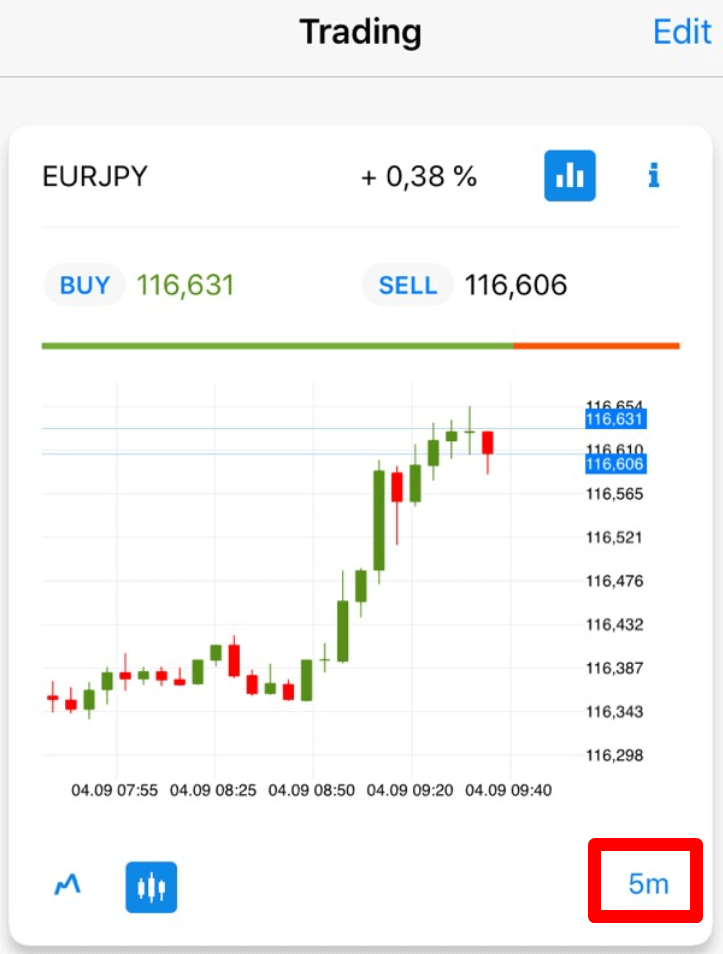
To check the candle chart of this currency pair click on the chart sign.
You can choose the timeframe of the candle chart from 1 minute to 1 month to analyze the trend.
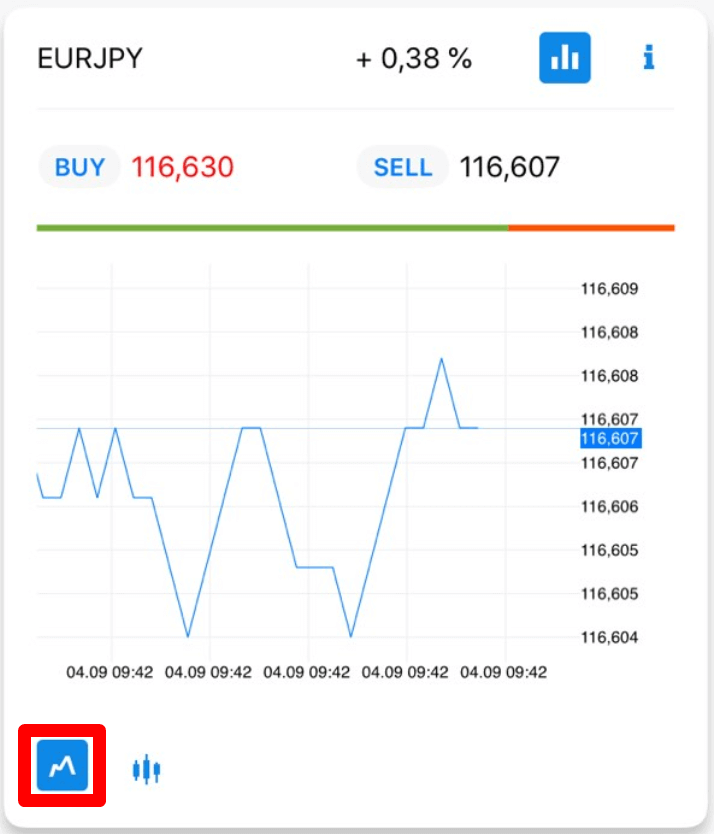
By clicking on the sign below, you will be able to see the tick chart.
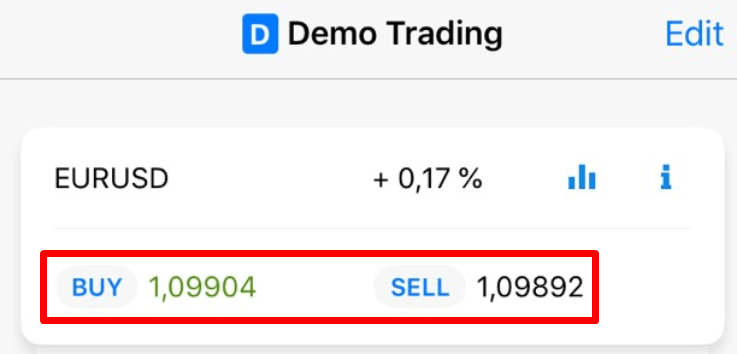
To open an order, click on the “Buy” or “Sell” button.
In the opened window, please, specify the volume of your order (i.e. how many lots you are going to trade). Below the lots field, you will be able to see the available funds and the amount of margin you need for opening the order with such volume.
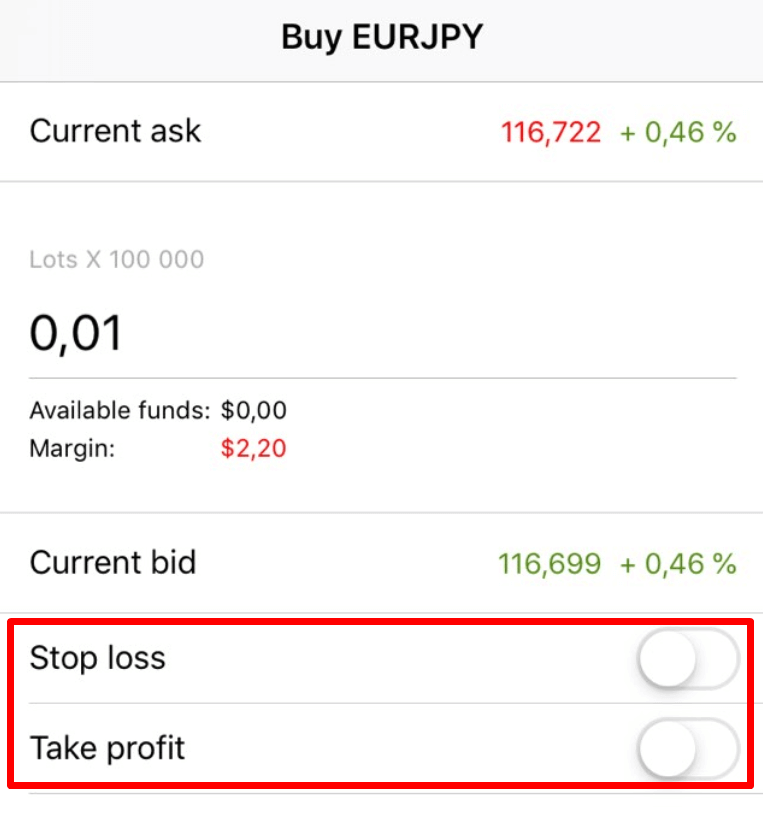
You can also set Stop Loss and Take Profit levels for your order.
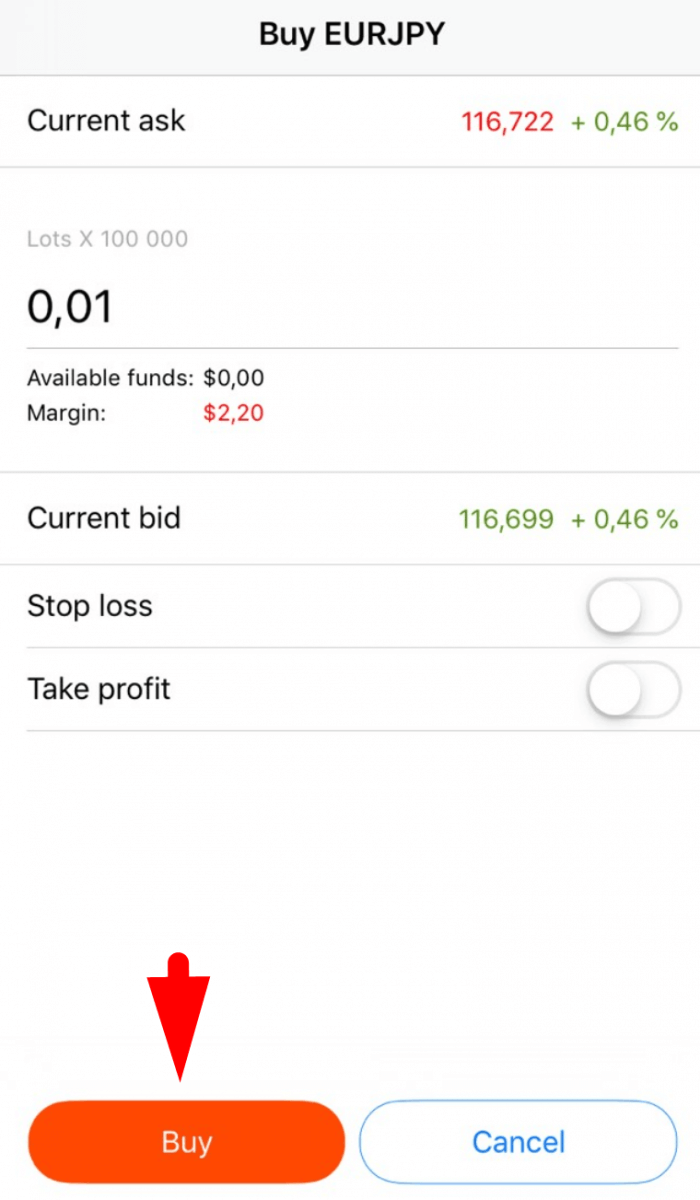
As soon as you adjust your order conditions, click on the red “Sell” or “Buy” button (depending on your order type). The order will be opened immediately.
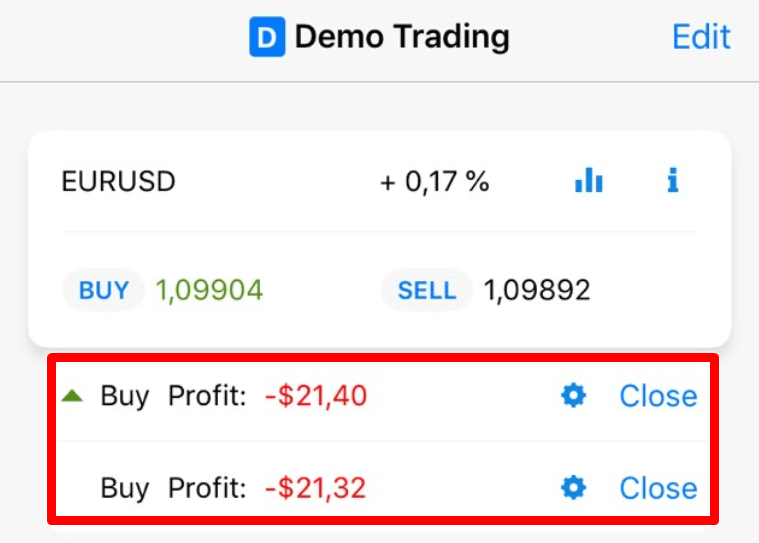
Now on the “Trading” page, you can see the current order status and profit.
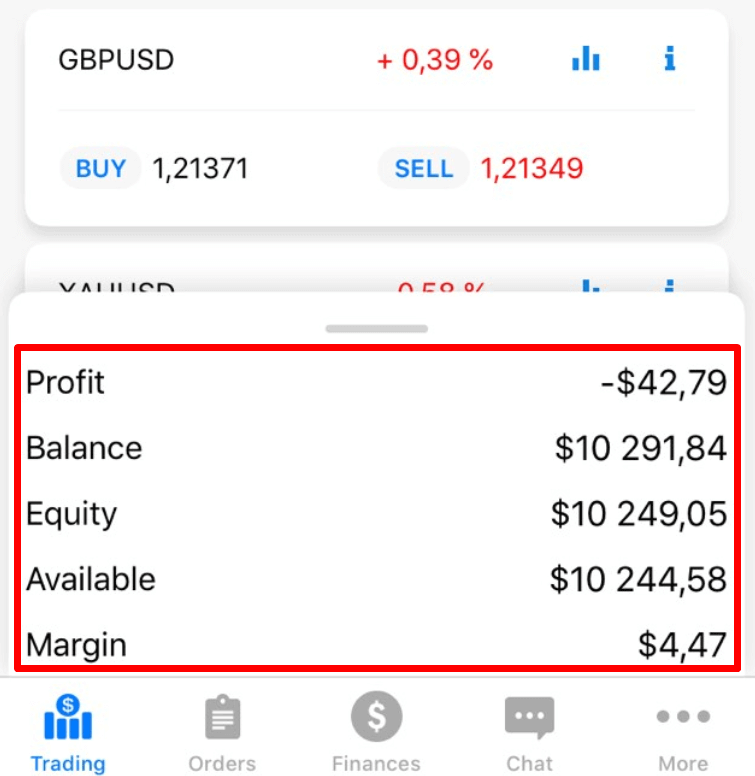
By sliding up the “Profit” tab you can see your current Profit, your Balance, Equity, Margin that you have already used, and Available margin.
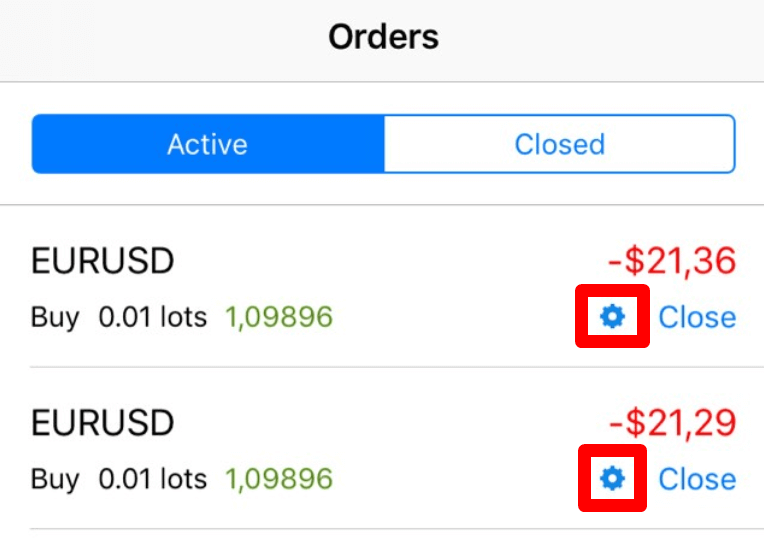
You can modify an order either on the “Trading” page or on the “Orders” page simply by clicking on the gear-wheel icon.
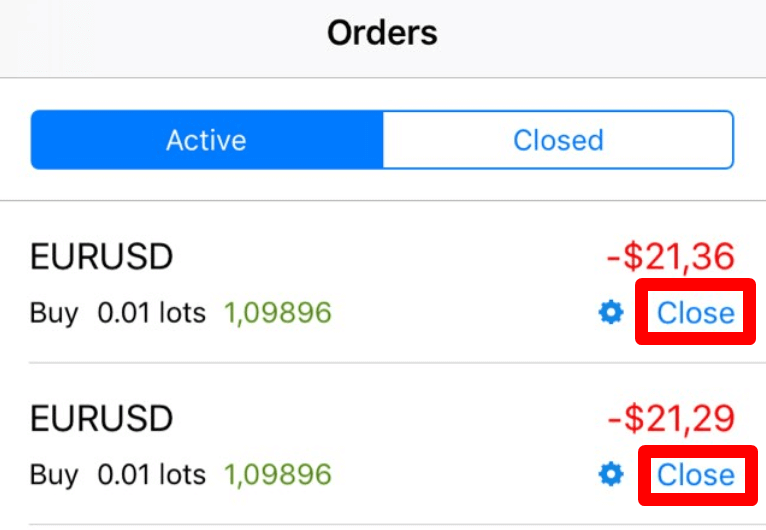
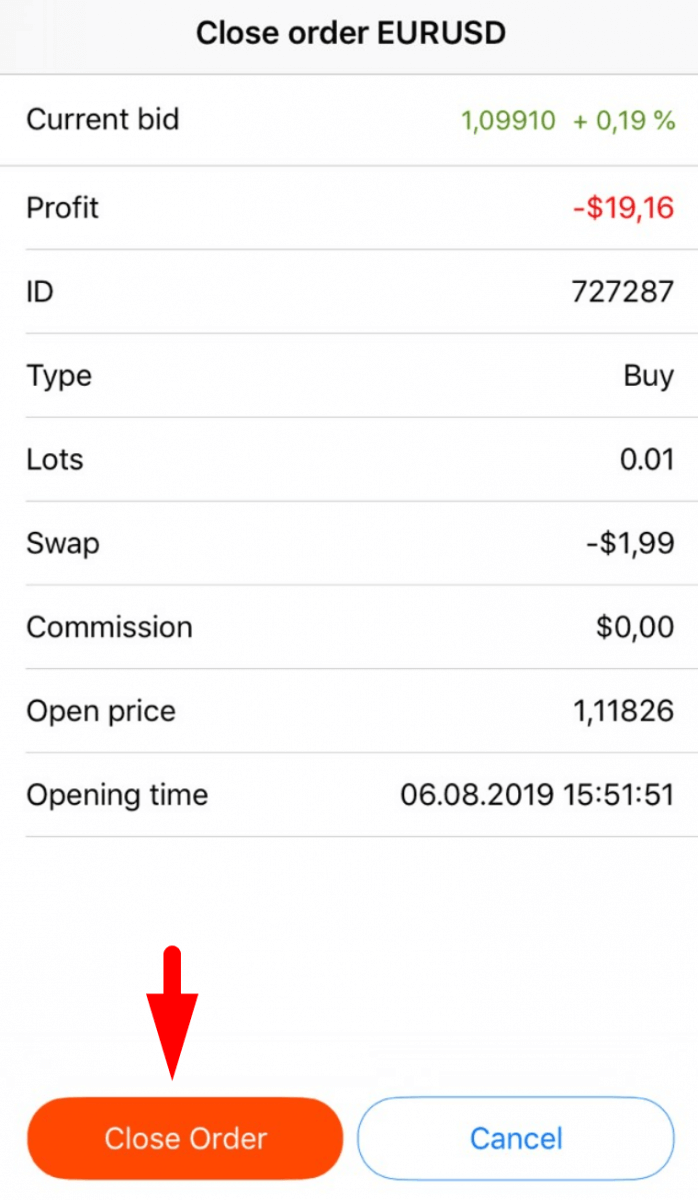
You can close an order either on the “Trading” page or on the “Orders” page by clicking on the “Close” button: in the opened window you will be able to see all the information regarding this order and to close it by clicking on the “Close order” button.
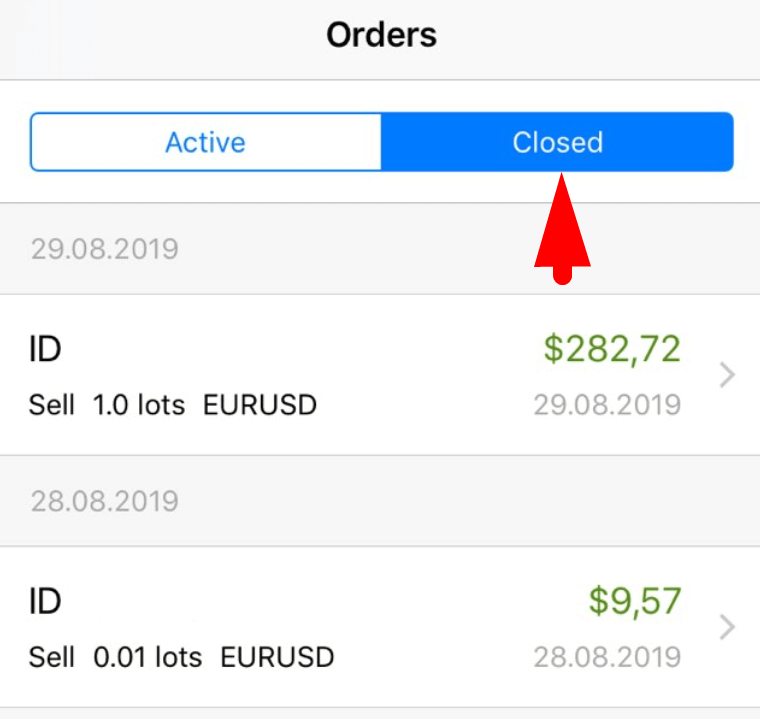
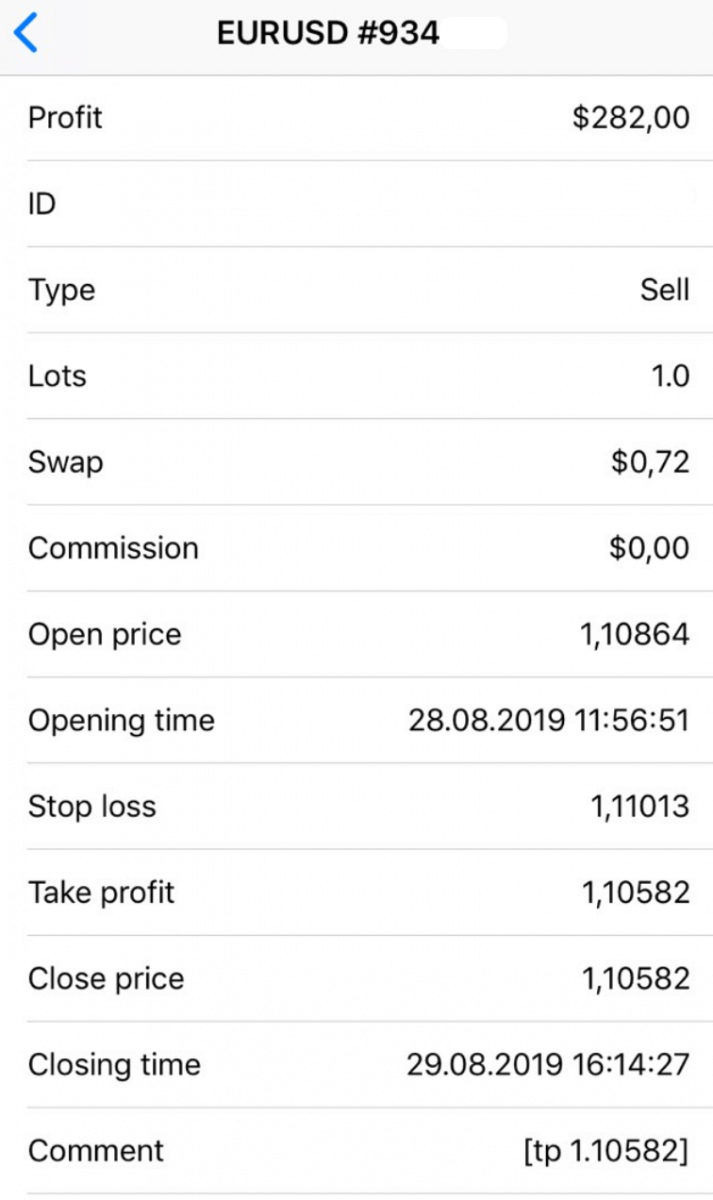
In case you need the information about the closed orders, go to the “Orders” page again and choose the “Closed” folder - by clicking on the required order you will be able to see all the information about it.
FAQ of FBS Trader
What are the leverage limits for FBS Trader?
When you trade on margin, you use leverage: you can open positions on more significant sums than you have in your account.
For example, if you trade 1 standard lot ($ 100,000) while having only $ 1,000, you
are using 1:100 leverage.
The maximum leverage in FBS Trader is 1:1000.
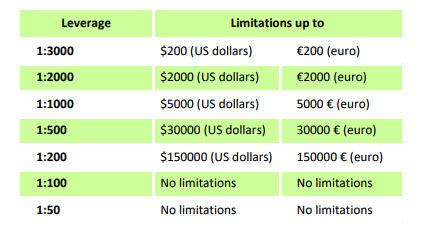
We would like to remind you that we have specific regulations on leverage in correlation to the sum of equity. The company is entitled to apply leverage change to already opened positions, as well as to reopened positions, according to these limitations:
Please, check the maximum leverage for the following instruments:
| Indices and Energies | XBRUSD | 1:33 |
| XNGUSD | ||
| XTIUSD | ||
| AU200 | ||
| DE30 | ||
| ES35 | ||
| EU50 | ||
| FR40 | ||
| HK50 | ||
| JP225 | ||
| UK100 | ||
| US100 | ||
| US30 | ||
| US500 | ||
| VIX | ||
| KLI | ||
| IBV | ||
| NKD | 1:10 | |
| STOCKS | 1:100 | |
| METALS | XAUUSD, XAGUSD | 1:333 |
| PALLADIUM, PLATINUM | 1:100 | |
| CRYPTO (FBS Trader) | 1:5 | |
Also, kindly note that the leverage can be changed only once a day.
I want to try a Demo account in FBS Trader app
You don’t have to spend your own money on Forex right away. We offer practice demo accounts, which will let you test the Forex market with virtual money using real market data.
Using a Demo account is an excellent way to learn how to trade. You will be able to practice by pressing the buttons and grasp everything much faster without being afraid of losing your own funds.
The process of opening an account at FBS Trader is simple.
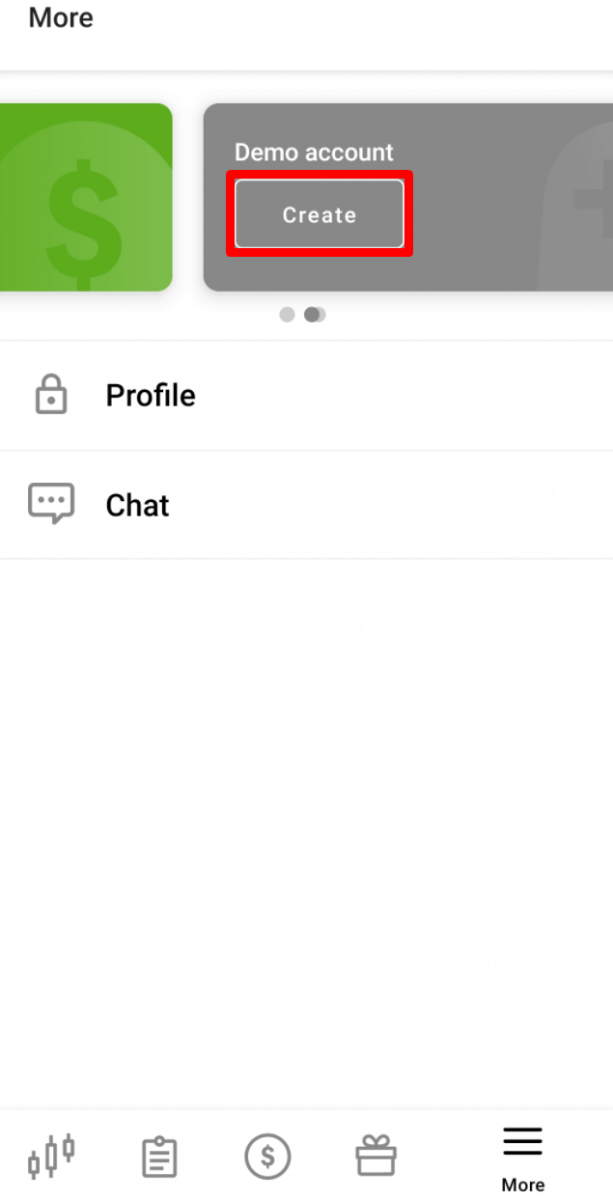
- Go to the More page.
- Swipe left the "Real account" tab.
- Click on "Create" in the "Demo account" tab.
I want a Swap-free account
Changing account status to Swap-free is available in the account settings only for the citizens of the countries where one of the official (and dominating) religions is Islam.
How you can switch on Swap-free for your account:
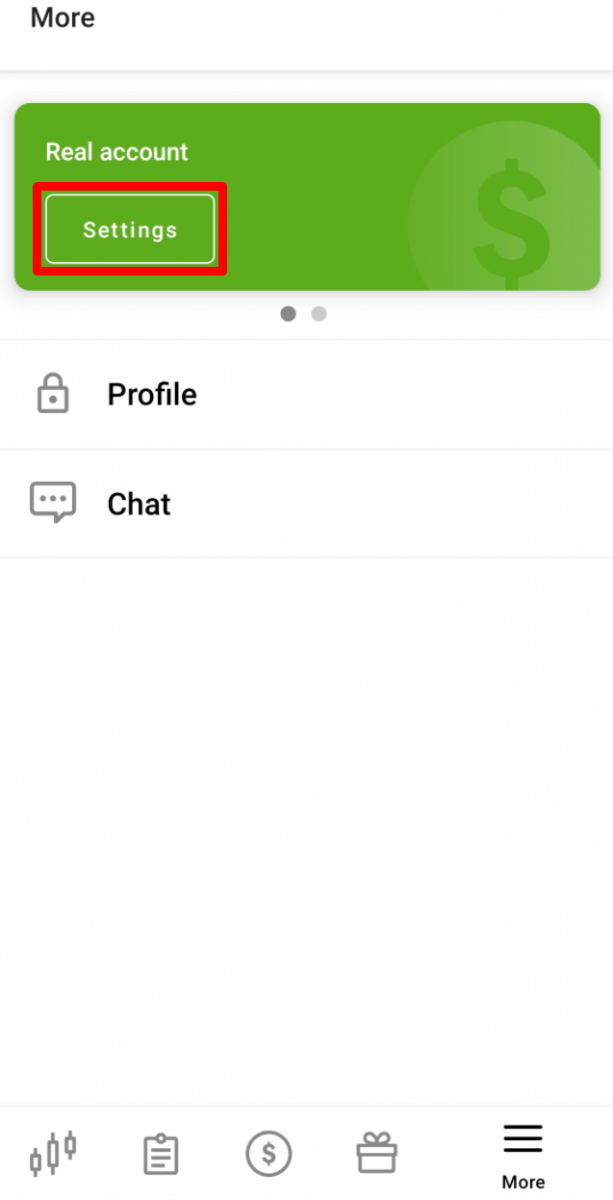
1. Open the account settings by clicking on the "Settings" button on the More page.
2. Find "Swap-free" and click on the button to activate the option.
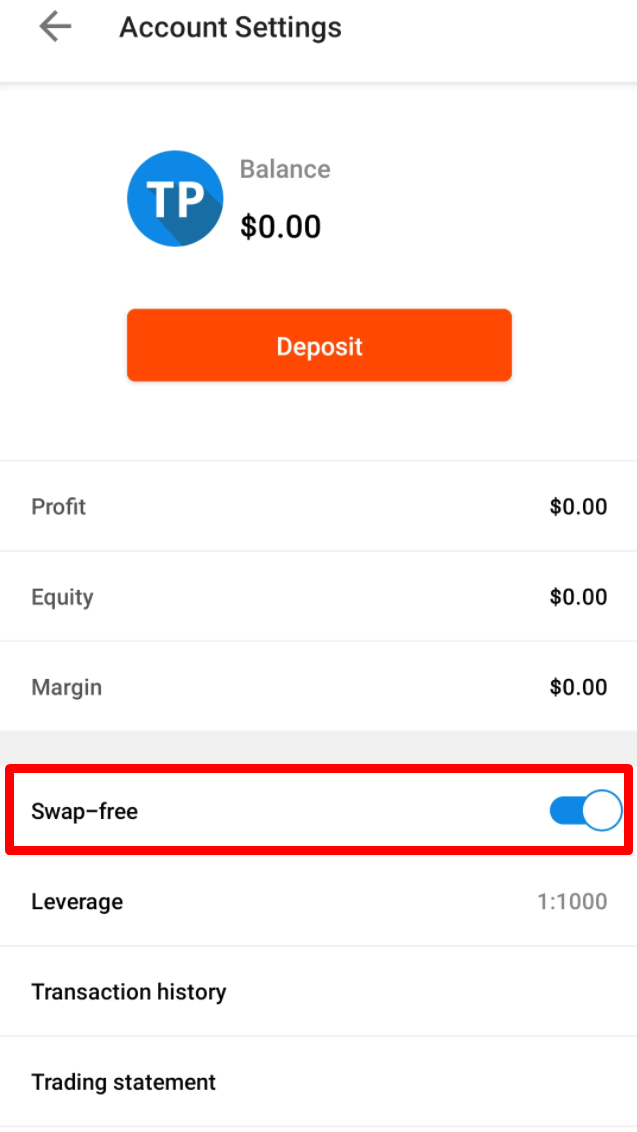 The
The
Swap Free option is not available for trading on "Forex Exotic", Indices instruments, Energies, and Cryptocurrencies.
Please, kindly be reminded that according to the Customer Agreement:
For the long-term strategies (the deal which is open for more than 2 days), FBS may charge a fixed fee for the total number of days during which the order was opened, the fee is fixed and determined as the value of 1 point of the transaction in US dollars, multiplied by the size of the currency pair swap point of the order. This fee is not an interest and depends on whether the order is open to buy or sell.
By opening a Swap-free account with FBS, the client agrees that the company may debit the fee from his/her trading account at any time.
What is spread?
There are 2 types of currency prices at Forex - Bid and Ask. The price we pay to buy the pair is called Ask. The price, at which we sell the pair, is called Bid.
Spread is the difference between these two prices. In other words, it is a commission you pay to your broker for every transaction.
SPREAD = ASK – BID
The floating type of spreads is used in FBS Trader:
- Floating spread – the difference between ASK and BID prices fluctuates in correlation with the market conditions.
- Floating spreads usually increase during important economic news and the bank holidays when the amount of liquidity in the market declines. When the Market is calm they can be lower than the fixed ones.
Can I use a FBS Trader account in MetaTrader?
When registering in the FBS Trader application, a trading account is automatically opened for you.You can use it right in the FBS Trader application.
We would like to remind you that FBS Trader is an independent trading platform provided by FBS.
Please, take into consideration that you cannot trade in the MetaTrader platform with your FBS Trader account.
If you want to trade in the MetaTrader platform, you can open a MetaTrader4 or MetaTrader5 account in your Personal Area (web or mobile application).
How can I change account leverage in FBS Trader application?
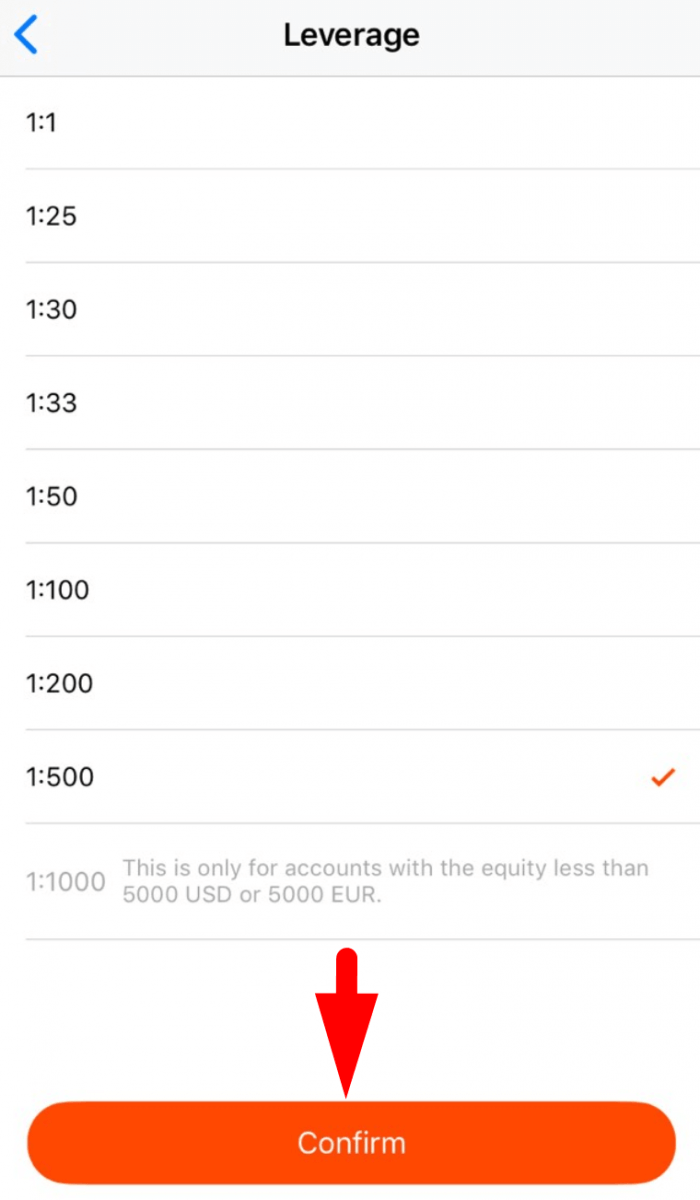
Please, kindly take into consideration that the maximum available leverage for FBS Trader account is 1:1000.To change your account leverage:
1. Go to the “More” page;

2. Click on “Settings”;
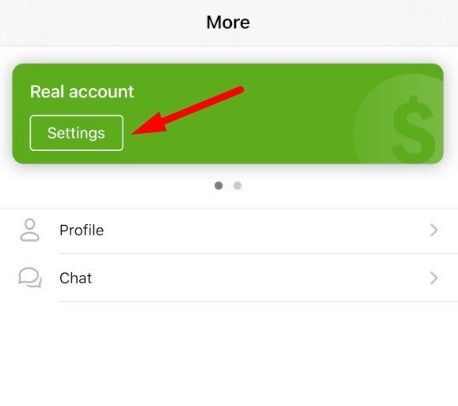
3. Click on “Leverage”;
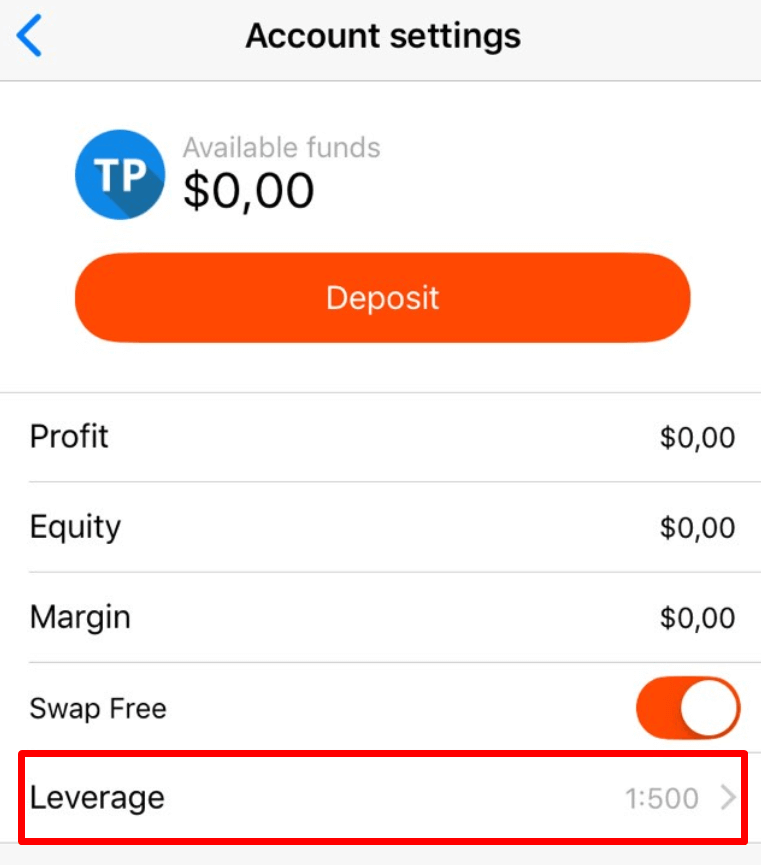
4. Choose the preferred leverage;
5. Click on the “Confirm” button.
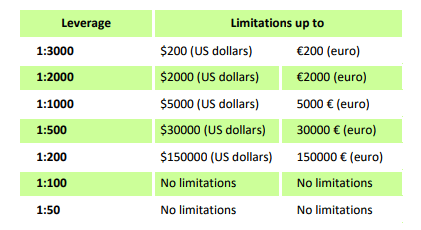
We want to remind you that we have specific regulations on leverage in correlation to the sum of equity. The Company is entitled to apply leverage change to already opened positions as well as to reopened positions according to these limitations:
Please, check the maximum leverage for the following instruments:
| Indices and Energies | XBRUSD | 1:33 |
| XNGUSD | ||
| XTIUSD | ||
| AU200 | ||
| DE30 | ||
| ES35 | ||
| EU50 | ||
| FR40 | ||
| HK50 | ||
| JP225 | ||
| UK100 | ||
| US100 | ||
| US30 | ||
| US500 | ||
| VIX | ||
| KLI | ||
| IBV | ||
| NKD | 1:10 | |
| STOCKS | 1:100 | |
| METALS | XAUUSD, XAGUSD | 1:333 |
| PALLADIUM, PLATINUM | 1:100 | |
| CRYPTO (FBS Trader) | 1:5 | |
Also, kindly note that the leverage can be changed only once a day
Which trading strategy can I use with FBS Trader?
You can use such trading strategies as hedging, scalping or news trading freely.Though please, kindly take into consideration that you cannot use Expert Advisors - thus, the application is not overloaded and works fast and efficiently.
Conclusion: Trade Confidently Anywhere with the FBS Trader App
The FBS Trader App makes forex trading accessible, fast, and intuitive for users at every level. With seamless account integration, real-time market access, and essential trading tools in your pocket, you can execute and manage trades wherever you are.By following these steps, you’ll be well-equipped to trade efficiently and confidently through one of the industry’s most trusted mobile platforms.