How to Open Account and Withdraw Money from FBS

FBS is a globally recognized forex and CFD broker, offering a secure, user-friendly platform for traders of all experience levels.Whether you're new to online trading or switching brokers, understanding how to open an account and withdraw your earnings efficiently is crucial.
This guide provides a step-by-step breakdown of how to register with FBS and safely withdraw funds, helping you manage your trading journey with confidence and ease.
How to Open an Account on FBS
How to Open an Account
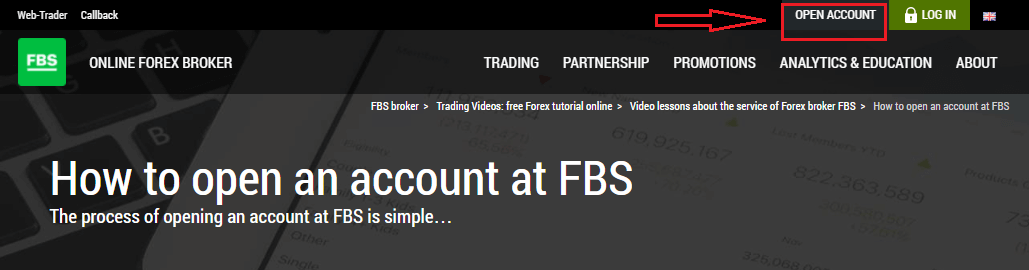
The process of opening an account at FBS is simple.- Visit the website fbs.com or click here
- Click the "Open an account" button in the top right corner of the website. You’ll need to go through the registration procedure and get a personal area.
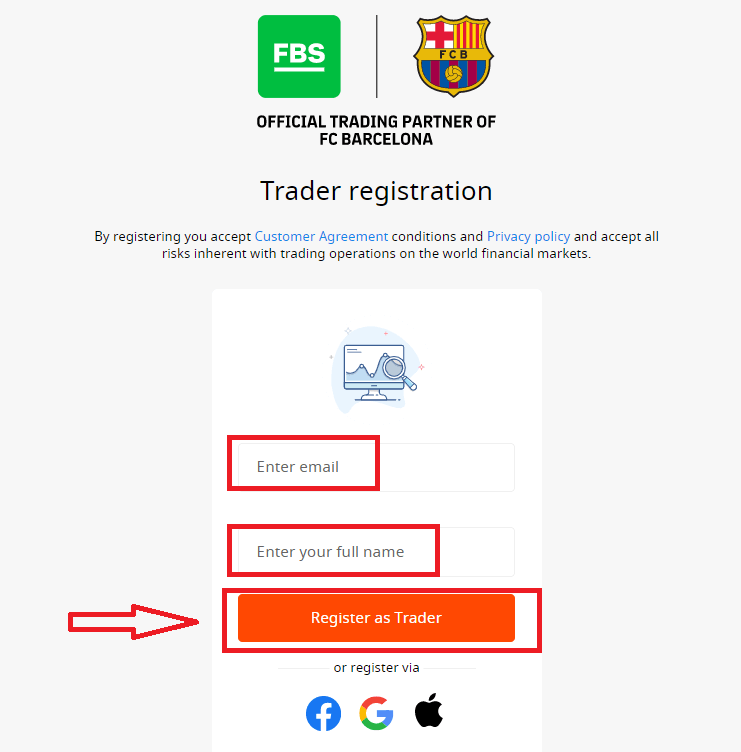
- You can register via a social network or enter the data required for account registration manually.
Enter your valid email and full name. Make sure to check that the data is correct; it will be needed for verification and a smooth withdrawal process. Then click on the “Register as Trader” button.
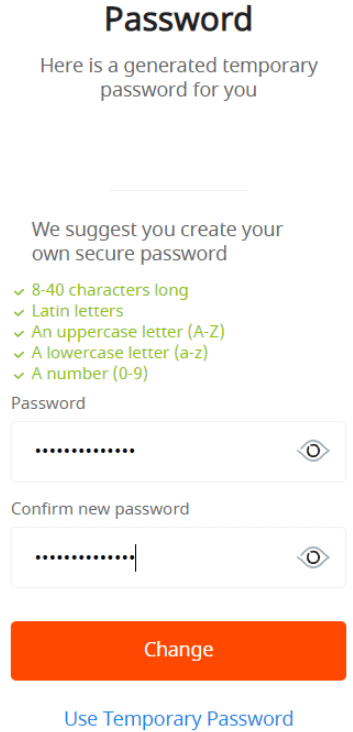
You will be shown a generated temporary password. You can continue using it, but we recommend you to create your password.
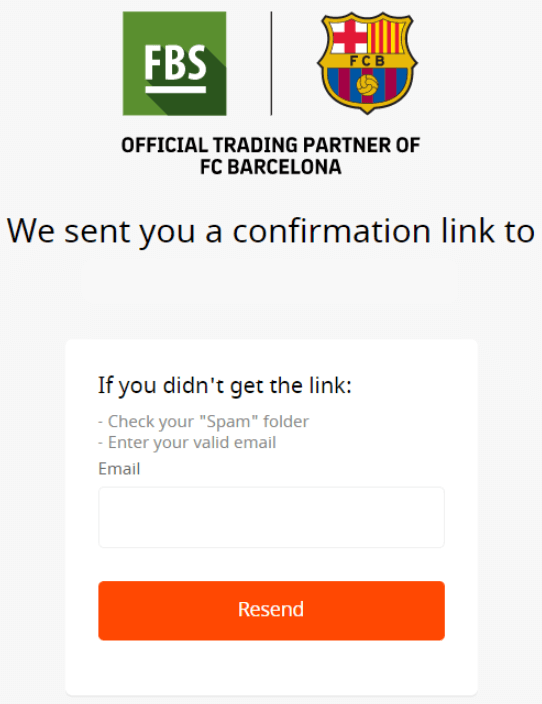
An email confirmation link will be sent to your email address. Make sure to open the link in the same browser your open Personal Area is.
As soon as your email address is confirmed, you will be able to open your first trading account. You can open a Real account or a Demo account.
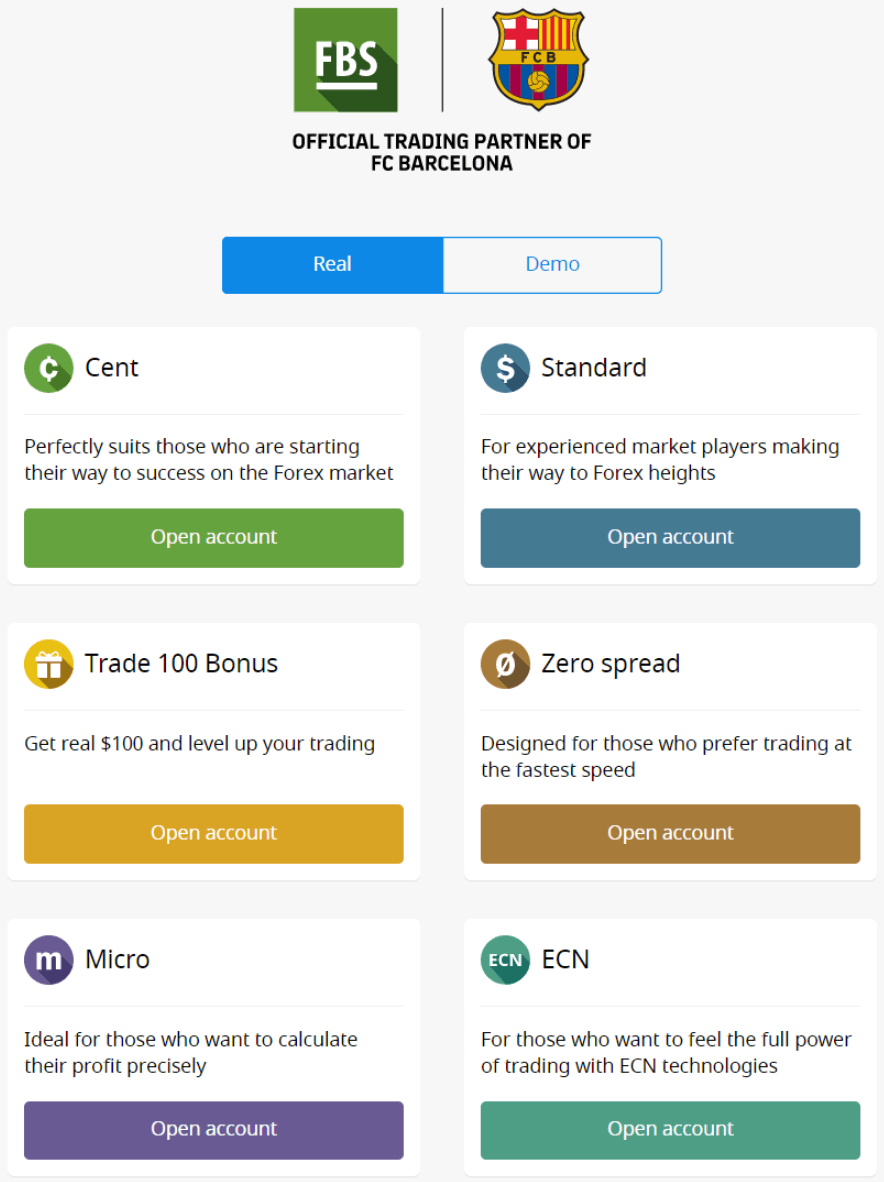
Let’s go through the second option. Firstly, you will need to choose an account type. FBS offers a variety of account types.
- If you are a newbie, choose a cent or micro account to trade with smaller amounts of money as you get to know the market.
- If you already have Forex trading experience, you might want to choose a standard, zero spread, or unlimited account.
In order to find out more about the account types, check the Trading section of FBS.
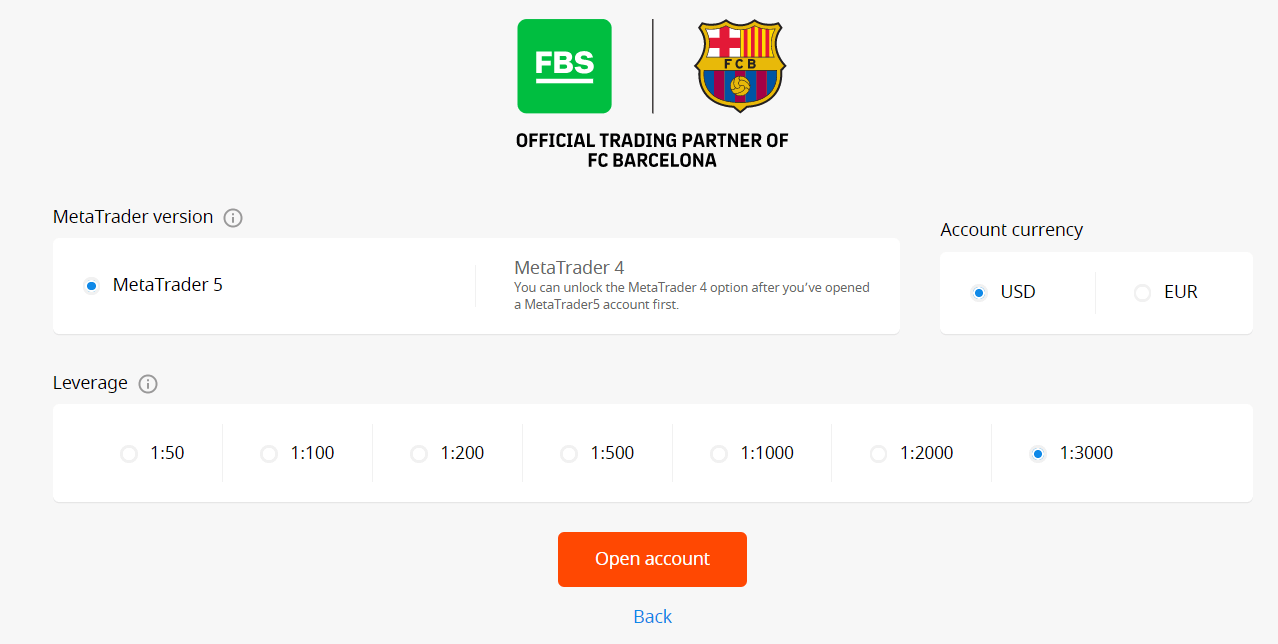
Depending on the account type, it may be available for you to choose the MetaTrader version, account currency, and leverage.
Congratulations! Your registration is finished!
You will see your account information. Make sure to save it and keep it in a safe place. Note that you will need to enter your account number (MetaTrader login), trading password (MetaTrader password), and MetaTrader server to MetaTrader4 or MetaTrader5 to start trading.
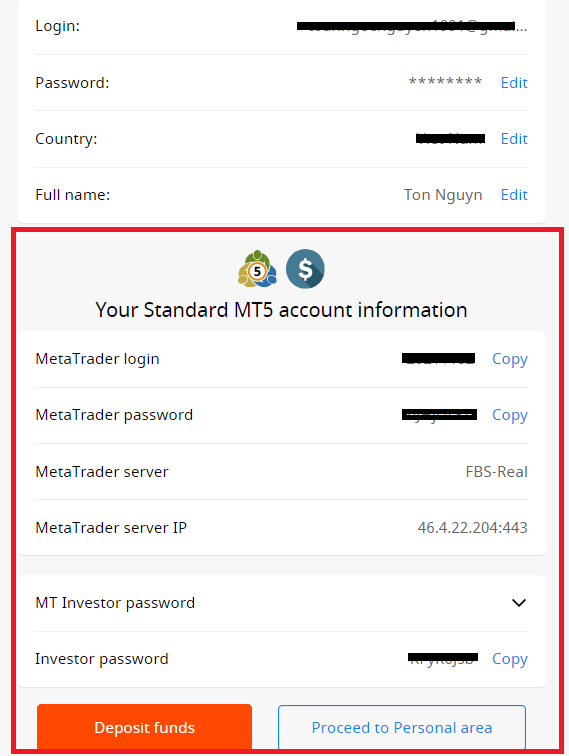
Don’t forget that to be able to withdraw money from your account, you need to verify your profile first.
How to Open with a Facebook Account
Also, you have an option to open your account through the web by Facebook, and you can do that in just a few simple steps:1. Click on the Facebook button on the registration page
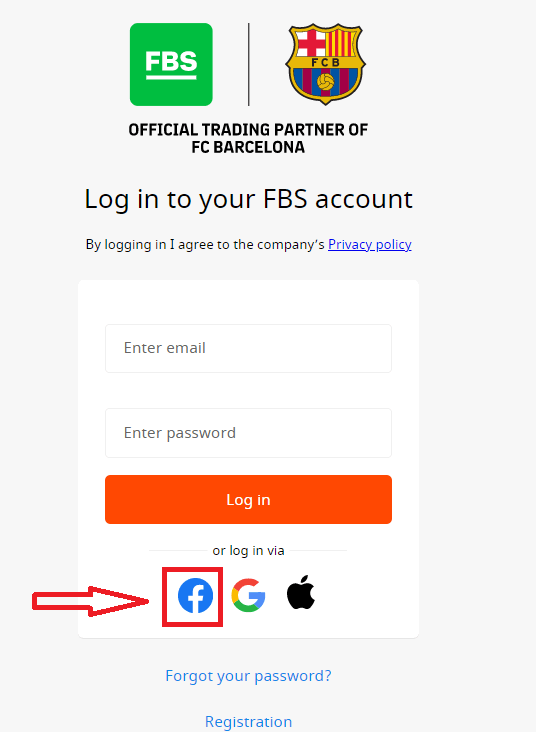
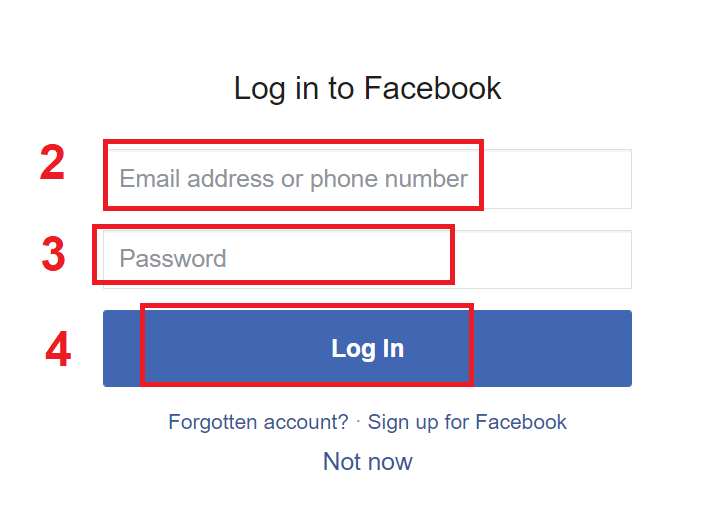
2. The Facebook login window will be opened, where you will need to enter your email address that you used to register on Facebook
3. Enter the password from your Facebook account
4. Click on “Log In.”
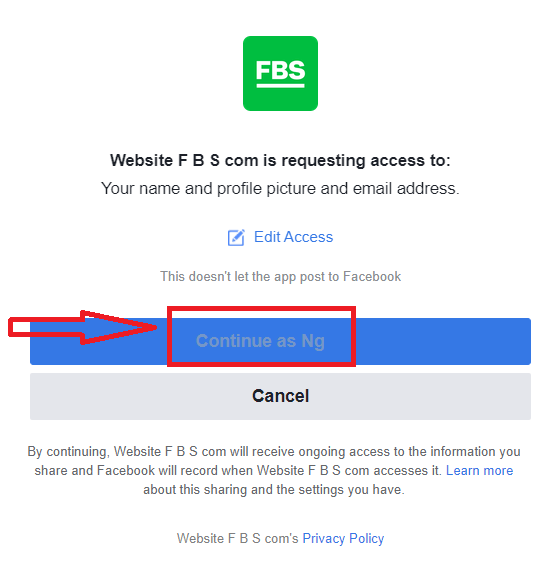
Once you’ve clicked on the “Log in” button, FBS is requesting access to: Your name and profile picture and email address. Click Continue...
After that, you will be automatically redirected to the FBS platform.
How to Open with a Google+ Account
1. To sign up with a Google+ account, click on the corresponding button in the registration form.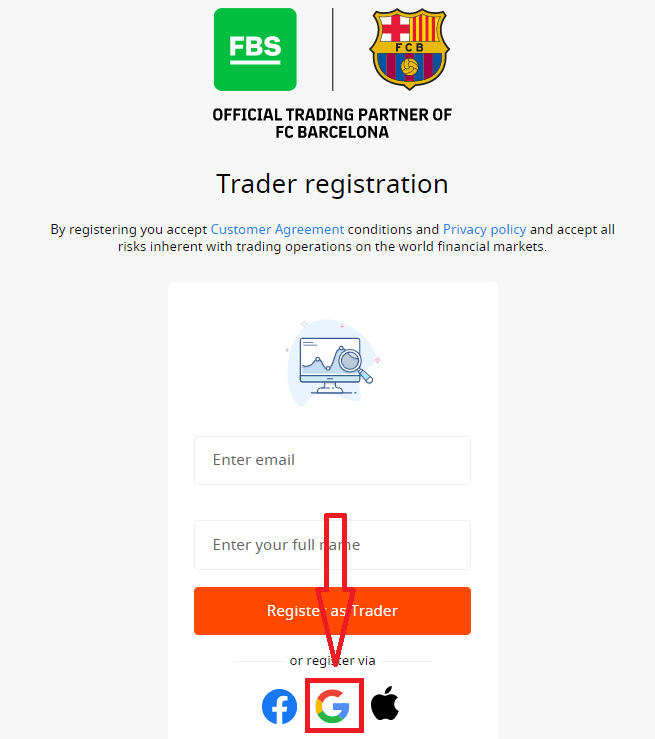
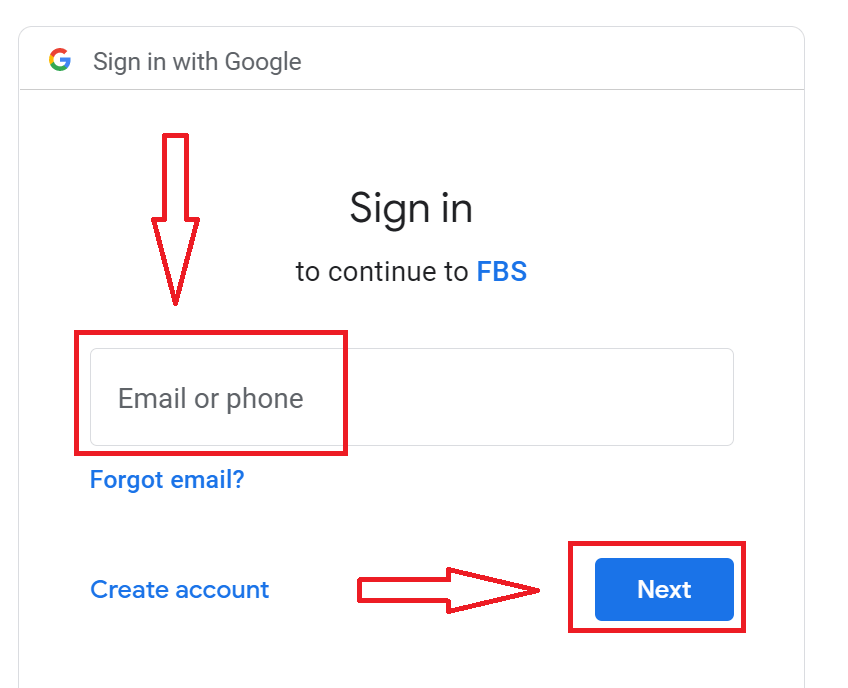
2. In the new window that opens, enter your phone number or email and click “Next”.
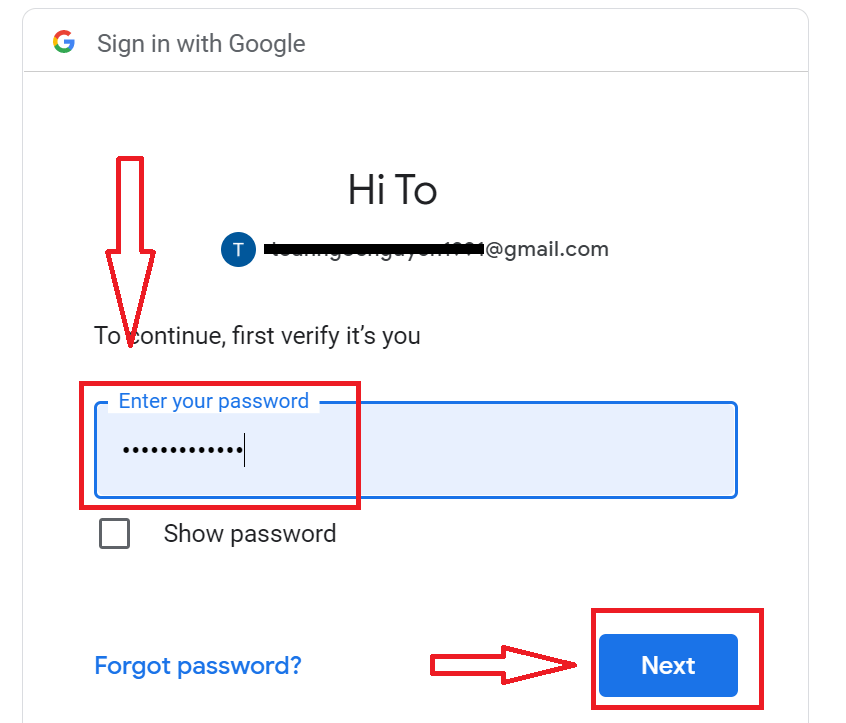
3. Then enter the password for your Google account and click “Next”.
After that, follow the instructions sent from the service to your email address.
How to Open with Apple ID
1. To sign up with an Apple ID, click on the corresponding button in the registration form.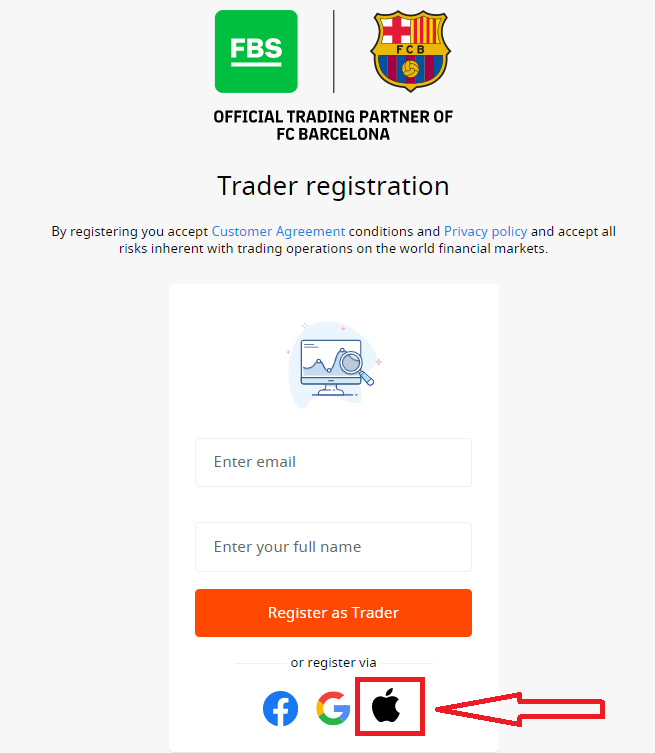
2. In the new window that opens, enter your Apple ID and click “Next”.
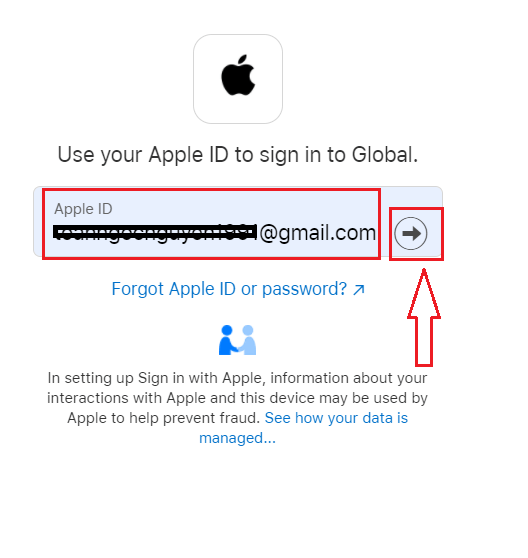
3. Then enter the password for your Apple ID and click “Next”.
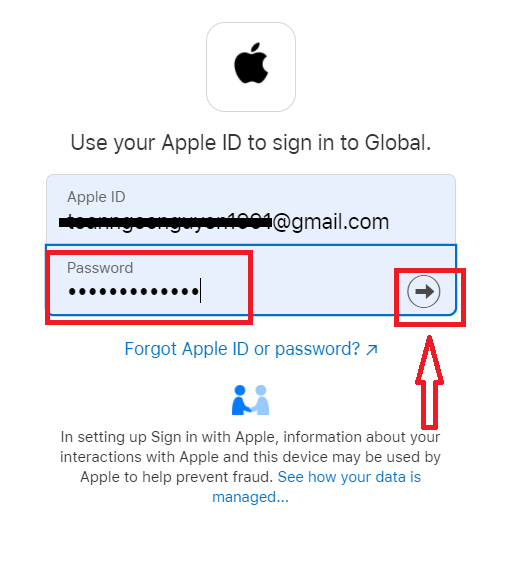
After that, follow the instructions sent from the service to your Apple ID.
FBS Android App
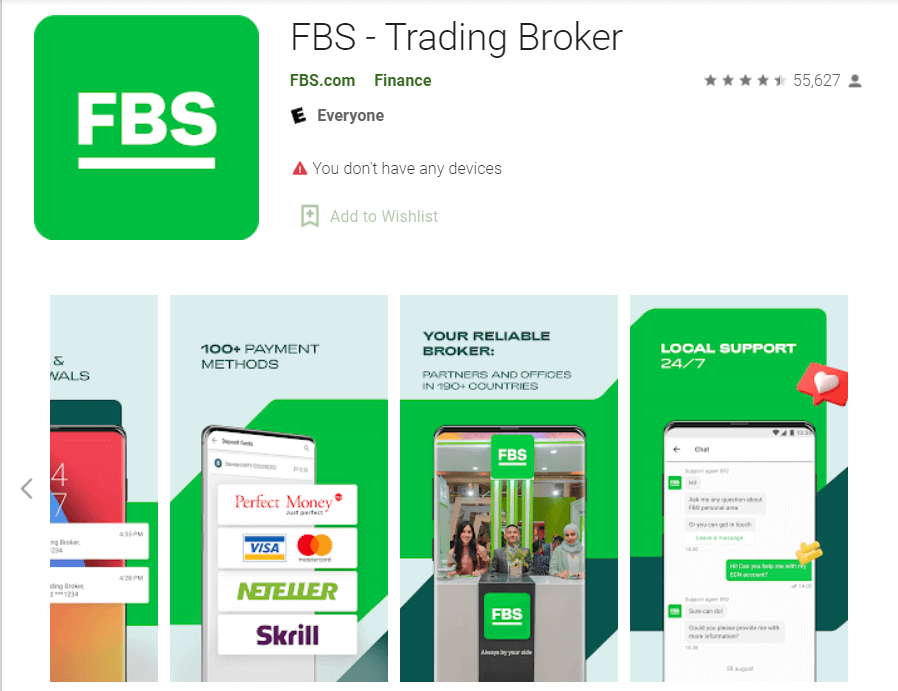
If you have an Android mobile device, you will need to download the official FBS mobile app from Google Play or here. Simply search for the “FBS – Trading Broker” app and download it on your device.
The mobile version of the trading platform is exactly the same as the web version it. Consequently, there won’t be any problems with trading and transferring funds. Moreover, the FBS trading app for Android is considered to be the best app for online trading. Thus, it has a high rating in the store.
FBS iOS App
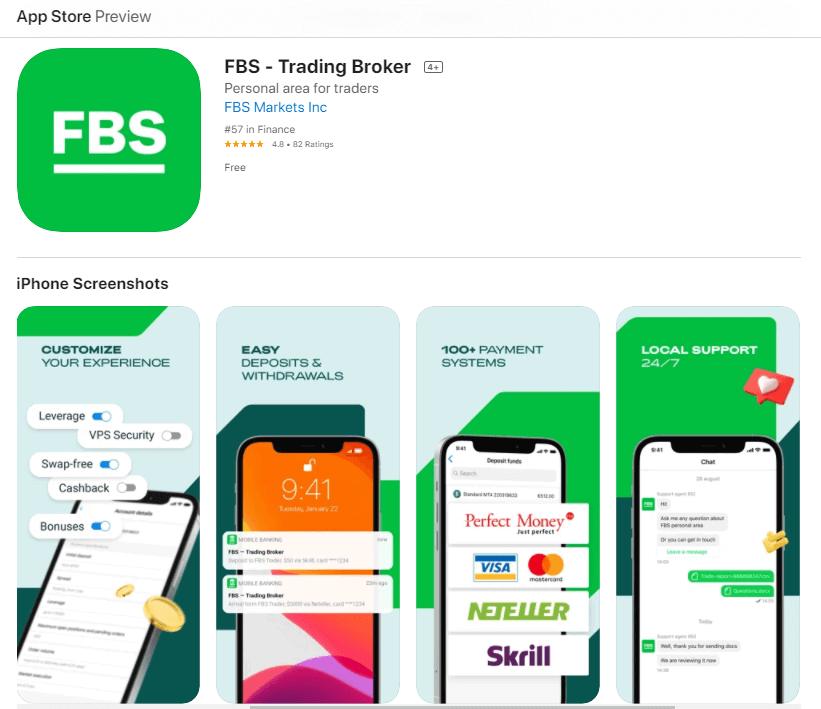
If you have an iOS mobile device, you will need to download the official FBS mobile app from the App Store or here. Simply search for the “FBS – Trading Broker” app and download it on your iPhone or iPad.
The mobile version of the trading platform is exactly the same as web version of it. Consequently, there won’t be any problems with trading and transferring funds. Moreover, FBS trading app for IOS is considered to be the best app for online trading. Thus, it has a high rating in the store.
FAQ of Open Account
I want to try a Demo Account in the FBS Personal Area (web)
You don’t have to spend your own money on Forex right away. We offer practice demo accounts, which will let you test the Forex market with virtual money using real market data.Using a Demo account is an excellent way to learn how to trade. You will be able to practice by pressing the buttons and grasp everything much faster without being afraid of losing your own funds.
The process of opening an account at FBS is simple.
2. Find the "Demo accounts" section and click on the plus sign.

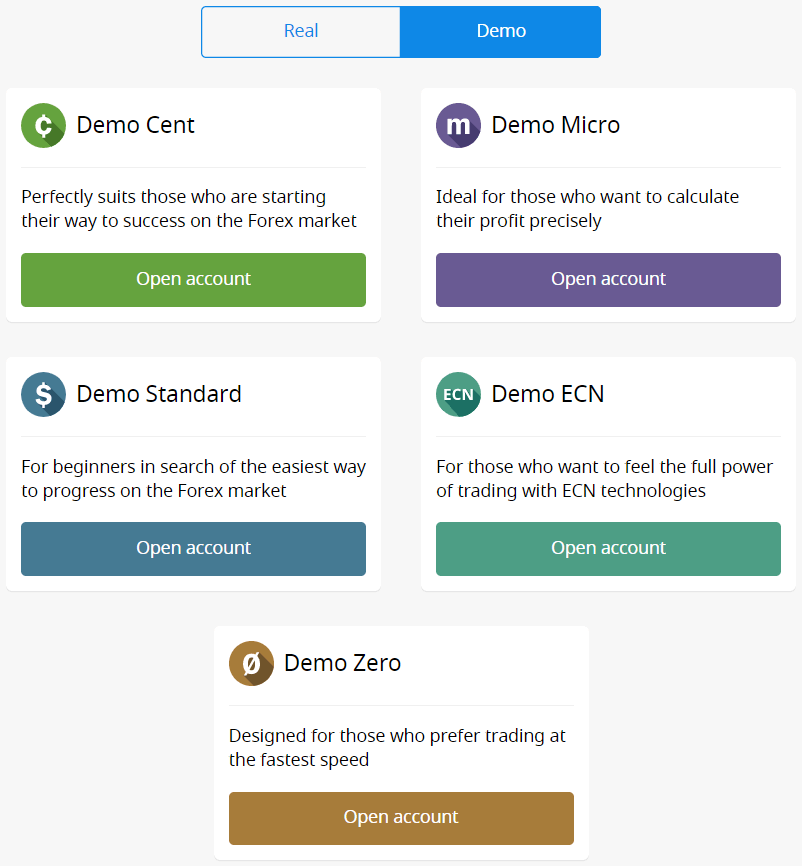
5. Depending on the account type, you may choose the MetaTrader version, account currency, leverage, and initial balance.
6. Click on the "Open account" button.
How many Accounts can I open?
You can open up to 10 trading accounts of each type within one Personal area if 2 conditions are met:
- Your Personal Area is verified.
- The total deposit to all your accounts is $100 or more.
Please, take into account that each client can register only one Personal Area.
Which Account to choose?
We offer 5 types of accounts, which you can see on our site: Standard, Cent, Micro, Zero spread, and ECN account.Standard account has a floating spread but no commission. With a Standard account, you can trade using the highest leverage (1:3000).
Cent account also has floating spread and no commission, but bear in mind that on the Cent account, you trade with cents! So, for example, if you deposit $10 into the Cent account, you will see it as 1000 in the trading platform, which means that you will trade with 1000 cents. The maximum leverage for the Cent account is 1:1000.
Cent account is the perfect choice for beginners; with this account type, you will be able to start real trading with small investments. Also, this account suits well for scalping.
ECN account has the lowest spreads, offers the fastest order execution, and has a fixed commission of $6 per 1 lot traded. The maximum leverage for the ECN account is 1:500. This account type is the perfect option for experienced traders, and it works best for a scalping trading strategy.
A micro account has a fixed spread and no commission. It also has the highest leverage of 1:3000.
A
A zero spread account has no spread but a commission. It starts from $20 per 1 lot and differs depending on the trading instrument. The maximum leverage for the Zero Spread account is also 1:3000.
But, please, kindly consider that according to the Customer Agreement (p.3.3.8), for instruments with fixed spread or fixed commission, the Company reserves the right to increase the spread in case the spread on the basic contract exceeds the size of the fixed spread.
We wish you successful trading!
How can I change my Account leverage?
Please, kindly be informed that you can change your leverage in your Personal Area account settings page.This is how you can do it:
1. Open the account settings by clicking on the needed account in the Dashboard.
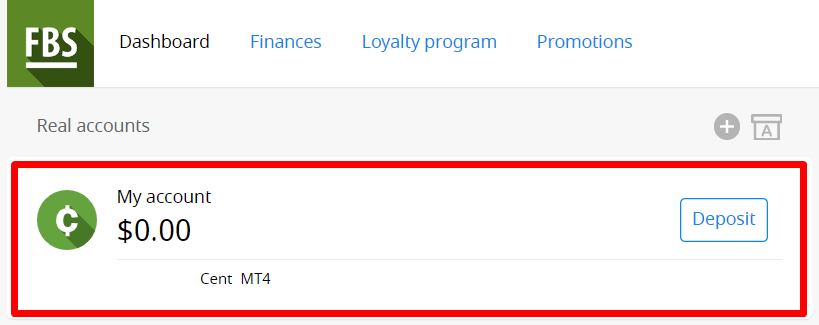
Find "Leverage" in the "Account settings" section and click on the current leverage link.

Set the necessary leverage and press the "Confirm" button.
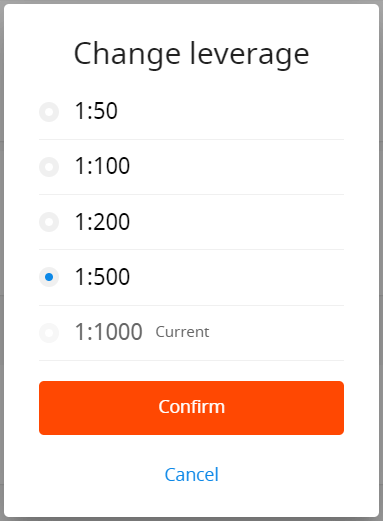
Please, note, that leverage change is possible only once in 24 hours and in case you do not have any open orders.
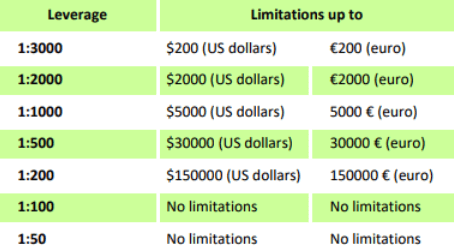
We want to remind you that we have specific regulations on leverage in correlation to the sum of equity. The Company is entitled to apply leverage changes to already opened positions as well as to reopened positions according to these limitations.
I can not find my Account
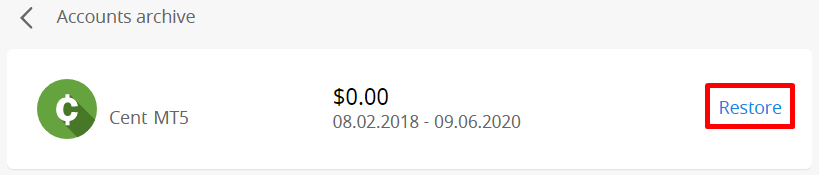
It seems like your account has been archived.Please, kindly be informed that Real accounts are automatically archived after 90 days of inactivity.
To restore your account:
1. Please, go to the Dashboard in your Personal Area.
2. Click on the icon of the box with A letter.

Choose the needed account number and click the "Restore" button.
We want to remind you that demo accounts for the MetaTrader4 platform are valid for a period (depending on the account type), and after that, they are automatically deleted.
Validity period:
| Demo Standard | 40 |
| Demo Cent | 40 |
| Demo Ecn | 45 |
| Demo Zero spread | 45 |
| Demo Micro | 45 |
| Demo account opened directly from the MT4 platform |
25 |
In this case, we may recommend that you to open a new demo account.
Demo accounts for the MetaTrader5 platform can be archived/deleted in a period set at the discretion of the company.
I want to change my Account type in the FBS Personal Area (web)
Unfortunately, it is impossible to change the type of account.But you can open a new account of the desired type within the existing Personal Area.
After that, you will be able to transfer funds from the existing account to the newly opened one via Internal Transfer in the Personal Area.
What is the FBS Personal Area (web)?
FBS Personal Area is a personal profile in which the client can manage their own trading accounts and interact with FBS.The FBS Personal Area aims to provide the client with all the data necessary to manage the account, collected in one place. With the FBS Personal Area, you can deposit and withdraw funds to/from your MetaTrader accounts, manage your trading accounts, change the profile settings, and download the needed trading platform with just a couple of clicks!
In the FBS Personal Area, you can create an account of any type you wish (Standard, Micro, Cent, Zero Spread, ECN), adjust the leverage, and proceed with financial operations.
In case you have any questions, FBS Personal Area offers convenient ways of contacting our customer support, which can be found at the bottom of the page:
How to Withdraw Money from FBS
How can I Withdraw?
Video
Withdrawal on DesktopWithdrawal on Mobile
Important information! Please, consider that according to the Customer Agreement, the client can withdraw funds from his/her account only to those payment systems that have been used for the deposit.
Step by Step
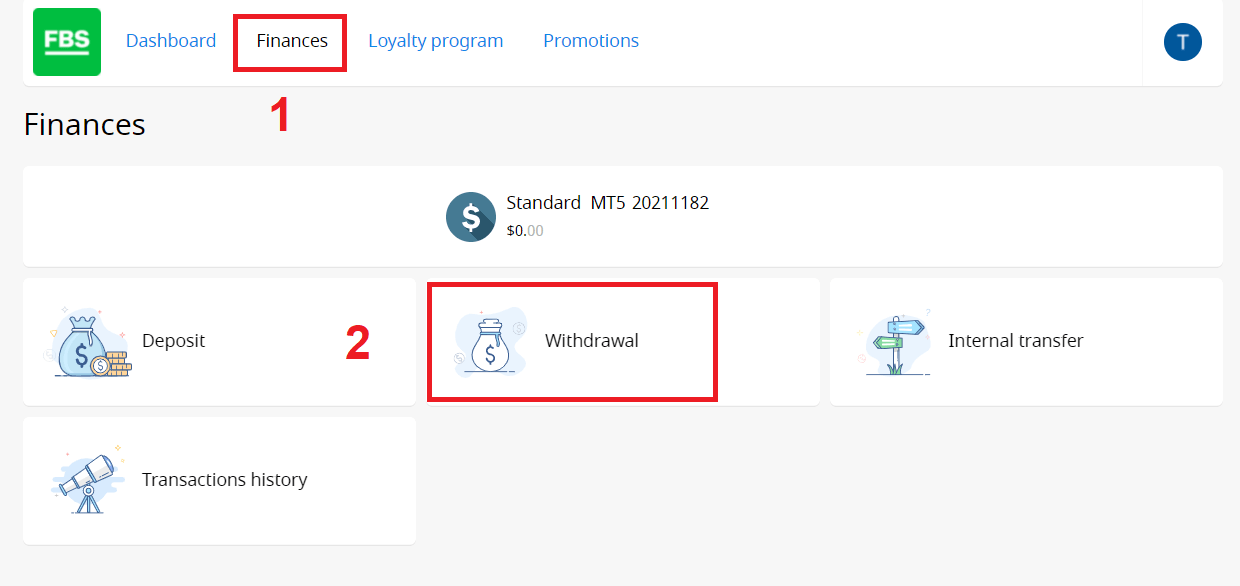
You can withdraw money from your account in your Personal Area.1. Click on "Finances" in the menu at the top of the page. Choose "Withdrawal".
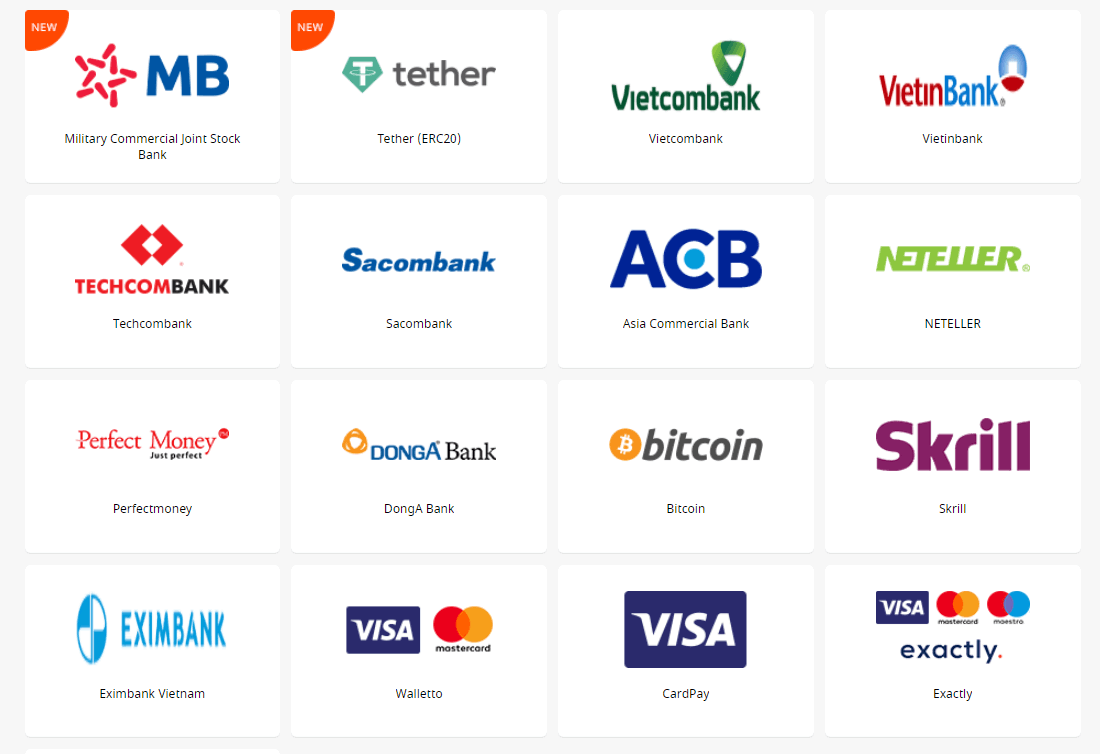
2. Choose a suitable payment system and click on it.
3. Specify the trading account you want to withdraw from.
4. Specify information about your e-wallet or payment system account.
5. For withdrawal via card, click onthe “+” sign to upload the back and front sides of your card copy.
6. Type the amount of money you want to withdraw.
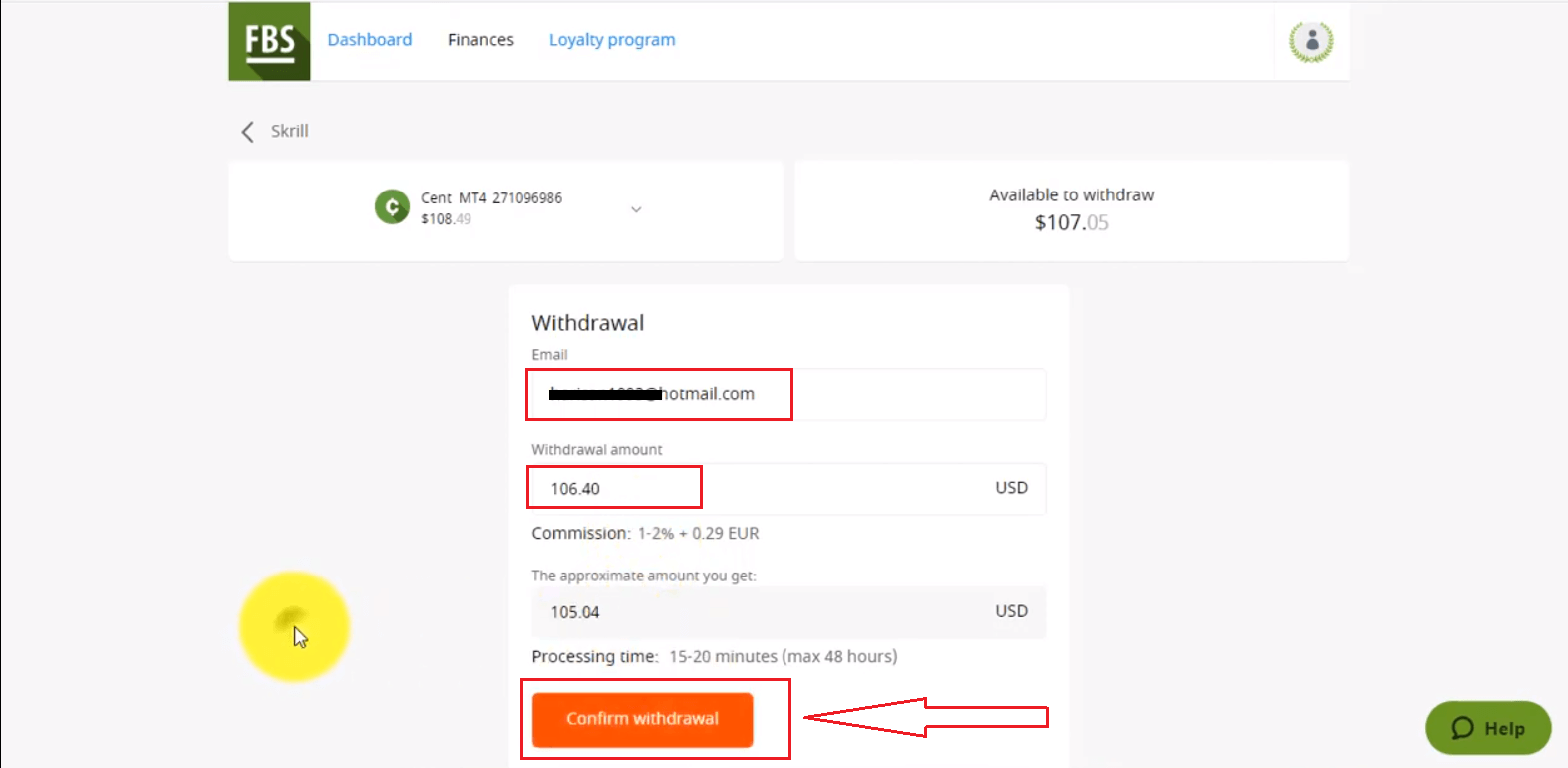
7. Click on the “Confirm withdrawal” button.
Please, kindly take into consideration that the withdrawal commission depends on the payment system you choose.
Withdrawal process time also depends on the payment system.
You will be able to monitor the status of your financial requests in the Transaction History.
Please, kindly be reminded that according to the Customer Agreement:
- 5.2.7. If an account was funded via debit or credit card, a card copy is required to process a withdrawal. The copy must contain the first 6 digits and the last 4 digits of the card number, the cardholder’s name, the expiry date, and the cardholder’s signature.
- You should cover your CVV code on the back of the card; we do not need it.
- On the back of your card, we need only your signature, which confirms card validity.
FAQ of Withdrawal
How long does it take to process my Withdrawal?
Please, kindly consider that the Financial Department of the company usually processes the clients’ withdrawal requests on a first-come, first-served basis.As soon as our Financial Department approves your withdrawal request, the funds are sent from our side, but then it is up to the payment system to process it further.
- Electronic payment systems withdrawals (like Skrill, Perfect Money, etc.) should be credited immediately, but sometimes may take up to 30 minutes.
- In case you withdraw from your card, please be reminded that on average it takes 3-4 business days for the funds to be credited.
- As for bank transfer withdrawals are usually processed within 7-10 business days.
- Withdrawals to the bitcoin wallet can take from a few minutes to a couple of days since all bitcoin transactions worldwide are processed together. The more people request transfers at the same moment, the more the transfer takes.
All the payments are being processed according to the Financial Department’s business hours.
The FBS Financial Departments’ business hours are: from 19:00 (GMT+3) on Sunday to 22:00 (GMT +3) on Friday and from 08:00 (GMT+3) to 17:00 (GMT+3) on Saturday.
Can I Withdraw $140 from the Level Up Bonus?
Level Up Bonus is a great way to start your trading career. You cannot withdraw the bonus itself, but you can withdraw the profit gained on trading with it if you fulfill the conditions required:
- Verify your email address
- Get the bonus in your Web Personal Area for free $70, or use the FBS – Trading Broker app to get free $140 for trading
- Connect your Facebook account to the Personal Area
- Complete a short trading class and pass a simple test
- Trade for at least 20 active trading days with no more than five days missed
Success! Now you can withdraw the profit earned with the $140 Level Up Bonus
I deposited via card. How can I Withdraw funds now?
We would like to remind you that Visa/Mastercard is a payment system that allows only a refund of the deposited funds.This means that you can withdraw via card only the sum not exceeding the sum of your deposit (up to 100% of the initial deposit can be withdrawn back to the card).
The amount over the initial deposit (profit) can be withdrawn to other payment systems.
Also, this means that withdrawals should be processed proportionally to the deposited sums.
For example:
You deposited via credit/debit card $10, then $20, then $30.
You will need to withdraw back to this card $10 + withdrawal fee, $20 + withdrawal fee, then $30 + withdrawal fee.
Please, kindly pay attention to the fact that if you deposited via credit/debit card and via another payment system, you need to withdraw back to the card first:
Withdrawal via card is of the top priority.
I’ve deposited via virtual card. How can I Withdraw?
Before you withdraw funds back to the virtual card you deposited with, you need to confirm that your card can receive international transfers.
An official confirmation with a card number is necessary.
We consider as confirmation:
- Your bank statement, showing that you received transfers from third parties to your card before.
If the statement shows only the bank account, please attach proof that the card in question is connected to this bank account.
- Any SMS notification, e-mail, official letter, or screenshot of live chat with your bank manager that mentions the exact card number and specifies that this card can receive transfers;
What if my card doesn’t accept incoming funds?
In this case, according to the instructions above, you will need to provide us with confirmation that the card doesn’t accept incoming funds. Once the confirmation is successfully accepted from our side, you will be able to withdraw funds (deposited funds + profit) via any electronic payment system available in your country.
Why was my Withdrawal request rejected?
Please, take into consideration that according to the Customer Agreement, a client can withdraw funds from his/her account only to those payment systems that have been used for the deposit.
In case you made a withdrawal request via the payment system that differs from the payment system you used for deposit, your withdrawal will be rejected.
Also, please kindly be reminded that you can monitor the status of your financial requests in the Transaction History. There, you can see the reason for rejection as well.
Kindly note that if you have open orders while making a withdrawal request, your request will be automatically rejected with the comment "Insufficient funds".
I have not received my card Withdrawal yet
We would like to remind you that Visa/Mastercard is a payment system that allows only a refund of the deposited funds.
This means that you can withdraw via card only the sum of your deposit.
One of the key reasons that a card refund takes as long as it does is the number of steps involved in the refund process. When you initiate a refund, as when you return merchandise to a store, the seller requests a refund by beginning a new transaction request on the card network. The card company must receive this information, check it against your purchase history, confirm the merchant’s request, clear the refund with its bank, and transfer the credit to your account. The cards’ billing department must then issue a statement that shows the refund as a credit, which serves as the final step in the process. Each step is an opportunity for delays due to human or computer error, or due to waiting for a billing cycle to elapse. That is why sometimes refunds take more than 1 month!
Please, kindly be informed that usually withdrawals via card are processed within 3-4 days.
If you didn’t receive your funds within this period, you can contact us in chat or via e-mail and request withdrawal confirmation.
Why was my Withdrawal amount reduced?
Most likely, your withdrawal has been reduced to match the deposit amount.
We would like to remind you that Visa/Mastercard is a payment system that allows only a refund of the deposited funds.
This means that withdrawal should be processed proportionally to the deposited sums.
For example:
You deposited via credit/debit card $10, then $20, then $30.
You will need to withdraw back to this card $10 + withdrawal fee, $20 + withdrawal fee, then $30 + withdrawal fee.
You can withdraw the amount exceeding the total amount of deposit made via card (your profit) to any electronic payment system available in your Personal Area.
If your balance has become less than your total card deposit amount during the trading, don’t worry - you still will be able to withdraw your funds. In this case, one of your card deposits will be refunded partially.
I see the "Insufficient funds" comment
Kindly note that if you have open trades while making a withdrawal request, and your Equity is less than the withdrawal amount, your request will be automatically rejected with the comment "Insufficient funds".
Conclusion: Start Trading Confidently with FBS
Opening an account and withdrawing money at FBS is designed to be straightforward, secure, and efficient. By following the outlined steps, traders can set up their accounts in minutes and manage their funds with confidence.
With strong security protocols, diverse withdrawal options, and global support, FBS empowers traders to focus on what matters most—growing their portfolio in a trusted trading environment.