FBS Deposit and Trade Forex: Funding Methods and Trading Steps

After funds clear, connect the funded account to your trading platform (FBS Trader, MetaTrader 4 or 5), confirm your balance, and practice order entry on a demo if needed. Learn basic order types, how spreads and slippage affect execution, set stop-loss and position-size rules, and follow simple security steps like strong passwords and two-factor authentication to protect your funded account and withdrawals.

How to Deposit Money on FBS
How can I Deposit
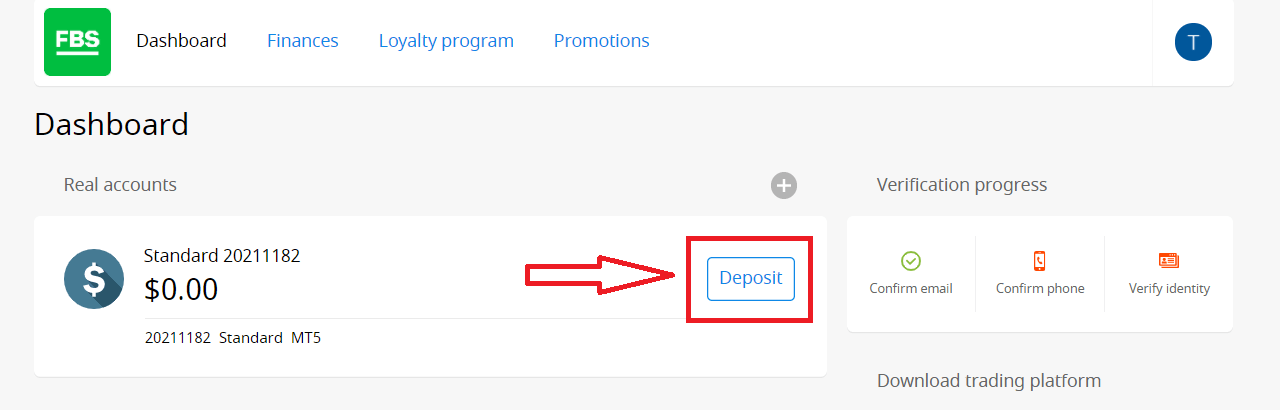
You can deposit money into your account in your Personal Area.1. Click on "Finances" in the menu at the top of the page.

or
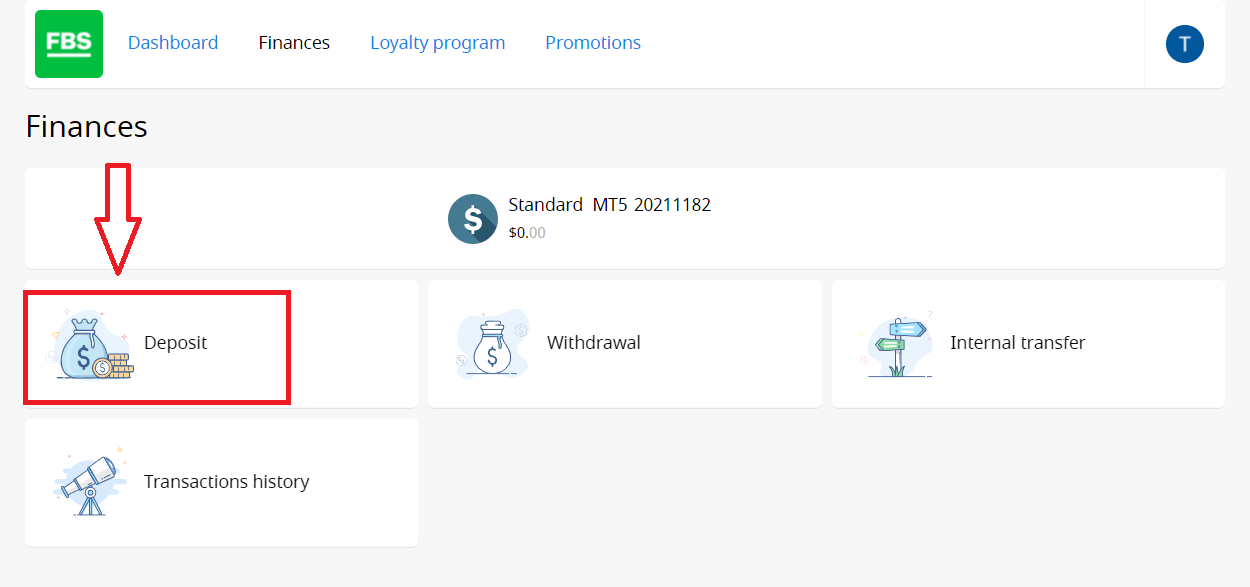
2. Choose "Deposit".
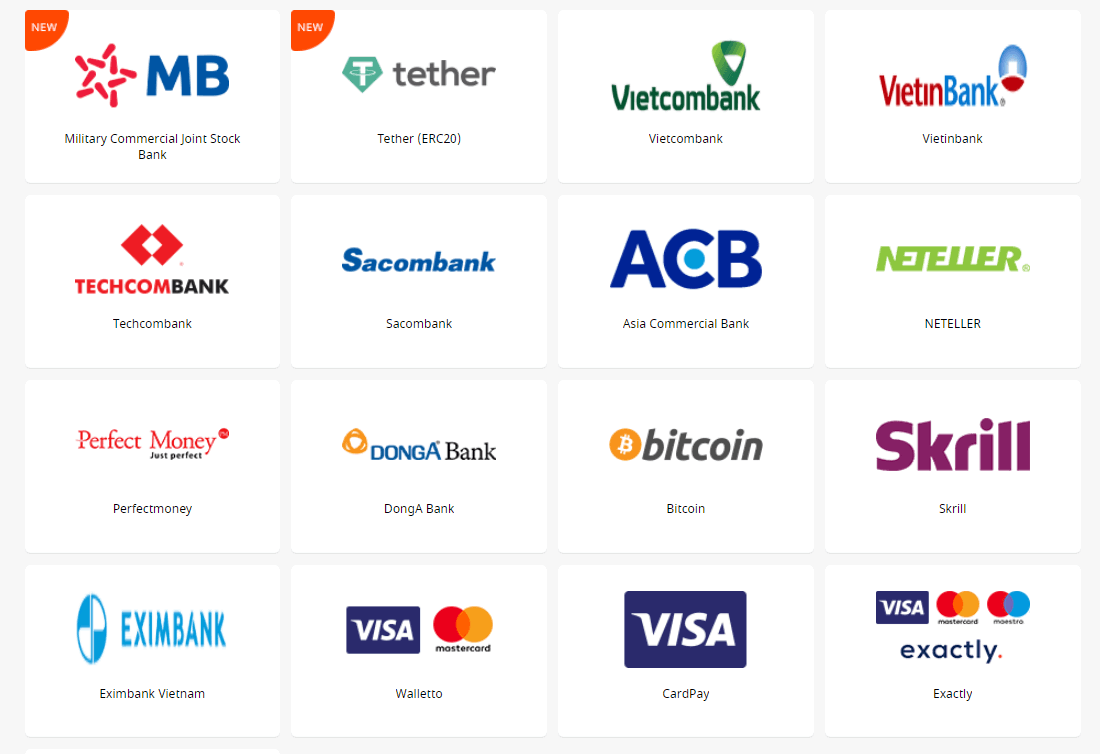
3. Choose a suitable payment system and click on it.
4. Specify the trading account you want to deposit to.
5. Specify the information about your e-wallet or payment system account if needed.
6. Type the amount of money you want to deposit.
7. Choose the currency.
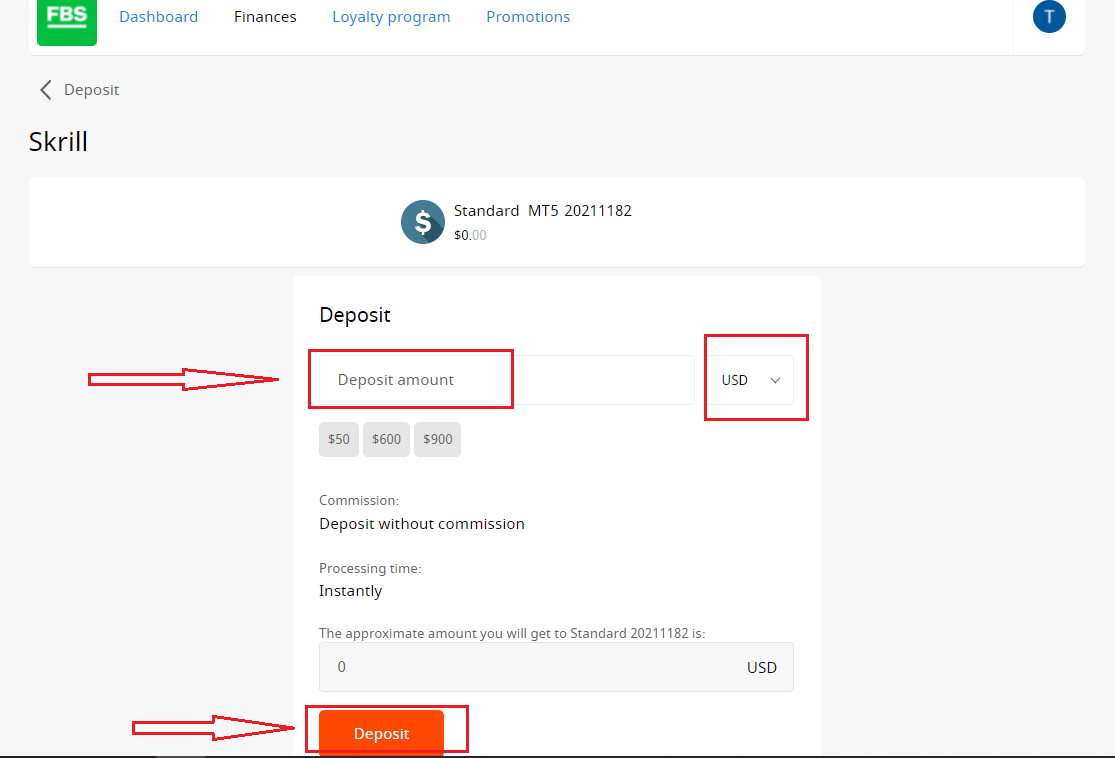
8. Click on the “Deposit” button.
Withdrawals and internal transfers are done in the same fashion.
You will be able to monitor the status of your financial requests in the Transaction History.
Important information! Please, take into consideration that according to the Customer Agreement, a client can withdraw funds from his/her account only to those payment systems that have been used for the deposit.
Please, kindly be informed that in order to deposit to FBS applications such as FBS Trader or FBS CopyTrade, you need to make a deposit request right in the needed application. Transfer of funds between your MetaTrader accounts and FBS CopyTrade / FBS Trader accounts is not possible.
FAQ of Deposit
How long does it take to process a Deposit/Withdrawal request?
Deposits via electronic payment systems are processed instantly. Deposit requests via other payment systems are processed within 1-2 hours by the FBS Financial department.The The The
FBS Financial department works 24/7. The maximum time of processing a deposit/withdrawal request via an electronic payment system is 48 hours from the moment of its creation. Bank wire transfers take up to 5-7 business days to process.
Can I make a Deposit in my national currency?
Yes, you can. In this case, the deposit amount will be converted into USD/EUR according to the current official exchange rate on the day of the deposit execution.
How can I Deposit funds into my account?
- Open the Deposit within the Finances section in your Personal area.
- Choose the preferred deposit method, select offline or online payment, and click the Deposit button.
- Select the account you wish to deposit funds into and enter the deposit amount.
- Confirm your deposit details on the next page.
What payment methods can I use to add funds to my account?
FBS offers different funding methods, including numerous electronic payment systems, credit and debit cards, bank wire transfers, and exchangers. There are no deposit fees or commissions charged by FBS for any deposits into the trading accounts.
What is the minimum Deposit amount in the FBS Personal Area (web)?
Please, take into consideration the following deposit recommendations for different account types, respectively:
- For the "Cent" account, the minimum deposit is 1 USD.
- For "Micro" account - 5 USD;
- For "Standard" account - 100 USD;
- For "Zero Spread" account – 500 USD;
- For "ECN" account - 1000 USD.
Please, kindly be informed that these are recommendations. The minimum deposit amount, in general, is $1. Please consider that the minimum deposit for some electronic payment systems like Neteller, Skrill, or Perfect Money is $10. Also, as for the bitcoin payment method, the minimum recommended deposit is $5. We would like to remind you that the deposits for smaller amounts are processed manually and may take longer.
To know how much it is needed to open an order in your account, you can use the Traders Calculator on our website.
How do I Deposit funds into my MetaTrader account?
MetaTrader and FBS accounts synchronize, so you do not need any additional steps to transfer funds from FBS directly to MetaTrader. Just log into MetaTrader, following the next steps:
- Download MetaTrader 4 or MetaTrader 5.
- Enter your MetaTrader login and password that you have received during registration at FBS. If you didn’t save your data, get a new login and password in your Personal area.
- Install and open MetaTrader and fill in the pop-up window with login details.
- Done! You are logged into MetaTrader with your FBS account, and you can start trading using the funds you have deposited.
How can I make a Deposit and withdraw funds?
You can fund your account in your Personal area, via the “Financial operations” section, choosing any of the available payment systems. Withdrawal from a trading account can be executed in your Personal area via the same payment system that was used for depositing. In case the account was funded via various methods, withdrawal is executed via the same methods in the ratio according to the deposited sums.How to Trade Forex in FBS
How to place a new Order in FBS MT4
1. Once you open the application, youll see a login form, which you need to complete using your login and password. Choose the Real server to log into your real account and the Demo server for your demo account.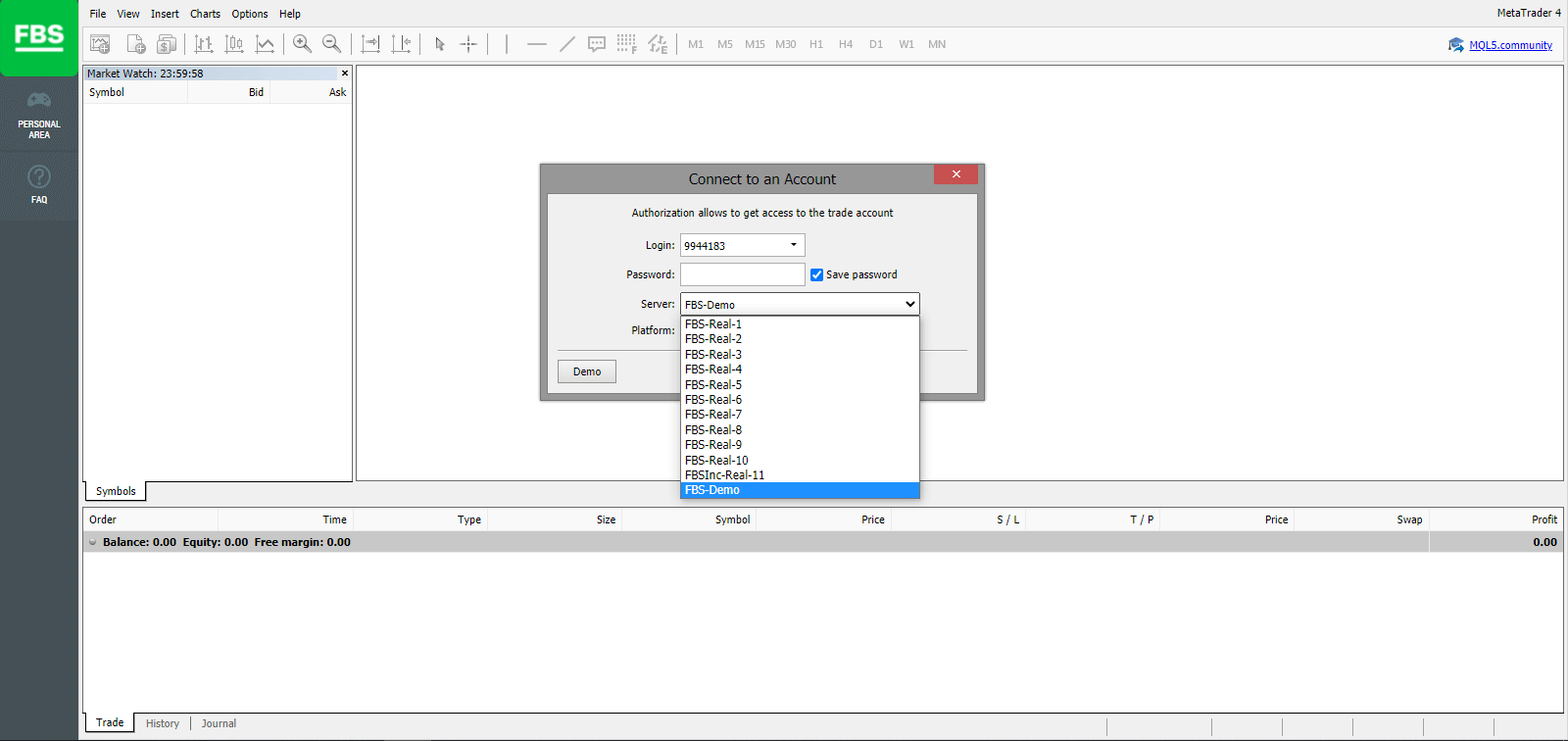
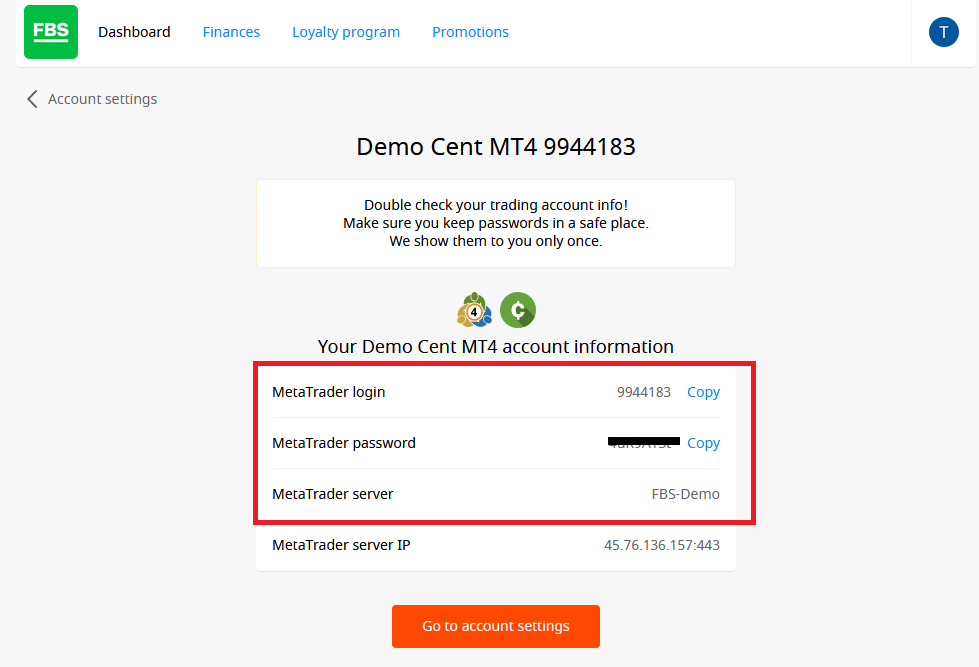
2. Please note that every time you open a new account, well send you an email (or go to Account Settings in Personnal Area) containing that accounts login (account number) and password.
After logging in, you’ll be redirected to the MetaTrader platform. You’ll see a big chart representing a particular currency pair.
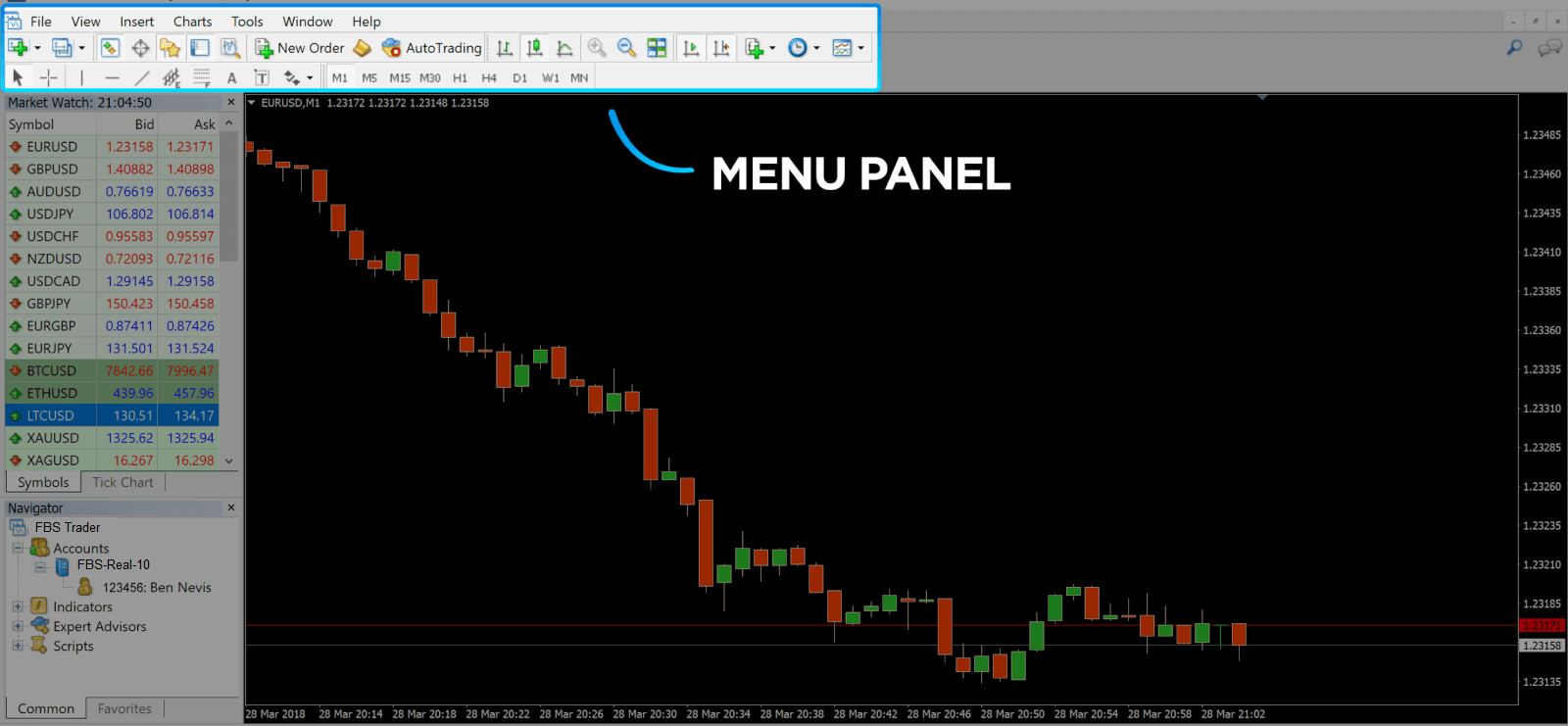
3. At the top of the screen, you’ll find a menu and a toolbar. Use the toolbar to create an order, change time frames, and access indicators.
MetaTrader 4 Menu Panel
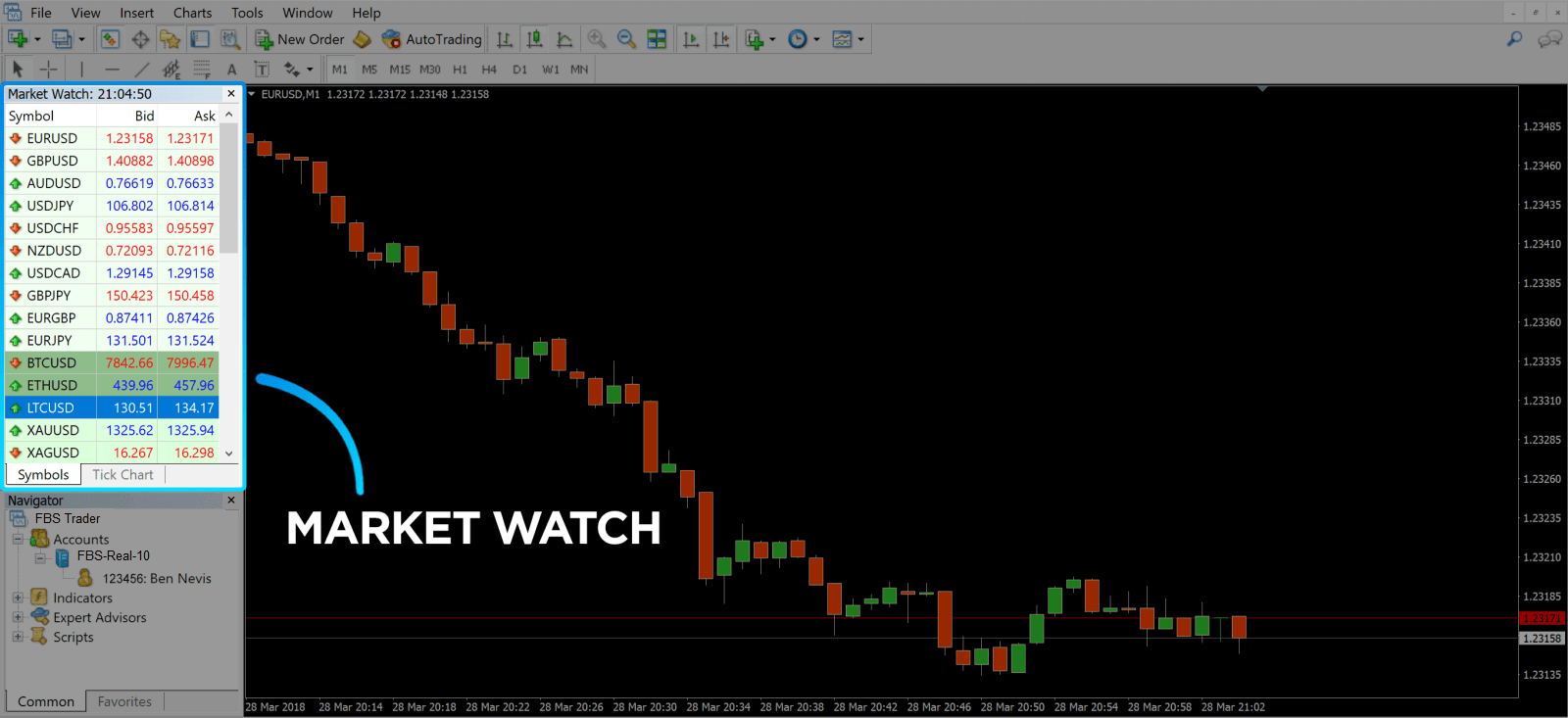
4. Market Watch can be found on the left side, which lists different currency pairs with their bid and ask prices.
5. The ask price is used to buy a currency, and the bid is for selling. Below the ask price, youll see the Navigator, where you can manage your accounts and add indicators, expert advisors, and scripts.
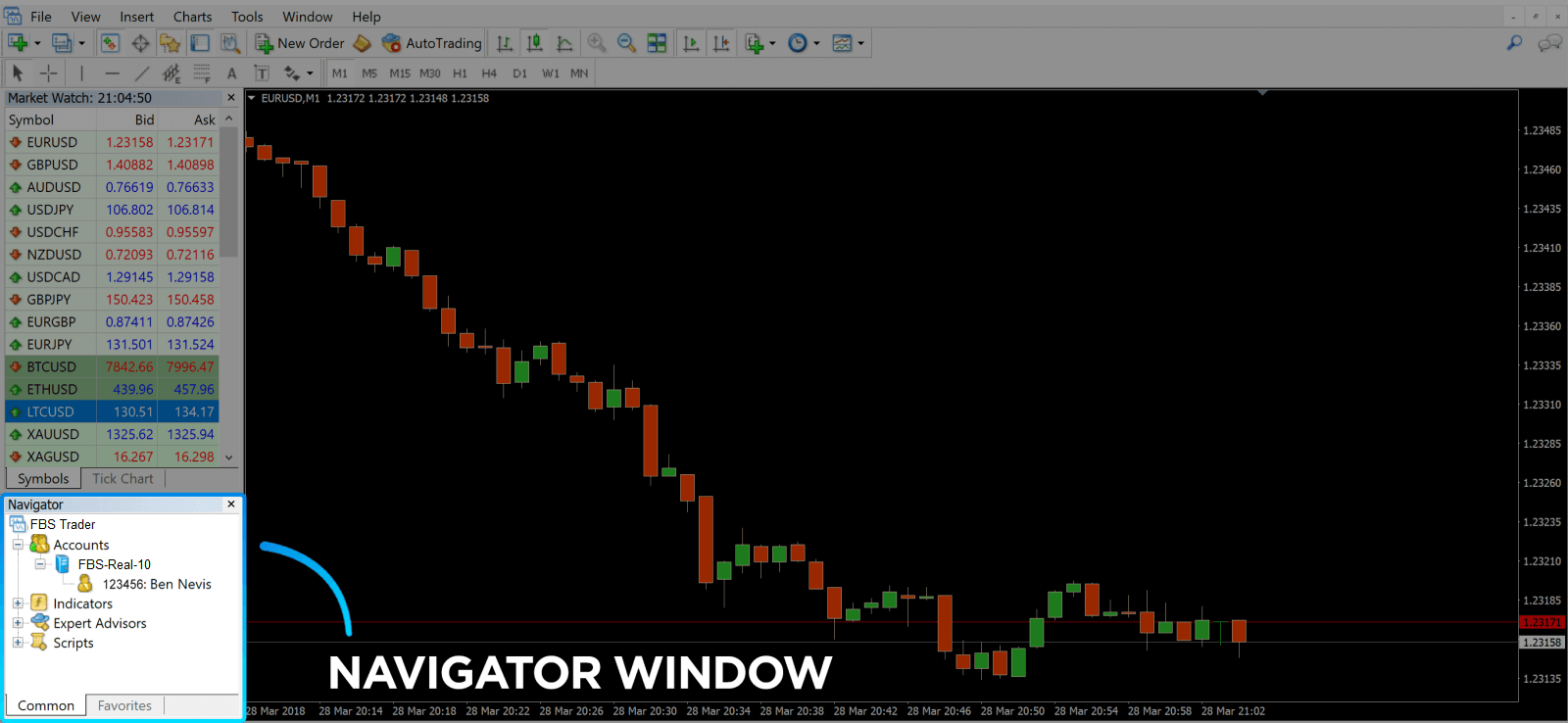
MetaTrader Navigator
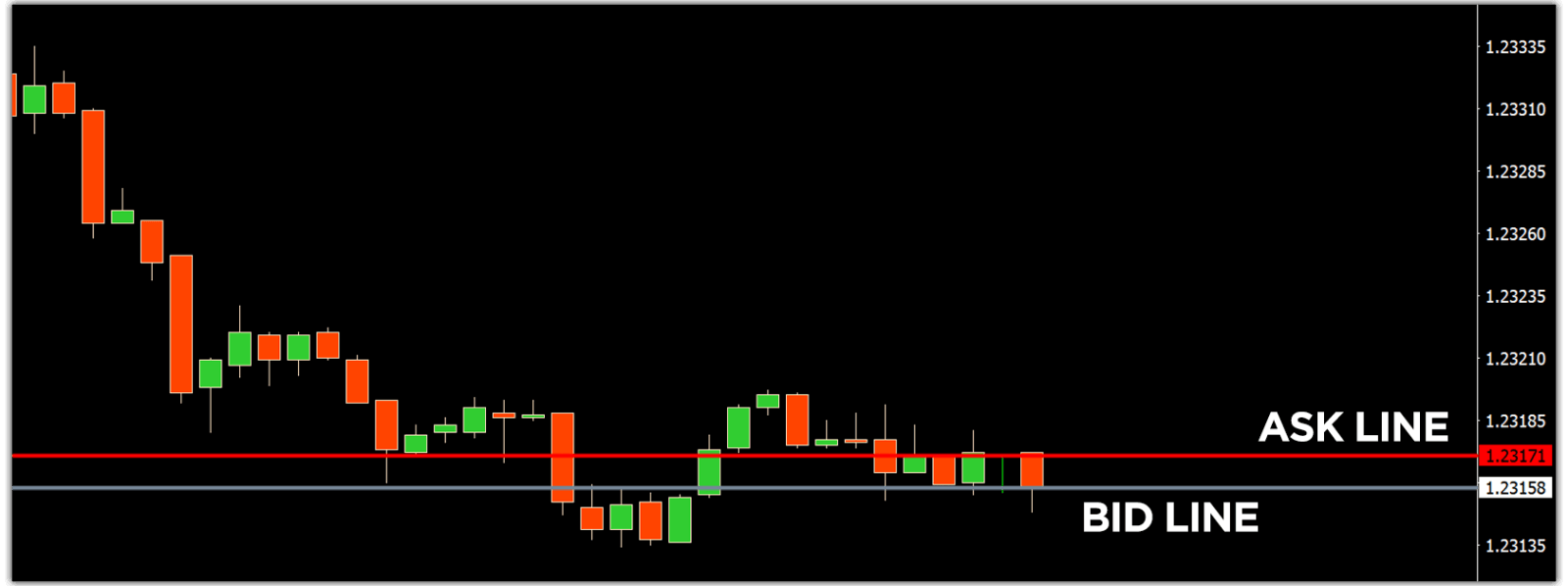
MetaTrader 4 Navigator for ask and bid lines
6. At the bottom of the screen can be found the Terminal, which has several tabs to help you keep track of the most recent activities, including Trade, Account History, Alerts, Mailbox, Experts, Journal, and so forth. For instance, you can see your opened orders in the Trade tab, including the symbol, trade entry price, stop loss levels, take profit levels, closing price, and profit or loss. The Account History tab collects data from activities that have happened, including closed orders.
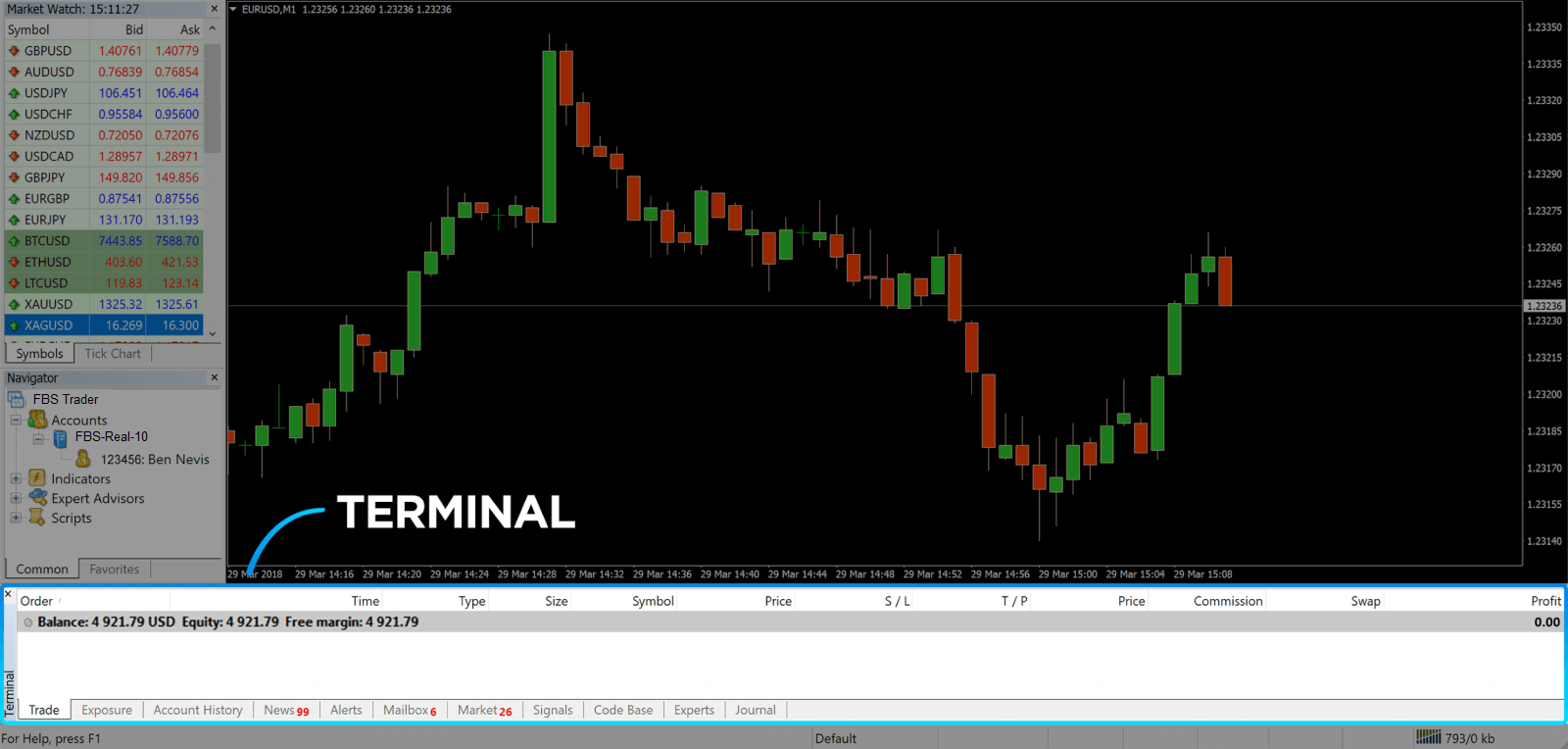
7. The chart window indicates the current state of the market and the ask and bid lines. To open an order, you need to press the New Order button in the toolbar or press the Market Watch pair and select New Order.
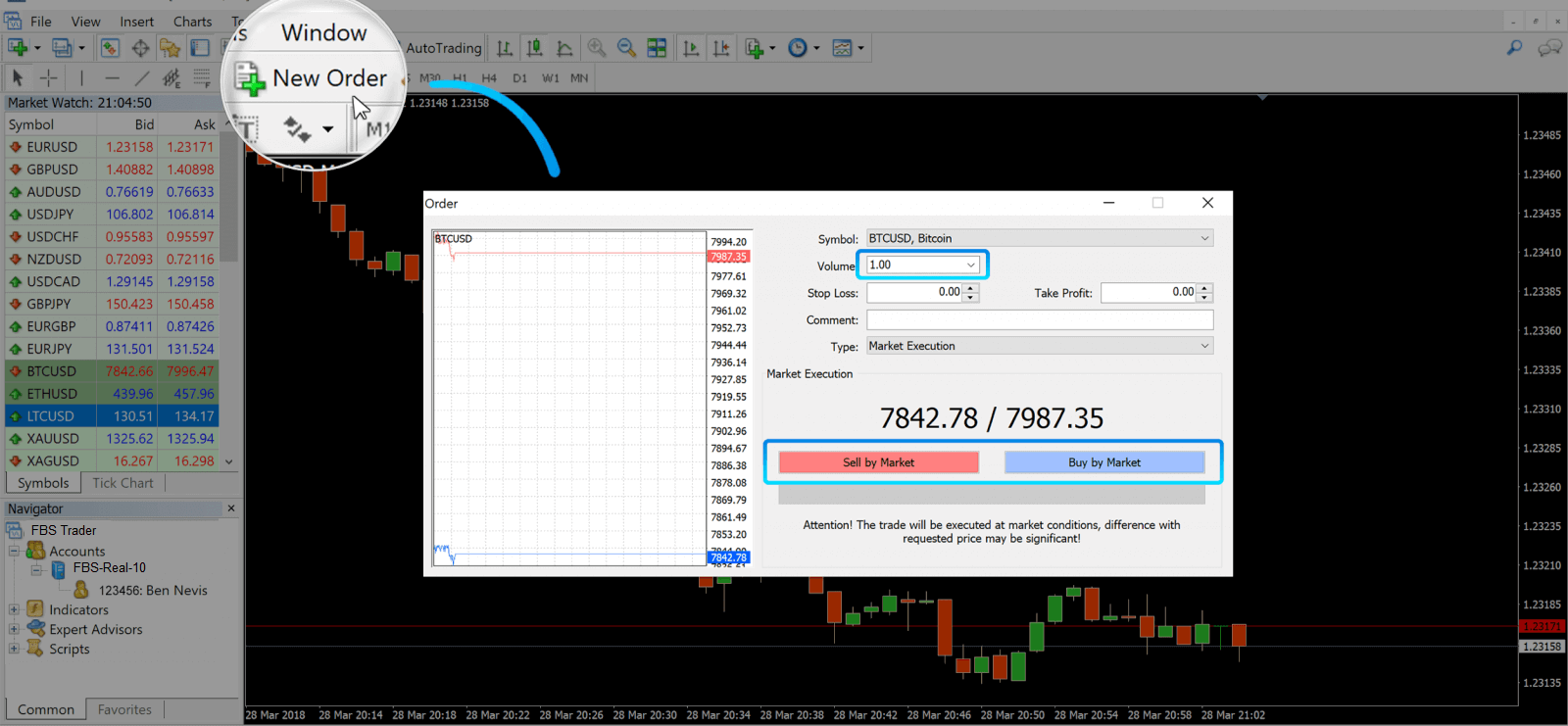
In the window that opens, you’ll see:
- Symbol, automatically set to the trading asset presented on the chart. To choose another asset, you need to select one from the drop-down list. Learn more about Forex trading sessions.
- Volume, which represents the lot size. 1.0 is equal to 1 lot or 100,000 units—profit Calculator from FBS.
- You can set Stop Loss and Take Profit at once or modify the trade later.
- The type of order can be either Market Execution (a market order) or Pending Order, where the trader can specify the desired entry price.
- To open a trade, you need to click on either the Sell by Market or Buy by Market buttons.
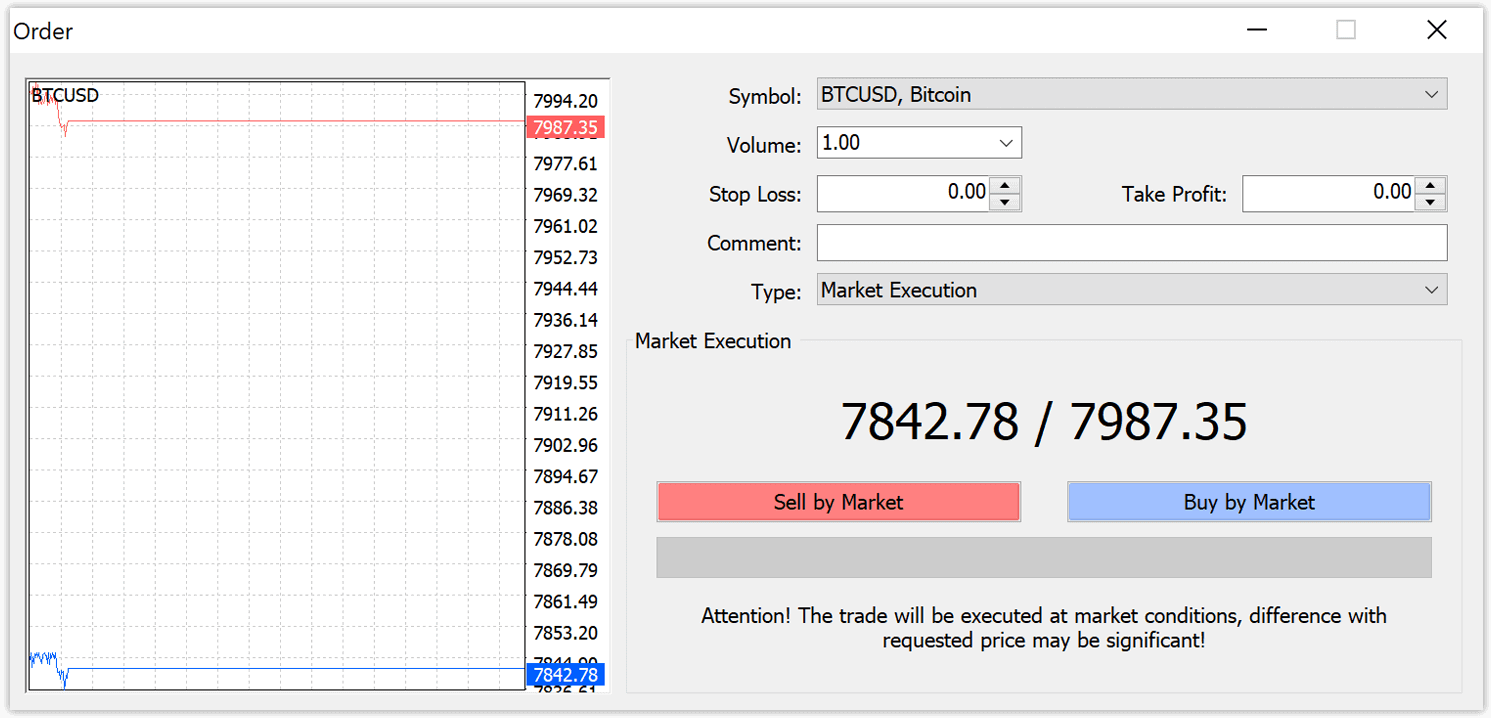
- Buy orders open by the ask price (red line) and close by the bid price (blue line). Traders buy for less and want to sell for more. Sell orders open by the bid price and close by the ask price. You sell for more and want to buy for less. You can view the opened order in the Terminal window by pressing the Trade tab. To close the order, you need to press the order and select Close Order. You can view your closed orders under the Account History tab.
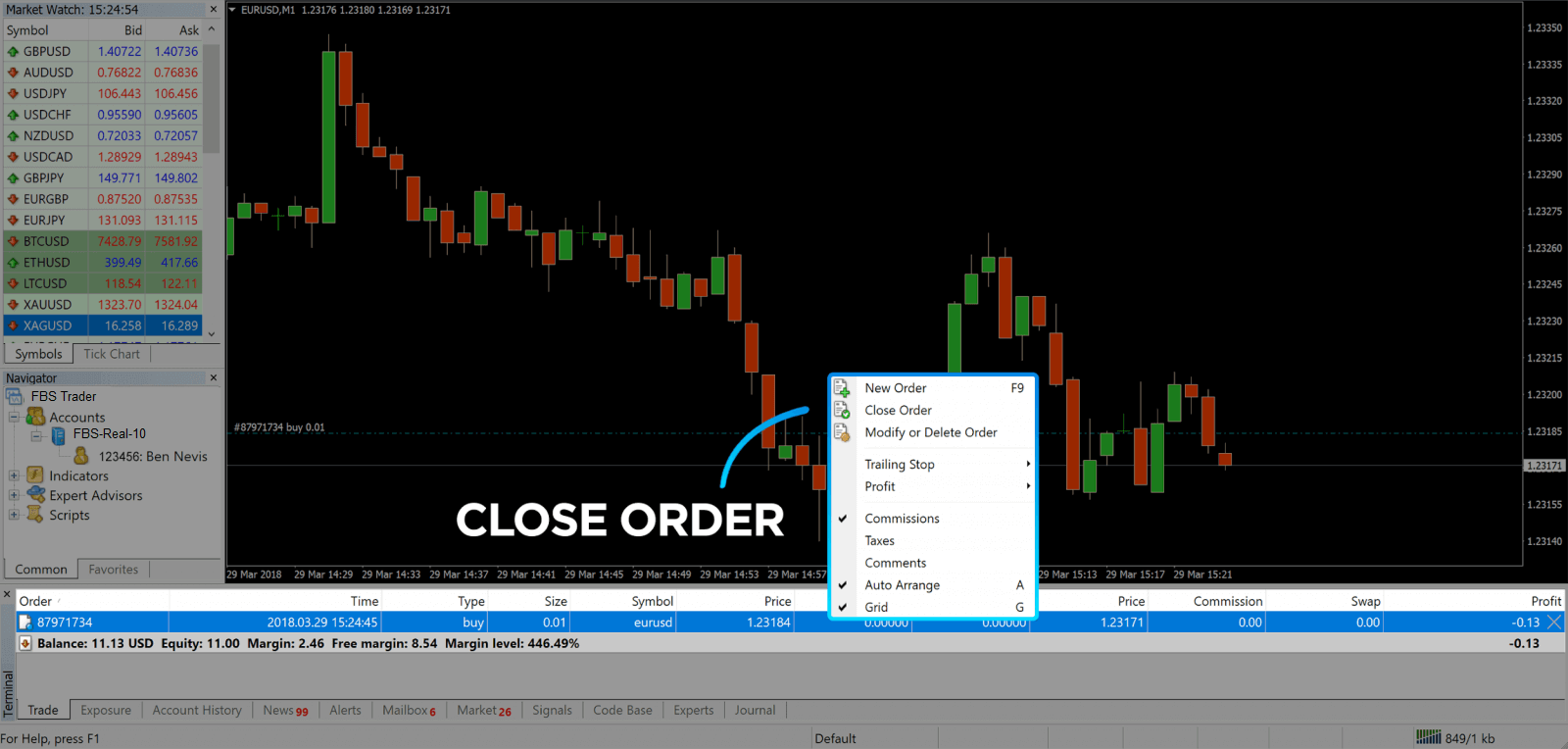
This way, you can open a trade on MetaTrader 4. Once you know each buttons purpose, itll be easy for you to trade on the platform. MetaTrader 4 offers you plenty of technical analysis tools that help you trade like an expert on the Forex market.
How to place a Pending Order
How Many Pending Orders in FBS MT4
Unlike instant execution orders, where a trade is placed at the current market price, pending orders allow you to set orders that are opened once the price reaches a relevant level, chosen by you. There are four types of pending orders available , but we can group them to just two main types:- Orders expecting to break a certain market level
- Orders are expected to bounce back from a certain market level
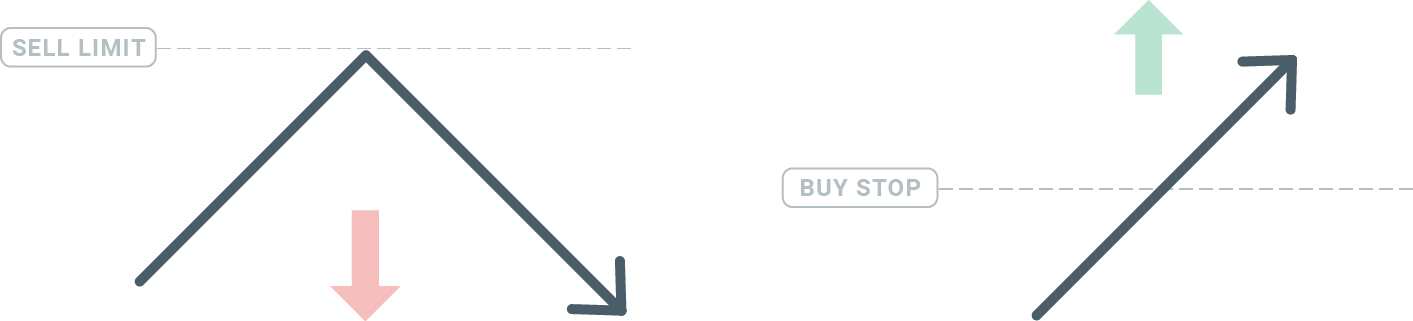
Buy Stop
The Buy Stop order allows you to set a buy order above the current market price. This means that if the current market price is $20 and your Buy Stop is $22, a buy or long position will be opened once the market reaches that price.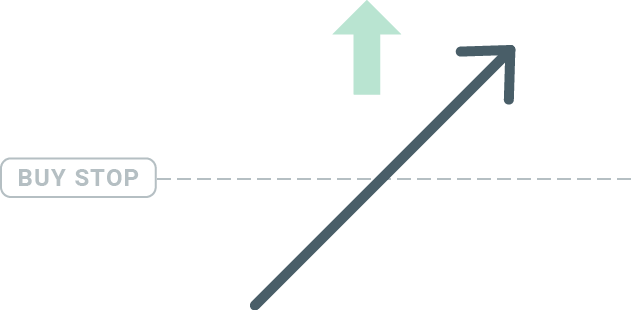
Sell Stop
The Sell Stop order allows you to set a sell order below the current market price. So if the current market price is $20 and your Sell Stop price is $18, a sell or ‘short’ position will be opened once the market reaches that price.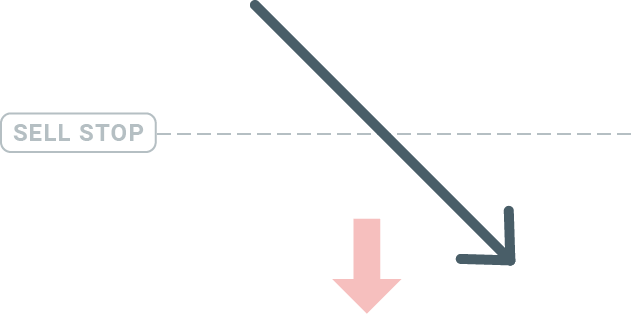
Buy Limit
The opposite of a buy stop, the Buy Limit order allows you to set a buy order below the current market price. This means that if the current market price is $20 and your Buy Limit price is $18, then once the market reaches the price level of $18, a buy position will be opened.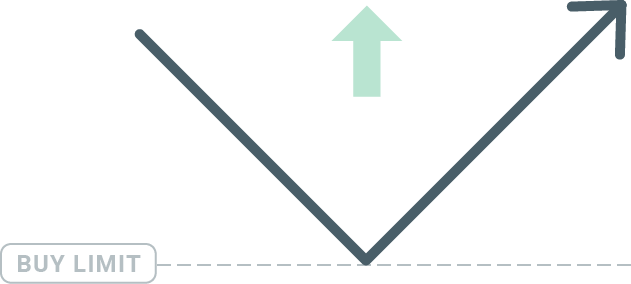
Sell Limit
Finally, the Sell Limit order allows you to set a sell order above the current market price. So if the current market price is $20 and the set Sell Limit price is $22, then once the market reaches the price level of $22, a sell position will be opened on this market.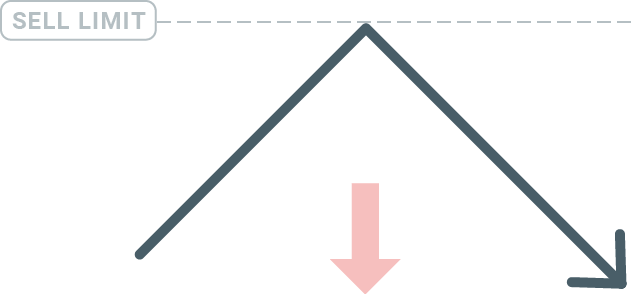
Opening Pending Orders
You can open a new pending order simply by double-clicking on the name of the market on the Market Watch module. Once you do so, the new order window will open and you will be able to change the order type to Pending order.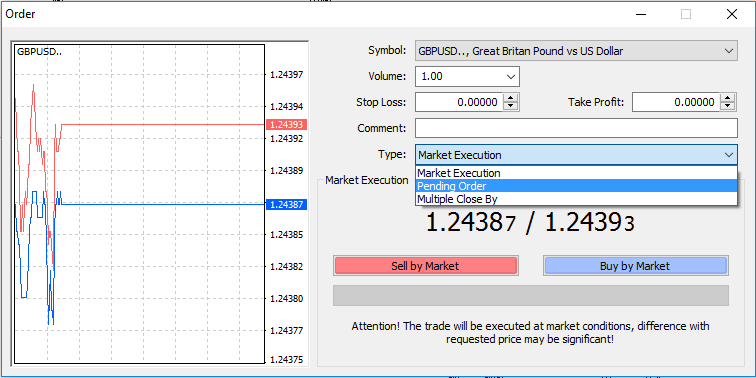
Next, select the market level at which the pending order will be activated. You should also choose the size of the position based on the volume.
If necessary, you can set an expiration date (‘Expiry’). Once all these parameters are set, select a desirable order type depending on whether you would like to go long or short and stop or limit and select the ‘Place’ button.
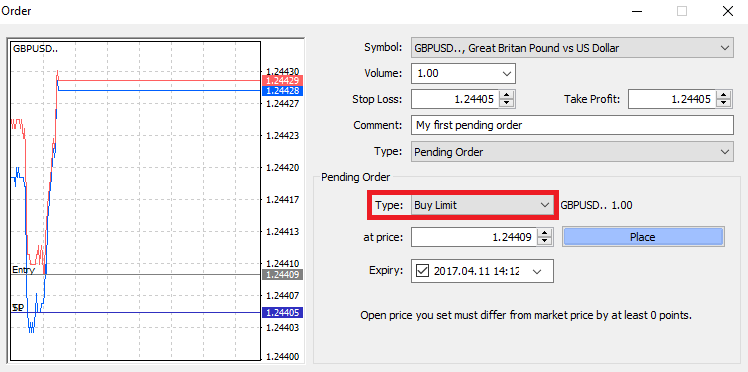
As you can see, pending orders are very powerful features of MT4. They are most useful when youre not able to constantly watch the market for your entry point, or if the price of an instrument changes quickly, and you don’t want to miss the opportunity.
How to close Orders in FBS MT4
To close an open position, click the ‘x’ in the Trade tab in the Terminal window.
Or right-click the line order on the chart and select ‘close’.
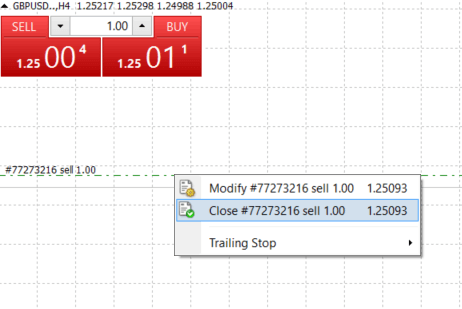
If you’d like to close only a part of position, click the right-click on the open order and select ‘Modify’. Then, in the Type field, select instant execution and choose what part of the position you want to close.
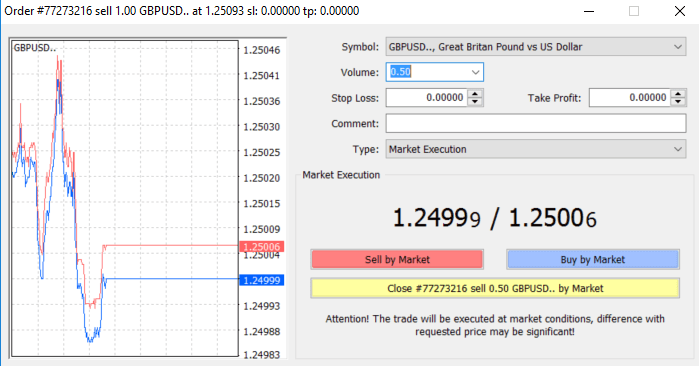
As you can see, opening and closing your trades on MT4 is very intuitive, and it literally takes just one click.
Using Stop Loss, Take Profit, and Trailing Stop in FBS MT4
One of the keys to achieving success in financial markets over the long term is prudent risk management. That’s why stop losses and take profits should be an integral part of your trading.So let’s have a look at how to use them on our MT4 platform to ensure you know how to limit your risk and maximise your trading potential.
Setting Stop Loss and Take Profit
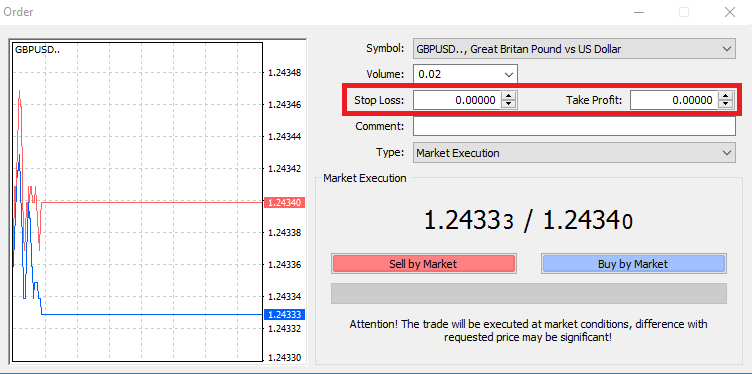
To do this, simply enter your particular price level in the Stop Loss or Take Profit fields. Remember that Stop Loss will be executed automatically when the market moves against your position (hence the name: stop losses), and Take Profit levels will be executed automatically when the price reaches your specified profit target. This means that you’re able to set your Stop Loss level below the current market price and Take Profit level above the current market price.
It’s important to remember that a Stop Loss (SL) or a Take Profit (TP) is always connected to an open position or a pending order. You can adjust both once your trade has been opened and you’re monitoring the market. It’s a protective order for your market position, but of course, it’s not necessary to open a new position. You can always add them later, but we highly recommend always protecting your positions*.
Adding Stop Loss and Take Profit Levels
The easiest way to add SL/TP levels to your already opened position is by using a trade line on the chart. To do so, simply drag and drop the trade line up or down to a specific level.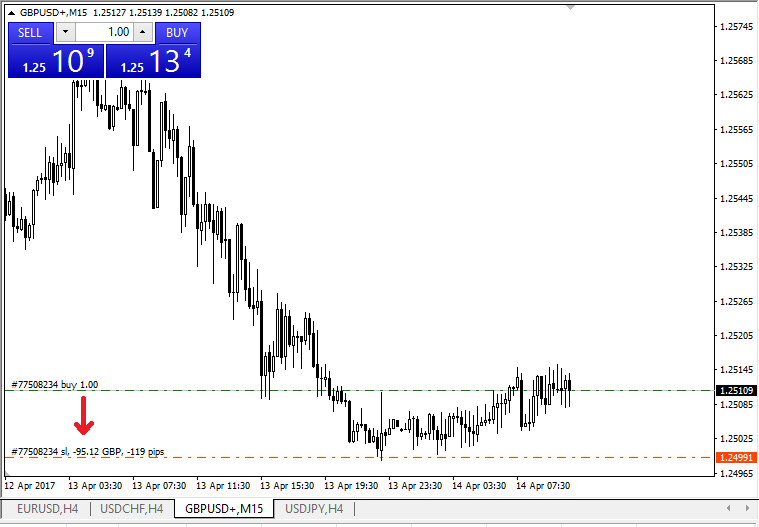
Once you’ve entered SL/TP levels, the SL/TP lines will appear on the chart. This way you can also modify SL/TP levels simply and quickly.
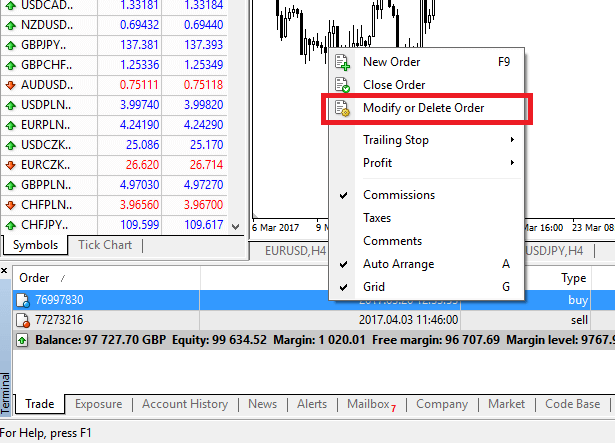
You can also do this from the bottom ‘Terminal’ module as well. To add or modify SL/TP levels, simply right-click on your open position or pending order, and choose ‘Modify or delete order’.
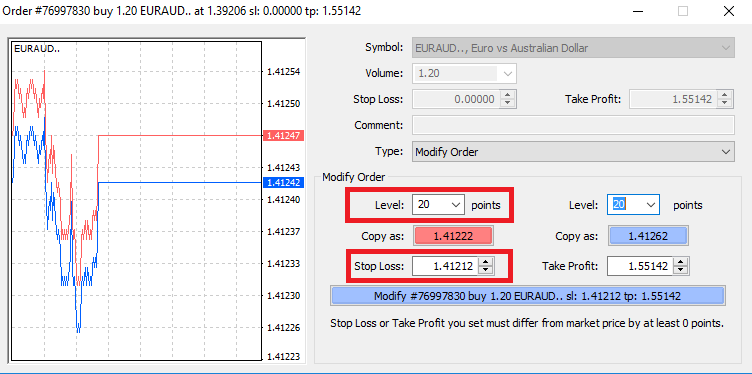
The order modification window will appear and now you’re able to enter/modify SL/TP by the exact market level, or by defining the points range from the current market price.
Trailing Stop
Stop Losses are intended for reducing losses when the market moves against your position, but they can help you lock in your profits as well.While that may sound a bit counterintuitive at first, its actually very easy to understand and master.
Let’s say you’ve opened a long position and the market moves in the right direction, making your trade a profitable one at present. Your original Stop Loss, which was placed at a level below your open price, can now be moved to your open price (so you can break even) or above the open price (so you are guaranteed a profit).
To make this process automatic, you can use a Trailing Stop. This can be a really useful tool for your risk management, particularly when price changes are rapid or when you’re unable to constantly monitor the market.
As soon as the position turns profitable, your Trailing Stop will follow the price automatically, maintaining the previously established distance.
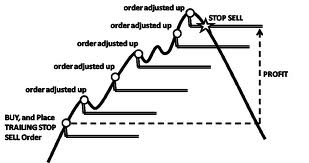
Following the example above, please bear in mind, however, that your trade needs to be running a profit large enough for the Trailing Stop to move above your open price, before your profit can be guaranteed.
Trailing Stops (TS) are attached to your opened positions, but it’s important to remember that if you have a trailing stop on MT4, you need to have the platform open for it to be successfully executed.
To set a Trailing Stop, right-click the open position in the ‘Terminal’ window and specify your desired pip value of distance between the TP level and the current price in the Trailing Stop menu.
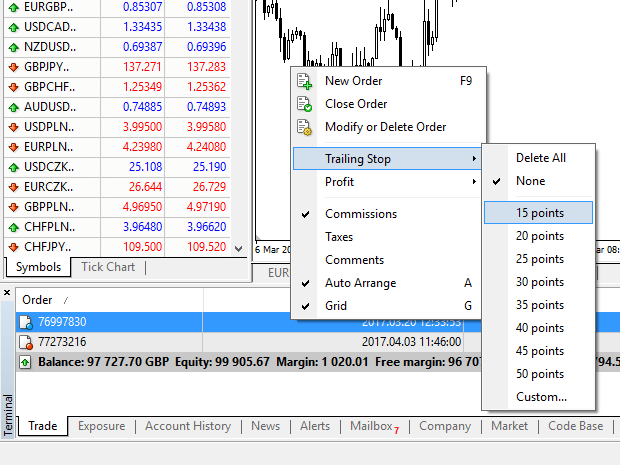
Your Trailing Stop is now active. This means that if prices change to the profitable market side, TS will ensure the stop loss level follows the price automatically.
Your Trailing Stop can easily be disabled by setting ‘None’ in the Trailing Stop menu. If you want to quickly deactivate it in all opened positions, just select ‘Delete All’.
As you can see, MT4 provides you with plenty of ways to protect your positions in just a few moments.
*Whilst Stop Loss orders are one of the best ways to ensure your risk is managed and potential losses are kept to acceptable levels, they don’t provide 100% security.
Stop losses are free to use and they protect your account against adverse market moves, but please be aware that they cannot guarantee your position every time. If the market becomes suddenly volatile and gaps beyond your stop level (jumps from one price to the next without trading at the levels in between), it’s possible your position could be closed at a worse level than requested. This is known as price slippage.
Guaranteed stop losses, which have no risk of slippage and ensure the position is closed out at the Stop Loss level you requested even if a market moves against you, are available for free with a basic account.
FAQ of MetaTrader
How to log in to my trading account?
How to set up the connection in case you have a "NO CONNECTION" error in MetaTrader:1. Click on "File" (top left corner in MetaTrader).
2. Select "Login to Trade Account".
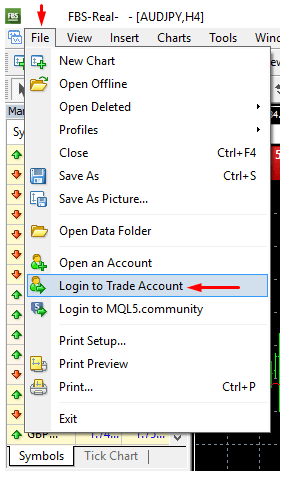
3 Enter the account number into the "Login" section.
4 Enter a trading password (to be able to trade) or investor password (only for observation of activity; the placing orders option will be switched off) to the "Password" section.
5. Select the proper server name from the list suggested at the "Server" section.
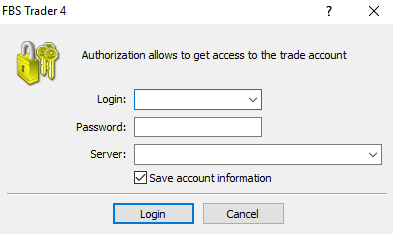
Please, kindly be informed that the number of the Server was given to you at the opening of the account. If you do not remember the number of your Server, you can check it while recovering your trading password.
Also, you can insert the Server address manually instead of choosing it.
How to log in to the MetaTrader4 mobile application? (Android)
We highly recommend you to download the MetaTrader4 application for your device right from our site. It will help you to log in with FBS easily.To log in to your MT4 account from a mobile application, please, follow the steps below:
1. On the first page (“Accounts”) click on the “+” sign:
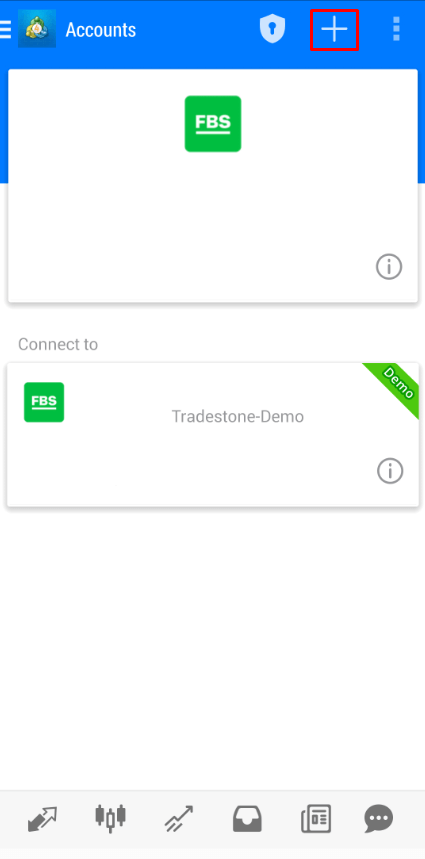
2 In the opened window, click on the “Login to an existing account” button.
3 If you have downloaded the platform from our website, you will automatically see “FBS Inc” in the brokers list. However, you need to specify your account server:
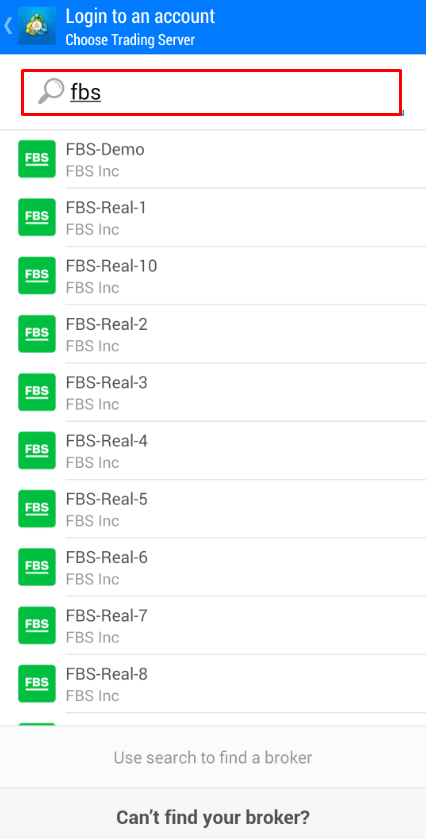
Login credentials, including the account server, were provided to you during the account opening. If you dont remember the server number, you can find it in the account settings by clicking on your trading account number in the web Personal Area or FBS Personal Area application:
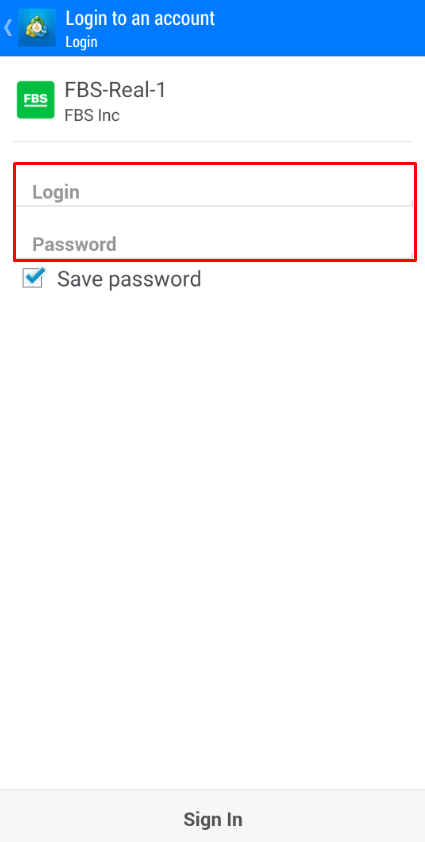
4 Now, enter the account details. In the “Login” area, type your account number, and in the “Password” area, type the password generated for you during the account registration:
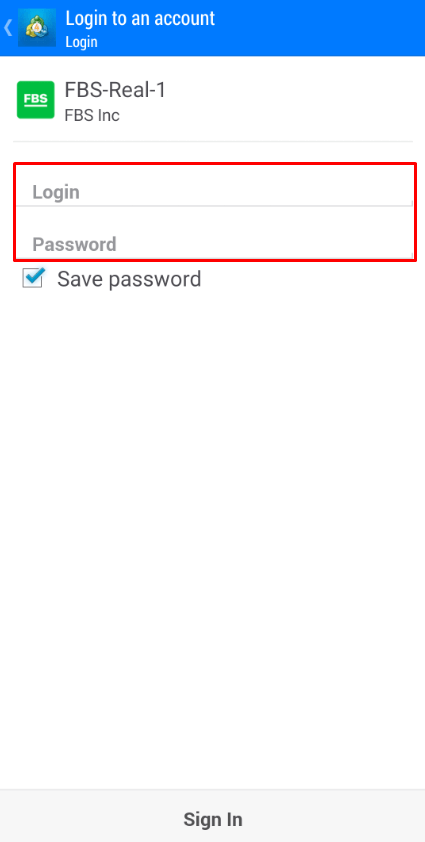
5. Click on “Login”.
If you have any difficulties logging in, please generate a new trading password in your Personal Area and try to log in with the new one.
How to log in to the MetaTrader5 mobile application? (Android)
We highly recommend you to download the MetaTrader5 application for your device right from our site. It will help you to log in with FBS easily.To log in to your MT5 account from a mobile application, please, follow these steps:
1 On the first page (“Accounts”) click on the “+” sign.
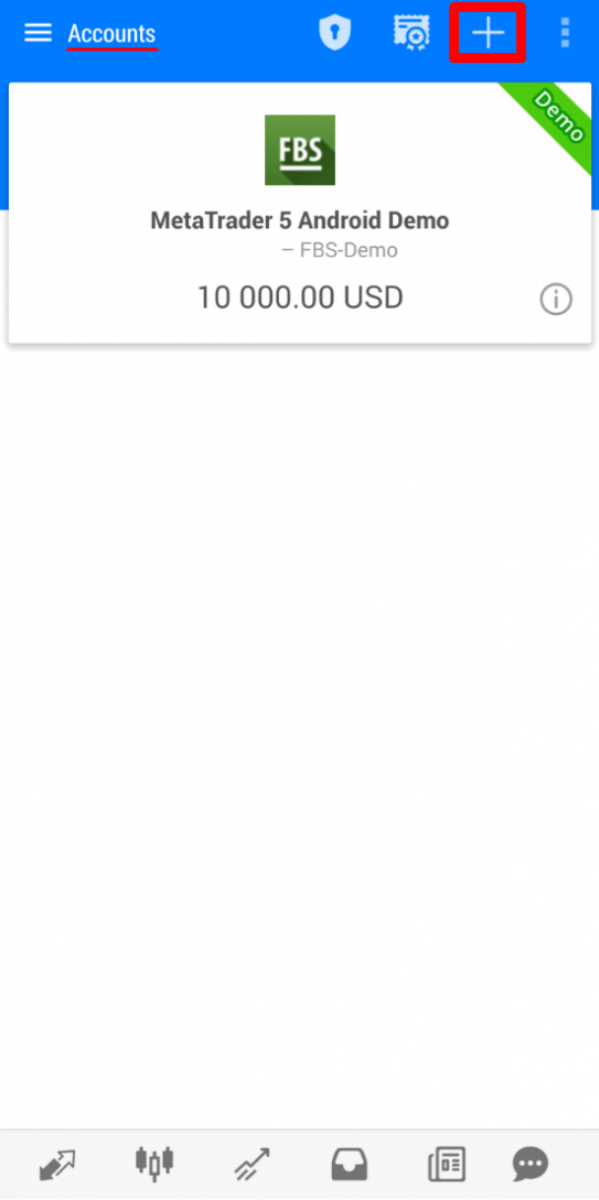
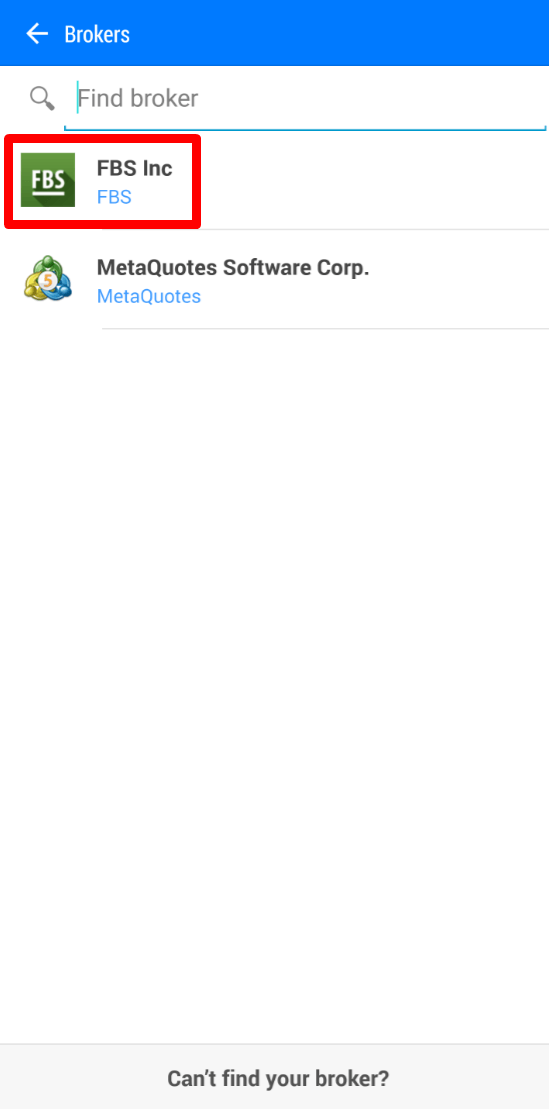
2 If you have downloaded the platform from our website, you will automatically see “FBS Inc” in the brokers list. Click on it.
3 In the “Login to an existing account” field, choose the Server you need (Real or Demo), in the “Login” area, please type your account number, and in the “Password” are,a type the password generated for you during the account registration.
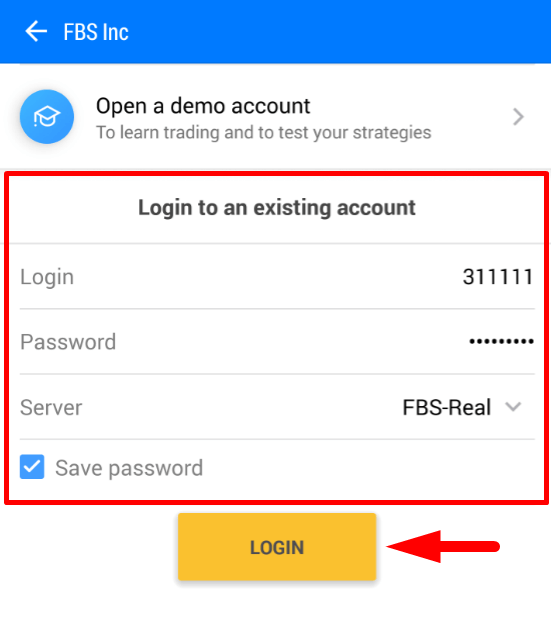
4. Click on “Login”.
In case you have difficulties with logging in, please generate a new trading password in your Personal Area and try to log in with the new one.
How to log in to the MetaTrader5 mobile application? (iOS)
We highly recommend that you to download the MetaTrader5 application for your device right from our site. It will help you to log in with FBS easily.To log in to your MT5 account from the mobile application, please follow these steps:
1. Click on “Settings” in the lower right part of the screen.

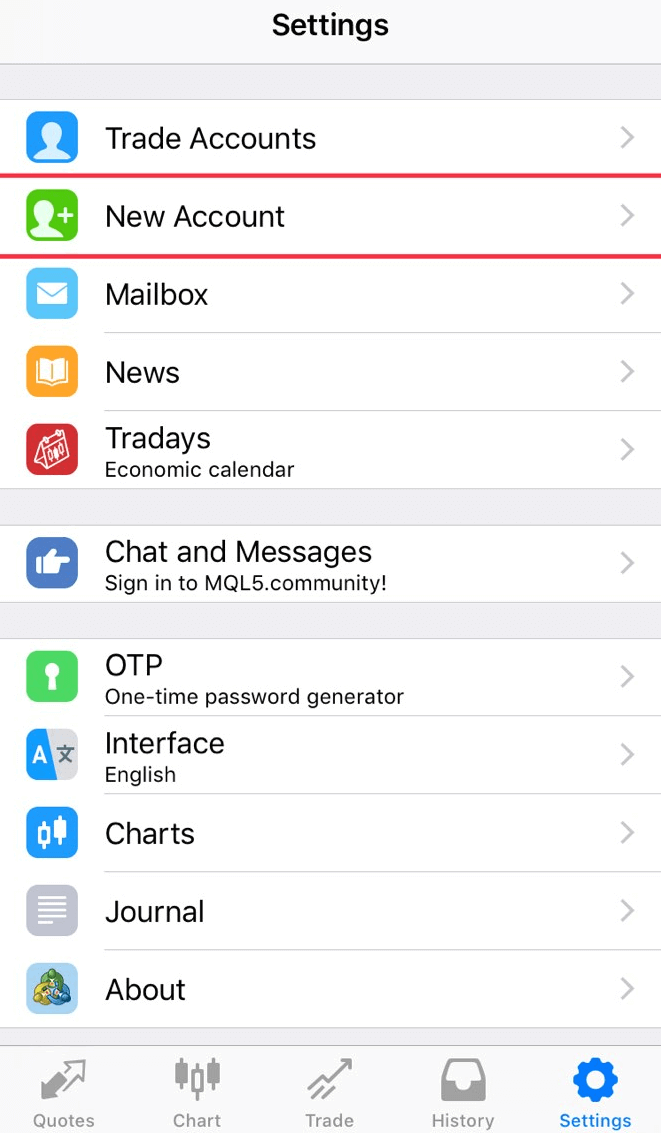
2. At the top of the screen, please click on “New account”.
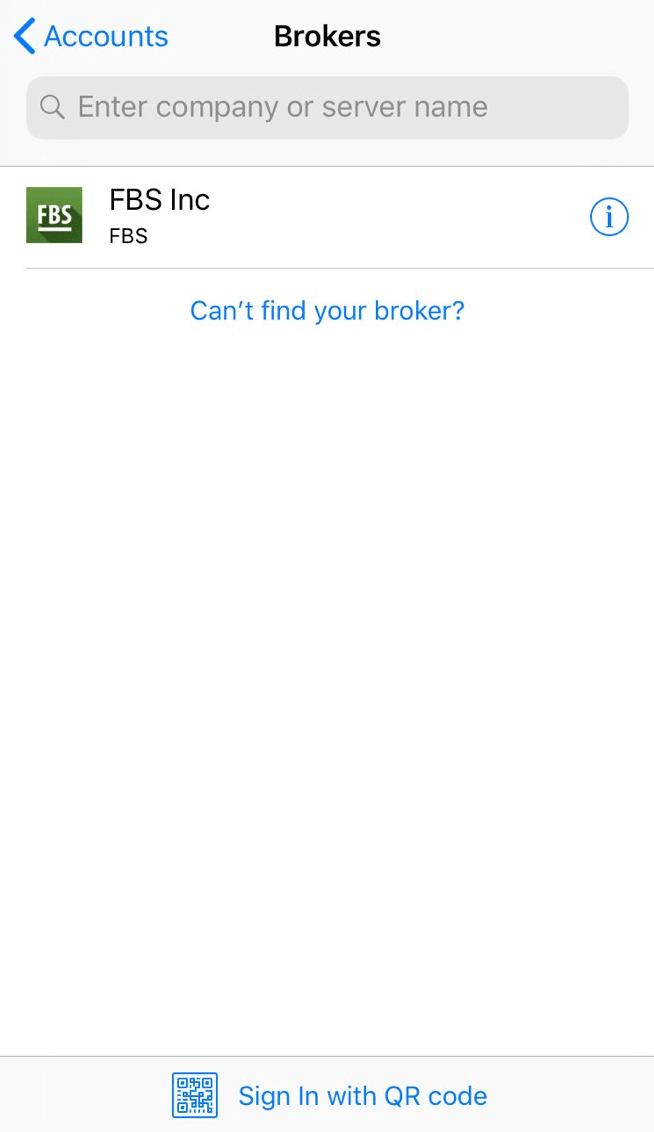
3 If you have downloaded the platform from our website, you will automatically see “FBS Inc” in the brokers list. Click on it.
4 In the “Use existing account” field choose the Server you need (Real or Demo), in the “Login” area, please, type your account number and in the “Password” area type the password generated for you during the account registration.
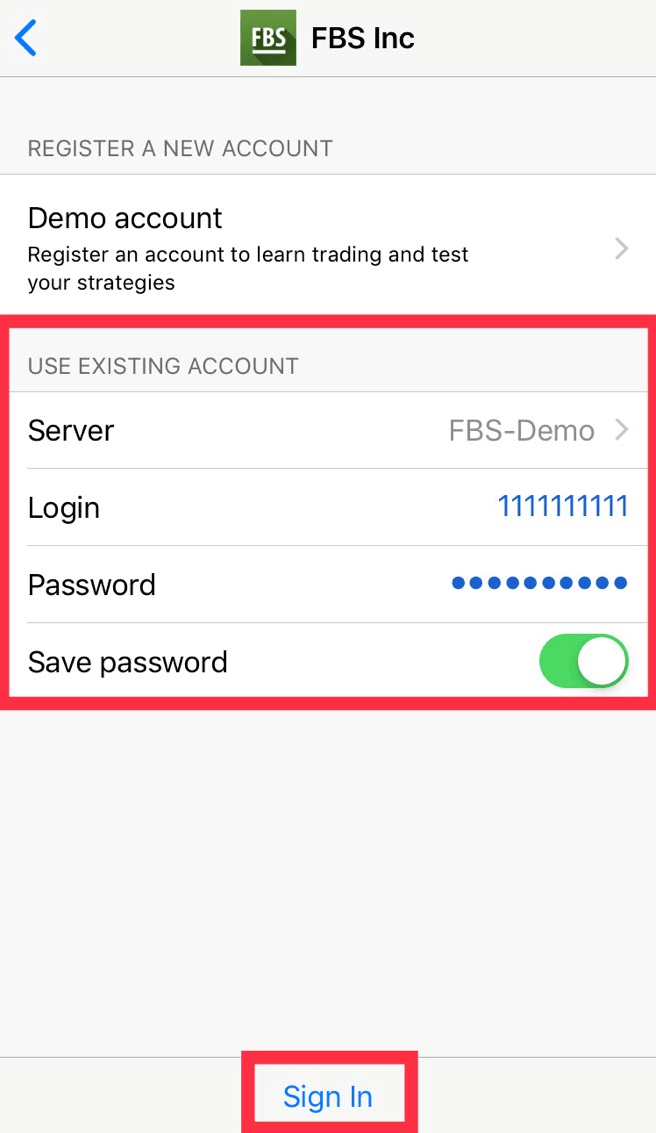
5. Click on “Sign In”.
In case you have difficulties with logging in, please generate a new trading password in your Personal Area and try to log in with the new one.
What is the difference between MT4 and MT5?
Though many may think that MetaTrader5 is just an upgraded version of MetaTrader4, these two platforms are different and each better serves particular purposes.Let’s compare these two platforms:
|
MetaTrader4 |
MetaTrader5 |
|
|
Language |
MQL4 |
MQL5 |
|
Expert Advisor |
✓ |
✓ |
|
Types of pending orders |
4 |
6 |
|
Timeframes |
9 |
21 |
|
Built-in indicators |
30 |
38 |
|
Built-in economic calendar |
✗ |
✓ |
|
Custom symbols for analysis |
✗ |
✓ |
|
Details and Trading window in Market Watch |
✗ |
✓ |
|
Ticks data export |
✗ |
✓ |
|
Multi-thread |
✗ |
✓ |
|
64-bit architecture for EAs |
✗ |
✓ |
MetaTrader4 trading platform has a simple and easily understandable trading interface and is mostly used for Forex trading.
MetaTrader5 trading platform has a slightly different interface and offers the possibility to trade stocks and futures.
In comparison with MT4, it has a deeper tick and chart history. With this platform, a trader can use Python for Market analysis and even log in to the Personal Area and perform financial operations (deposit, withdrawal, internal transfer) without leaving the platform. More than that, there’s no need to remember the server number on MT5: it has only two servers - Real and Demo.
Which MetaTrader is better? You can decide it for yourself.
If you are only at the beginning of your way as a trader, we would recommend you start with the MetaTrader4 trading platform due to its simplicity.
But if you are an experienced trader who, for example, needs more features for analysis, the MetaTrader5 suits you the most.
Wishing you successful trading!
I want to see the Ask price on the chart
By default, you can see only the Bid price on the charts. However, if you want the Ask price to be displayed as well, you can enable it in a couple of clicks by following the instructions below:
- Desktop;
- Mobile (iOS);
- Mobile (Android).
Desktop:
First, please, log in to your MetaTrader.
Then choose the menu "Charts".
In the drop-down menu, please, click on "Properties".
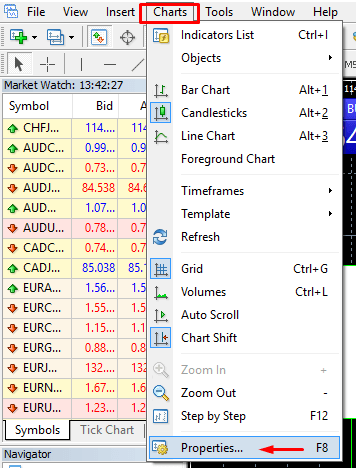
Or you can simply press the F8 key on your keyboard.
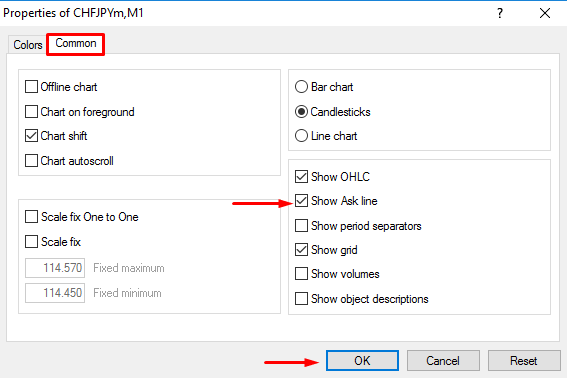
In the opened window choose the “Common” tab and put a check for the “Show Ask line” option. Then click "OK".
Mobile (iOS):
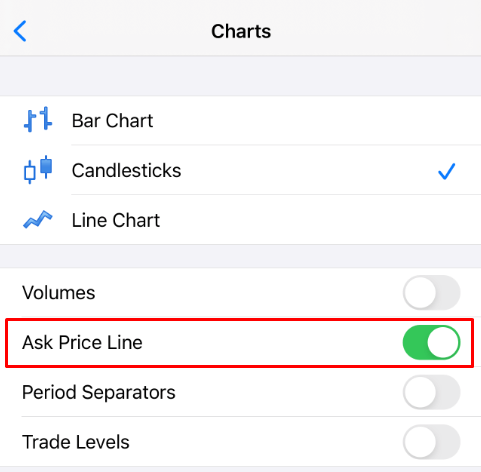
To enable the ask line on iOS MT4 and MT5, you must first successfully log in. After that, please:
1. Go to the Settings of the MetaTrader platform;
2. Click on the Charts tab:
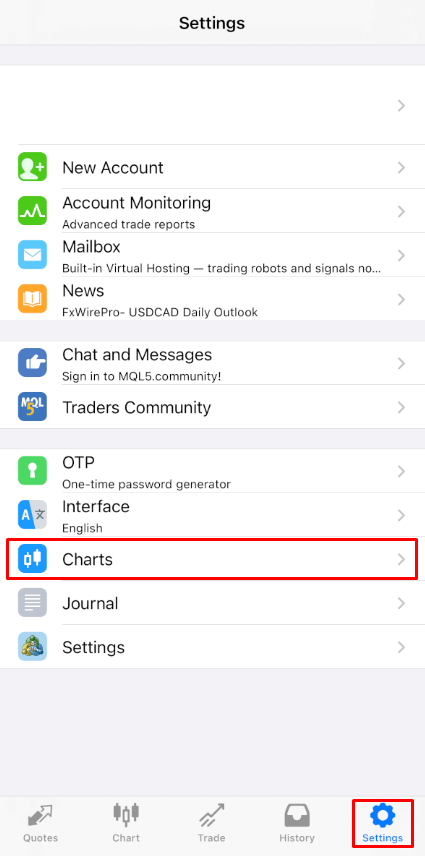
Click on the button next to the Ask Price Line to turn it on. To turn it off again, click on the same button:
Mobile (Android):
As for the Android MT4 and MT5 apps, please follow the steps below:
- Click on the Chart tab.
- Now, you need to click anywhere on the chart to open the contextual menu.
- Find the Settings icon and click on it.
- Select the Ask price line checkbox to enable it.
Can I use an Expert Advisor?
FBS offers the most favourable trading conditions to use almost all trading strategies without any restrictions.You can use automated trading with the help of expert advisors (EAs), scalping (pipsing), hedging, etc.
Though, please, kindly note that according to the Customer Agreement:
3.2.13. The Company doesn’t allow the usage of arbitrage strategies on connected markets (e.g., currency futures and spot currencies). In case the Client uses arbitrage in either a clear or a hidden way, the Company reserves the right to cancel such orders.
Kindly consider that, though trading with EAs is allowed, FBS does not provide any Expert Advisors. The results of trading with any Expert Advisor is your responsibility.
We wish you successful trading!
Conclusion: Confident Trading Starts with Secure Deposits and Smart Execution
Depositing funds and trading forex with FBS is a streamlined process, designed to support traders with efficiency, transparency, and flexibility.By following the right steps—from secure deposits to disciplined trade execution—you can take full advantage of the tools and opportunities FBS provides. With the proper preparation and strategy, you’re well-positioned to succeed in the dynamic world of forex trading.