FBS Personal Area (Mobile) FAQ — Account Access & Common Issues

This FAQ collection focuses on the most common mobile-specific actions and hiccups: uploading verification files, checking deposit and withdrawal status, recovering login access, managing security settings, and creating or switching trading accounts. Each answer gives clear, step-based instructions and notes on limits, processing delays, and safety checks so you can resolve issues faster or know when to contact support.
Verification
Why can’t I verify my second Personal Area (mobile)?
Please kindly note that you can only have one verified Personal Area in FBS.If you dont have access to your old account, you can contact our customer support and provide us with confirmation that you can no longer use the old account. We will unverify the old Personal Area and verify the new one right after.
What if I deposited into two Personal Areas?
A client cannot make a withdrawal from an unverified Personal Area for security reasons.
In case you have funds in two Personal Areas, it’s necessary to clarify which of them you would prefer to use for further trading and financial transactions. To do so, please contact our customer support via e-mail or in the live chat and specify which account you would prefer to use:
As soon as you withdraw all funds from that account, it will be unverified.
2. If youd like to use not verified Personal Area, first, you will need to withdraw funds from the verified one. After that, you can request unverification of it and verify your other Personal Area, respectively.
When will my Personal Area (mobile) be verified?
Please, kindly be informed that you can check the status of your verification request on the "ID verification" page in your profile settings. As soon as your request is accepted or rejected, the status of your request will change.Please, kindly wait for the e-mail notification in your e-mail inbox once verification is done. We appreciate your patience and kind understanding.
How can I verify my Personal Area (mobile)?
Verification is necessary for work safety, prevention of unauthorized access to the personal data and funds stored on your FBS account, and smooth withdrawal.Here are four steps to verify your Personal Area:
1. Log in to your Personal Area and click on the "Verify identity" button in the Dashboard.
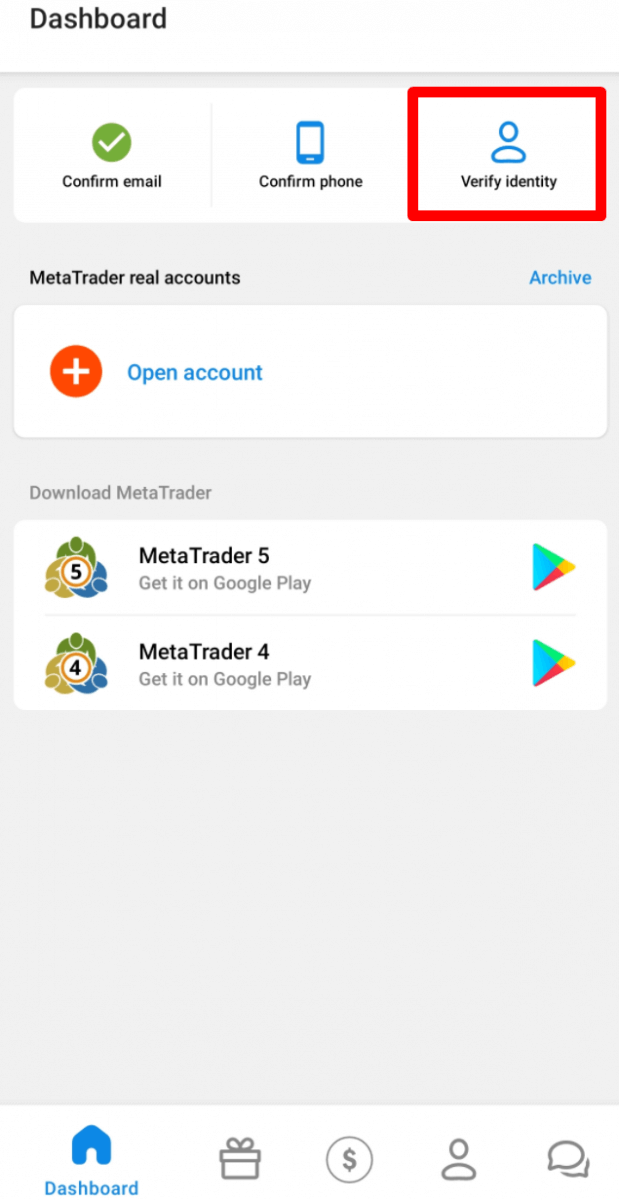
2. Fill in the necessary fields. Please, enter the correct data, exactly matching your official documents.
3. Upload color copies of your passport or government-issued ID with your photo and address proof in jpeg, png, bmp, or pdf format of a total size not exceeding 5 Mb.
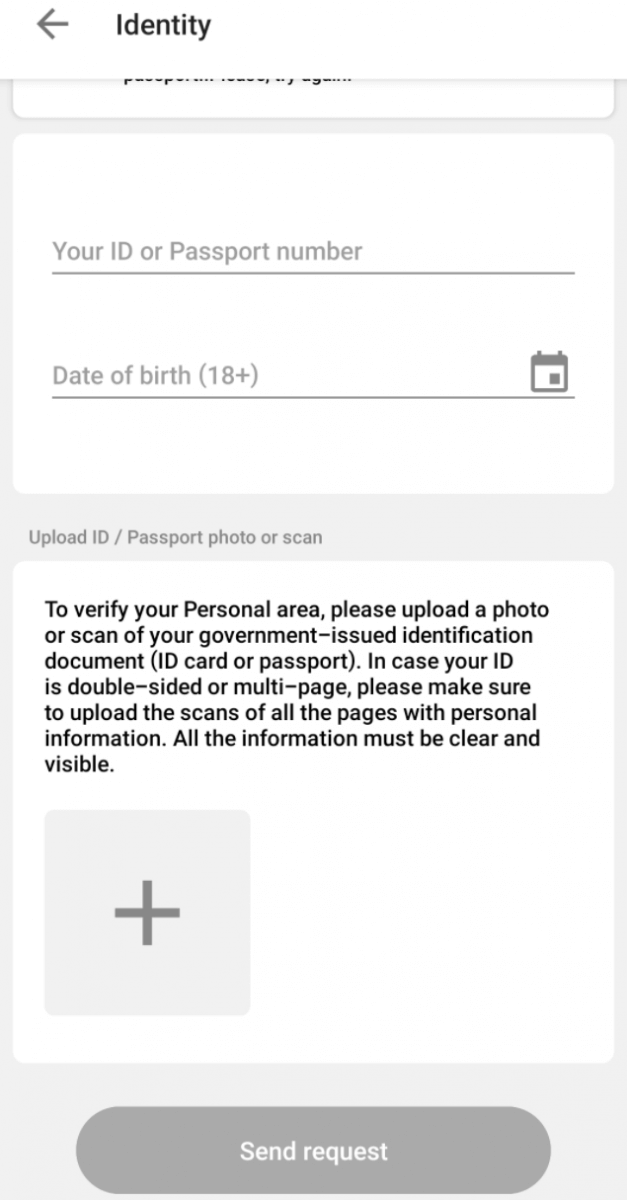
4. Click the “Send request” button. It will be considered shortly after.
Please, kindly be informed that you can check the status of your verification request on the Verification page in your profile settings. As soon as your request is accepted or rejected, its status will change.
Please, kindly wait for the e-mail notification in your e-mail inbox once verification is done. We appreciate your patience and kind understanding.
How can I verify my e-mail address in the FBS Personal Area (mobile)?
Here are a few steps to verify your e-mail:1. Open the FBS Personal Area application.
2. Go to the “Dashboard”;
3. In the left upper corner, you can find a “Confirm email” button:
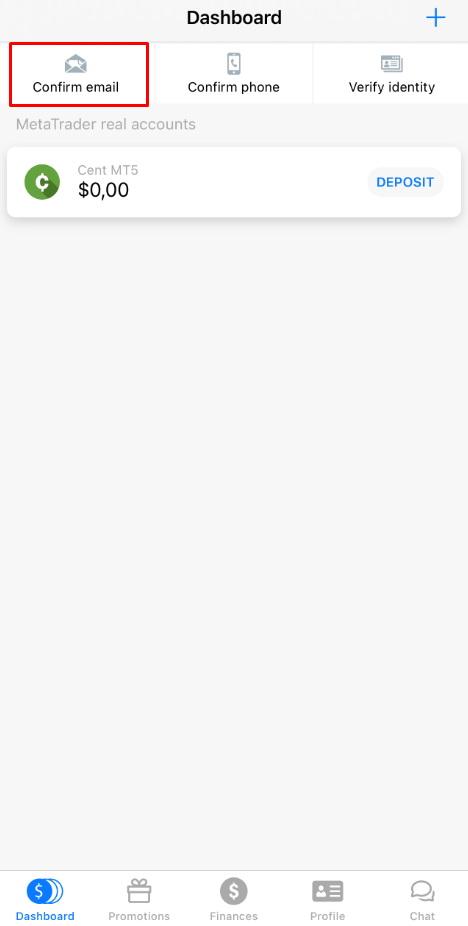
4. Upon clicking on it, you will need to confirm your email address to receive the confirmation link;
Please, make sure that the address is written correctly and doesn’t contain any typos.
5. Click on “Send.”;
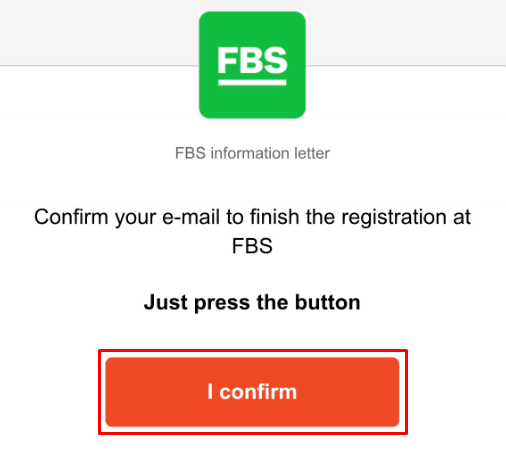
6. After that, you will receive a confirmation email. Please, kindly open it on your device and click on the "I confirm" button in the letter to complete the registration:
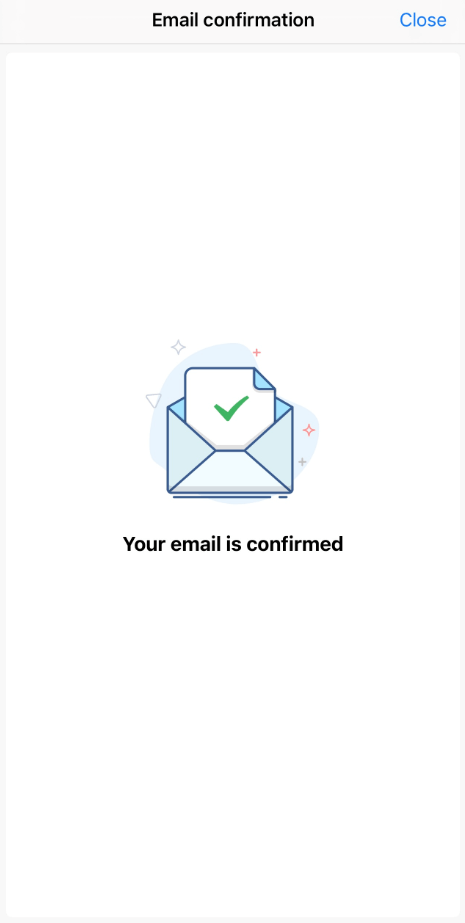
7. At last, you will be redirected back to the FBS Personal Area application:
What if I see the "Oops!" error when clicking on the "I confirm" button?
It looks like you’re trying to open the link via the browser. Please, make sure that you open it via the application. In case the redirection to the browser is processed automatically, please follow the instructions below:
- Open the Settings.
- Find the apps list and the FBS application in it.
- In the Defaults settings, make sure that the FBS app is set as a default app to open the supported links.
You can now click on the “I confirm” button once again to verify an e-mail. In case the link has expired, please kindly generate the new one by verifying your email once again.
How can I verify my phone number?
Please, take into account that the phone verification process is optional, so you might stay on e-mail confirmation and skip verification of your phone number.However, if you’d like to attach the number to your Personal Area, log into your Personal Area and click on the "Confirm phone" button in the Dashboard.
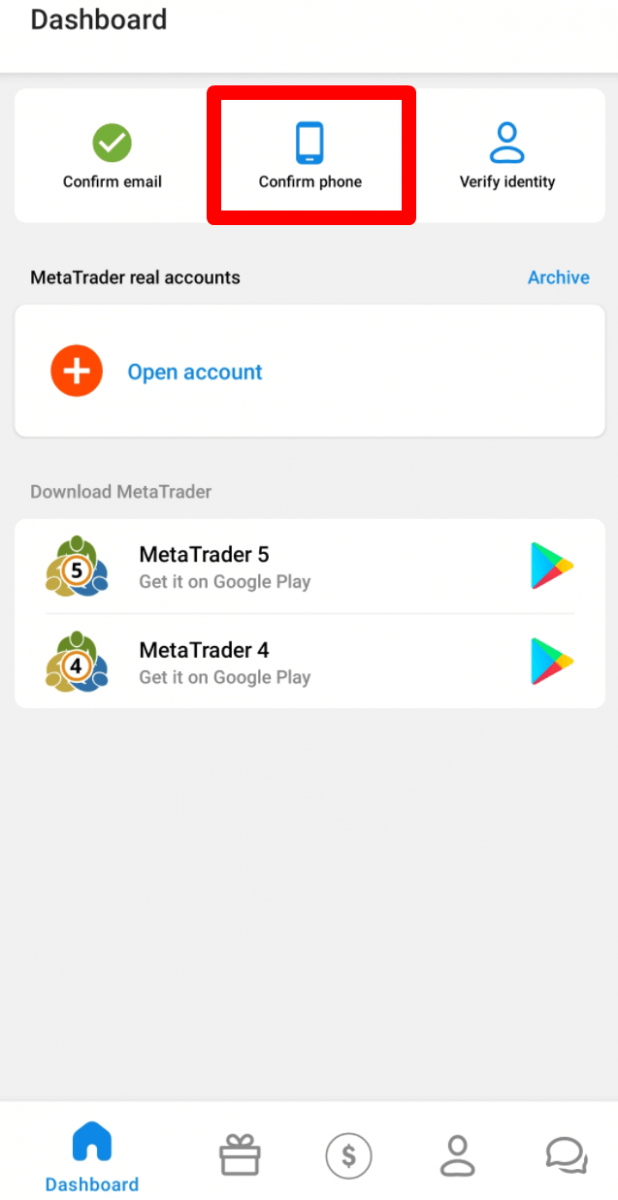
Enter your phone number with a country code and click on the "Request a code" button.
After that, you will receive an SMS code that you should insert in the provided field and click on the "Confirm" button.
In case you are facing difficulties with phone verification, first of all, please, check the correctness of the phone number you put in.
Here are some tips to take into account:
- you do not need to enter "0" at the beginning of your phone number;
- you need to wait for at least 5 minutes for the code to arrive.
Also, you can request the code via voice confirmation.
To do that, you need to wait for 5 minutes from the code request then click on the "Request callback to get the voice code" button. The page would look like this:
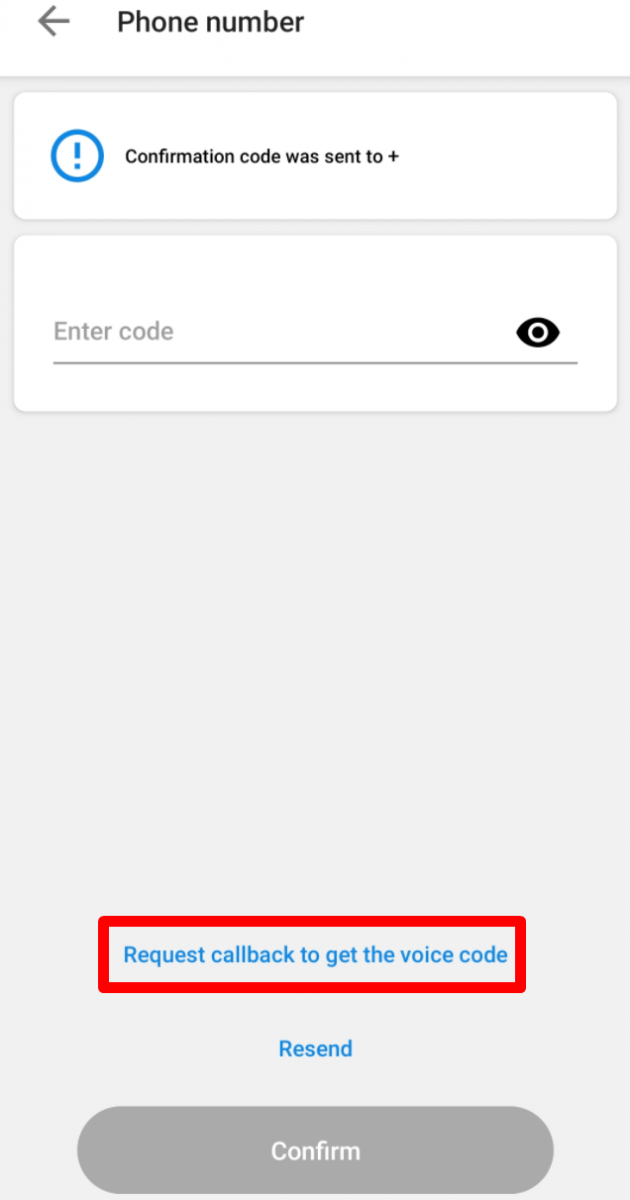
Kindly take into consideration that you can request a voice code only if your profile is verified.
I didn’t get my e-mail confirmation link (mobile FBS Personal Area)
In case you see the notification that the confirmation link has been sent to your e-mail, but you didn’t get any, please:
-
Check the correctness of your e-mail - make sure there are no typos.
-
Check the SPAM folder in your mailbox - the letter could get in there.
-
Check your mailbox memory - if it is full, new letters will not be able to reach you.
-
wait for 30 minutes - the letter can come a bit later;
-
Try to request another confirmation link in 30 minutes.
If you still haven’t received the link, please inform our customer support about the issue (don’t forget to describe in the message all the actions you have already taken!).
I didn’t get the SMS code in the FBS Personal Area (mobile)
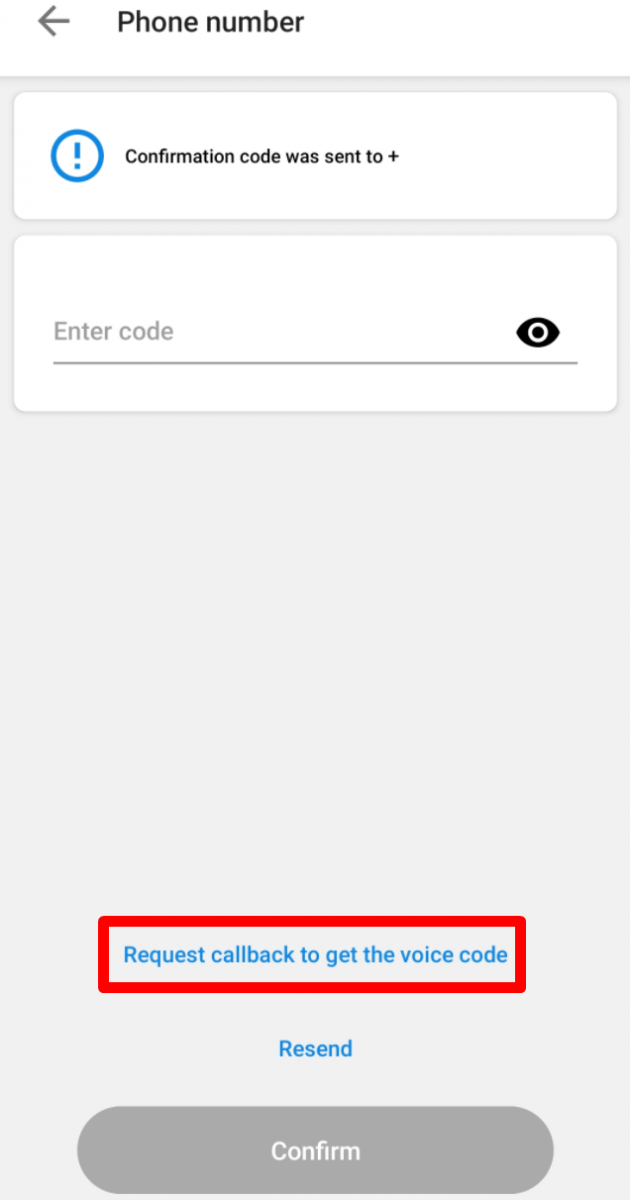
If you’d like to attach the number to your Personal Area and face some difficulties with getting your SMS code, you can also request the code via voice confirmation.
To do that, you need to wait for 5 minutes from the code request,t then click on the "Request callback to get the voice code" button. The page would look like this:
I want to verify my Personal Area as a legal entity
A Personal Area can be verified as a legal entity. To do that, a client needs to upload the following documents:
-
CEO’s passport or national ID;
-
A document proving the CEO’s authority, certified by the seal of the company;
-
Company Articles of Association (AoA);
The first two documents must be sent via the verification page in the Personal Area.
The Articles of Association can be sent by email to [email protected].
Personal Area has to be named after the name of the company.
The country stated in the profile settings of the Personal Area should be defined by the country of the company registration.
It is only possible to deposit and withdraw via corporate accounts. Depositing and withdrawing via the personal accounts of the CEO is not possible.
Deposit and Withdrawal
What is the minimum deposit amount in the FBS Personal Area (mobile)?
Please, take into consideration the following deposit recommendations for different account types, respectively:
-
For the "Cent" account, the minimum deposit is 1 USD;
-
for "Micro" account - 5 USD;
-
for "Standard" account - 100 USD;
-
for "Zero Spread" account – 500 USD;
-
for "ECN" account - 1000 USD.
Please, kindly be informed that these are recommendations. The minimum deposit amount, in general, is $1. Please consider that the minimum deposit for some electronic payment systems like Neteller, Skrill, or Perfect Money is $10. Also, as for the bitcoin payment method, the minimum recommended deposit is $5. We would like to remind you that the deposits for smaller amounts are processed manually and may take longer.
To know how much it is needed to open an order in your account, you can use the Traders Calculator on our website.
How can I deposit into the FBS Personal Area?
You can deposit into your FBS Personal Area account in a few clicks.
To do it:
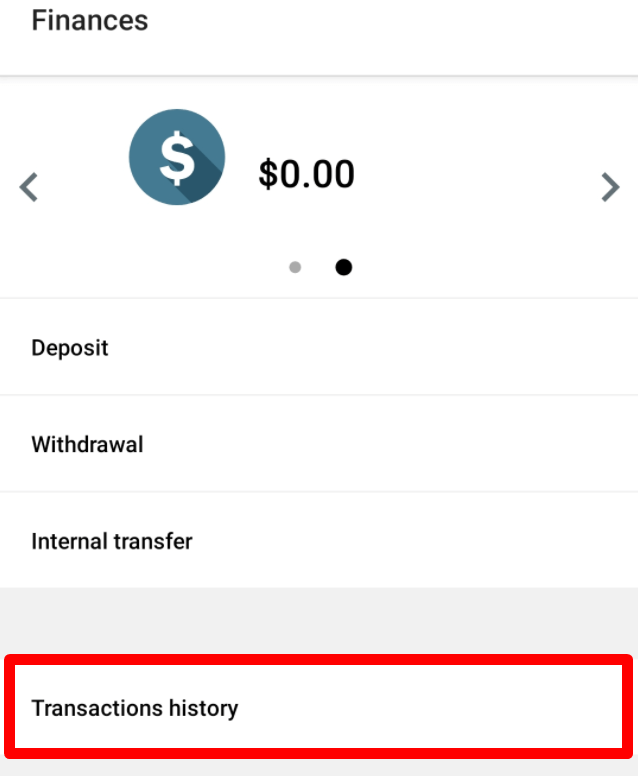
1. Go to the “Finances” page;
2. Click on “Deposit”;
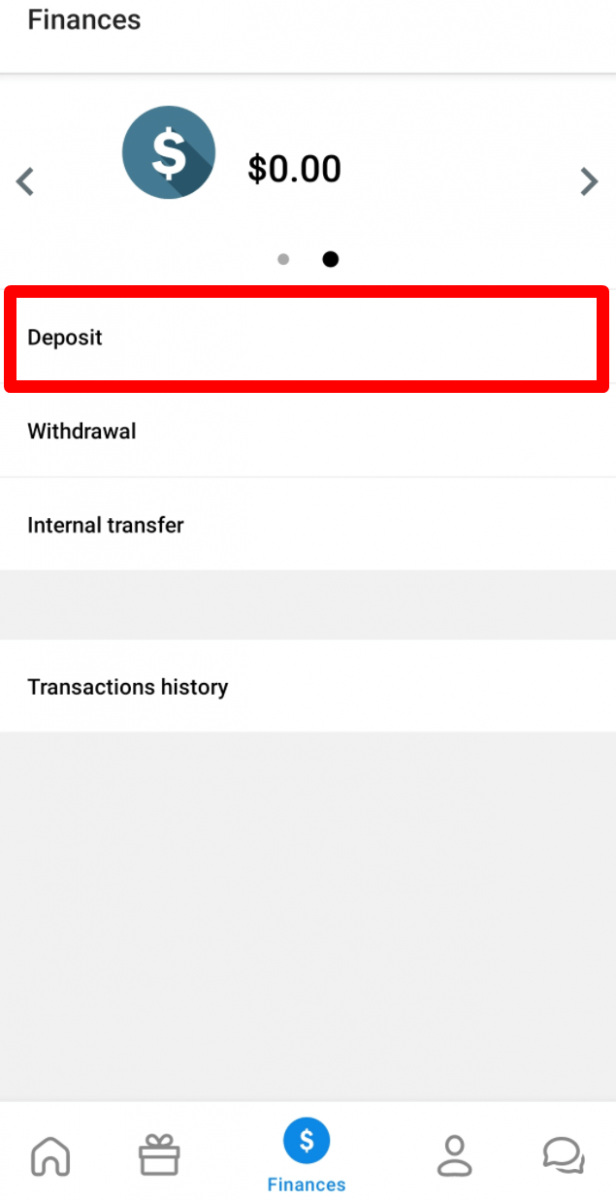
3. Choose the payment system you prefer.
4. Enter the needed information about your payment.
5. Click on “Confirm payment”. You will be forwarded to the payment system page.
You can see the status of your deposit transaction in the “Transaction history”.
How can I transfer funds between my accounts?
You can transfer money from one of your accounts to another within one Personal Area.
1. Go to the “Finances” page;
2. Choose the account you want to transfer funds from.
3. Choose "Internal transfer";
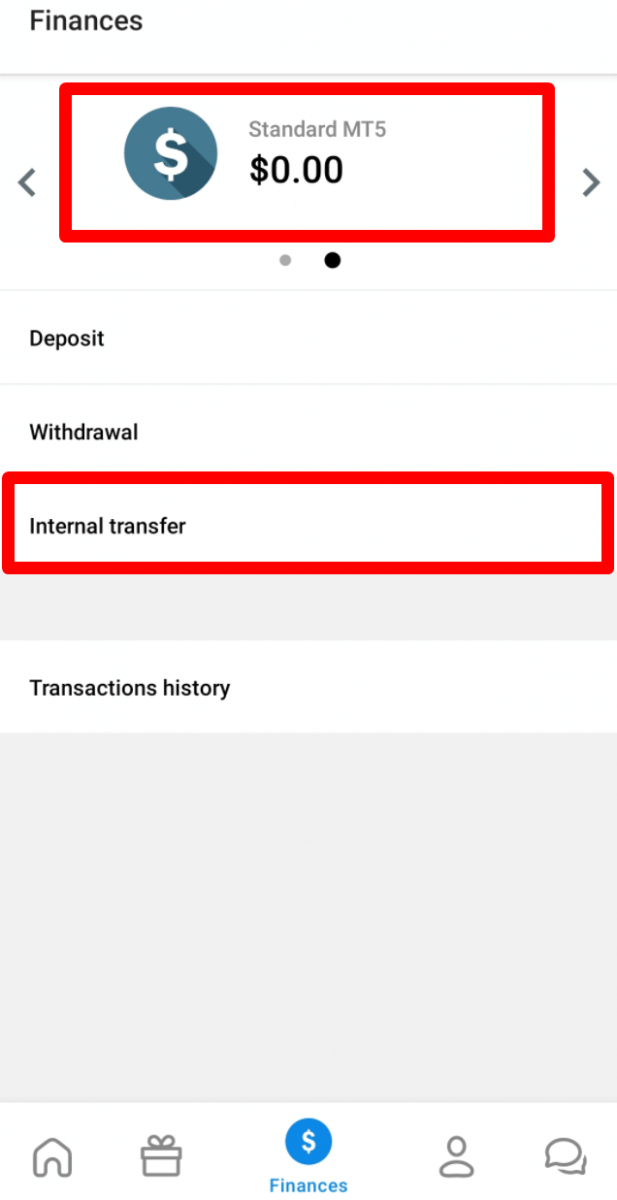
4. Choose the account you want to transfer funds to.
5. Insert the amount;
6. Click on the “Transfer” button.
Please, take into consideration that only the first ten internal transfers a day are processed automatically. Further transactions will be processed manually by the Financial Department and may take time.
How can I withdraw from the FBS Personal Area?
You can withdraw funds from your FBS Personal Area in a few clicks.
To do it:
1. Go to the “Finances” page;
2. Click on “Withdrawal”;
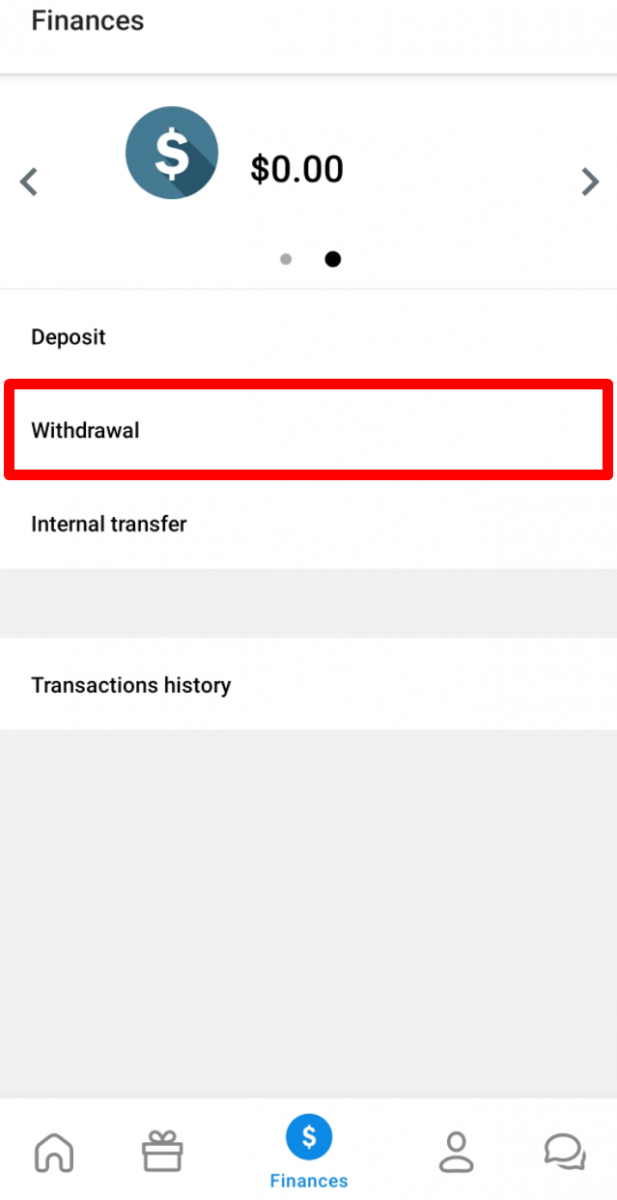
3. Choose the payment system you need;
Please, kindly take into consideration that you can withdraw via those payment systems that have been used for the deposit.
4. Enter the needed information for the transaction.
5. Click on “Confirm payment”. You will be forwarded to the payment system page.
You can see the status of your withdrawal transaction in the “Transaction history”.
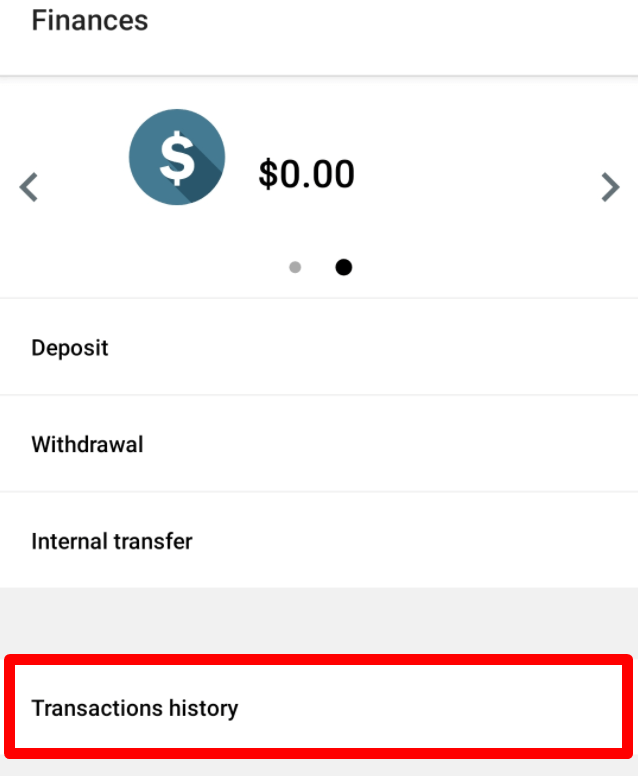
Please, kindly take into consideration that the withdrawal commission depends on the payment system you choose.
Kindly let us remind you that, according to the Customer Agreement:
5.2.7. If an account was funded via debit or credit card, a card copy is required to process a withdrawal. The copy must contain the first 6 digits and the last 4 digits of the card number, the cardholder’s name, the expiry date, and the cardholder’s signature.
You should cover your CVV code on the back of the card; we do not need it. On the back of your card, we need only to see your signature, which confirms card validity.
Trading
I forgot my trading password (mobile Personal Area)
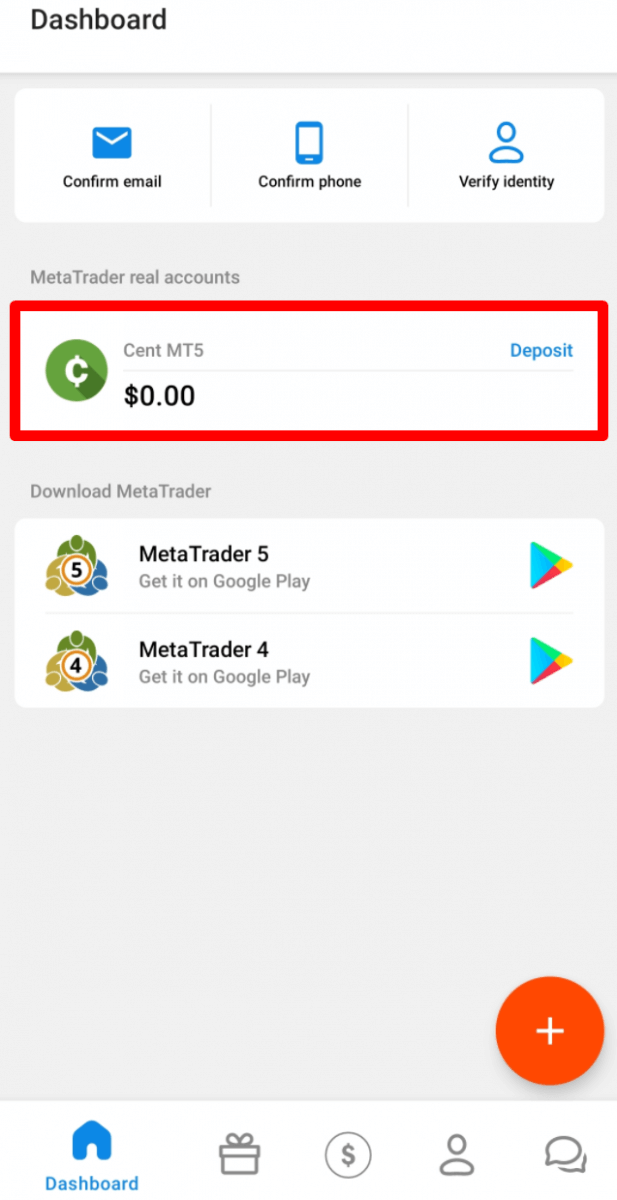
To recover your trading account password, please click on your trading account in the Dashboard table.
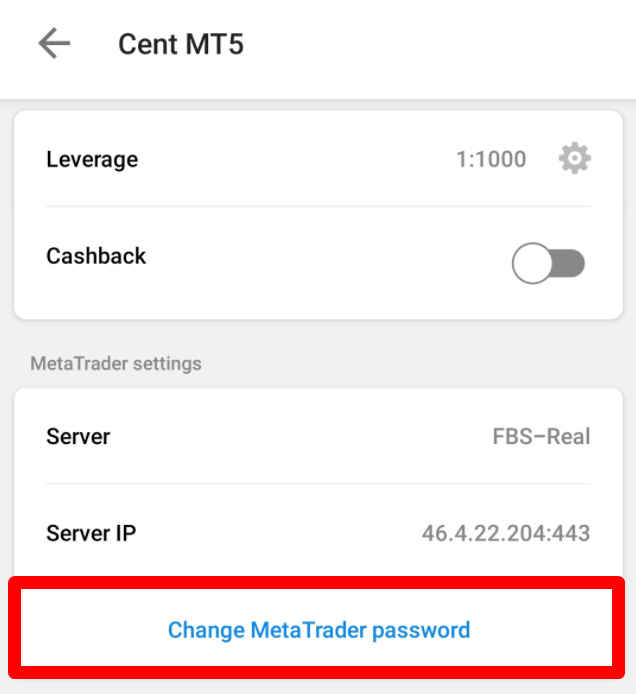
In the opened account settings page, you will see the "Change MetaTrader password" button in the "MetaTrader settings" section.
Upon clicking the button, you will see a warning pop-up window. Click on the "OK" button if you are sure that you want to generate a new trading password for this account.
You will see the page with the new trading account information.
I forgot my Personal Area password
To restore your Personal Area password, please kindly click on the "Password recovery" link.
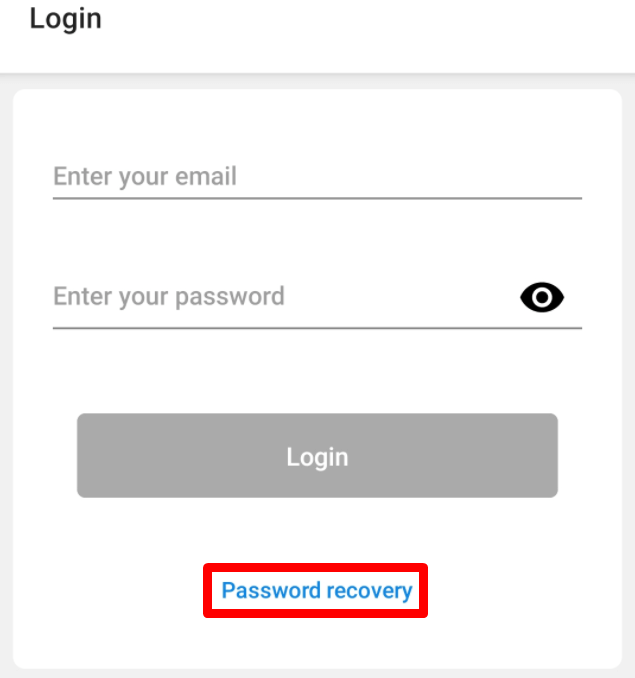
There, please, enter the e-mail address your Personal Area is registered with and click the "Get recovery email" button.
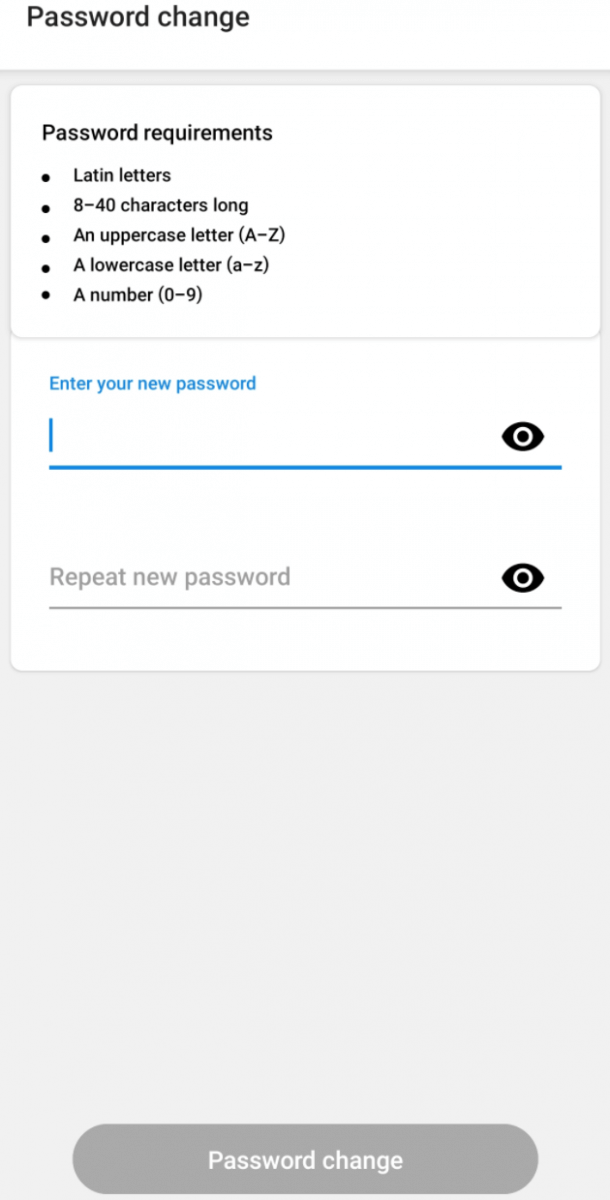
After that, you will receive the e-mail with a password recovery link. Please, kindly click on that link. You will be forwarded to the page where you can enter your new Personal Area password and then confirm it.
I forgot my PIN code for the FBS Personal Area app
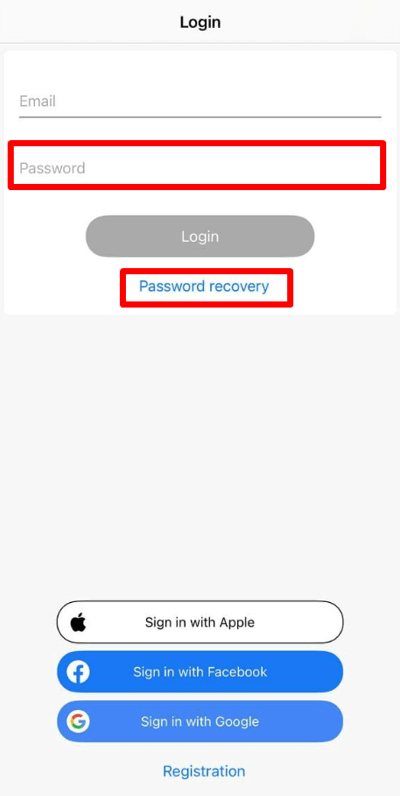
In case you have forgotten your PIN code, you can log in to your account by e-mail and FBS account password in a few steps. Notice that due to security measures, we do not store any passwords or PIN codes. However, you can create a new one.
To do so, please follow these steps:
1. Open the FBS personal area application.
2. Click on the button in the lower-left corner as shown in the screenshot below:
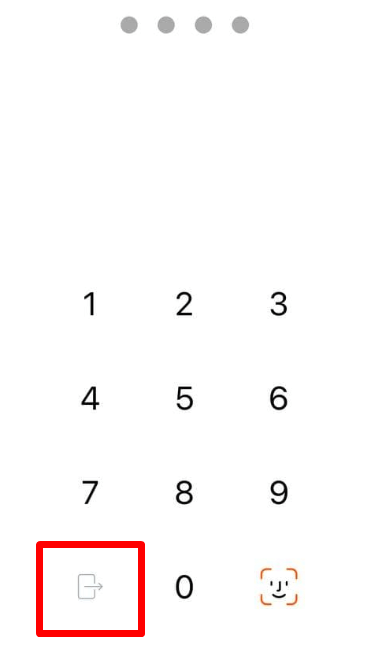
3. You will be redirected to the login window;
4. There, you can either enter your FBS account password or recover the FBS account password by clicking on the "Password recovery" button.
I want to open a new account in the FBS Personal Area (mobile)
You can open a new account in your Dashboard.
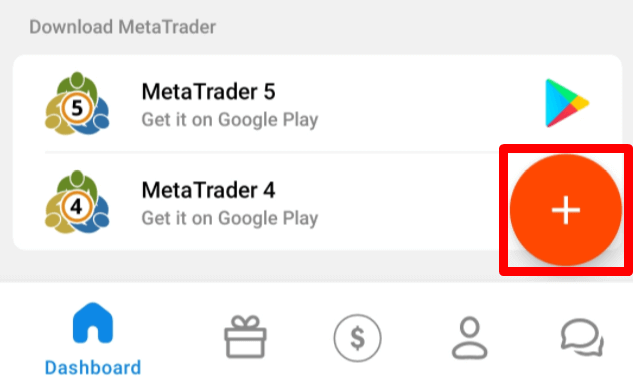
To do so, please find the "plus" floating action button in the lower right part of the screen for Android or the "plus" button on the right upper corner of the screen in iOS.
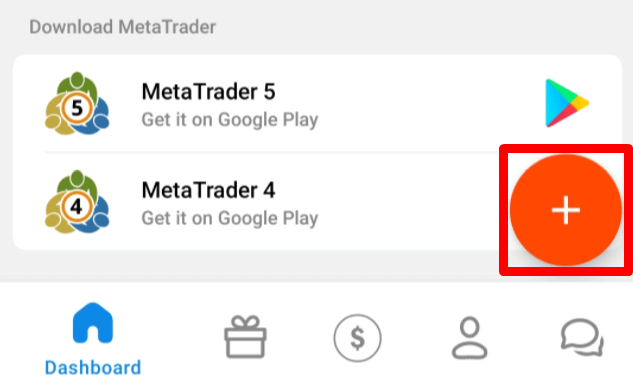
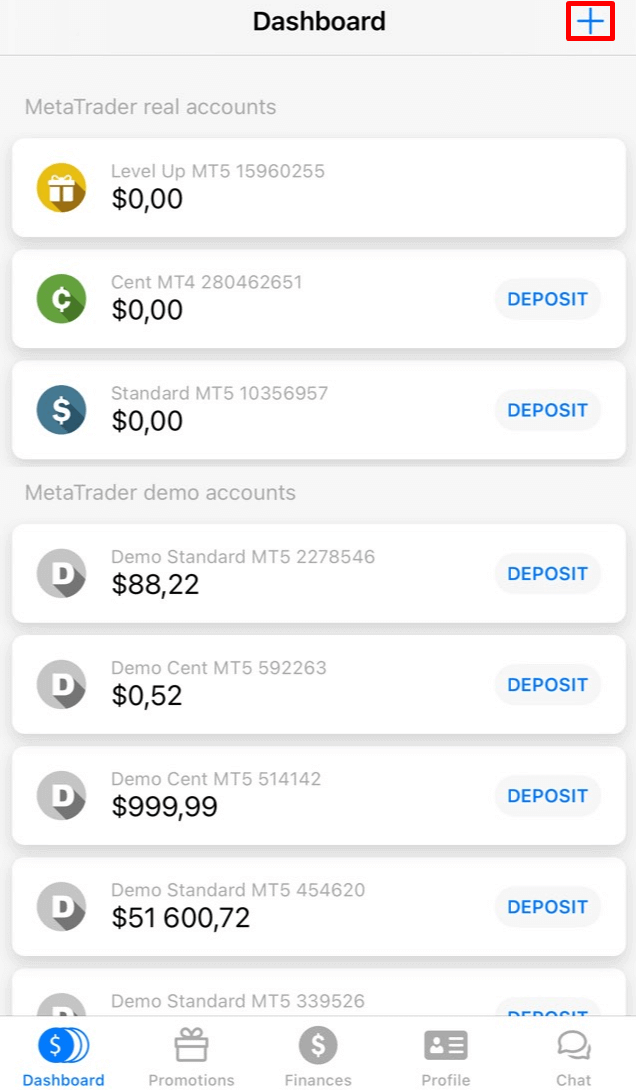
On the opened page, choose the Real or Demo section first. Then select the account type.
You will be transferred to the account opening page. Depending on the account type it may be available for you to choose the MetaTrader version, account currency, leverage, and initial balance (for demo accounts). Upon setting the account, click on the "Create account" button.
Please, kindly be reminded that you can open up to 10 accounts of each type within one Personal area if two conditions are met:
-
Your Personal Area is verified.
-
The total deposit to all your accounts is $100 or more.
I want to try a Demo account in the FBS Personal Area (mobile)
You can open a Demo account in your Dashboard.
To do so, please find the "plus" floating action button in the lower right part of the screen for Android or the "plus" button on the right upper corner of the screen in iOS.
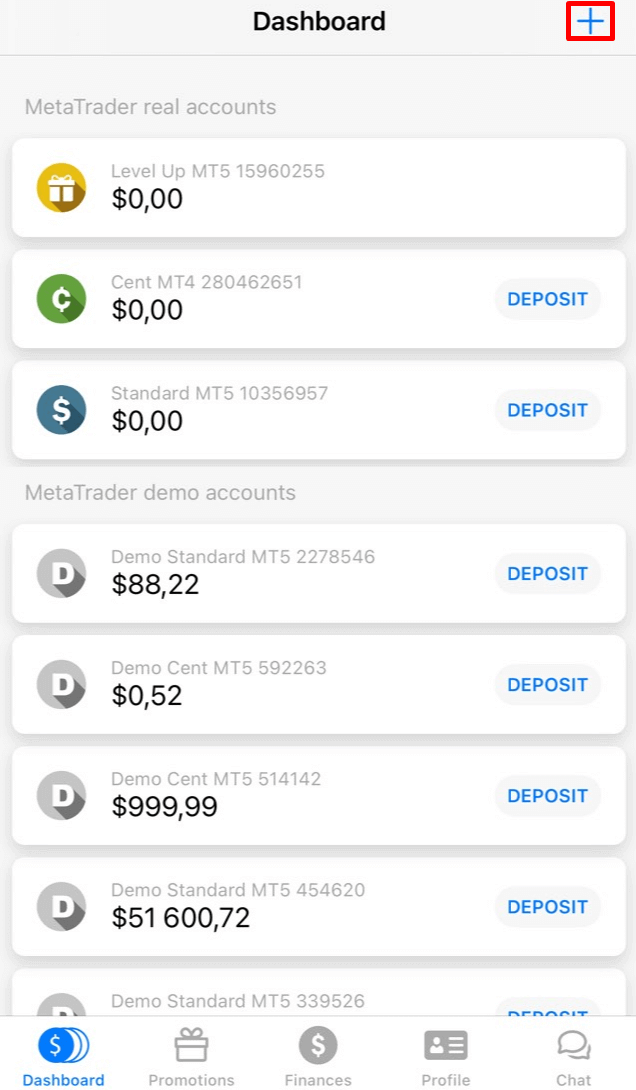
On the opened page, choose the Demo section first. Then select the account type.
You will be transferred to the account opening page. Depending on the account type it may be available for you to choose the MetaTrader version, leverage, and initial balance. Upon setting the account, click on the "Create account" button.
How many accounts can I open?
You can open up to 10 trading accounts of each type within one Personal area if 2 conditions are met:
-
Your Personal Area is verified.
-
The total deposit to all your accounts is $100 or more.
Otherwise, you can open only one account of each type (Cent, Micro, Standard, Zero Spread, ECN).
Please, take into account that each client can register only one Personal Area.
Which account to choose?
We offer 5 types of accounts, which you can see on our site: Standard, Cent, Micro, Zero spread, and ECN account.
Standard account has a floating spread but no commission. With a Standard account, you can trade using the highest leverage (1:3000).
Cent account also has floating spread and no commission, but bear in mind that on the Cent account, you trade with cents! So, for example, if you deposit $10 into the Cent account, you will see it as 1000 in the trading platform, which means that you will trade with 1000 cents. The maximum leverage for the Cent account is 1:1000.
Cent account is the perfect choice for beginners; with this account type, you will be able to start real trading with small investments. Also, this account suits well for scalping.
ECN account has the lowest spreads, offers the fastest order execution, and has a fixed commission of $6 per 1 lot traded. The maximum leverage for the ECN account is 1:500. This account type is the perfect option for experienced traders, and it works best for a scalping trading strategy.
A micro account has a fixed spread and also no commission. It also has the highest leverage of 1:3000.
A
Zero Spread account has no spread but has a commission. It starts from $20 per 1 lot and differs depending on the trading instrument. The maximum leverage for the Zero Spread account is also 1:3000.
But, please, kindly consider that according to the Customer Agreement (p.3.3.8), for instruments with fixed spread or fixed commission, the Company reserves the right to increase the spread in case the spread on the basic contract exceeds the size of the fixed spread.
We wish you successful trading!
How can I change my account leverage?
Please, kindly be informed that you can change your leverage in your Personal Area account settings page.
This is how you can do it:
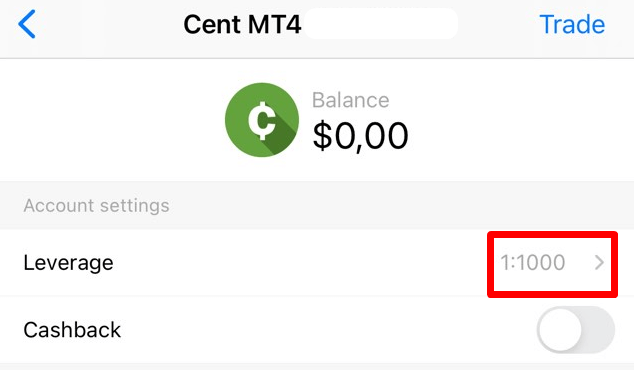
1. Open the account settings by clicking on the needed account in the Dashboard.
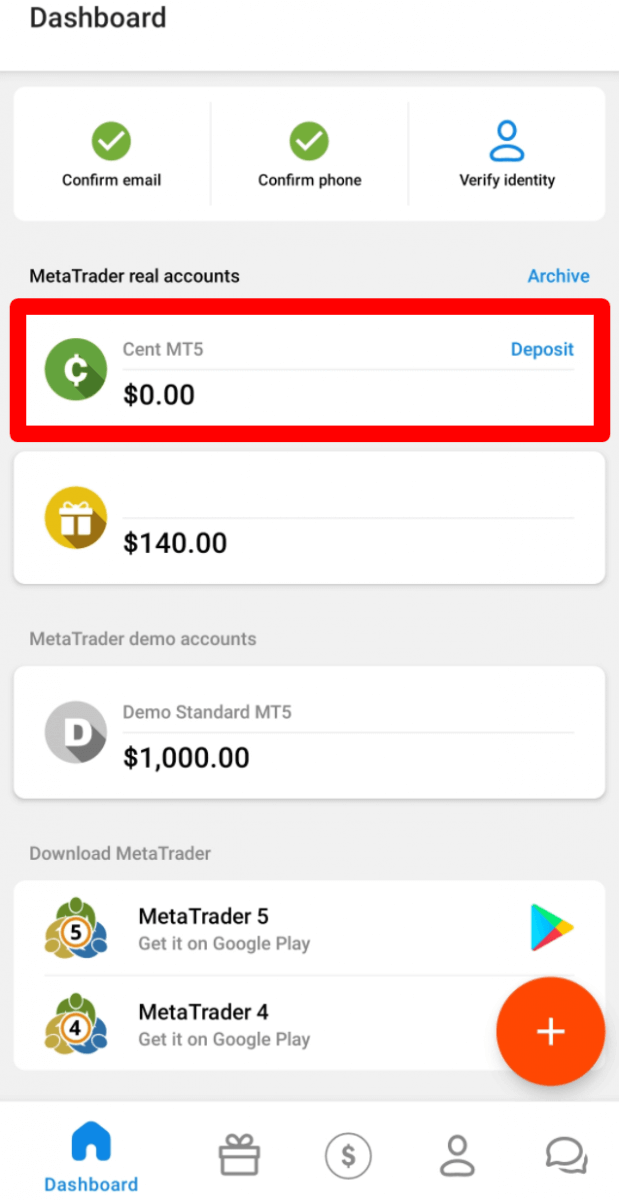
Find "Leverage" in the "Account settings" section and click on the current leverage link.
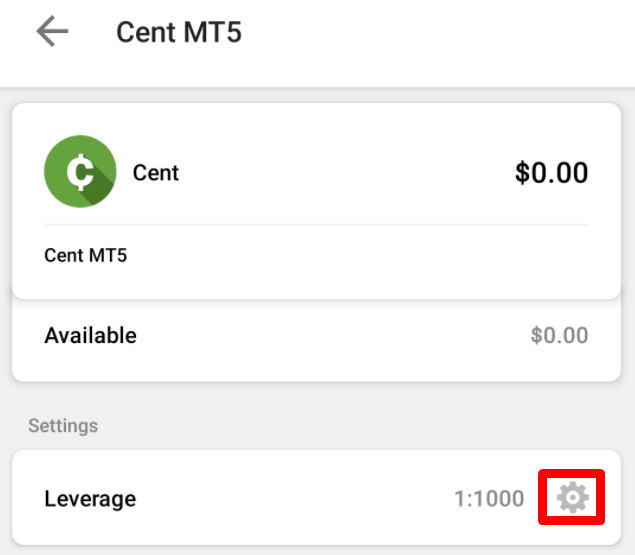
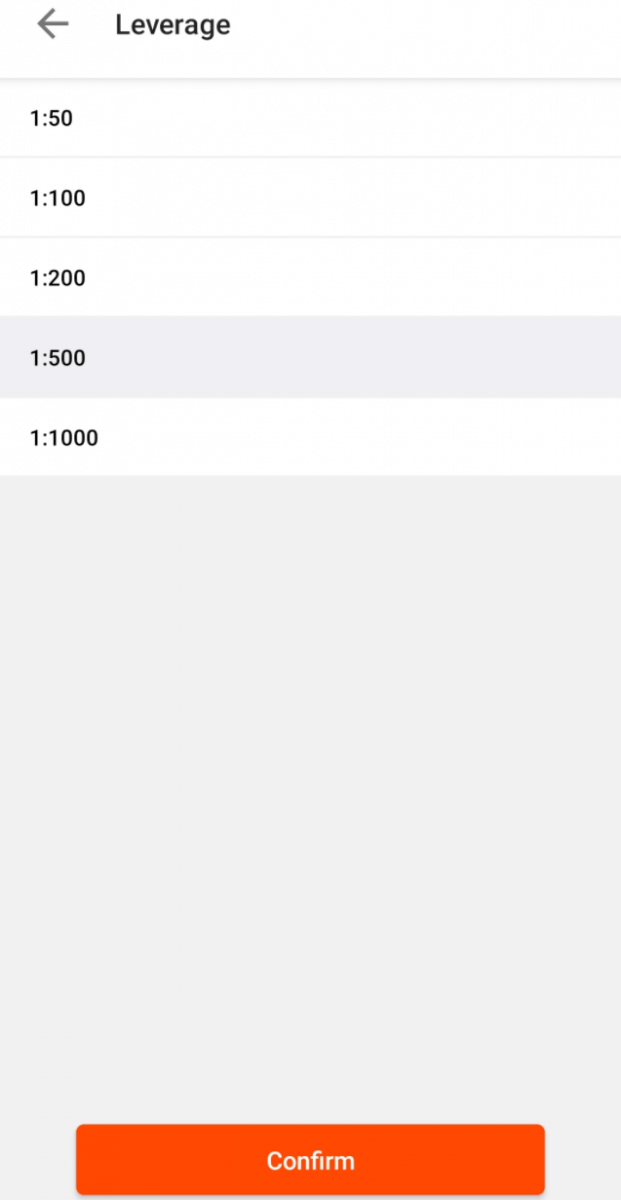
Set the necessary leverage and press the "Confirm" button.
Please, note, that leverage change is possible only once in 24 hours and in case you do not have any open orders.
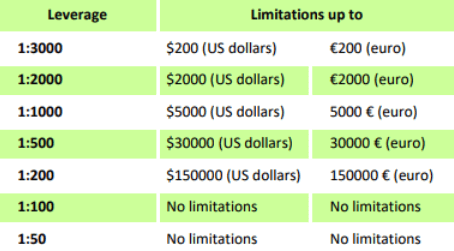
We want to remind you that we have specific regulations on leverage in correlation to the sum of equity. The Company is entitled to apply leverage change to already opened positions as well as to reopened positions according to these limitations.
I want to change my Personal Area e-mail
You can change your Personal Area e-mail only if it has not been confirmed yet. In this case, a new registration e-mail will be sent to the new e-mail address.
Please, kindly be informed that, unfortunately, the option of changing your e-mail address is not available in the Personal Area system if your identity has already been confirmed.
We can change your e-mail manually, mostly in case there was an accidental typing mistake in it.
Otherwise, if you do not want to use your current e-mail, for example, you can open a new Personal Area under a different e-mail address to be able to continue using all the functions of your account management through a clients Personal Area.
In case you need to change your e-mail address, please kindly send us the request for an e-mail change with the following information:
-
Your full name;
-
Your account number.
-
Your current Personal Area e-mail;
-
Your correct e-mail;
-
The exact reason why you want to change your e-mail address.
-
The confirmation that you can not use your existing e-mail anymore (if your current e-mail has been closed);
-
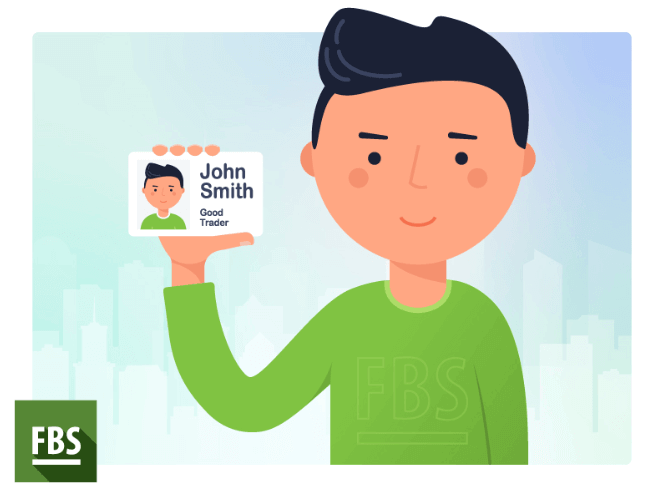
A photo where you hold your passport/ID card (or any other document used for verification of your Personal Area) near your face. Like this:
I cannot find my account
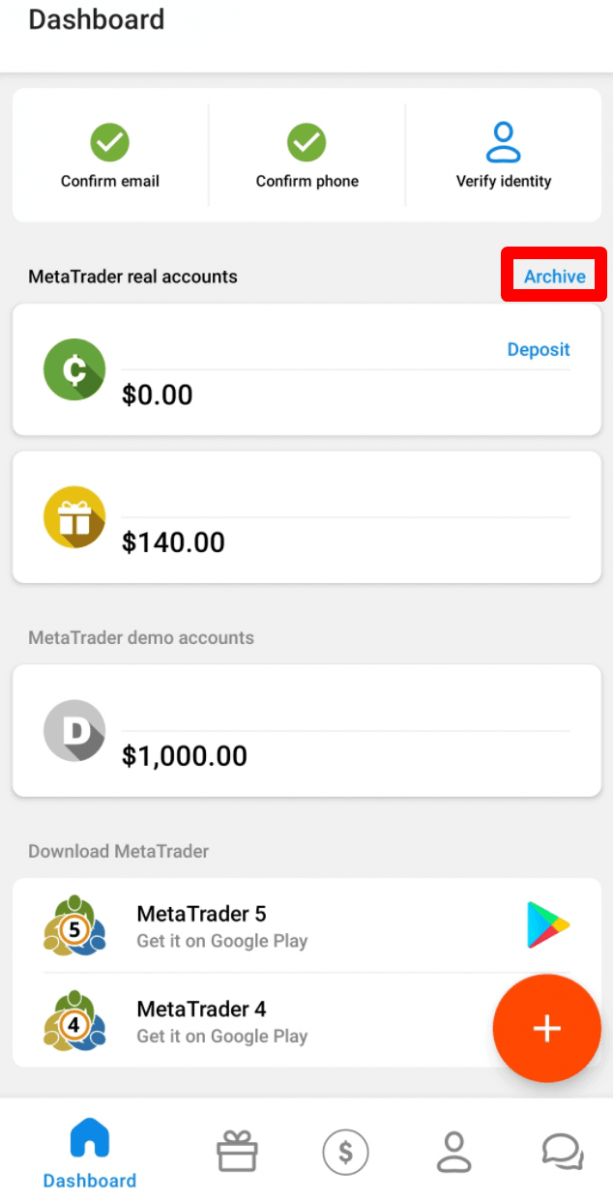
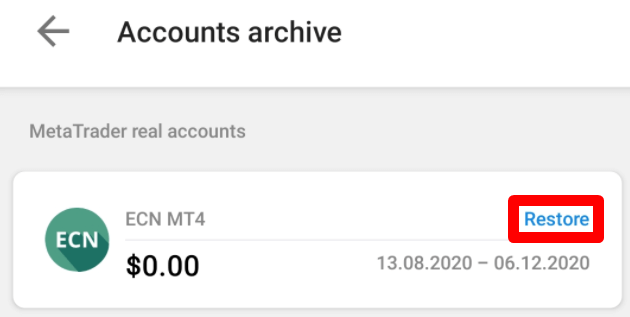
It seems like your account has been archived.
Please, kindly be informed that Real accounts are automatically archived after 90 days of inactivity.
To restore your account:
1. Please, go to the Archive in the Dashboard.
2. Choose the needed account number and click the "Restore" button.
We want to remind you that demo accounts for the MetaTrader4 platform are valid for some period (depending on the account type), and after that, they are being deleted automatically.
Validity period:
|
Demo Standard |
40 |
|
Demo Cent |
40 |
|
Demo Ecn |
45 |
|
Demo Zero spread |
45 |
|
Demo Micro |
45 |
|
Demo account |
25 |
In this case, we may recommend you to open a new demo account.
Demo accounts for MetaTrader5 platform can be archived/deleted in a period set at the discretion of the company.
I want to change my account type in the FBS Personal Area (web)
Unfortunately, it is impossible to change the type of account.
But you can open a new account of the desired type within the existing Personal Area.
After that, you will be able to transfer funds from the existing account to the newly opened one via Internal Transfer in the Personal Area.
I want to delete my account
Please, be informed that FBS does not close any accounts for you to be able to restore access to them at any time. If you do not need your account anymore, you can stop using it - it will be archived after 90 days of inactivity.
We would like to remind you that demo accounts for the MetaTrader4 platform are valid for a period (depending on the account type), and after that, they are deleted automatically.
Validity period:
|
Demo Standart |
40 |
|
Demo Cent |
40 |
|
Demo Ecn |
45 |
|
Demo Zero spread |
45 |
|
Demo Micro |
45 |
|
Demo account |
25 |
In this case, we may recommend that you to open a new demo account.
Demo accounts for the MetaTrader5 platform can be archived/deleted in a period set at the discretion of the company.
Conclusion: Your Mobile Trading Companion, Made Simple
The FBS Personal Area mobile app is designed to offer flexibility, speed, and control for traders who need to manage their accounts on the go.
By addressing common user questions, this FAQ aims to ensure that you have the knowledge and confidence to navigate the app efficiently. With robust features and strong security, FBS helps you stay connected to your trading account—anytime, anywhere.