FBS Login and Verification: Access Steps, Document Requirements
Writen By

Online Trading Platform Researcher and Guide Writer
Researches broker platforms and trading account Systems.
Trying to access your FBS trading account but running into login errors or verification holds can derail trading plans and block deposits or withdrawals. Quick, secure access depends on correct credentials, reliable two-factor authentication, and submitting acceptable identity and address documents; common hold-ups include expired IDs, mismatched name details, low-resolution photos, and unsupported file formats that fail automated checks. Missing a verification step can also restrict trading tiers or prevent cashouts, so resolving access and KYC issues quickly matters.
This walkthrough provides practical, step-by-step actions to regain access and complete FBS verification efficiently: signing in and recovering passwords, enabling or troubleshooting 2FA, preparing and uploading passport, national ID, or driver's license plus utility bill or bank statement proofs in accepted file types, expected review timelines, and when a manual review or support request is required. Follow the checklist and quick fixes here—naming files correctly, checking email for verification links, and re-submitting clear scans—to reduce processing time and avoid repeated rejections.
This walkthrough provides practical, step-by-step actions to regain access and complete FBS verification efficiently: signing in and recovering passwords, enabling or troubleshooting 2FA, preparing and uploading passport, national ID, or driver's license plus utility bill or bank statement proofs in accepted file types, expected review timelines, and when a manual review or support request is required. Follow the checklist and quick fixes here—naming files correctly, checking email for verification links, and re-submitting clear scans—to reduce processing time and avoid repeated rejections.

How to Log In to FBS
How do you log in to the FBS account?
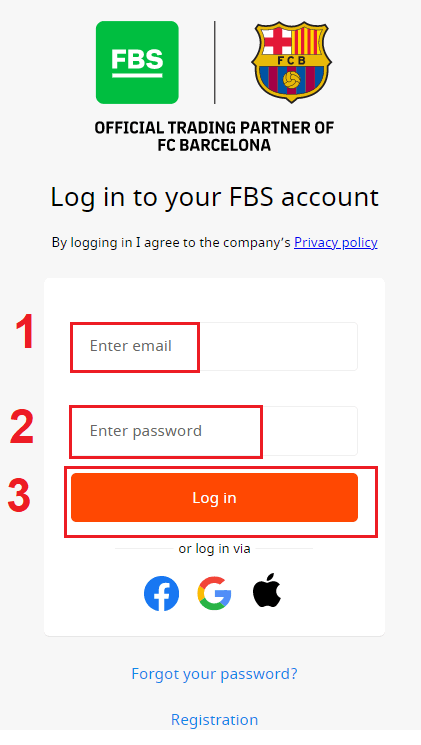
- Go to the mobile FBS App or Website.
- Click on “Login”.
- Enter your email and password.
- Click on the “Log In” orange button.
- Click on “Facebook,” “Gmail,” or "Apple" for login through social network.
- If you forgot your password, click on “Forgot your password”.
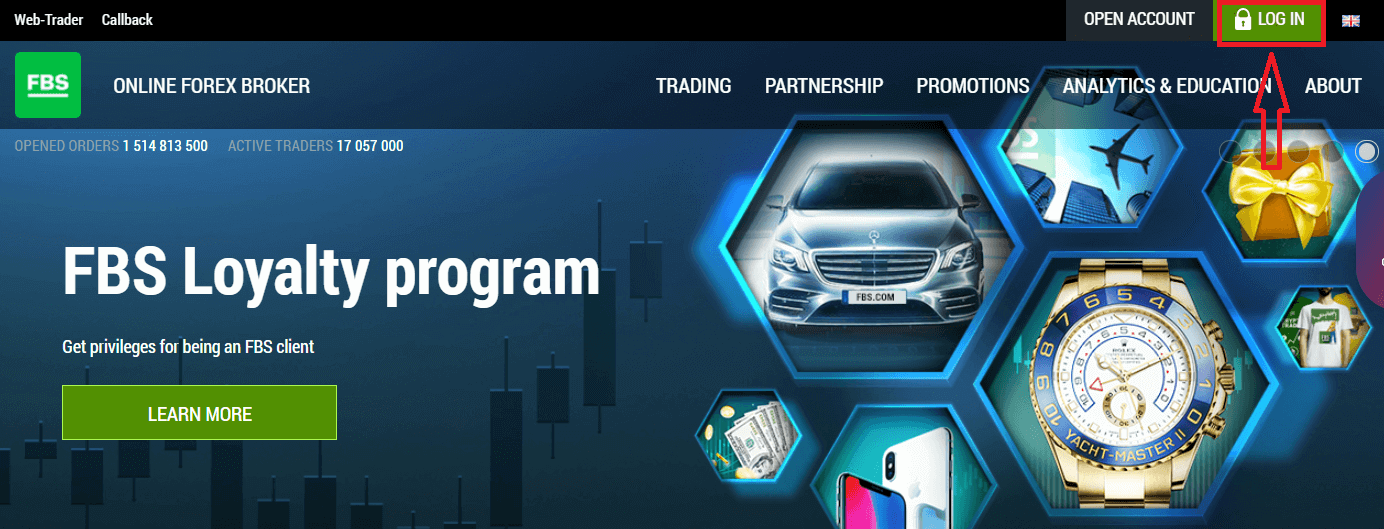
To log in to FBS, you need to go to the trading platform application or website. To enter your personal account (log in), you must click on the «LOG IN». On the main page of the site and enter the login (e-mail) and password that you specified during registration.
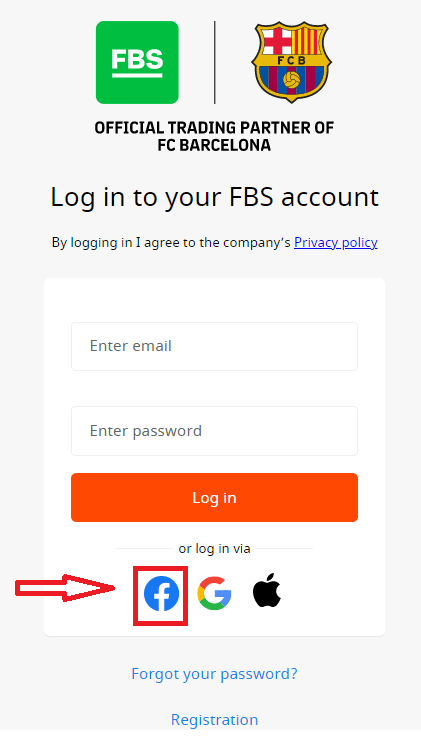
How do you log in to FBS using Facebook?
You can also log in to the website using your personal Facebook account by clicking on the Facebook logo. The Facebook social account can be used on web and mobile apps.1. Click on the Facebook button
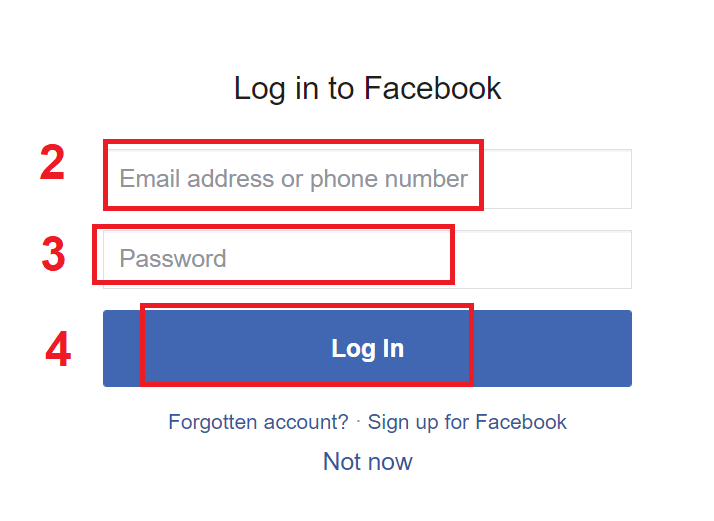
2. The Facebook login window will be opened, where you will need to enter your email address that you used to register in Facebook
3. Enter the password from your Facebook account
4. Click on “Log In.”
Once you’ve clicked on the “Log in” button, FBS is requesting access to: Your name and profile picture, and email address. Click Continue...
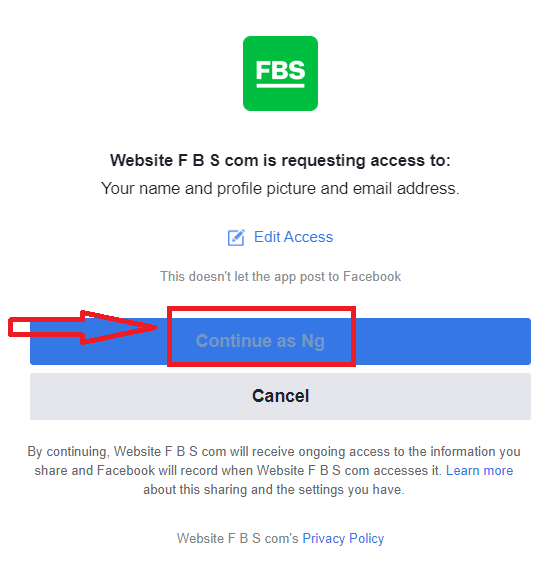
After that, you will be automatically redirected to the FBS platform.
How do you log in to FBS using Gmail?
1. For authorization through your Gmail account, you need to click on the Google logo.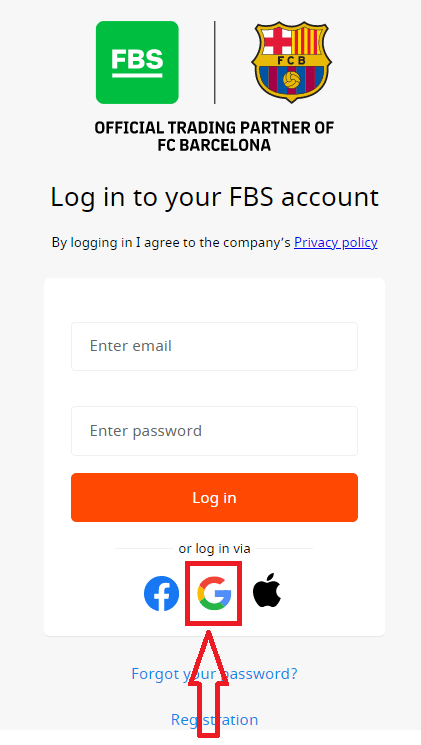
2. In the new window that opens, enter your phone number or email and click “Next”.
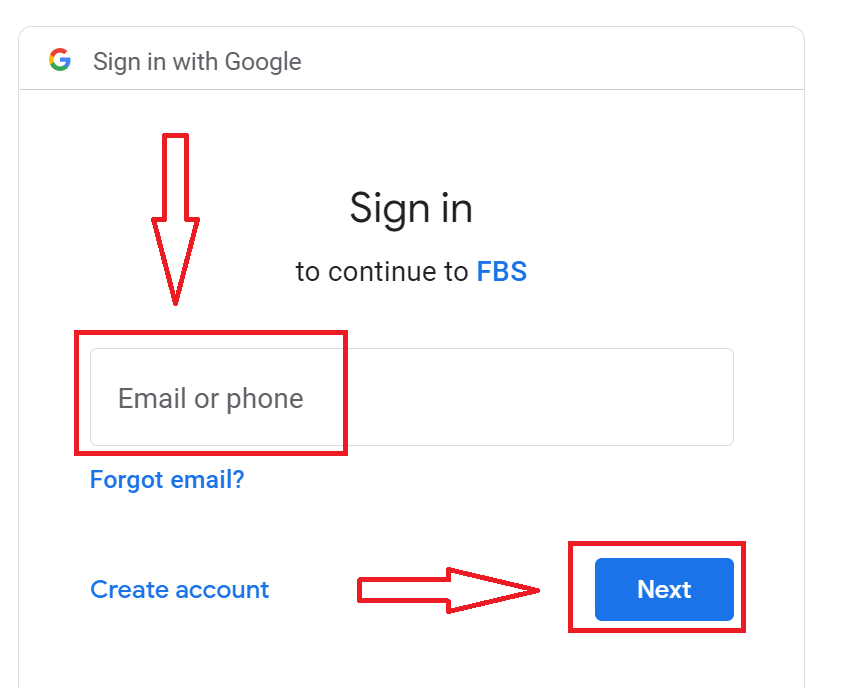
3. Then enter the password for your Google account and click “Next”.
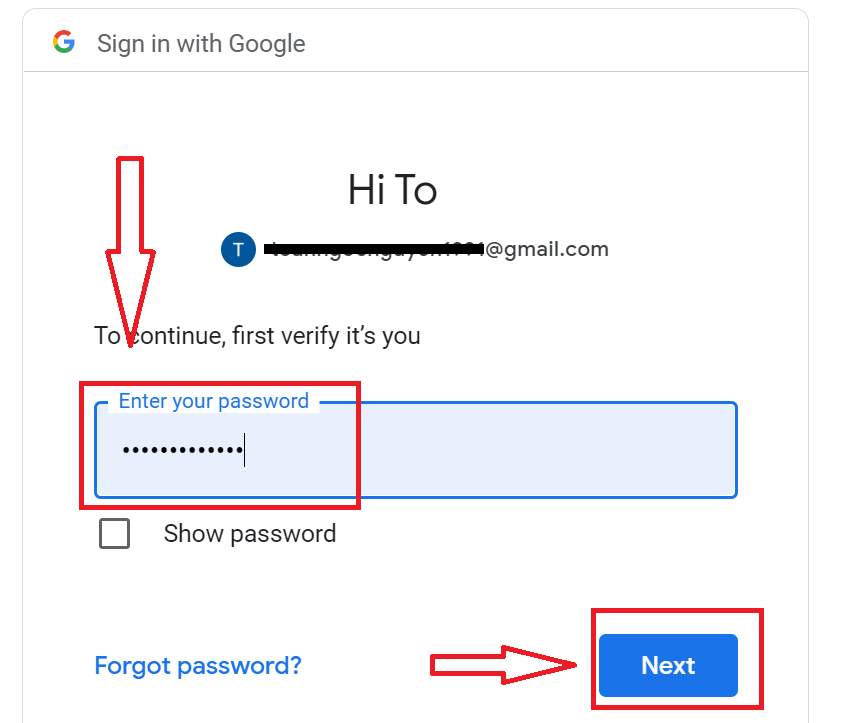
After that, follow the instructions sent from the service to your email address. You will be taken to your personal FBS account.
How do you log in to FBS using an Apple ID?
1. For authorization through your Apple ID account, you need to click on the Apple logo.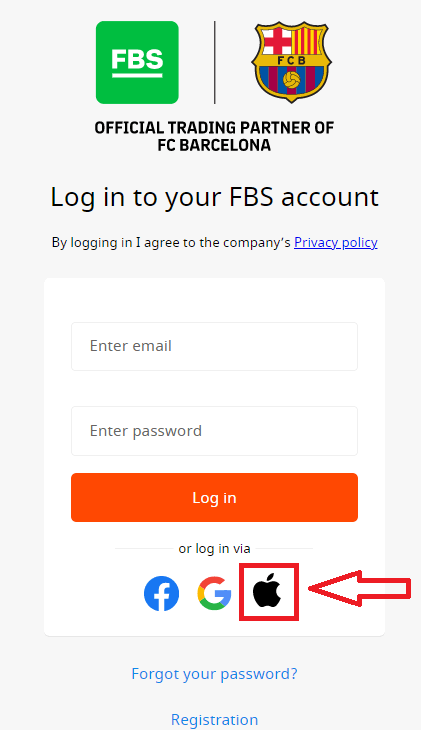
2. In the new window that opens, enter your Apple ID and click “Next”.
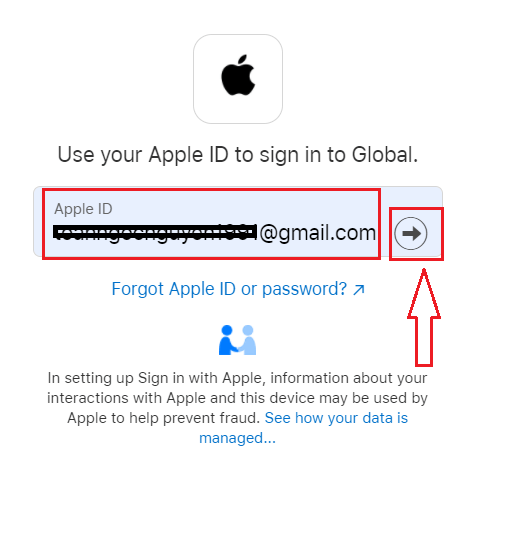
3. Then enter the password for your Apple ID and click “Next”.
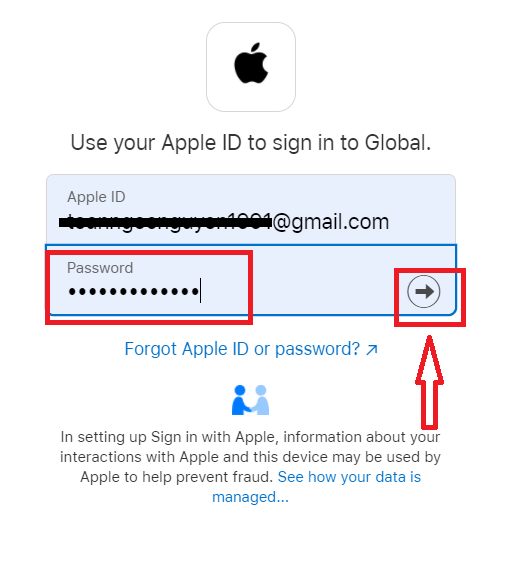
After that, follow the instructions sent from the service to your Apple ID. You will be taken to your personal FBS account.
I forgot my Personal Area password from FBS
To restore your Personal Area password, please kindly follow the link.There, please, enter the e-mail address your Personal Area is registered with and click the "Confirm" button:
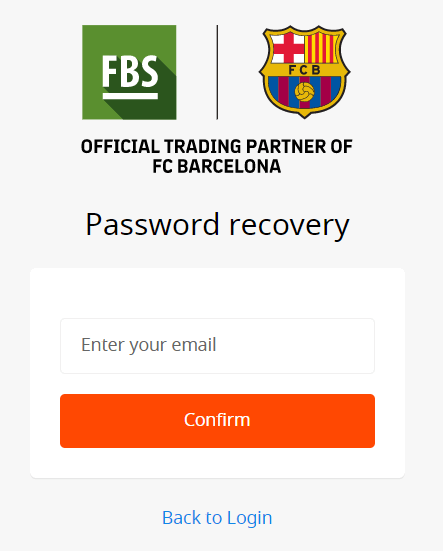
After that, you will receive the email with a password recovery link. Please, kindly click on that link.
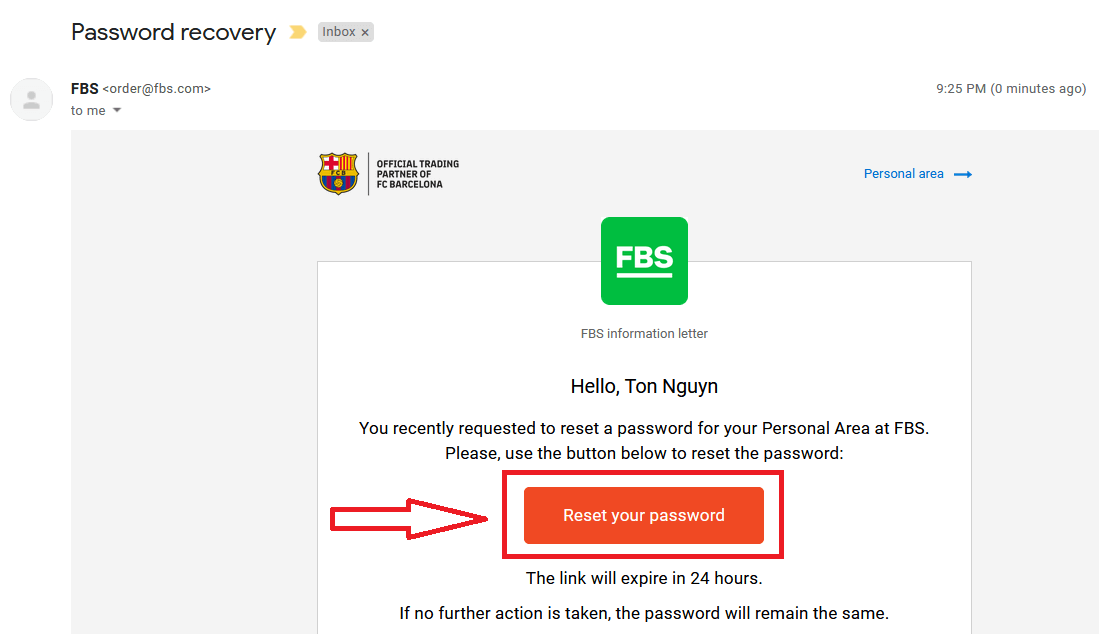
You will be forwarded to the page where you can enter your new Personal Area password and then confirm it.
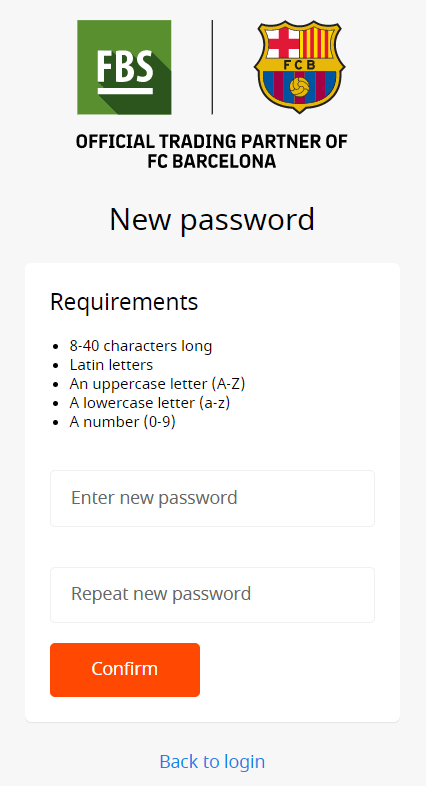
Click the "Confirm" button. Your Personal Area password has been changed! Now you can log in to your Personal Area.
How do you log in to the FBS Android app?
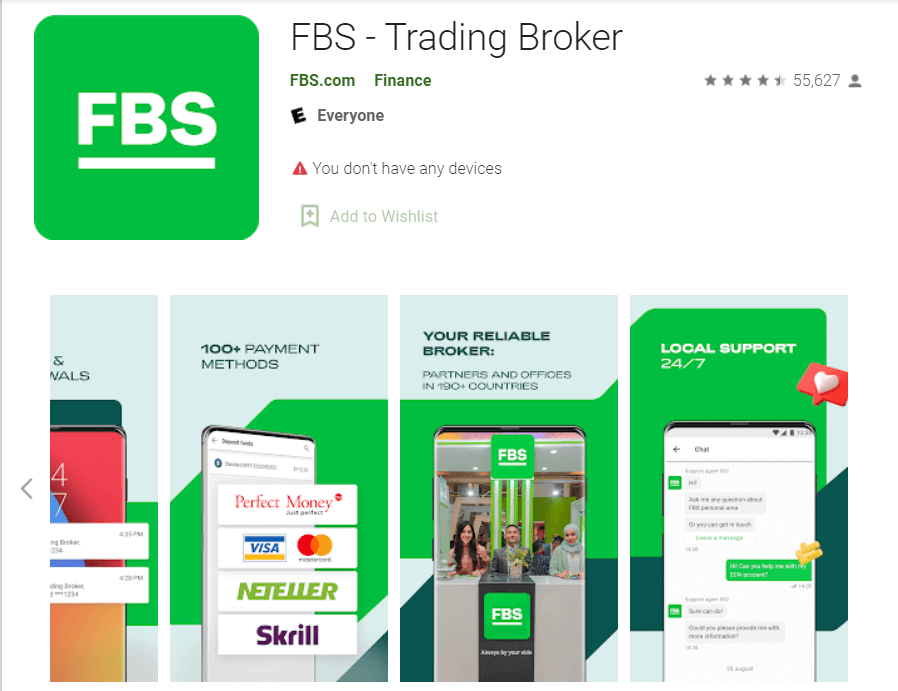
Authorization on the Android mobile platform is carried out similarly to authorization on the FBS website. The application can be downloaded through the Google Play Store on your device, or click here. In the search window, just enter FBS and click «Install».After installation and launching, you may log in to the FBS Android mobile app by using your email, Facebook, Gmail,l or Apple ID.
How do you log in to the FBS iOS app?
You have to visit the App Store (iTunes) and in the search use the key FBS to find this app, or click here. Also, you need to install the FBS app from the App Store. After installation and launching, you may log in to the FBS iOS mobile app by using your email, Facebook, Gmail, or Apple ID.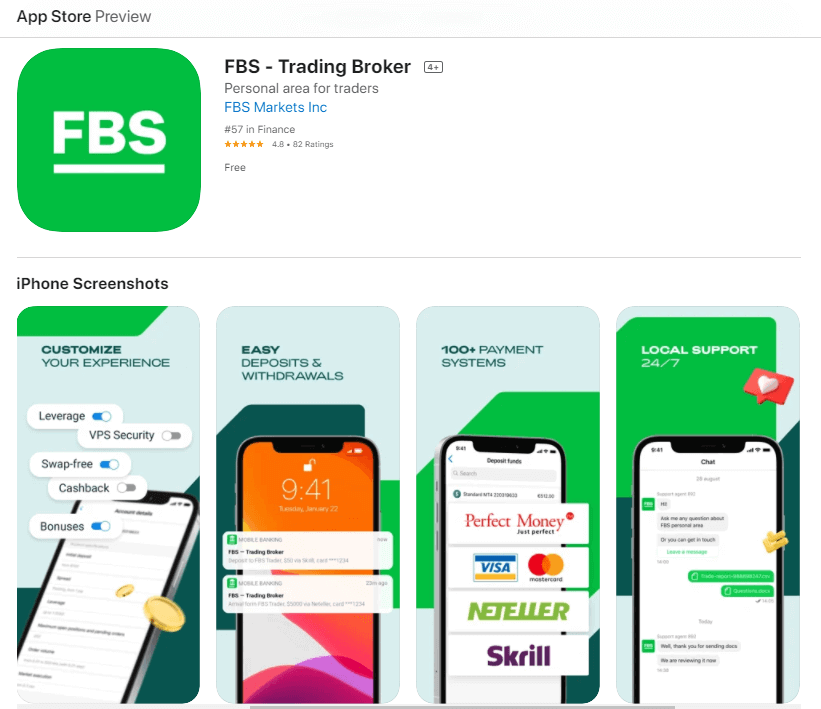
How to Verify Account on FBS
How to Verify Profile at FBS
Verification is necessary for work safety, prevention of unauthorized access to the personal data and funds stored on your FBS account, and smooth withdrawal.
How can I Verify my phone number?
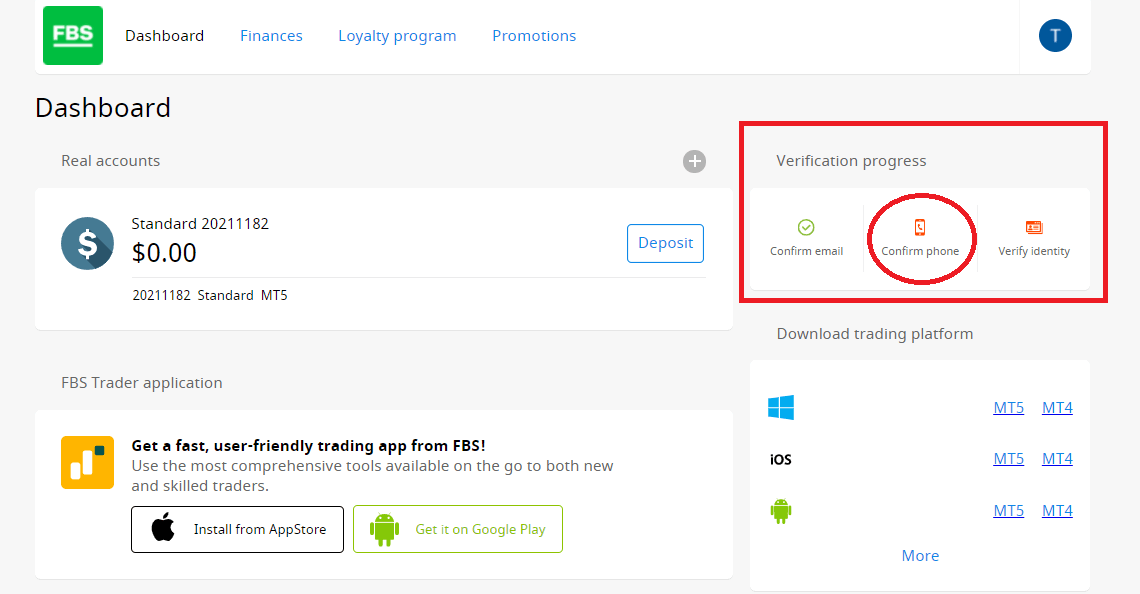
Please, take into account that the phone verification process is optional, so you might stay on e-mail confirmation and skip verification of your phone number.However, if you’d like to attach the number to your Personal Area, log in to your Personal Area and click on the "Confirm phone" button in the "Verification progress" widget.
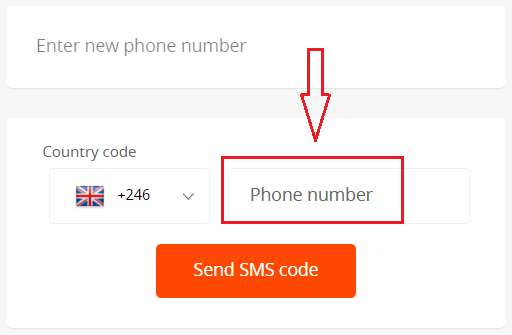
Enter your phone number and click on the "Send SMS code" button.
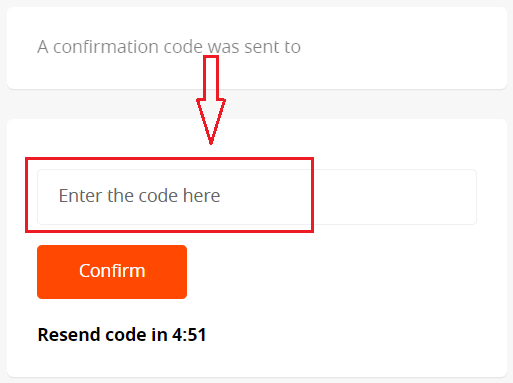
After that, you will receive an SMS code that you should insert in the provided field.
In case you are facing difficulties with phone verification, first of all, please check the correctness of the phone number you entered.
Here are some tips to take into account:
- You do not need to enter "0" at the beginning of your phone number;
- You do not need to enter the country code manually. The system will be automatically set once you choose the correct country in the drop-down menu (shown with the flags in front of the phone number field);
- You need to wait for at least 5 minutes for the code to arrive.
If you are sure that you have done everything correctly but still don’t receive the SMS code, we would suggest trying another phone number. The issue can be on your provider side. For that matter, enter a different phone number in the field and request the confirmation code.
Also, you can request the code via voice confirmation.
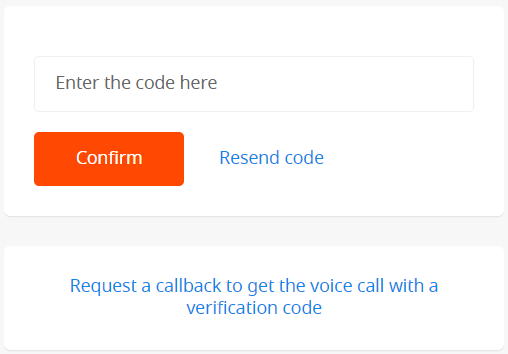
To do that, you need to wait for 5 minutes from the code request, then click on the "Request a callback to get the voice call with a verification code" button. The page would look like this:
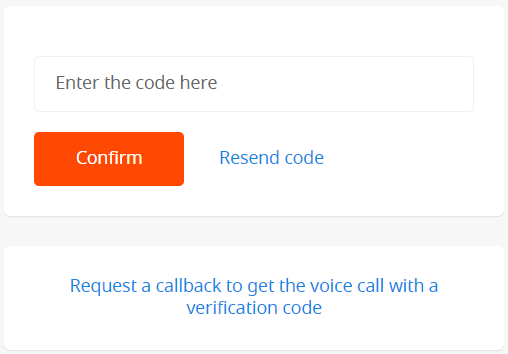
Kindly take into consideration that you can request a voice code only if your profile is verified.
Your phone number is now verified.
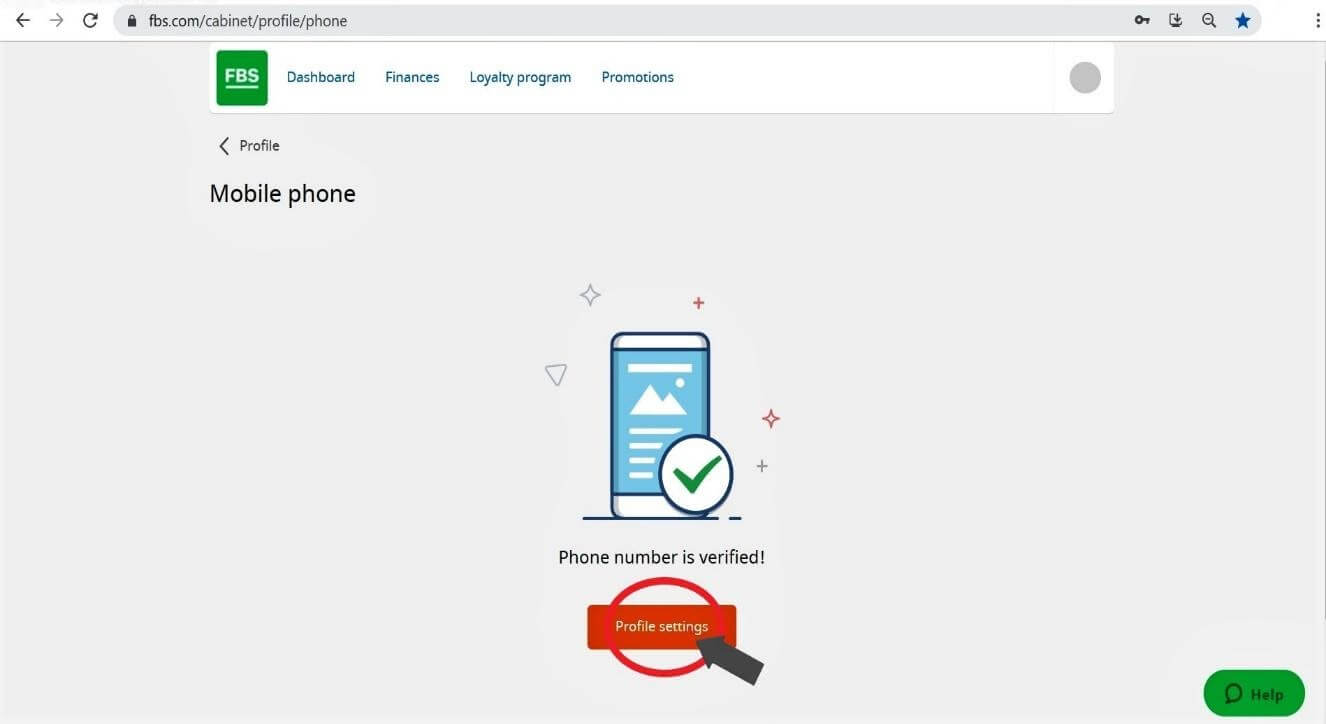
How can I Verify my Personal Area?
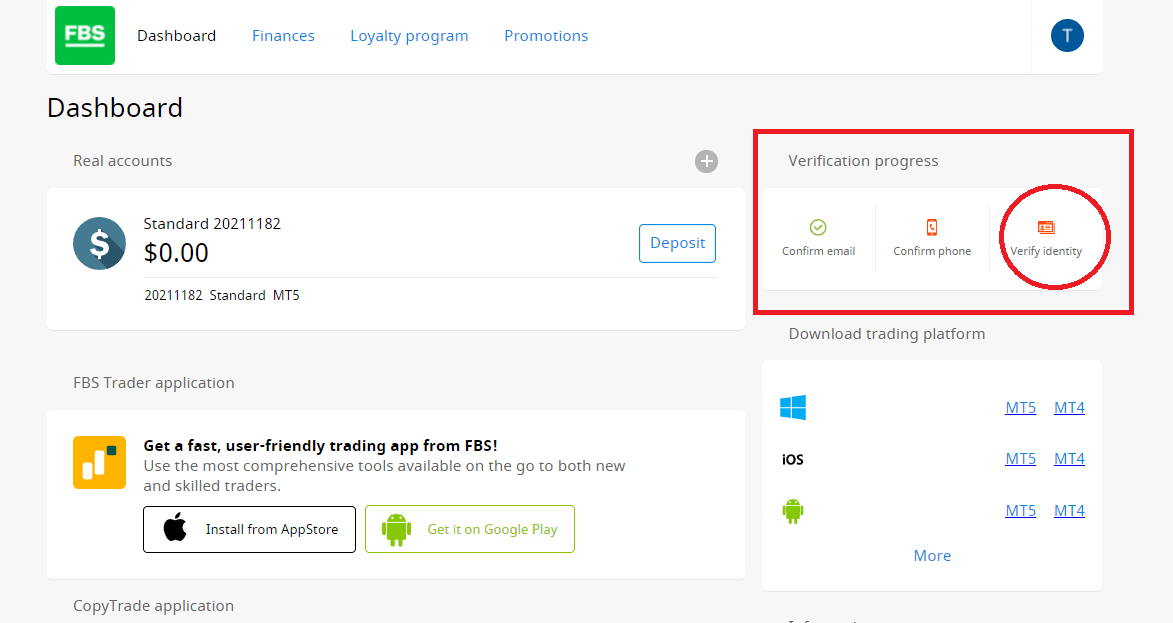
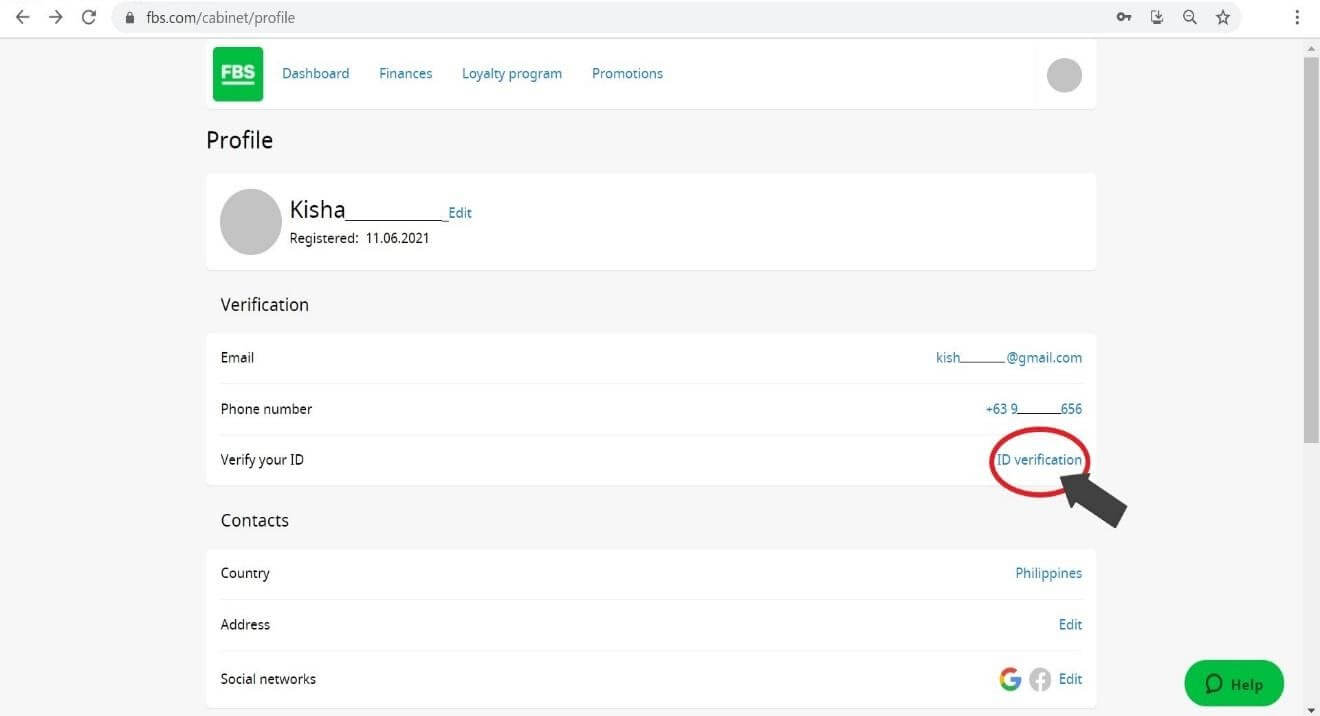
Or click the “ID verification” link. ID Verification is for the proof of your identity.
Fill in the necessary fields. Please, enter the correct data, exactly matching your official documents.
Upload color copies of your passport or government-issued ID with your photo and address proof in JPEG, PNG, BMP, or PDF format of a total size not exceeding 5 Mb.
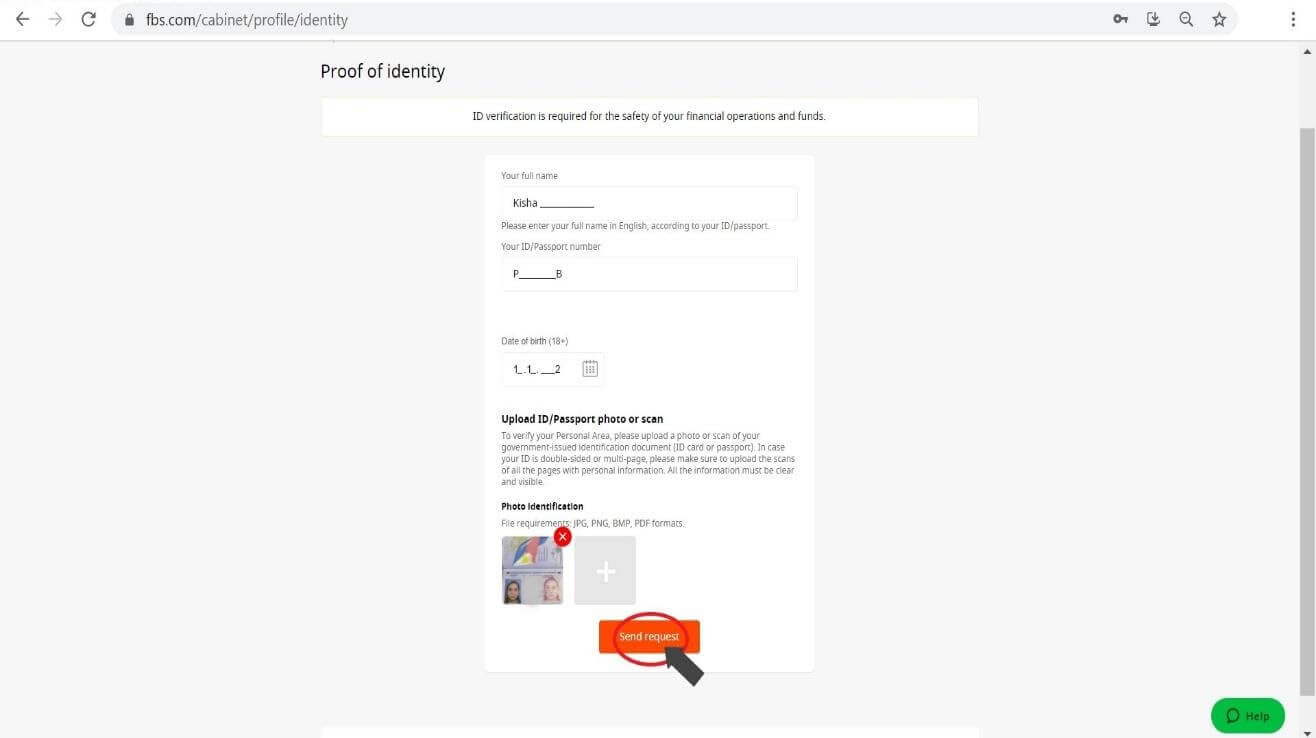
Verification is now in progress. Next, Click “Profile Settings”.
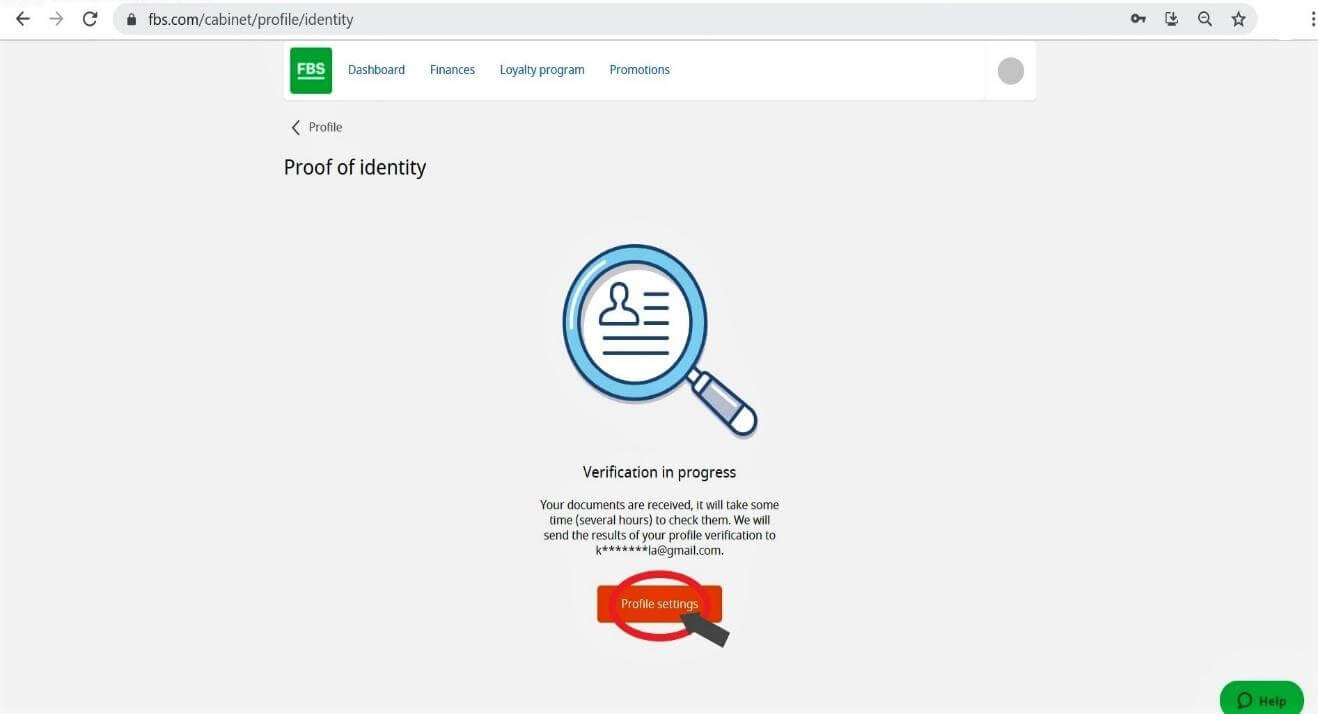
The verification of your ID is now in Pending status. Please wait for several hours for FBS to review your application. As soon as your request is accepted or rejected, the status of your request will change.
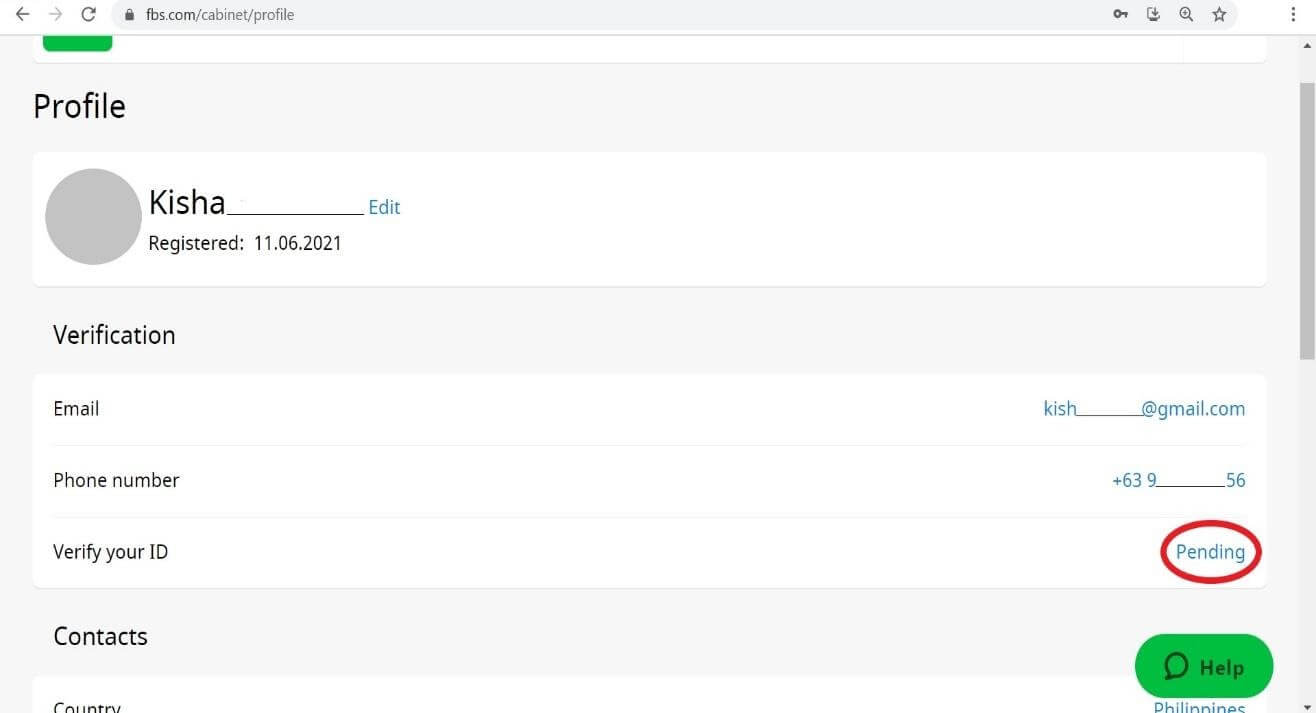
Please, kindly wait for the email notification in your email inbox once verification is done. We appreciate your patience and kind understanding.
FAQ of Verification at FBS
Why can’t I Verify my second Personal Area (web)?
Please kindly note that you can only have one verified Personal Area in FBS.If you don’t have access to your old account, you can contact our customer support and provide us with confirmation that you can no longer use the old account. We will unverify the old Personal Area and verify the new one right after.
What if I deposited into two Personal Areas?
A client cannot make a withdrawal from an unverified Personal Area for security reasons.
In case you have funds in two Personal Areas, it’s necessary to clarify which of them you would prefer to use for further trading and financial transactions. To do so, please contact our customer support via email or in the live chat and specify which account you would prefer to use:
1. If you would like to use your already verified Personal Area, we will temporarily verify the other account so you can withdraw funds. As was written above, temporary verification is required for a successful withdrawal.
As soon as you withdraw all funds from that account, it will be unverified.
2. If you’d like to use not non-verified Personal Area, first, you will need to withdraw funds from the verified one. After that, you can request unverification of it and verify your other Personal Area, respectively
As soon as you withdraw all funds from that account, it will be unverified.
2. If you’d like to use not non-verified Personal Area, first, you will need to withdraw funds from the verified one. After that, you can request unverification of it and verify your other Personal Area, respectively
When will my Personal Area (web) be Verified?
Please, kindly be informed that you can check the status of your verification request on the Verification page in your Personal Area. As soon as your request is accepted or rejected, the status of your request will change.Please, kindly wait for the email notification in your email inbox once verification is done. We appreciate your patience and kind understanding.
How can I Verify my e-mail address in the FBS Personal Area (web)?
Please, kindly be informed that upon account registration, you will receive a registration email.Please, kindly click on the "Confirm email" button in the letter to confirm your e-mail address and complete the registration.
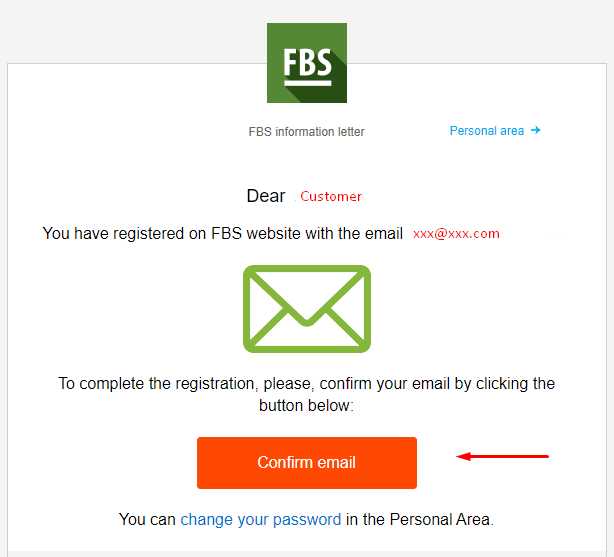
I didn’t get my e-mail confirmation link (web FBS Personal Area)
In case you see the notification that the confirmation link has been sent to your email, but you didn’t get any, please:
- Check the correctness of your e-mail - make sure there are no typos.
- Check the SPAM folder in your mailbox - the letter could get in there.
- Check your mailbox memory - if it is full, new letters will not be able to reach you.
- Wait for 30 minutes - the letter can come a bit later.
- Try to request another confirmation link in 30 minutes.
I cannot confirm my email
First, you need to log in to your Personal Area, and then kindly try to open the email link from your email again. Please, kindly be reminded that your Personal Area and e-mail both should be opened in one browser.If you requested a confirmation link several times, we recommend that you to wait for some time (about 1 hour), then ask for the link once again and use the link that will be sent to you after your last request.
If the issue persists, please kindly make sure you have cleared your cache and cookies beforehand. Or you may try using a different browser.
I didn’t get the SMS code in the FBS Personal Area (web)
If you’d like to attach the number to your Personal Area and face some difficulties with getting your SMS code, you can also request the code via voice confirmation.To do that, you need to wait for 5 minutes from the code request, then click on the "Request a callback to get the voice call with a verification code" button. The page would look like this:
I want to Verify my Personal Area as a legal entity
A Personal Area can be verified as a legal entity. To do that, a client needs to upload the following documents:- CEO’s passport or national ID;
- A document proving the CEO’s authority, certified by the seal of the company.
- Company Articles of Association (AoA);
The Articles of Association can be sent by email to [email protected].
Personal Area has to be named after the name of the company.
The country stated in the profile settings of the Personal Area should be defined by the country of the company registration.
It is only possible to deposit and withdraw via corporate accounts. Depositing and withdrawing via the personal accounts of the CEO is not possible.
Conclusion: Verified Access for a Secure Trading Experience
Logging in and verifying your account with FBS is essential for ensuring a secure, transparent, and fully functional trading experience.These steps not only protect your personal data and funds but also comply with international regulatory standards. By completing the login and verification process, you’re well-positioned to take full advantage of FBS’s trusted platform and begin your journey into the financial markets with confidence.
FAQs
Accepted documents typically include a passport, national ID, or driver's license for identity and a recent utility bill, bank statement, or government letter for proof of address; both should clearly show your name and address as registered. Submit clear color scans or photos in JPG, PNG, or PDF and avoid cropped or low-resolution images.
Open the FBS login page and enter your email/phone and password, then complete any one-time code prompts. To enable 2FA, sign in to your personal area, find Security or Two-Factor Authentication, follow the prompts to link an authenticator app like Google Authenticator or receive SMS codes, and save backup/recovery codes in a secure place.
First try the password reset option and check your email (including spam) for recovery links. If 2FA blocks access, use your backup codes or recovery flow in the security settings. If the account remains locked after multiple attempts, contact FBS support with a copy of your ID and a brief explanation; support may require verification to confirm identity before unlocking.
You may be able to use demo accounts immediately, but live trading, specific payment methods, and withdrawals are often restricted until verification is complete. Some deposit channels might accept funding, yet withdrawal requests will usually require cleared KYC; completing verification removes limits and reduces the chance of payment holds.
Verification is often processed within a short period but can take longer depending on document quality and workload. Delays commonly result from unclear scans, mismatched data, expired documents, or the need for manual review—resubmitting clear, correctly named files speeds approval.